Code to Canvas: Claude Code | Figma
8:03

Code to Canvas: Claude Code | Figma

Figma 12.03.2026 28 669 просмотров 847 лайков

Machine-readable: Markdown · JSON API · Site index

Поделиться Telegram VK Бот
Транскрипт Скачать .md
Анализ с AI
Описание видео
Learn how to bring your coded designs from Claude Code into Figma for further exploration and iteration on the canvas and then send those design updates back to code To learn more, check out our developer docs here → https://developers.figma.com/docs/figma-mcp-server/ ____________________________________________________ Find us on ⬇️ X (formerly Twitter): https://x.com/figma Instagram: https://www.instagram.com/figma LinkedIn: https://www.linkedin.com/company/figma TikTok: https://tiktok.com/@figma Figma forum: https://forum.figma.com/
Оглавление (2 сегментов)

Segment 1 (00:00 - 05:00)

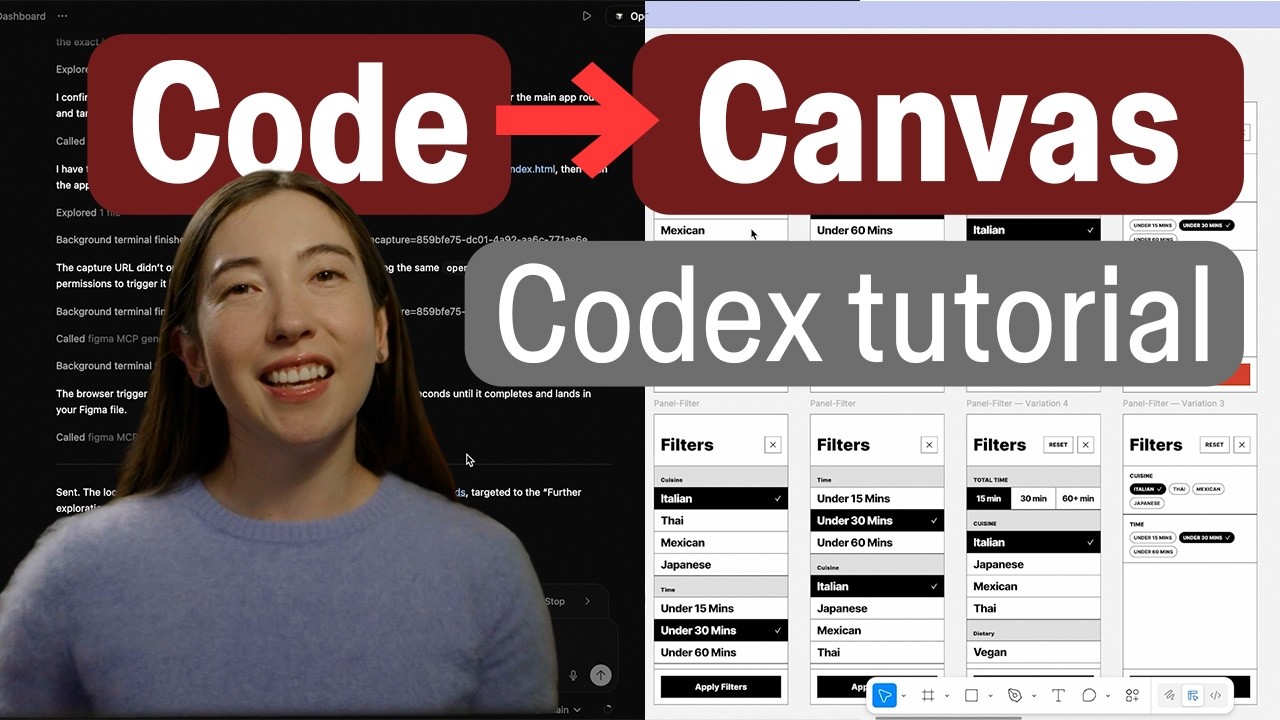
Hi, this is Anna from Figma and today I want to show you how you can bring your designs from code into the Figma design canvas and then push those updates back to code. Ideas can come from anywhere. They could start in a document, maybe in a design in Figma, or maybe you're starting to come up and flush out that idea in code. Wherever those ideas come from though, it's helpful to have the shared canvas as a place where you can see your ideas side by side to riff on teammates ideas to do some collaborative ideiation exploration before returning back to riffing and iterating on your own. So, one way that you can do this is starting from cloud code. So, let's get started with that. You can see here I've got cloud code open in my terminal. And in order to allow you to send those designs over to Figma, I need to enable the Figma MCP. You can do this in a couple of different ways. One is if you write forward slashplugin, this is going to give you a list of different plugins that are supported by claude code. So if I go into the search bar, I can type in Figma. And you can see here this allows you to uh integrate with the Figma MCP. So whether that is bringing context from your Figma designs into cloud code or creating Figma design layers from your coded prototypes. A second way that you can do this is outlined in our developer documentation. So let's escape out of this plugins and go to our dev docs. This is a really great resource to learn about just all things Figma MCP. Um, but in here you can see I can also add uh this command cla MCP add transport. So I'll copy that and paste it in. Uh let me first exit out of Claude. type in MCP. And then you can see here that it's asking me to authenticate. So I'm going to go ahead click enter. Let's authenticate. And it'll go ahead and open up the browser asking me if I would like to give Claude access to my Figma. All right. And now let's go back. Okay. So, now that we've got the Figma MCP server set up with Cloud Code, it's time for me to actually start bringing my designs over. I'm going to start out first by opening my code file. So, I'm just going to go to my downloads. Uh CD is basically the way that you can say where you want to access your files. And um I want to access this tap to table. So I've been working on this little like recipe browsing app experience. Okay, great. And now to actually be able to see this design, I'm going to just ask Claude to uh run my app locally. And basically what this will do is it's going to uh open up localhost in my browser and that's going to be where I can actually preview and interact with my coded prototype. Okay. So it says it's running at localhost. So let's just copy and paste that in. And yeah, you can see I've got my app here. So we've got some different recipes. We have like this filtering functionality. And it's um it's looking okay, but I think I do want to refine some of the designs for this filtering a little bit. So um what I want to do next is let's actually bring this into the Figma canvas. And so what I'm going to do is I have a Figma file here that I want to work in. I'm just going to go ahead and uh share copy the link to the Figma file. And then going back to Claude, I'm going to say uh send this app to this Figma file. And I'll just paste the link into it. Um you can ask it to just send it to Figma and it'll prompt you whether there's like a particular file that you want to put it in or if you want to create a new one. [snorts] Um but yeah, if there's one that you already want to use, go ahead and just paste the link in there. Um yes, I would like to proceed. So, it's going to go ahead and use the MCP to generate a Figma design off of um my coded design. All right, you can see it's popped up. It's saying it's sending to Figma. And uh yeah, here we go. We can see that it's gone ahead and dropped that in. Um

Segment 2 (05:00 - 08:00)

I can also choose to uh select a particular element. So, if I want to open up this filter panel and just send that, I'll open it up and select it. And if I wanted to even like send other screens that aren't my main starting points, um, I can also do that as well. So, I can navigate here and I can choose to send this entire recipe detail screen. And if we go in, you can see both of these are dropped in here. These are real Figma design layers. So, you can see it's created frames. It's even applied auto layout to stuff, which is pretty great. Um, and so I can make some design changes to them now that it's dropped into the Figma canvas. Um, but looking over here, I've already done some different explorations on what are some different ways we could approach the filtering panel. And um, I'm feeling this one here. So, uh, let's go ahead and bring that back to my coded prototype. So, to do that, I'm going to just click on this right click and go to copy paste as and copy a link to the selection or you can use a shortcut command L. And I'm going to go back to Claude say update the filter panel to match this design. Paste that in. All right. So, looks like Claude just finished making some updates. So, it said it's updated the filter panel to match the Figma design. So, the header, the time, the cuisine. Um, okay. So, let's go back to our design in local host and see what it looks like. And yeah, looks like it went ahead and updated it, which is pretty awesome. So just to recap in this video we covered how you can bring your designs from code into the Figma canvas for further iteration and ideation maybe even collaboration with your teammates and then bringing those updates back into code. I think no matter what you know design is a fluid experience there's no one right way to design and we don't want to force people into following any specific workflow. So whether you like working with Figma design canvas, whether it's in code, whether you want to go back and forth, uh I really hope that this helps you kind of accelerate your design process with AI and give you the freedom to really explore a bunch of different creative ideas while still being able to build these concepts quickly. I hope you guys take a chance to check this out, play around with it, and we would love to hear your feedback. And happy designing. —

Другие видео автора — Figma

Ctrl+V

Экстракт Знаний в Telegram

Экстракты и дистилляты из лучших YouTube-каналов — сразу после публикации.

Подписаться

Дайджест Экстрактов

Лучшие методички за неделю — каждый понедельник