Monitor your training runs with the Weights & Biases mobile app
4:46

Monitor your training runs with the Weights & Biases mobile app

Weights & Biases 16.03.2026 579 просмотров 5 лайков

Machine-readable: Markdown · JSON API · Site index

Поделиться Telegram VK Бот
Транскрипт Скачать .md
Анализ с AI
Описание видео
The Weights & Biases mobile app brings real-time AI experiment monitoring to your mobile device. In this demo, you’ll learn how to track runs and projects, view live metrics, search for key signals like training loss and accuracy, and set up push notifications for run failures or metric thresholds. Stay on top of issues and respond quickly, wherever you are. *Download to iOS* https://apps.apple.com/us/app/6755162576 ⏳*Timestamps*: 0:00 Introducing the Weights & Biases mobile app 0:20 Monitor AI Experiments from anywhere 1:07 Logging in 1:18 Viewing runs 1:37 Searching runs 1:54 Run metrics notifications 2:46 Viewing projects 3:21 Failure alerts 3:39 Push notifications 4:01 Profile 4:10 How to download and install the Weights & Biases mobile app

Оглавление (11 сегментов)

Introducing the Weights & Biases mobile app

Hi, I'm Russ from Weights and Biases, and today I'll be taking you on a tour of the Weights and Biases mobile app that enables real-time run tracking, live metrics, and notifications, allowing you to optimize training performance anytime, anywhere. As AI researchers and engineers ourselves, we

Monitor AI Experiments from anywhere

know the feeling of kicking off an experiment and watching the W& B models workspace spring to life as metrics start rolling in. Monitoring results isn't just about tracking progress. It's also about catching issues as they happen. Whether that's a hardware failure or a model that won't converge so you can take action quickly if necessary. The Weights and Biases mobile app, the first iOS app designed for monitoring AI experiments, gives you the freedom to leave your desk and your training runs without missing a beat. Just install the app on your mobile device and you can stay informed and in control wherever you are. Let me walk you through some of the app features using this AI model pre-training project I've been working on. After downloading and installing the

Logging in

app, just log in using your weights and biases credentials. The first thing you'll see is your WMBB models runs starting with your active

Viewing runs

and most recent runs. You'll see the run name, the project name, and your team name at the top of each run card, and at the bottom, the name of the metric. Clicking on the run will show you all of the logged metrics in alphabetical order. From here, it's easy to get to your metrics of interest by just typing

Searching runs

the name into the search bar up top. For example, if I type in train, I can see all the metrics that are in the train section or begin with the word train. and I can add slashloss to get my loss curve. Now, it's great to get eyes on metrics like accuracy and loss, so I can

Run metrics notifications

monitor the status of my run so far. What's even greater is that I can set up a notification to pop up an alert on my phone if my training loss or any other metrics meet a specific threshold. For example, if my loss curve plateaus or validation accuracy starts to drop, it may be time to stop the run and adjust hyperparameters or revise the model architecture, saving time and compute. To set up a notification, I just click on my run to full screen it and then click the little alert button up top. Then I choose absolute or relative, whether I'm watching for an increase, decrease, or both. enter the numeric value and hit create. Now, whenever this condition is met, I'll receive an alert directly on my mobile device. In addition to looking at my latest runs, it's also super useful to drill

Viewing projects

down into my projects. I can just click on the projects icon here at the bottom, and I get a list of all of my projects with my starred projects up top. And if I click on one, I can see all the latest runs from that project. I can also click on the panels tab and see all the panels for my project workspace. If I long press on one of the charts, I can bring up the legend showing the results from my past few runs. I showed a moment ago how you can create notifications for run metrics meeting

Failure alerts

specified thresholds. You can also set up alerts for run failures on the project level. Just press the button up top when viewing a project and toggle on the run failed alert. And now if a run does happen to fail, you'll receive a notification. And here's what it looks like when you do receive an alert. No need for logging

Push notifications

back into the app and searching around. The alert is front and center, so you can take action immediately. If you want to see all of your active alerts, just click on the notifications icon. You've got your run failure alerts up top and your metric change alerts down below. And last but not least, the app offers both light mode and dark mode. Just click on the profile icon and

Profile

choose the style you prefer. Setting up your runs can be a timeconuming process and infrastructure costs can be significant. Staying

How to download and install the Weights & Biases mobile app
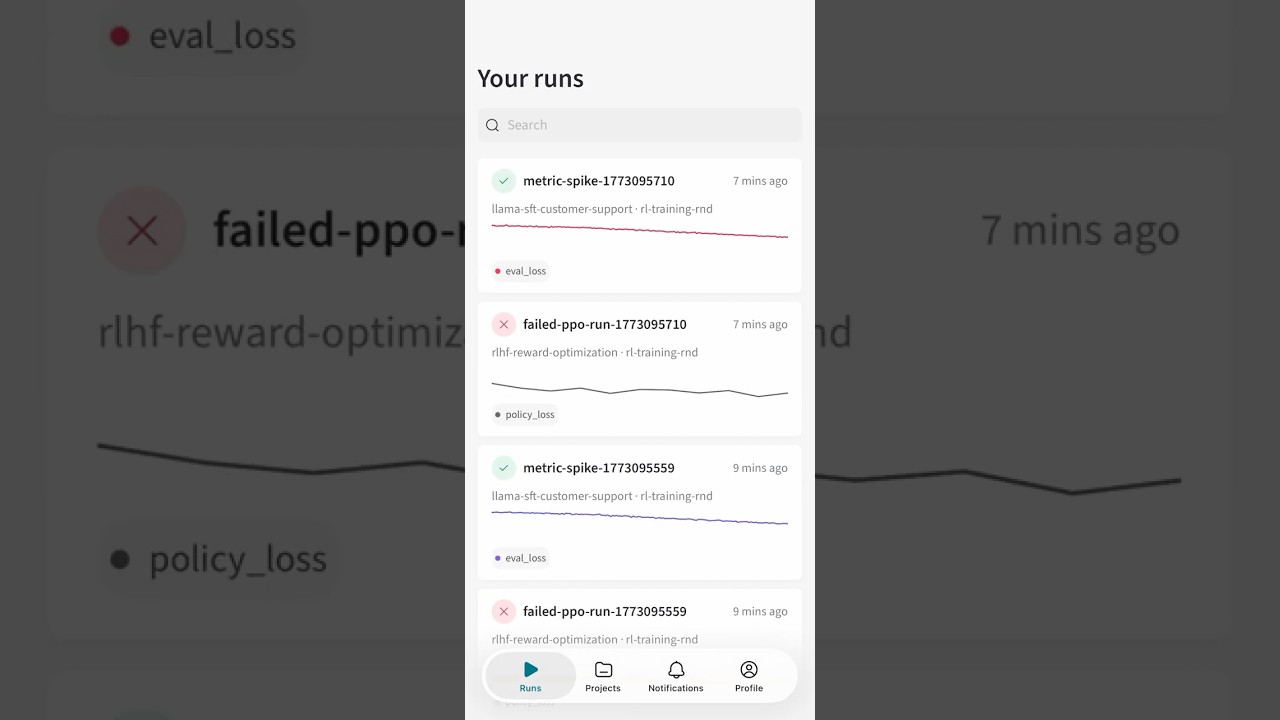
informed about your AI experiments when you're away from your desk can be of critical importance. The Weights and Biases mobile app gives you everything you need to stay on top of your runs so you can take action immediately should the need arise. The mobile app is currently only available on iOS. To get started, either visit the App Store and search for Weights and Biases or simply scan this QR code. Thanks for your time and happy building.

Другие видео автора — Weights & Biases

Ctrl+V

Экстракт Знаний в Telegram

Экстракты и дистилляты из лучших YouTube-каналов — сразу после публикации.

Подписаться

Дайджест Экстрактов

Лучшие методички за неделю — каждый понедельник