🤯 Try Vmake AI: https://vmake.onelink.me/0nOg/PaulJLipsky
💸 Get 10% price off when upgrade to Vmake Pro using this code: vmpauljlipsky
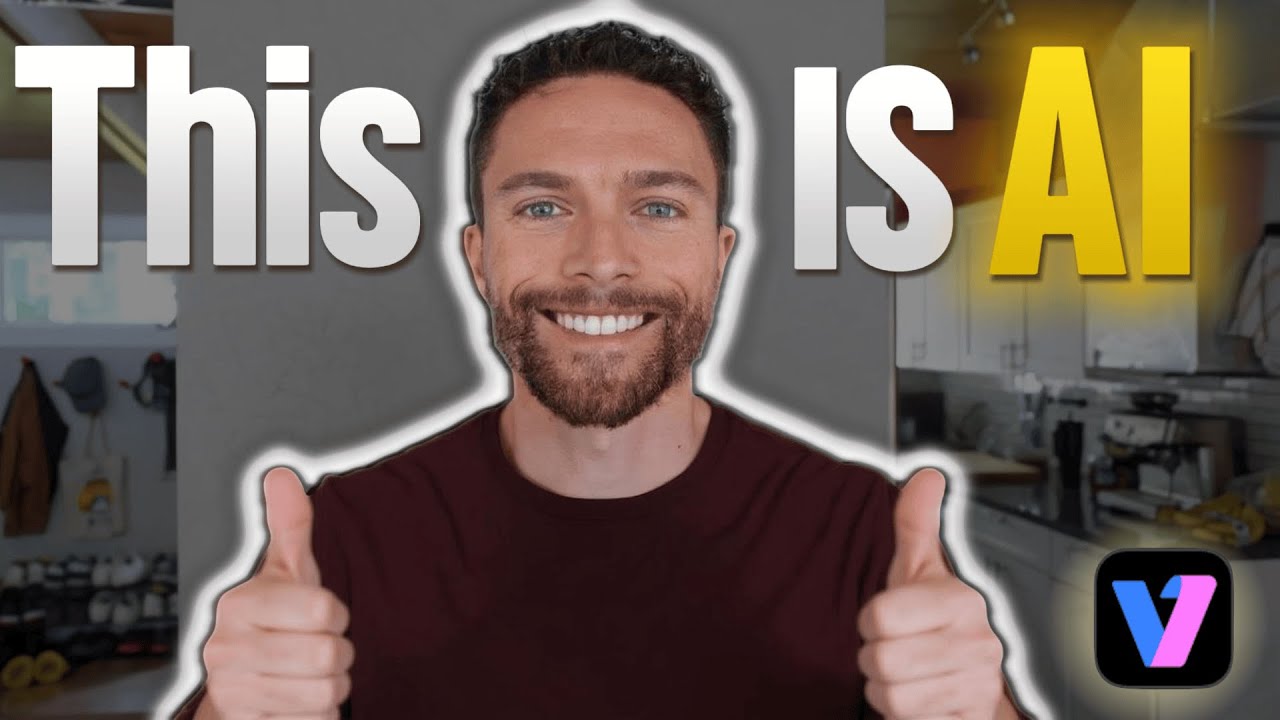
I just found this insane AI thumbnail maker that allows you to change the emotions on your face with just one click.
🤔 Have a question about Vmake AI? Drop it in the comments!
🔗 This video is sponsored. Some product links are affiliate links which means if you buy something we'll receive a small commission.
IMPORTANT DISCLAIMER - PLEASE READ:
⚠️ All content on my channel is for entertainment purposes only. There is no guarantee of success with any of the methods I show on my channel. Always do your own research.
#vmake #videoediting #emotionalthumbnail
Оглавление (3 сегментов)
Segment 1 (00:00 - 05:00)
So, I just found this incredible new AI thumbnail maker that allows you to create viral, emotional AI thumbnails like these in a matter of seconds without needing any design experience yourself. And this isn't something like Canva where you have to manually drag and create everything yourself. No, these are completely AI generated. Let me show you how it works. So, this is a tool right here. It's called V-Make AI. Now, if you come to their homepage, you'll notice that this thing actually does a whole lot. So, scrolling down here, you can see that this can be used for AI video editing. Everything from turning the audio into text. So, you have these nice captions on the videos to removing watermarks and text from videos if there's already text on it that you want removed. Video background remover, AI teleprompter, AI enhancers like upscalers, or AI generation, which is what we're going to use today with the AI thumbnail generator. Now, V-Make is the sponsor of today's video. However, everything you're seeing in this video is my own opinion and they didn't have any say over it. However, if you use the link in the description down below to sign up for V-Make, you'll be able to try it out completely for free and get access to most of the features that I'm going to show you here today. Now, first, let's talk about why this is so important. So, let's take a look at Mr. Beast, who's one of the top YouTubers in the world, and he is so good at getting people to click and watch his videos. And one reason for that is because his thumbnails are so emotional. And that is a key. If you want people to click and watch your videos, you need to have highly engaging, emotional thumbnails that get people intrigued and make them want to actually watch the video. So, if we take a look at this channel, you will notice that in every single one of these thumbnails, the creator puts a face of himself uh conveying some sort of strong emotion. So, over here, he has like a shush face. Over here, he's super excited. Even over here, he's just kind of chilling back and relaxing with a nice smile on his face. If you want people to actually click on your video, you need to connect with them emotionally. And the best way to do that is with a strong facial expression. And no one's better at this than Mr. Beast. I mean, check out how much emotion is in his facial expressions here. Here he's like struggling. You could really see it on his face. Here he's scared over here. Here he looks disgusted. And here he just looks happy. So really, if you want people to click on your videos, that is a key. Now, in the past, this required you to take dozens of photos of yourself conveying different emotions. But now, VMake AI just requires you to have one photo of yourself and then it can use AI to create all these different emotional faces. Okay, when you first open up the app, you'll notice that there is a lot available for you here. And again, that's because this app is designed to allow you to create entire talking head videos and to edit them and to record them. A lot of amazing stuff in here. But today we are focused on these AI emotional thumbnails. So let's go ahead and take a look at this. And what you can do here is select from all these different templates if you want. I'll show you that in a minute. But let's go ahead and start from scratch. I'm going to click right here where it says image to thumbnail. And the first thing it's going to have you do is upload a photo of yourself. For purposes of this demo, I'm going to use this example right here of this woman. And let's say you want to make a thumbnail that is the traditional YouTube dimensions. So 16 by9. I'll go ahead and select that aspect ratio. But they also have aspect ratios for Tik Tok videos, Instagram, or these other ones over here. So I'll go ahead and click on confirm for that. And then I'm going to go ahead and position the thumbnail exactly the way that I want. And then down here, you could add in the text for the thumbnail. So, in this case, I'm going to type in this thumbnail is AI. And then I'll click on next. Now, this is where the real magic happens because notice up here the image of the woman that we're using, she has a very neutral expression. It's not very good for YouTube thumbnail. But we can take that and actually change her expression using AI. So, let's say we want a thumbnail where she looks excited. So, I'm going to go ahead and select excited and then go ahead and click on generate. And watch what happens here. It's creating three different thumbnails for us, which is great because if you don't like one of them, you still have two other choices. And you see it's working pretty fast. Let's just give it a second to finish up. And there we go. Three highly engaging, very emotional thumbnails that were created for us. And notice it took that neutral expression and it turned her face into an exciting face. That is really, really cool. I've never seen anything like that before in an AI thumbnail generator. And it I it's wild
Segment 2 (05:00 - 10:00)
to me that technology like that exists. So, what you can do now is let's say you like one of these more than the other one. I kind of like this one right here. So, I'm going to go ahead and select this one. And then you can go ahead and edit this however you want. So, if I click on edit, I can then select any of the text. Go ahead and click on edit and actually edit what that text says. So I can say like change it to that if I wanted to. You can change the way the font looks by choosing any of these preset sort of styles. You can also change the font by coming in here and actually choosing exactly what font you want and then changing the color. However, I prefer to use these styles just because they look so nice and they're already done for you. But generally speaking, I have found that the first draft that it makes is usually really good like this one right here. So I'm very happy with this one. I can go ahead and click on save and then I can then download that and use that thumbnail for any of my videos. Let's look at another example of one of those emotional faces. I'm going to go ahead and go back and this time instead of choosing excited, let's make her angry for this one. And then we'll click on generate and see what it's able to make for an angry face. And there we go. Three thumbnails of her looking angry. Now, you see right here, like this one right here didn't quite come out the way that we wanted to because the text is over her face. And again, that's why they give you three different options. I think this middle one looks the best. That is the one that I would go with. And honestly, I think it's perfect. I wouldn't change anything about it. Like I said, there are a ton of different emotions you can choose from. We have happy, anxious, mischievous, focused, speechless, shocked, um surprised, excited, skeptical. So, there's a ton of them in here and they all work really, really well. Okay, I'm going to show you how to create another one now, but this time we are going to use these preset templates. And the reason you want to take advantage of these is because these are trending thumbnails. These are thumbnails that we've already seen or the app has already seen are trending and doing well on YouTube. And when you see that a thumbnail is working for another creator, you should try to create something very similar. So, let's go ahead and maybe use like this one right here for this example. Uh, this is our template now. And I'll go ahead and click on make the same style. Now, this time I uploaded a photo of myself. You can see right here I'm smiling. So, I'm going to go ahead and select that one. And I'm going to keep the aspect ratio here for a Tik Tok thumbnail. And then I'll click on confirm. Now, here I can center this to get it the way that I want. So, I'm happy with that. And then I can go ahead and click on next. That is the first draft. Now, obviously, you can't read that text that well. So, what you want to do is click down here where it says edit. And then I'm going to drag this text down so you can actually see it. And there you go. And once you're happy with it, you can just click on this check mark and then go ahead and save that thumbnail. Now, notice here it didn't ask us to choose which emotion to use. And that's because if we go back here, you'll notice that for this thumbnail, where is it? Right here. She just has a happy face already. So, it's going to match that expression, which I already have. So, if we come back for instance, and let's go ahead and try like this one right here, where he looks like a bit shocked, I guess you could say. And then I'll go ahead and click make the same style. I'll choose my face. And let's do three uh Instagram for this one. Go ahead and click confirm. There's my face. Click on next. You'll see this time it actually matched the style of the template. So, it made me with this really excited face. There it is right there. And that's matching now the template where the guy was super excited in his photo as well. So, pretty cool stuff. So, again, this is evoking emotion. It's showing how excited I am. Uh, this gonna get you to click on the video and try to find out why I'm so excited. When it comes to thumbnails, that is really the key. And this makes it so easy because you only need one photo of yourself. Now, just one neutral photo of yourself and then you can upload it and change your emotions to anything that you want. All right, one more example. So, I'm going to show you now how I'm going to actually create the thumbnail for this video. So, here I'm specifically going to select here where it says YouTube. Now, one thing you could do is if you already recorded your YouTube video, you could click right here where it says video to thumbnail and actually upload a video or the video that you created and grab a still from that video. That way, if you forgot to take a thumbnail photo, you don't have to worry about it. You just upload the video, grab a still from it, and use that as the basis for your thumbnail. But for purposes of this, I'm going to select the YouTube tab right here, and I'm going to select this thumbnail. I really think this one looks really cool.
Segment 3 (10:00 - 11:00)
Um, actually, no, for this video, I want this one right here. I think this looks great. And I also love that the text is behind his head. And this is going to show off another really cool feature about V-make. So, I'm going to go ahead and select make the same style. I'm going to select that same photo of myself and click on confirm. There's the photo and I'll click on next. And then here after my edits is the final result. So, all I did here was I clicked on edit and I went ahead and changed the text and got it exactly the way that I want. And notice here that this text can slide behind my head. I think that's a really cool effect that I love. I love using that for my thumbnails. Even just like a little bit there, it just makes the image of myself like pop out a lot more. Makes it a lot more powerful and engaging. And again, it gave me like these thumbs up fingers. and made my smile just a little bit wider as well to match the emotion and style of that template. And again, this is exactly what I want for a YouTube video. Obviously, this worked because you clicked on this thumbnail and watch this video. And that's what I love. I love that those templates just kind of give you all of that. So, you don't have to learn what types of thumbnails are doing well. You can just come in here, see the trending thumbnails, and create ones based on these ones that are already proven and already have the right emotion to get people to actually click on them. So, there you go. That's the new viral AI thumbnail generator by V-Make AI, which enables you to create these emotional, highly engaging thumbnails. Again, if you want to try it out for yourself, you can click on the link in the description down below and grab a free trial of V-Make AI. Thanks so much for watching and I'll see you in the next video.