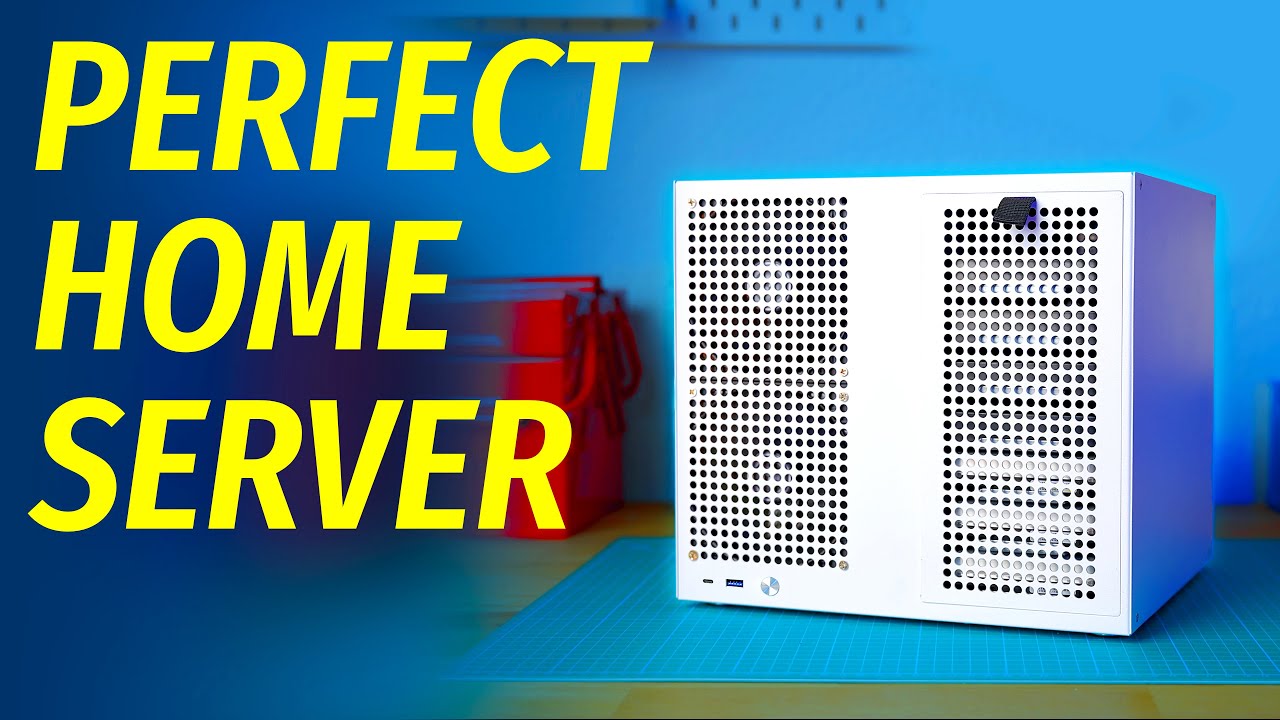
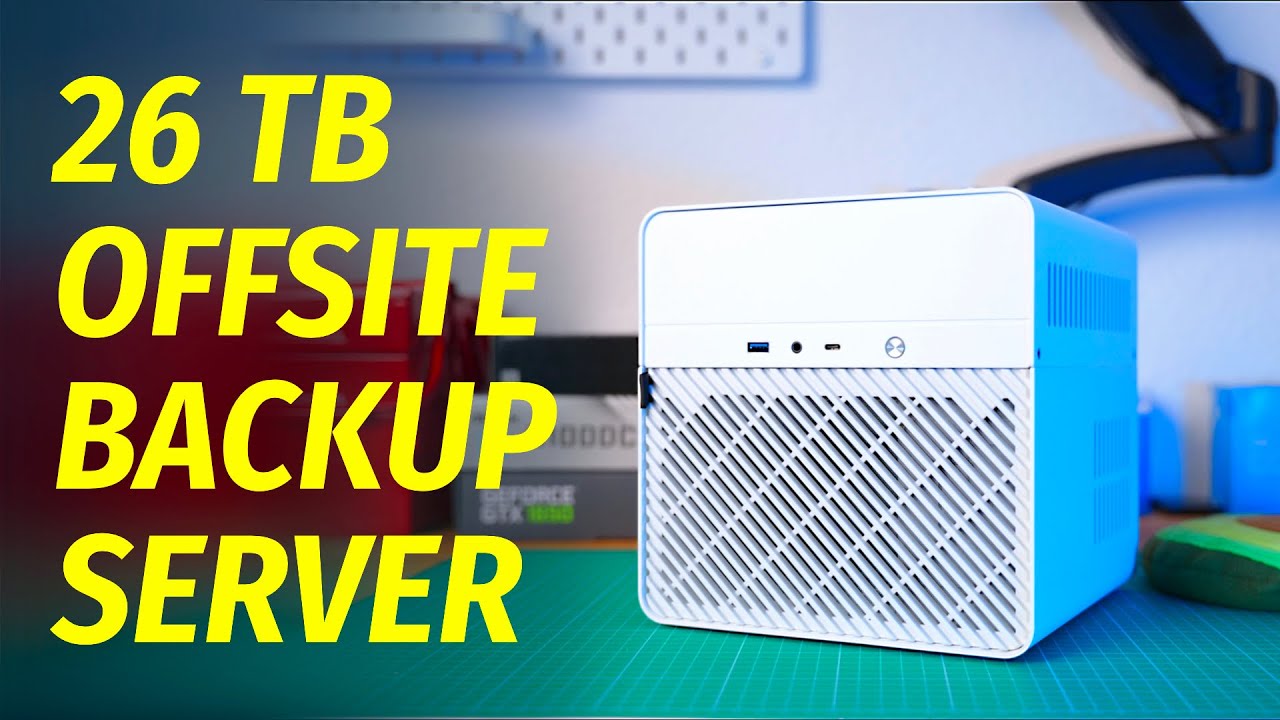
So it’s finally fall, or autumn for my European friends, and it would usually be around this time of the year that I would make a new “Perfect home server” video. But so far, all of my perfect home server videos were focused around hard drive based storage. and in the year 2025, hard drives are an obsolete technology. So in this video, we’ll be looking at not one, not two, but three storage focused SSD-only NAS devices. Why three? Well, you guys always complain that my server builds are impossible to buy, require sketchy parts from Aliexpress, or a 3D printer, or are just plain expensive. So I decided to give you guys three options. one option that’s impossible to buy, one that’s expensive and requires 3D printing, and finally, one that’s built from sketchy Aliexpress parts. And spoiler alert, personally, i think the last one is the one to go for. Just like I think that out of all options to learn backend web develoment, you should choose Boot. dev, who’s sponsoring today’s video. boot. dev is an online learning platform that teaches you backend web development, from start to finish, in Python, SQL and Go. Unlike some other course platforms, boot. dev doesn’t promise to make you a genius programmer in a couple of weeks. They know that learning software development can be very challenging, so they’re using tactics from modern game development, like XP, levels, achievements and quests, to make learning actually fun and engaging. They’ve recently launched Training Grounds, which are kind of like procedurally generated dungeons for code material that you’ve learned in a course. You can use them to practice as you need before you move on to the next chapter or course and yes, the challenges are actually generated dynamically, so you never run out. boot. dev also features Boots, a AI bear wizard that’s been trained on all the material on the website, and can help you if you’re stuck on one particular task. He doesn’t just give you the answer, but instead asks follow up questions and kind of just of gently leads you towards the right answer. And if you ever have a question that the AI bear wizard can’t answer, boot. dev features a vibrant Discord community, with tons of real humans that can help you if you ever have a particularly challenging task. So go ahead and try out Boot. dev for free! All of the content on boot. dev is free to read and watch, but a paid membership unlocks all the interactive features, such as hands-on coding, AI assistance and game mechanics. Check out the link in the description and use my code WOLFGANG to get 25% off your entire first year on the annual plan So thank you Boot. dev for sponsoring today’s video, and now, let’s move on to the first question of this video. Why? Why you would even want to build an all-SSD NAS? Most people who build a NAS for home use, use it for things like backups, media streaming, game servers or file sharing. And even though they might need a lot of storage for movies, music or backups, not all of this storage needs to be blazing fast. Additionally, most people still have local networks that run at 1 Gigabit, or even slower when using WiFi. so they won’t be able to profit from the faster speeds of SSDs when accessing their NAS over the network. That’s why, in my opinion, for most users, a combination of 1 to 2 TB SSD for container and VM storage, and a few hard drives for bulk media or archival storage is gonna make way more sense economically. So who is an SSD-only NAS for? Well, one group would be people who store a lot of data, need to be able to access it fast, have a fast local network, and money to spend. Think video editors, or music producers who have a big library of samples. On the other end of the spectrum, weirdly enough are people who actually don’t need a lot of storage in their NAS. so they can ditch hard drives entirely, and just get a couple of 2 or maybe 4 TB SSDs. And even though they might not have a fast enough network, or even a use case that would warrant blazing fast storage, an SSD-only NAS also has other upsides that aren’t related to speeds. One of them is size. since M. 2 drives are so much smaller than hard drives, you can theoretically have a NAS that packs a lot of storage, but also literally fits in your pocket. SSDs are also less power hungry than hard drives and the M. 2 SSDs don’t require separate power connectors. Finally, SSDs are also virtually silent, and can also be cooled passively. Unlike hard drives, which are pretty sensitive to high temperatures and require good airflow at all times. So now that you know why you would want to build an SSD NAS, let’s look at our first contestant for the “perfect” SSD-only NAS, Mayiunda M1S represents a somewhat broad category of devices. Namely, miniPCs based on the Intel N100 or N150 CPU which are super compact, but also have four or more M. 2 slots for NVMe SSDs. Jeff Geerling actually reviewed a few miniPCs that are similar to M1S, GMKTec G9, Aiffro K100 and Beelink ME mini. And unfortunately, all three of these devices have one pretty glaring issue, which can probably be blamed on the pursuit to make them as tiny as possible. all three miniPCs feature soldered in RAM. 12 gigabytes on the Beelink and the GMKtech models
Segment 2 (05:00 - 10:00)
and 8 gigabytes on the Aiffro model. Apart from that, each device has its own problems, some of them pretty severe. The Aiffro K100 only has four storage slots, with no built-in eMMC or any other possibility to add a dedicated boot drive, The Beelink ME mini has a proprietary built-in power supply, so you can’t power it from something like a USB-C power bank, And the GMKtec G9 would actually crash when copying files from it. So while looking for a miniPC that doesn’t have these issues, I stumbled upon the Maiyunda M1S. It’s similar to the miniPCs that Jeff reviewed in his video, in that it’s also based on the N150 platform, also has 2. 5 gig Ethernet, and is also pretty compact. When opening the bottom cover, we also see that the M1S has 4 NVMe slots, but unlike other miniPCs it’s also got user replaceable RAM, and a WiFi slot, which can be converted to an NVMe slot I’ve paired the M1S with a 32 gig stick of DDR5 memory, and even though N150 only officially supports up to 16 gigs, all the memory was detected by the system, and I’ve seen no crashes or instabilities. For the boot drive, I’ve used a 2230 size SSD which I borrowed from my Steam Deck for this review, I also used this adapter to fit an M-key SSD into an A+E slot made for Wifi cards it uses a pretty clever system for mounting the SSD, but unfortunately, there’s no way we can actually screw it in such a tight space. So I basically just put a piece of putty between the SSD and the WiFi adapter, and it seems to hold just fine. Apparently, some review units have been shipped with a special-made horizontal M. 2 adapter but unfortunately, I wasn’t able to get my hands on it… more on that later. And speaking of the USB port, if you use Unraid, you can actually put your boot drive in here, without wasting an external USB port. But enough talking, let’s install our SSDs and see what this thing can do. For this video, I partnered with TeamGroup, who were kind enough to send me four 4TB MP44 Gen4 NVMe SSDs. These feature TLC NAND, a durability rating of 2000 terabytes written, and can be found for around 230€ for the 4TB version, which makes them a pretty good choice for an SSD-based home NAS. After assembling the NAS and closing it up, I first installed Debian 13 on the boot drive. After the installation was finished, the first thing I wanted to do was obviously to check out the power draw. I installed powertop, ran powertop —auto-tune, and wanted to take a look at the C-states… only to discover that the system doesn’t even go into C2. After taking a look at the PCIe devices, it became pretty obvious why. All PCIe slots reported ASPM as not supported. So I rebooted into BIOS, and activated all settings that had ASPM in their name. Unfortunately, after booting into Debian again, I discovered that the Ethernet stopped working. It was also not detected by lspci or ip. Disabling ASPM fixed the issue. Not a great start. Despite non-functioning ASPM, the M1S consumed around 10 to 11W from the wall at idle, which is not that bad. Now let’s get to the actual performance of the SSDs. For the file system, I’ve chosen ZFS. In order to install ZFS on Debian 13, I first had to enable the contrib components for the official repositories. After that, I installed all the dependencies, and activated the ZFS module with the `modprobe` command. Then, I’ve created a RAID-Z1 pool of 4 SSDS, and set the compression parameter to lz4 Now, RAID-Z1 isn’t the most performant pool type, but it does let your pool survive one drive failure, while only sacrificing the equivalent of one drive in terms of usable space. You could also go with a 2-disk mirrored setup, which does provide more redundancy and more performance, but you’ll also have to sacrifice half of your usable space. Besides, this video is not about finding the most performant or most redundant configuration for ZFS, it’s about having a consistent setup to test the drives across all three devices. The first thing I wanted to was to benchmark the file system performance locally. For that, I’m using fio with read and write scenarios that are similar to CrystalDiskMark, so sequential read and write first, then single-threaded random reads and writes, and then multi-threded random reads and writes with the queue depth of 32. I’m also using the —direct option, as well as file sizes that are bigger than my RAM. which in theory, should circumvent the ZFS ARC, And so, here’s what the results look like – 2620 megabytes per second for sequential reads, 743 writes, 21. 7 and 68. 2 megabytes per second respectively for random reads and writes with qd one and finally, 15. 5 and 185 megabytes per second for random reads and writes with qd32. Now, if you know anything about NVMe SSDs, you might notice that the speeds are pretty underwhelming. According to the benchmarks online, the MP44 drives should be capable of at least 6000 to 7000 megabytes per second.
Segment 3 (10:00 - 15:00)
So, what’s going on here? Well, one obvious reason is the N150 platform being limited to PCIe Gen. 3, whereas the MP44 is a Gen. 4 drive. But that’s not all. See, a standard M. 2 NVMe port usually has 4 PCIe lanes. So four M. 2 ports would require 16 lanes. The N150 however, only has 9 PCIe lanes in total, some of which are also required for the USB controller and the Ethernet NICs. So, how could Maiyunda fit four NVMe slots on this thing? Well, very simple – all four M. 2 slots are actually running at PCIe Gen. 3 by 1 And that becomes very apparent when looking at the verbose lspci output. As you can see, all of the drives have Width x1 and max speed 8 Gigabit per second next to them. Now despite that, I actually don’t think that this is a big issue. Your real bottleneck is most likely going to be the 2. 5 gigabit ethernet. So to me, it would make a lot more sense to benchmark the drive performance over the network. For that, I bought this 2. 5 Gigabit switch from Vimin, which also has two 10 Gbit SFP+ ports. I’ll be running the tests on my Macbook Pro, which is connected to the switch using a 10Gbit Thunderbolt NIC. As for the protocol, I’ll be using Samba, with pretty much all default settings, and no performance tuning of any kind. Thankfully, fio is also available on Mac, so I can basically use the same fio command that I used on the server directly, to also test the file system performance over the network. And so, what are the results? Well, we got 294 megabytes per second for sequential reads, 122 writes, 9. 6 and 6. 3 megabytes per second respectively for random reads and writes with qd one and finally, 54. 1 and 7. 2 megabytes per second for random reads and writes with qd32. As you can see, we’re able to pretty much fully saturate the 2. 5 Gig network on the reads, but the writes are a totally different story For what it's worth though, copying the file to the Samba share in Finder, does get us to around 290 mb/s So feel free to take these numbers as more of a point of comparison between all three NASes Temperature wise, the drives remained pretty cool, only reaching about 48 degrees during the tests the N150 CPU got pretty toasty, especially during the qd32 random read and write tests, reaching around 70 to 80 degrees celsius despite a pretty aggressive fan curve on the M1S. And yes, this thing definitely isn’t quiet. If you’ve ever used an x86 laptop that sounds like a jet engine as soon as you open a browser, this is the noise level that you should expect from the M1S. As for non-storage-related stuff, the M1S also makes for a pretty good media server, I’m seeing around 55 FPS when transcoding a 4K HDR HEVC copy of Dune, which is enough for a smooth playback. In terms of power consumption, the M1S drew around 18-20W during the fio benchmarks. And around 21W when transcoding the movie using Jellyfin. So at the end, is the Maiyunda M1s a good NVMe NAS? Well, it certainly has a lot of upsides. It’s small, sips power, despite the non-working PCIe power management, has a 5th M. 2 slot for a small SSD, and was pretty cheap, at 172€, when I bought it on Aliexpress at the beginning of August 2025. Now, why the past tense, you might ask? Well, in the month that passed between me buying this NAS and me writing a script for the video, it has seemingly completely vanished from all online storefronts. There are four listings that offer the M1s at absolutely ridiculous prices, the official Maiyunda website lists it as “sold out”, and the only place you can buy it on is Alibaba – a website which only does B2B. However, there is a very similar device on Aliexpress, which, judging by rear IO, even uses the same motherboard Now sure, it doesn’t have that Apple-like unibody look, but hey, at least you can actually buy it. Now as for the price, the NAS itself will set you back 183€. You’ll also need RAM – in my case, I bought a 32 gig stick of DDR5 RAM from Corsair for 79€. You might need less, but since this NAS only has one memory slot, and since I’m using ZFS, I decided to go with 32. As for storage, you can get a 2230 size 256 gig SSD for around 30€. and yes, you won’t be able to fit anything bigger in there. You’ll also need an adapter to fit that SSD into a WiFi slot, and these can be had for around 7€ a pop. So, the total cost of this NAS without the actual storage drives, comes out at around €300. Is this a lot? Well, Beelink ME Mini, which i mentioned earlier, and which comes with 6 NVMe slots, currently goes for 289€ on Aliexpress. That includes 12 gigabytes of non-upgradable RAM and a 64 gigabyte eMMC module for your operating system.
Segment 4 (15:00 - 20:00)
According to the reviews, the Beelink ME Mini is pretty quiet, so if that’s something you value – it honestly sounds like a better choice. The only two issues it has is the soldered in RAM, and a proprietary integrated power supply. But if these aren’t deal breakers for you – Beelink is the clear winner. Now let’s move on to our next contender for the title of the perfect SSD NAS – the FriendlyElec CM3588 NAS board. Now you might remember this little board from a Linus Tech Tips video, in which Linus used it to build a little SSD NAS. Just like the M1S, the CM3588 has four NVMe slots, as well as a 2. 5 Gigabit NIC. However, it’s also based on an ARM chip instead of x86 – namely the Rockchip RK3588. Which means that in theory, this board should be super power efficient, practically silent, and about as powerful as the boards based on N100-series Intel CPUs. So let’s see if that’s the case. In terms of performance, the RK3588 is somewhere between Intel’s last gen embedded CPUs, like the N5105, and their current chips, like the N100 and N150. But as you can see, unlike those chips, the RK3588 can be cooled completely passively, with just a tiny heatsink. Moreover, this board already comes with RAM and eMMC storage. I went for the 32 gig model, because the RAM is soldered in, so there’s no way to upgrade down the road if you end up needing more. And just like the N-series Intel chips, there’s no support for ECC memory. In terms of price, I paid 234€ for my unit, which I thought wasn’t that bad, That’s until I got charged a whopping 51€ for taxes and customs, bringing the total price to 285€. And that’s without a case. Now, I could’ve bought the kit that includes the case as well, but the good thing about the CM3588, is its relatively big community. So naturally, there are already a few case designs, which you can 3D print yourself, and save around 25€. Plus, I had to somehow justify the joke about “requiring a 3D printer” at the beginning of the video, so that’s why I 3D printed my case. And honestly, it turned out okay. apart from maybe the microSD card slot. In terms of size, the CM3588, in the 3D printed case, is not quite as compact as the Maiyunda M1s, but you can still definitely fit it in a backpack. Now that we’ve talked about the price and the appearance, let’s pop the SSDs in, power this thing on, and see what it can do. Now, initially, I wanted to install Debian 13 on this thing, and that’s where I hit the first caveat of running an ARM-based board for a home server. Debian 13 is not available for the CM3588 just yet. So instead, I’m gonna be using OpenMediaVault 7, which this board actually came preinstalled with. Now, it’s not the official OMV build, but something that FriendlyElec and the community built themselves And that's kind of the problem with these NAS boards. Since a lot of boards need proprietary blobs and drivers for all the hardware to work, You can't just install any operating system you want without some tinkering Then there's the operating system support in general. Out of the three typical “homelab OSes” like Proxmox, TrueNAS and unRAID, Neither supports ARM. There is an unofficial port of Proxmox for ARM devices, But it's definitely not plug and play. For what its worth though, the RK3588 does support KVM, as in kernel virtal machine, not keyboard video and mouse so you can run virtual machines on it with no problems. Now, seeing as how this board came from Aliexpress, you might want to reinstall the operating system of your choice from scratch, but this is just for testing purposes, so I’m gonna go with what’s already pre-installed. I’ve also used a Github Gist by CodeBradley to set up ZFS on this thing, and that worked with no issues. So the first thing you’re probably wondering about is – how is the power consumption? Well, at idle, this thing draws just 3. 2W and that’s with all four SSDs installed, and before running powertop —auto-tune, or doing anything with the ASPM. Looking at powertop, we see that this board actually only has two C-States: WFI, and cpu-sleep. Keep it simple, I like it. After running powertop —auto-tune as well as my auto aspm script, the power consumption actually went up by a watt. So I guess that no tweaks are necessary for this thing to run at its most efficient. In terms of PCIe speed, the CM3588 is also limited to only one lane per NVMe slot, but what about the actual drive speeds? Well, running our fio benchmarks, we get the following results: 2460 megabytes per second for sequential reads 1047 writes, 9. 8 megabytes for random reads 103 megabytes for random writes, and finally, 9. 6 and 95 megabytes respectively for sequential reads and writes with the qd of 32. Running the same tests over Samba, we get the following results: 293 and 189 megabytes per second
Segment 5 (20:00 - 25:00)
for sequential reads and writes respectively 5. 6 and 4. 2 megabytes a second for random reads and writes with qd of one and 26. 4 and 5. 4 32. Temperature wise, the CPU reached as high as 80 degrees during random io tests with the drives reaching 52 degrees C. That’s with no fans whatsoever, with the whole thing cooled passively. I’ve also ran the tests with a fan, and even though that did improve the thermals, reducing the CPU temperature from toasty 80 C to around 37 C it did not affect the test results. Still, if you live in a hotter climate, you might want to invest into a fan. Just keep in mind that there’s no standard fan connector on this board. So what about use cases other than file transfer? What if you want to stream a movie? Well, jellyfin actually supports hardware transcoding on the RK3588 chip. They have an article on their website that outlines the setup on bare metal, Docker, LXC and virtualized installs So make sure to check it out if you want to setup Jellyfin on this board As for actual results, we're getting a whopping 60 FPS when transcoding our 4K HDR video file with tone mapping. Which is a really good performance, Especially for a board like that. But the best part is that during the transcode, the system drew just 10. 4 watts from the wall, which is some crazy power to performance ratio. So, in summary, can I recommend the CM3588 as an SSD-only NAS board on a budget? Well, honestly, I didn’t expect it, but I think that in a lot of regards, the CM3588 actually beats the Mayunda M1S. It’s virtually silent, sips power, even while transferring files or transcoding 4K video, and actually beats the M1S in terms of hardware video transcoding. The only downside, in my opinion, is the fact that you can’t just install any operating system you want on this thing. You can, however, install NixOS, and I mean, what else do you need? Now, you might have noticed that the two NAS builds we’ve looked at so far are pretty similar. They’re both pretty compact, both have 2. 5 gig networking, both feature low power CPUs, both cost around 300 euros, and both use one PCIe lane per SSD. Neither of the machines also supports ECC memory, which, for many of my viewers, is crucial when building a storage-focused home server. And as great is it to have a super compact flash NAS, there’s also no ability to add a higher speed networking card on either of the machines. But what if I told you that for a little bit more cash, you can build yourself an SSD-only NAS, that supports ECC memory, actually uses 4 PCIe lanes for your SSDs, and even has an extra PCIe slot that you can use for a high speed networking card. And, sure, let’s throw in 8 SATA ports, while we’re at it. Now you might think that I’m talking about a big expensive server motherboard, which will probably also cost a fortune and draw hundreds of watts. But no, I’m talking about a 100€ miniITX motherboard from Aliexpress. This is a BKHD-C246. It’s a miniITX board that takes 8th and 9th Gen Intel CPUs, comes with two M. 2 slots as well as 8 native SATA ports, four 2. 5 gig Ethernet ports, and one full length x16 PCIe slot. And yes, it actually only costs 100€. But Wolfgang, you might say, this board only has two NVMe slots. How are we gonna fit our four SSDs on it? Ah, I’m glad you asked. Since C246 is a workstation chipset, this board also supports PCIe bifurcation. Which lets us split the 16x PCIe slot into three slots – one 8x and two 4x slots. Then, we can use this bifurcation adapter, which I once again bought on Aliexpress, for around 7€ to add two additional NVMe slots to this board. And we can also plug in a low profile PCIe card, which should then fit into a full size PCIe slot. I personally bought this motherboard including an i3 9100 CPU for 146. 31€ including taxes. The i3 9100 is slightly more performant than the N150 in multi-core, but it also has a TDP of 65W… more on that later. The motherboard itself without a CPU currently goes for 105€. Personally, if I were you, I wouldn’t buy the memory from the same seller, because they don’t specify whether it’s ECC memory. Now as for the ECC, since this is a workstation grade motherboard, it does support unregistered ECC memory, in ECC mode, provided you have the right CPU. For this generation of Intel CPUs, ECC is supported on Celeron, Pentium, i3 and Xeon CPUs
Segment 6 (25:00 - 30:00)
As you can see, with an i3-9100, we can actually see that the system has ECC support in lshw. Just make sure to get unregistered ECC memory, or UDIMM and not the registered kind, or RDIMM. RDIMMs are cheaper, but they only work on server-grade chipsets and CPUs, and the C246 is a workstation chipset. Personally, I’ll be using these two weird looking 16GB sticks from Crucial, but in general, any DDR4 UDIMM ECC memory should work for this. For the boot drive, I’ll be using this 256 gig SATA drive from Samsung. There’s obviously no eMMC on this board, or even a slot for a WiFi card, but since it has 8 SATA ports, we can actually get away with a cheaper SATA SSD for a boot drive. For the case, I got this miniITX case called “A09” from Aliexpress for 46€. Now sure, it’s a lot bigger than the Mayunda M1S, but it’s also not huge. and unless you really need a NAS that you can chuck into a backpack and travel with, it’s probably not that big of deal. That being said, this case is small enough to where we actually need to be careful, when choosing the CPU cooler. Anything taller than 40mm will probably interfere with the PCIe card. I’ll be using the Thermalright AXP36-90, which I’ve also used in my perfect home server last year. This cooler is only 36mm tall, hence the name, and should let us put a PCIe card on top of it with no issues. Now as for the card itself – the world is your oyster. personally, I’m gonna use the Intel X710, but there are plenty of cheaper 10 gigabit and even faster cards out there. Just make sure that your card actually comes with a low profile bracket. Speaking of low profile brackets, there’s one big problem. It turns out that half height and full height brackets actually have different screw holes. So I’ve 3D printed a full size bracket with low profile screw holes for the card itself. And it’s not my best work… The model that I worked on was made for sheet metal, not 3D printing, so it ended up being very thin and flexible. Which actually worked in my favor, because the Intel X710 baaaarely fits into this case. As you can see though, the flimsiness of our bracket is not a problem, since the card is also supported by the riser. This thing is not going anywhere. hopefully. And yes, unfortunately, there’s absolutely no way we can leave the front I/O daughterboard in. The X710 is once again, just way too big. Finally, for powering this thing, I’ll be using a PicoPSU 120 with a laptop power brick. We can then use double sided tape to mount the brick at the bottom of the case. And now let’s close it up, and do our… Wait a second, did I just build a worse Minisforum MS-01? Now yes, for €470, or 590€ including RAM and a boot drive, the MS-01, on paper, provides way more bang for your buck. It already comes with the 10 gig SFP+ ports, can also fit 4 M. 2 SSDs, if you count the PCIe slot, and is also smaller than our miniITX build. But it also doesn’t have a dedicated slot for a boot drive, doesn’t have ECC support, and in general, isn’t as versatile. With this board, you could, theoretically, also build a hard-drive based NAS, thanks to its SATA ports, or maybe even add some SATA SSDs. The MS-01 is also 150€ more expensive than our DIY NAS. Which, considering the performance difference, and the sleek form factor, is more than justified. But at the same time, since it’s a DIY build, you can save some money by picking a different case, re-using the components that you already have on hand, or, for instance, not buying the 10 gig networking card. This board already comes with 2. 5 gig NICs, so maybe that’s already more than enough for it. Ok, now let’s finally look at our test results. During local tests, our DIY performed as follows 6900 megabytes per second sequential read 1420 write 30. 7 and 166 megabytes per second respectively for random reads and writes with qd1 113 and 384 qd32. As you can see, now, with four lanes of PCIe per SSDs, our MP44 drives can finally stretch their legs, at least for sequential reads and writes. And it also seems that my tricks to try and circumvent the RAM, didn’t quite work. At the same time, we’re benchmarking the entire system here, and not just the drives, so it’s only fair. Now let’s look at the tests over SMB on the 2. 5 gig connection. 294 megabytes per second sequential reads 239 megabytes per second sequential writes, 7. 3 and 5. 8 megabytes per second random reads and writes with qd1 and finally, 31. 4 and 8. 3 megabytes per second random reads and writes with qd32.
Segment 7 (30:00 - 33:00)
Once again, fully saturating the 2. 5 gig connection on the sequential reads, which is expected, but what about the 10 Gig? Well, once connected to the NAS via the SFP+ cable, and running our usual fio commands, we get the following results 1175 megabytes per second sequential reads 515 writes 11. 7 and 9. 3 megabytes per second random reads and writes with qd1 and finally, 103 and 13. 3 megabytes per second for random reads and writes with qd35. The write results are pretty weird, but weirdly enough, we actually get the full 10 gigabits, when copying the file to or from our Samba share in Finder. As for the video transcoding in Jellyfin, we’re getting 55 FPS, which is more than enough to transcode this 4K movie without buffering. So, what about the power consumption? Well… this setup definitely doesn’t get any awards in this department. We get around 14. 5 watts at idle with the maximum C-State being C3. And as much as 85 watts when benchmarking our drives locally. That’s like 8 times the power consumption of the CM3588. Now granted, you probably won’t be hammering your drives 24/7, but 85 W is… a lot, especially for a flash based nas. And during the video transcode in Jellyfin, this NAS draws 47 watts. Finally, let’s talk about the price, this whole build, without the 10 gigabit Intel X710 card, cost me €377. The reason why I’m excluding the card, is because not everyone is gonna need one. Some of you might only have a 2. 5 Gigabit network at home Some of you might want to opt for an even faster card, like 20 or 40 Gigabit. Some of you might want to swap it out for another NVMe drive, or an HBA. Besides, I don’t think it’s fair to compare this build, including the 10 gig card, with the other two builds, which only have 2. 5 gig NICs. That being said, adding the X710 puts the price at €440. So at the end, who would I recommend this build to? Well, if you want faster networking, faster storage, ECC support maybe have some components lying around, if you appreciate the versatility of this build – things like 8 SATA ports, and a PCIe slot, and also don’t mind its size – this build is definitely for you. If, however, you want something that draws as little energy as possible, is small and light to the point where you can just put it in your pocket, something can be cooled passively, and provided you only want 2. 5 gig networking, and don’t mind not always having the latest and greatest operating system or kernel, You might want to look at the FriendlyElec CM3588. Finally, if you want something ultra compact, but at the same time, something where you can still install things like Proxmox, Unraid or TrueNAS, and run virtual machines, and if you don’t mind the noise, you should definitely take a look at the Mayunda M1S. So that’s gonna be it for this video, I hope you guys enjoyed it, and as usual, I would like to thank my Patrons.