Asrock N100DC-ITX. You guys have been begging me to make a video about this board, and it took me months to finally deliver. Why? Well, because there isn’t really much to say about it. It’s a great board for a low power small form factor home server. It comes with a passively cooled 4 core CPU which is rated for a TDP of 6W It can be powered from a single 19V power brick It draws less than 6 watts at idle, It has both an M. 2 slot, and an open ended PCIe x2 slot It features a powerful iGPU that supports AV1 decoding And you can actually buy it locally, at least here in Europe. Which means that you won’t have to import it from Aliexpress, like some other low power motherboards. So, that’s it, right? Video over? Well, not quite. Thing is, the Asrock N100DC-ITX has one big weakness, which makes it a no-go for a DIY NAS. It can only take 2 hard drives. That’s right, not only does this board only have 2 SATA ports, it also doesn’t offer any way to power your drives, apart from this wimpy JST connector and a power cable made for, once again, two drives. And it’s so frustrating! Because there isn’t really any other board out there that is miniITX, has a PCIe x2 slot for a 10 gigabit networking card, and supports lower C-states! But fret not, because today, we’re gonna be fixing that problem and turning the N100DC-ITX into the perfect DIY NAS board that it was always meant to be. I’m also gonna be putting together a little build using this motherboard and the Jonsbo N2 case, as well as doing some benchmarks and measuring the total power consumption. I’m very excited about this low power build, so let’s put it together – right after a word from today’s sponsor, Notion Now Notion is the kind of app that doesn’t need an introduction. In fact, everything you’re hearing right now was first written in Notion! I’m using Notion to manage pretty much every aspect of my channel – budgeting, project management, scripting and finances – And recently, Notion’s launched a new feature called Notion Q&A. It’s your personal AI-powered assistant which provides an intelligent search functionality throughout everything you’ve ever written in Notion. Now I’ve benchmarked a few CPUs on this channel, and every time I want to see how a certain CPU performed, I either have to go to my own YouTube channel and scrub through the respective video, or go to the video’s script and look for the information there. With Notion Q&A, I can simply ask “how do the CPU’s that i’ve tested so far perform when it comes to Dune transcoding? ” And as you can see, it’s gonna look through all of my scripts, and find the benchmark results for all the CPUs. Including the N100. Oops, spoilers! But Notion Q&A is actually only a small part of Notion AI which includes tons of helpful features that make writing and editing text in Notion a breeze Since I use a teleprompter in my videos, I try to write things in a more conversational tone, using Notion AI, I can rewrite entire blocks of text in a different tone, like casual, professional or straightforward. I can also use Notion AI to check things like spelling and grammar, and simplify some more cumbersome sentences. Which, as someone who’s not a native English speaker, can really come in handy. As an added bonus, unlike generative AI tools like ChatGPT, Notion does not use your data to train their AI models without your consent. You can get started with Notion for free, and unlock all the AI features for just $10 a month. Notion Q&A is still in beta at the time of making this video, and if you’re intersted in trying it out, check out the link in the description. So thank you Notion for sponsoring today's video, and now, let’s get back to the N100! So, what exactly do I mean when I say that this motherboard can only take two drives? Is it because it only has two SATA ports? No. That one is actually a pretty easy fix The N100DC-ITX features an M. 2 slot, so you can simply buy this 6-port ASMedia card for less than 20 bucks, plug it into the motherboard and this will give you 8 SATA ports in total. And unlike the JMB585 which is installed on the NAS centric N100 boards from Topton and CWWK, the ASM1166 supports PCIe power management, so it won’t give you any issues with C-states! Awesome! So what about the SATA power? Well… That part is a bit tricker Unlike it’s bigger brother, the N100M the N100DC-ITX doesn’t have a 24-pin ATX connector, so you can’t power it with a standard ATX power supply Instead, you’re supposed to use a 19V laptop power brick. And when it comes to powering your drives, the N100DC-ITX comes with a 4-pin JST power connector As well as this adapter cable for two SATA drives. please ignore the fact that there’s actually no connector at the end of that cable. Now if you just want to use two hard drives with the board, or maybe don’t want to use any spinning rust at all, this is not that big of a deal. But what if you need more drives?
Segment 2 (05:00 - 10:00)
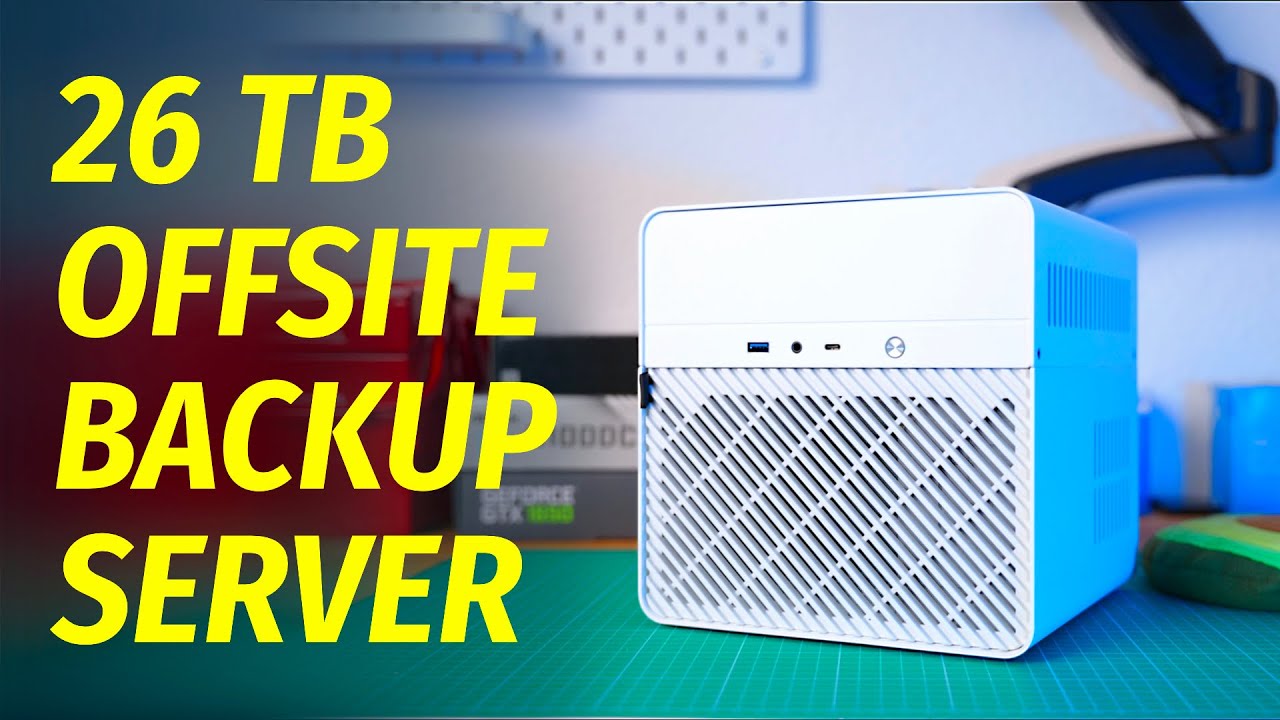
Well, right now, you’re probably thinking, why not just take the stock SATA adapter, and solder more SATA ports onto it? I mean, there are SATA splitters out there with as much as 8 SATA connectors. And even though that might work, I really wouldn’t recommend it. The 4-pin power connector on the N100DC is only rated for 2 amps per pin. And a typical 7200 RPM hard drive can pull as much as 2. 5 amps on the 12V rail when spinning up. Which means that if you have, say 4 hard drives, those will pull around 10 amps, all from a connector that’s rated for 2. Now I don’t know about you, but even though the simultaneous spinup thing only happens on startup, I still wouldn’t want to risk it in the long run. Especially for a system that’s supposed to run 24/7. The only case in which I would recommend this solution, is if you’re building an SSD only NAS, since SSDs need way less power than hard drives. That being said, Let’s talk about the solution that would let us use this board with as many hard drives as we want. That is, powering the board with a standard ATX power supply. Now at first, I almost scrapped the idea. The Asrock’s website says that you need a 19V power supply to power the board, And a standard computer power supply can only provide 12, 5 and 3. 3v. So there’s no way we can power this board from an ATX power supply short of using a voltage converter. Or at least that’s what I thought, until I read the N100DC-ITX review from IgorsLab. As it turns out, despite what Asrock says, This motherboard will happily take anything between 12 and 20V, which makes our task way easier. Armed with that information, we can make a custom power supply cable, using a 4-pin CPU power extension cable and a DC jack to terminal block adapter. I’m gonna cut the male part of the 4-pin ATX cable, strip the wires, and feed them into the terminals on the 12V jack And there we go! Cable done. Finally, in order for our power supply to actually turn on without a signal from the motherboard, we can use a thick piece of wire to jump the pins on the ATX connector. That way, the power supply is gonna turn on as soon as we plug the system into the wall. If you want to be fancy, or don’t have a thick wire at home, you can buy an ATX jumper, like this one. So here’s a test set up that I built, with a Jonsbo N2, a SIlentStorm Sharkoon SFX power supply, An M. 2 SATA controller a 2. 5 inch boot drive. and 5 3. 5 inch hard drives. As you can see, the system is unplugged from the wall now, but once we plug it in, we should hear our hard drives spin up. And once we press the power button on the case, the motherboard also springs into life. To avoid having to press the button every time, we can go into the BIOS and set the motherboard to automatically power on when plugged into the wall. Since we’re using a DC jack with block terminals, we can also use these convenient WiFi antenna holes to pass the cables from the inside of the case to the outside. That’s not my idea btw, I stole it from Igorslab. And, voila! An N100DC-ITX build with 5 hard drives! And enough room to add two SATA SSDs down the line. So now that we’ve fixed the biggest issue that I’ve had with the N100DC-ITX, let’s talk about the build! This machine is actually gonna be running at my parents’ house and serve as an offsite backup for my Youtube footage. It’s also going to run Syncthing and Photoprism, and basically pull all the new photos from my parents smartphones. I’ve already made a video about their current quote on quote NAS, and some of you guys suggested that I use it for offsite backups, Honestly, I thought that the idea was genius, and kinda just decided to do it. I’m working on a separate video for this build, in which i’m going to go over the components, set up things like remote control, peer to peer VPN, docker, and so on. So make sure to subscribe, if you don’t want to miss it. For now though, let’s talk about the power consumption. Now in order to test this board’s power consumption I decided to swap from the SFX power supply to a PicoPSU. Most of the measurements on this channel were made either with a PicoPSU or a Corsair RM550x, so in order to be able to compare this board to other ones that I’ve tested on this channel, I’m gonna be plugging it into a PicoPSU. With a 16 gig stick of RAM, and a SATA SSD, this board draws 6. 7W from the wall at idle, and will only go down to C3. After some trial and error, I found that the culprit was the built-in Realtek NIC. So I forced the L1 ASPM for the NIC with this terminal command, which brought the power consumption to 5. 2W, and allowed the system to get to C8. I also saw no difference between plugging the board directly into a 12V adapter, and powering it with our custom 12V to DC jack adapter the power consumption stayed the same. After plugging in the SATA controller, as well as our 5 hard drives and putting them to sleep, the power consumption goes up to just 10. 9 watts, which is about what you should expect from this board
Segment 3 (10:00 - 15:00)
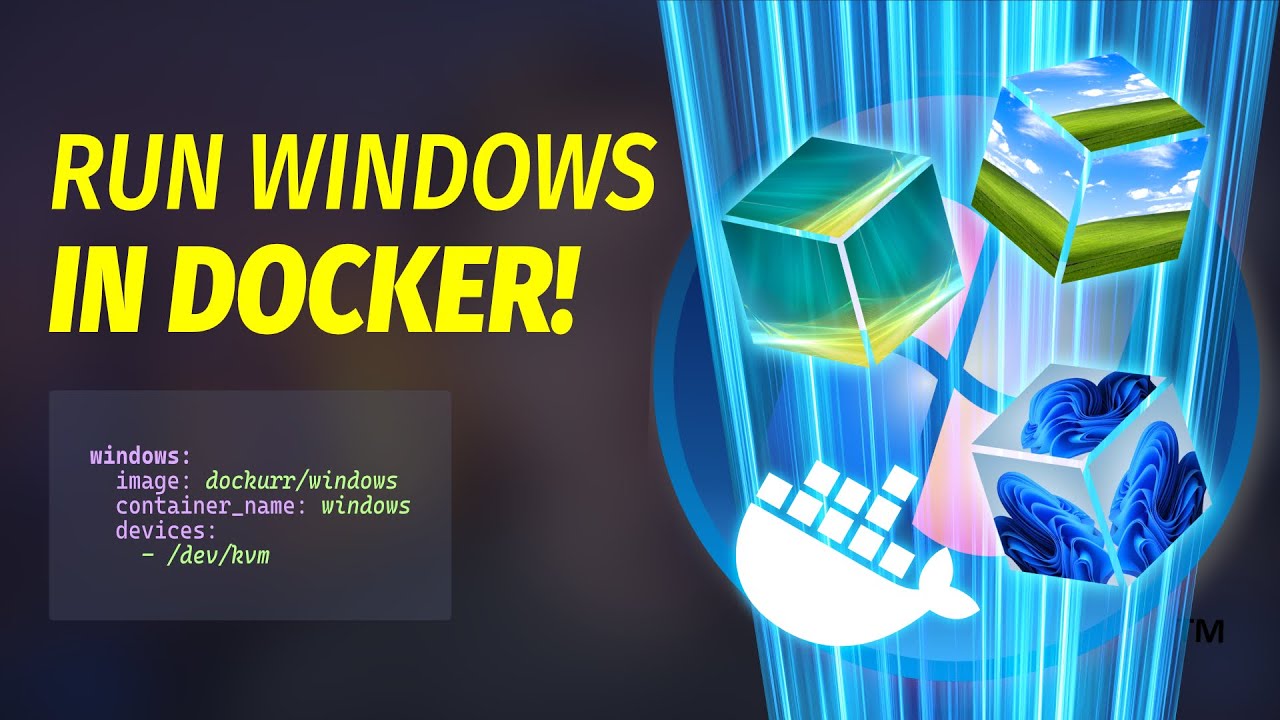
if you’re gonna be using it as a DIY NAS. That’s pretty impressive! Now one of the reasons why I prefer the N100DC-ITX to other MiniITX N100 boards, is the PCIe x4 slot which is actually only wired for x2. Still, this should be more than enough for a 10 gigabit SFP+ card, Personally, I can recommend this Trendnet TEG-10GECSFP card It’s based on a new power efficient Aquantia AQC100 NIC, and supports PCIe power management. There are other cards based on the AQC100 series chips though, and some may be cheaper or easier to get where you live, so do your research. After plugging in the networking card, and letting the drives sleep, we see a total power consumption from the wall of 12. 4W That’s with 16 gigs of RAM, 1 SATA SSD, five hard drives in the spindown mode, and a 10 gigabit networking card. Not bad at all! And in case you’re wondering, disabling the integrated Realtek NIC has pretty much no effect on the overall power consumption One weird thing I noticed with the 10 gig networking card though, is that if I ran the iperf3 in a single-connection mode, I couldn’t get anywhere near 10 gigabit. However, when running it with 5 connections in parallel, I was able to get the full 10 gigabit speeds, even when testing in both directions. At first I thought that the card was bottlenecked by the CPU, But looking at htop, the N100 processor only gets to 33% load when testing the network speed. I also tried playing with jumbo frames and TCP windows, to pretty much no avail. So, if there are any networking experts out there who know what the hell is going on here, please leave a comment below. One more thing I wanted to test on the board, is the power consumption when running VMs. In my last video, I used this board to run virtual machines with Windows XP, Windows Vista, Windows 7, Windows 10 and Windows 11 – all at the same time. And while I was at it, I measured the power consumption while running the VMs. During the installation process, the entire system, without the hard drives and the networking card, was pulling around 18W of power That’s with all versions of Windows being automatically installed at the same time. But once the installation was finished and all VMs settled down, the power consumption went down to around 10 to 12W. Remember, that’s with 5 Windows VMs running at the same time. So here are what the final power consumption numbers look like 5. 2W at C6 with nothing plugged in but a SATA SSD and a 16 gig stick of RAM 12W at C2 with 5 Windows VMs running at the same time 10. 9W at C6 with an external SATA controller and 5 hard drives in the spindown mode, without the VMs and 12. 4W at C6 with all of above except for VMs, plus a 10 gigabit SFP+ networking card. Honestly, this might be my most power efficient NAS build to date! and since the N100 CPU also has a TDP of 6 watts, the average power draw, including both idle and resource-intensive workloads, is probably gonna be pretty low as well. Now that we’ve talked about the power consumption, let’s move on to hardware video transcoding. Now despite its modest CPU performance, the N100 comes with a pretty capable iGPU. It supports QuickSync, and you should have no issues using it in Plex and Jellyfin As an added bonus, it also supports AV1 decoding, which we’re gonna take a look at later on in the video. But first, let’s take a look at our usual hardware transcoding benchmarks In the 1080p H264 test, the N100 scores 125 FPS In the 4K H264 test we see 35 fps In the 1080p HEVC test, the N100 scores 54 FPS and finally, in the 4K 10-bit HEVC test, we see a figure of 14 FPS And here’s what it looks like compared to some other GPUs that I’ve tested so far. As you can see, it’s pretty close to the Intel HD 630, except for the H265 1080p test, where the N100 performs worse than the Intel HD 530. At the same time, let’s not forget that it’s a 6W CPU, unlike the Skylake and Kabylake chips which could stretch their legs a bit further. As for my traditional Dune test, the N100 manages to transcode the movie at 48 FPS in this particular scene. And, once again, here’s how that compares to some other CPUs that I’ve tested. Now, since the N100 supports AV1 decoding, I wanted to see how well it handles AV1 content. Here it is playing back a 4K HDR AV1 copy of Lord of the Rings at around 48 FPS, which is about the same as the HEVC. Keep in mind though, that unlike Intel Arc GPUs, the N100 doesn’t support AV1 encoding, So if you’re looking for a low power CPU to transcode your entire movie collection to AV1, maybe look elsewhere. Now, if you’re buying a N100-based motherboard
Segment 4 (15:00 - 16:00)
you’re probably not buying it for performance. That being said, it can definitely handle some typical home server loads, like running a couple of VMs, some docker containers, and doing ZFS stuff every now and then. Sure, 5 Windows VM is probably pushing it, but even then, we’re mostly limited by RAM, and not the CPU. Performance-wise, the N100 should be similar to i3-6100. Which is a dual core Skylake chip with a 51W TDP Which doesn't seem all that impressive Until you realize that the N100 is a 6W chip Which makes it 8. 5 times more efficient than the i3-6100 And compared to the previous generations of Intel’s low-power Atom-like chips, like the N5105 and J4125, the N100 is definitely an improvement. I’m still working on a test suite for home server specific tasks, so for now, we’ll just have to trust Cinebench and Passmark scores. So there you have it guys! We fixed one of N100’s biggest issues, And built a super compact and power efficient NAS with 10 gigabit networking and hardware video transcoding I hope you guys enjoyed this video and as usual, I’d like to thank my Patrons