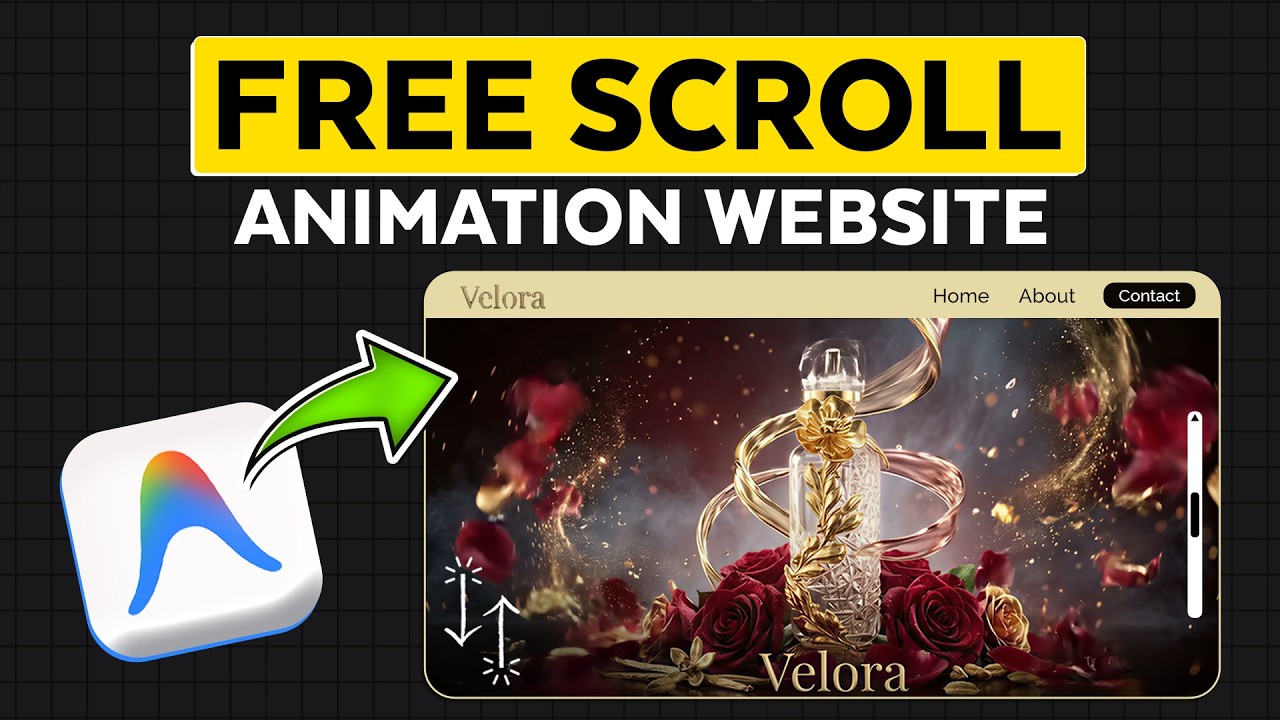
I Built an Animated Product Website in 10 Minutes using AI (Google Anti-Gravity)

I Built an Animated Product Website in 10 Minutes using AI (Google Anti-Gravity)

Machine-readable: Markdown · JSON API · Site index

Поделиться Telegram VK Бот
Транскрипт Скачать .md
Анализ с AI

Оглавление (3 сегментов)

Segment 1 (00:00 - 05:00)

Hi guys, in this video I'm going to show you how you can build a fully animated scrolling website from scratch using AI. The best part is it is completely free. So without any further ado, let's get started. So the entire website you're seeing right now including the animations, the visuals and the code is created just by giving simple prompts. So we are going to use Google's anti-gravity to build this website. Now we going to create this website in just six steps. The first step is to install anti-gravity on your computer. Just go to anti-gravity. Google and download the application based on your OS and install it. Once you have installed anti-gravity, just open it. Now you will get a screen like this. You have to select agent driven and click next. Now it'll ask you to sign in with your Google account. So just click here and sign in. Now this is how it'll look. So once you have installed anti-gravity, we can go to step two which is to create a project in anti-gravity. So to start using this tool, we need to create a project. So just click here and then choose a folder. So this is where all your website files will be created and saved. I'm going to create a new folder and name it as perfume and select it. Once you have created the project, let's go to the third step which is to create the product video. Now this is the video we're going to use in a scrolling website. So to create the video first we'll generate a highquality product image and then we'll convert that into a short cinematic video. So to do this we are going to use a tool called flow. Flow is an AI image generation tool that can help you build a highquality product images and videos. Just go to flow and sign in with your Google account. Click new project and then drag and drop the product image you have. So this is the product image I'm going to use. So once you have uploaded the image, just click the plus symbol and select the image here. Then enter the image prompt. So to make it easier for you, I've given the image and the video prompts in the description below. Just open it and copy the image prompt. Go back to flow and paste it here. Now we have to enter the product details into the prompt like the product name and the elements or the ingredients used in the products. So these elements will be shown in the video. So make sure you enter elements properly. Once you have entered that, click here and select the image variations you want to create. I'm going to select three and click here. As you can see, the tool has generated the images. Now you can go through it and select the one you want to use. So I'm going to select this one. So once you have the image ready, let's create the product video from this image. So to do that, just click here and select video from here. Now to create the product video, we need these two images. The start image and the end image. We can keep the start image as a empty background and then set the final product image as the end so that the video starts from a plain background and then ends with the final product image. So let's create the empty background first. So open any image which you have created and then enter remove all the elements from the image and keep only the background. As you can see the background image is created without the product. Select this as the start image for the video and for the end image we'll select the final generated product image. Okay. So once you have selected these images let's go back to the prompt document copy the video prompt and paste it here. So like we did before let's fill in the product details. Then take here and select the number of video variation you need. As you can see here, FL is using VU 3. 1 model to create the video. So it has two options 3. 1 fast and the quality. The first option uses lesser credits to create the video whereas the quality option uses higher credits but the results will be great. Right now, Flow is providing 150 free credits for each account per month. So, I'm going to use the first option. So, let's select that and click here. As you can see, EFL has started to generate the video and it's done. So, let's have a look at these videos.

Segment 2 (05:00 - 10:00)

Now all the three videos really came up well and I'm going to select this one. So just click here and it'll be downloaded to your computer. Okay. Now we have successfully created the product video. Okay. So let's go to step four which is to convert the video into frames. So to create the scrolling website we need to convert the video into frames. So as we scroll the website instead of playing the video normally the video will appear frame by frame which can make a smooth animation effect to our website. So to create it we going to use a tool called easy gif. So let's open a new tab and search for easy gift video to image converter and take the first link and upload the video here. Select the frame rate. I'm going to enter or select 30 which means for each second 30 frames will be created. So then click convert to JPG. And we've got the frames now. So let's click here to download the zip folder and then extract the zip file. Okay, now that we have converted the video into frames, let's go to step five, which is to add these frames into our project folder. So only when we add the frames into a project folder, anti-gravity will make use of it and create the website for us. So let's open the folder which we created and then create a new folder called public. Now copy the extracted folder which has the video frames and paste it inside the public folder and rename it as frames. So once you have added the frames into the folder let's go to the final step which is to create the animation website. So to create the website open the prompt document. Here you can see that we have the oneshot prompt for our website. Let's open that. And then here enter your website details in this place. So you can add all the information you want to add in your website here. Once you have entered that, copy the website prompt. Go back to anti-gravity and then paste it here. As you can see, Andy Grady starts analyzing the prompt and generates a plan to build the website. So just click proceed to continue. So it'll now start writing the code and creating all the required files for a website. During this process, it may ask for permission to run few actions. So let's just click run. You can also see this prompt a few more times. You can keep clicking run or click here and select run every time to allow it automatically to run. Sometimes you might also get error like this while generating the files. No need to worry. Just click retry and it will continue from where it ended. Now anti-gravity has completed all the steps and built our animated website. So we can view the website by going to this local host URL. So just copy this URL and paste it here. Okay, our website has been built successfully. But we have some issues like we have some empty spaces here and then the scrolling animation doesn't appear immediately when the website loads. It just appears only when we scroll back to the top. So now to fix this we can take the screenshot of the places where the changes are needed and go back to anti-gravity and paste the screenshots and describe the issues in a line and send it. So now anti-gravity will analyze the problem or issues and automatically update the code to fix it and will notify us. If you go back to the local host and refresh it, we'll have the website ready now. Let's scroll and see. Okay, now it works fine and the animation also looks good actually. So now we have successfully created the scrolling animation website and we have it locally on our computer. Now to make it live, we need to have a hosting and then upload our website there. But if you wanted to host it for free, we can use netly. So we'll ask anti-gravity itself to give us the instructions to host it on Netly. So let's go back and then ask how to host it on Netlify. So you can see it has given the step-by-step guide. Just you can follow them manually or if it asks to run it itself just enter yes and

Segment 3 (10:00 - 11:00)

it'll do it automatically. So once the build is complete, anti-gravity will generate an out folder. This folder will contain all our files. So we just need to upload this folder to nly file and our website will be live. So let's go to netly file. Sign in with the Google account. Now click nriify draw and then drag and drop the old folder from our project folder. So as you can see the file has been uploaded and you've got the website URL here. So just open it. So we can see we have got the same website we have on our host. So that's it guys. This is how you can create a scrolling animation website using anti-gravity for free. Now if you want to learn more about video generation on Google flow, leave a comment below. I'll make a video on that as well. So I'll see you in the next video. Take care. In my bite.

Другие видео автора — Website Learners

Ctrl+V

Экстракт Знаний в Telegram

Экстракты и дистилляты из лучших YouTube-каналов — сразу после публикации.

Подписаться

Дайджест Экстрактов

Лучшие методички за неделю — каждый понедельник