Business Card Reader with Glide + OpenAI | FULL TUTORIAL

Business Card Reader with Glide + OpenAI | FULL TUTORIAL

Machine-readable: Markdown · JSON API · Site index

Поделиться Telegram VK Бот
Транскрипт Скачать .md
Анализ с AI

Оглавление (5 сегментов)

Segment 1 (00:00 - 05:00)

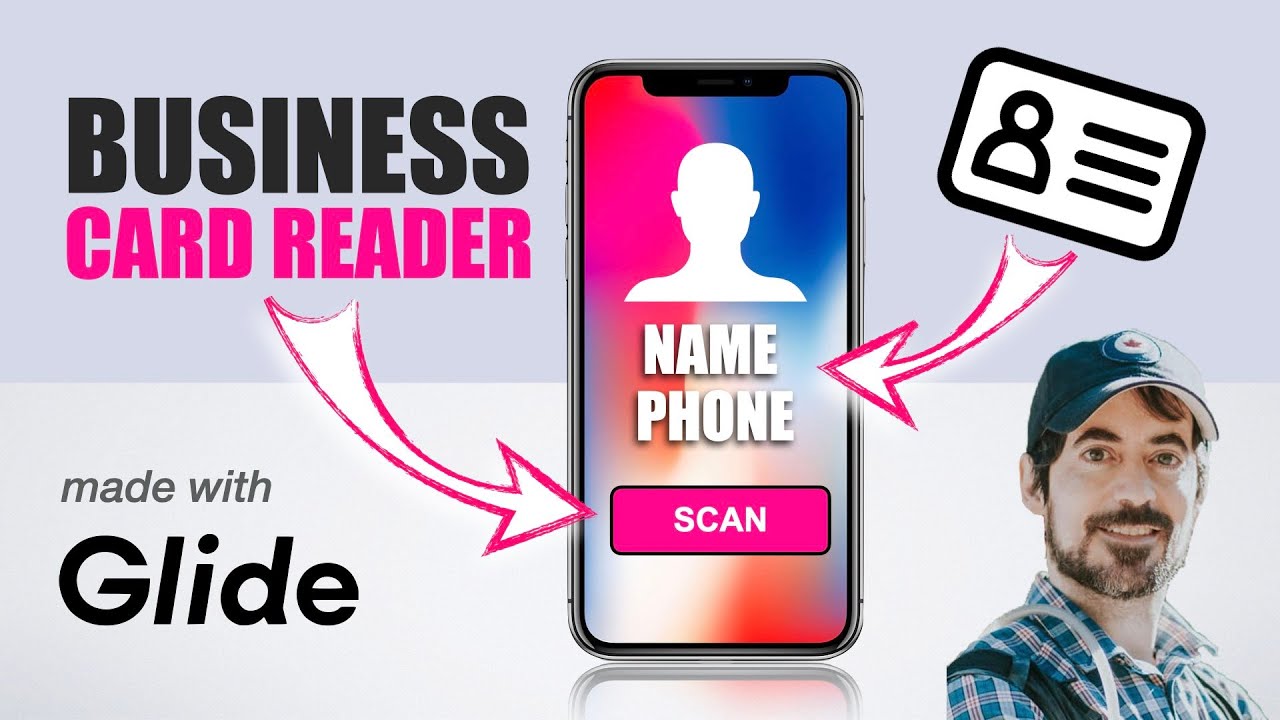
hello Miga from grumo here and in this tutorial I'm going to show you how to create a card reader a business card reader from scratch using Glide and its native open AI integration the way it works you simply upload a picture or take a picture from your phone and then the app is going to extract the contact data from the business card and then add it to your contact database inside your Glide app all right let's get started just go to your Glide account and then click new app and we're going to call this card Ai and then continue we're going to use Glide native tables click create app and then our app it's here but now we have to go and clean the database what we're going to do is just delete the two default tables CU we don't need them right now and then we just have a user table now we're going to create a table for the main screen of our app we're going to click the plus button then blank table we're going to call this form and we're going to name form and now we're going to add a few columns so a column to upload the cart photo and it's going to be a basic column of the Type image select column is specific for the user because we want anything that is uploaded to be specific to the person that is using the app so that way we're not sharing data across all the users of this app then we're going to duplicate this and we're going to add a column called loading of the type number Precision one no need for the group separator and this is just so we're going to have a loading GIF or GIF spinner what we wait for AI to extract the data now we're going to add two AI columns one is going to be call image to text and we're going to use the AI column image to text and the image is going to come from the card photo that we uploaded and we're going to not describe it but we're going to extract the text from it and now we're going to create another AI column called text to Json and it's going to be a AI column where we're going to select the text to Json and we have to provide some instructions and the instructions are going to be exactly these ones extract these values name email position company phone website and address from the image to text from the text that was extracted from the business card and we're going to click save so basically now we have all the logic that we need in order to extract data from a business card how awesome is that so we're going to upload a business card here just a generic business card from a guy called J Bob a graphic designer ER and we want the app to extract all this data okay let's see if that works so the photo is being uploaded and now we should be able to see here the actual data being extracted and there it is we have the text extracted GM Bop graphic designer the phone number email the company and then we created that Json object here that is grabbing all those parameters as we want to and the reason we want to save it as adjas object is so we can save each parameter individually into a new table that we're going to call cards so I'm going to create that new table now and we're going to call it cards or contacts and we're going to rename the First Column to card ID and then we're going to add the columns for each of the contact details name and I'm going to do this really quickly email type position company phone website and finally address there you go so this is where we're going to save all the contact details for each business card and now we have pretty much all the logic that we need to create this business card reader app now we're going to create the user interface and for that we're going to go to the layout tab and we're going to delete these two default tabs and we're going to create a new tab using screen from data and it's going to be the form we're going to delete the default components and now we're going to add a container and we're going to make it you know small and x large for the padding and we're going to add two text components so we have uh some basic information for our users and the first one is going to say upload photo and it's going to be style l Mar and the

Segment 2 (05:00 - 10:00)

second one is going to say click below to upload a photo of a business card and now we're going to add a file picker component okay and we have to map this to the car photo column which is already done by default we don't need the title okay we can delete the actual file that we use as a test and we need now a button so we can save the extracted data into the contact table but we only want to display this button when there's a photo uploaded so for that we can go to options and visibility and add a condition that says only show this button when there is something inside the card photo column when that column is not empty so if we upload now a photo of a business card once it's uploaded we'll see the button right and now we need to add the logic to save the contact details from that business card now we've created that Json object here under form so what we can do now is extract all the data from the Json object using this columns so we're going to just call them name and then start typing Json and then query Json and then just type the name of the parameter inside the Json object and we actually want to grab the Json column right and you can see how the name has been extracted and we can do that for the rest of the parameters great so we've created all the columns that extract each parameter for the contact that we're extracting from that business card and now we can create a custom action so we're going to go to layout and then under the button we're going to select it and we can go here click on the button and then under the actions we're going to create a custom new action and we're going to call it form at contact okay and now what we can do is save that contact so we're going to select that show notification and select at row and then we're going to save it under the contacts map each column with the corresponding column from the extracted data inside the form so name email position company phone website and address okay so we click done and when we do this we can just uh click go and we've created a new row here with all the details okay we can delete the empty Row the first row uh now there's something we want to automate is that when we add this new row we want to redirect the user to that detail screen so we can see that the data was extracted properly to do that we can use this little trick which is we're going to save a temporary card ID value so we're going to call this card ID and it's going to be user specific okay and then we're going to relate that to the contact table so contact ra and it's going to be a relation column where we're going to relate the card ID or contact ID with the card ID inside the card table okay and now under actions what we're going to do is add a new step on our custom action which is going to be called set column values we're going to move that to the top and we're going to set the column values of the currently logged in user so we're going to select the user profile row and here we're going to save as soon as they click the Go Button at unique identifier okay and then once the data is added to the contact table we're going to redirect the user to the detail page of that new contact and for that we're going to select detail show detail screen and we're going to go to the user profile contact rail this is how we're going to redirect the user to

Segment 3 (10:00 - 15:00)

the new created contact now in order for the relation to work under the at row step we have to save the correct card ID that we just created and we saved in the user the according to loging user and therefore four we have to go to here and under user profile here we're going to select the card ID so remember we save the unique identifier for the inside the users table under the card ID code column and now that it's saved we can use it to save it under the card ID and now because we related that card ID to the new card ID that was created we can redirect the user to that screen let me show you how this works so we already have a business card uploaded and I'm going to click go and now we've been redirected to that business card this is the default detail page which we can delete the details here and we can change the title of the screen to that and then the field should be well the corresponding fields for this business card so we're going to just add them in the order that we have them in the database and we'll be able to see how this works website and address great let's test the app now with a second business card so let's just upload and it's uploading and then the button is going to show up we click go and there we go we extracted the business card details and now we have two business cards so what we can do now is add a second screen where we're going to display all our contacts all right and we can uh select the collection and say that's going to be a list and we're going to map the different uh parameters here the description is going to be let's say the email and we don't have an image so we're just going to remove that and there we go now we have a simple way to store all our contacts from a scanning business cards the final thing we're going to do is optional and it's just cosmetic for example we may want to have a little loading gift while we wait for the photo to be added to the database so for that we need to display a animated gif spinner which we can easily create at a website like loading. io and you can use the default spinner that they have here but they have literally thousands of them and to generate it you probably want to make sure that it matches your theme color so you got to go to settings and appearance and then you can change the color of your theme let's make it blue for example and then you want to grab the actual hex color and copy it under the loading. io website and where it says color you would paste it there that changes the animated gif and now you can click the GIF to download it and then click download and it's building it and now you can go and save it all right so we can go to our form and add a new column and it's going to be loader of the image type and now we can upload our little animated loading GIF or spinner okay and now we need to add the logic to decide when we show that spinner right so I'm going to create a new container where we're going to put that spinner in so we got a new container I'm going to call it loading and here we're going to have insert component image right and we're going to select the spinner image and we're going to make sure that is circular and the size is small there you go and the name well we don't need a name for it now we need to add the logic that decides when we display this loading spinner so we can select the loading container and go to options and then under visibility we're going to add a condition which is going to be that we are only going to show the spinner when the value under the loading column is equal any value that you want in this case it's going to be one for me one and you can see how it's disappeared we're also going to make the other container disappear when we're showing the loading spinner so that way we prevent the user from interacting

Segment 4 (15:00 - 20:00)

with the form and other options we're going to add a condition that we're only going to display this container when the loading column is empty right now we need to go to our actions and we need to modify the existing add contact action because we want to set a column here in the form table when we click the Go Button which is the button to create a new contact from the extracted business card details we're going to set the loading column to one right that's the first thing we're going to do and then once the contact has been added after this step the at row step we're going to reset the loading column to empty by selecting clear value so now when we upload a new business card let's do that we can click go and you should see the spinner showing up briefly you see boom there you go and a new card has been added and it's listed here under our contacts page now if we go back to data and the form you see that I also had a Json result user specific column which we're not using in this app but if you want wanted to use Glide openai integration not the native one but your own open a integration using your own API key from open then you could use instead of this two AI native columns you could use a complete let's go under actions here when you click the Go Button you could add a here a step called complete chat right and then you'll have to add your own openai API key right which I'm going to paste here I have already an open key right and then you would use the gp4 vision preview model that allows you to analyze images and then would you grab the image from the card photo that was uploaded and you have to enter a message here one is the prompt system and the other one is the message that you want to send to openi and this could be you know here is the business card but for the actual prompt you could enter something like return a properly formatted Json object with this business card details use this Json schema uh which is the schema that we want in order that to extract the parameters inside the business card right and then the result would be saved in that column that I just was mentioned in the Jason result right so when you use your own open integration it gives you more flexibility as to the message that you're sending you can also change the parameters and their model which can give you more control on the results that you get from analyzing that image but anyways for our purposes here we're not going to use this but I'm just wanted to mention that that's an alternative way of using AI in Glide using your own API key which you can get at your at platform. open. com and then you go under API Keys generate your own API key you need to add some money in advance in order to be able to start using their models uh but that's how you would do it now the final thing we want to do is to publish our app so we're going to click publish we're going to give it a name it's going to be called card AI we're going to publish it as soon as we do that this app is available on the internet and you can open uh but in this case under if we go under settings privacy it's private which means only people in this case and the and inside the users table can't log in but you can change this you can make it public if you want to but you have the controls here and now the final thing we can do here is just modify the icons here we can call this main screen we could call it card Ai and change this icon to something like a lightning and then there on the contacts we can change the icon to this people Icon and then the main app icon we can select from any of the default ones here or upload our own app icon we can just change it to that and there we go we have our own business card reader app create without coding using Glide and its open AI

Segment 5 (20:00 - 20:00)

integration if you want to get a copy of this template just go to gro. com slard AI thanks for watching bye-bye

Другие видео автора — GRUMO

Ctrl+V

Экстракт Знаний в Telegram

Экстракты и дистилляты из лучших YouTube-каналов — сразу после публикации.

Подписаться

Дайджест Экстрактов

Лучшие методички за неделю — каждый понедельник