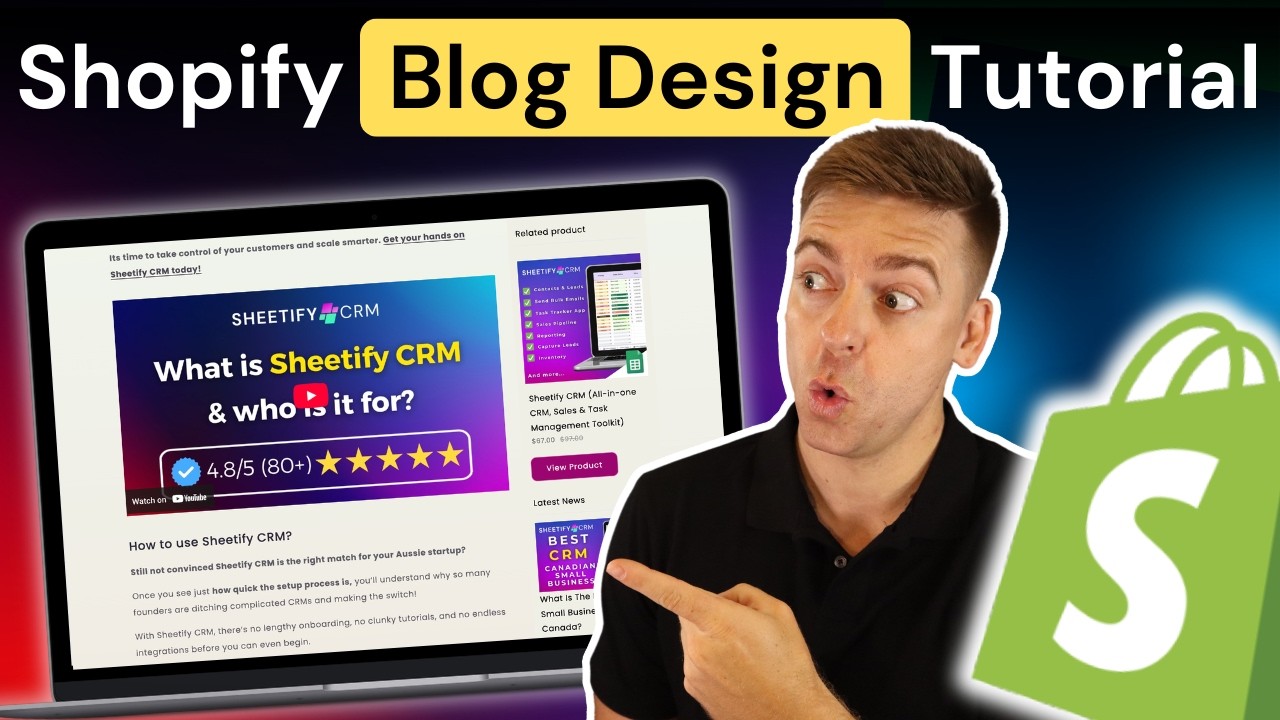
Shopify is one of the best e-commerce builders for creating your online store. However, their biggest issue, in my opinion, is their outdated and disappointing blog, SEO tools, and visual blog posts. So, today I'm going to navigate through a fantastic visual blog builder app for Shopify. This app not only allows you to create SEOfriendly and stunning blog posts, but also blogs that increase your store's conversion rates and ultimately drive more sales. All right, so with that quick intro out the way, let's go ahead and dive into this blog building tutorial for Shopify. Here we are inside my Shopify backend. Now, before we get started, and if you're new to Shopify, I've recently put together my most comprehensive Shopify tutorial that covers everything you need to know for building a successful Shopify store. If you're interested in this tutorial, I'll link it down below in the description. Okay, let's jump into building and designing your high converting blog posts. Now, if you navigate over to content and click on blog posts, this is where you can create blogs for your Shopify store. The issue with creating blogs inside of Shopify is the structure of your blog is not conversion focused and you're limited in terms of how you can create your blog. So, if you're serious about creating a blog and you want to create written posts that convert and are optimized to be discovered on search engines, then an app like Blogle is a great option. This is the app we use on all our Shopify stores. Simply navigate over to apps and type in blog. Click here and then install and install again. Now, this is a paid app starting at $25 per month. However, allows you to create stunning and high converting blog posts which then generate a high ROI. You do get access to a 14-day free trial to see if this blog post builder is going to work for you. Let's click on get starter, then click on start your 14-day trial. Click on approve. And then here you can start building out your post. We can choose from a template or we can build from scratch. For example, let's choose this template. Add a title. Top 10 waterproof headphones in 2026. Choose the blog category. The blog posts theme layout. You can change this later. Article headline. I'm happy with this. And click on next. Then click on start directly in blog. You can also leverage AI to help you generate a post for you. Click on create article. And that's going to take you to this blog post builder. Okay. Okay, so I'm going to jump over to a Shopify store that already has a bunch of content and I'm going to show you how to leverage Blog to both convert content into a Blog post and how to build out your post with Blog. For example, within Shopify under content, we have blog posts. And let's click on this blog post. You can see inside the default Shopify blog builder, we can add a title. We can add basic content in here as well as leverage the different formatting options. And this is what the blog post will look like before using blog. You can see it's very basic. It's not very attractive and the formatting is a bit funny. Okay, let's jump into the back end of this post again and let's go ahead and click on more options and you'll see this edit with blog and that will take you to the blog builder where you can start building out that blog post inside Blog. Now, the first thing that we want to do is navigate over to settings, navigate down here, and then select a blog post theme layout. I'm going to select this one here, high converting layout, and I like the look of this layout. What we can do is navigate over to product, and add a product. Here we have a digital product, sheetified bookkeeping, which is relevant to this post. And as you can see, now this post has a right-hand sidebar with a few widgets. We have a product widget. So, a potential customer, a website visitor reading this blog post can simply click on view product, and that will take them to the product page. Having this widget here increases the conversion rate of this page. We have other widgets down here. For example, latest news, recent blog post, and then more content down here. Okay, we can navigate over to schedule and schedule this post to be published, SEO. We can add a SEO description, for example, and then we can navigate over to elements. Now, once we've made any changes, we can simply click save as draft. And these are the different block elements that make up the content over here. If we navigate down, what I can do is click here, navigate over to your library, and these are my saved elements. I can add a divider and then click add block again. Your library. Popular Google Sheets toolkits. Click here again. Your library. Again, these are saved blocks. And I'm going to do the same down here. Divider. And then two more block elements under my library. Recent posts. And then a blog slider. And I'm happy with that. Now, if I click on this block, I can make changes on the left hand side. I can also play around with the formatting options. For example, down here we have these sentences which should be bullet points. So, I'm going to add bullet points in here, and I'm happy with that. Click on save, and let's navigate up. I also want to add spacing in here between the image and this header. I'm going to navigate over to settings, then margin, and click on small. And I can do the same with all these different elements. I'm going to quickly do that now. Okay. So, I've played around with the formatting. I'm going to navigate up here, click this plus icon, my library, and I'm going to add a table of contents. If I click down
Segment 2 (05:00 - 09:00)
here, auto table, you'll see my table of contents in here. I'm going to click save and let's navigate down here. And let's say I want to add a video. I'm going to navigate down to these different content blocks. And let's click on this video element and then add a YouTube video in here. Okay. So, here's the video. This video is related to this post which is talking about this specific product. Click on save, then save as draft. I can also navigate down and let's say I want to add a product somewhere down here. I can click between a block and click on one product and locate the product. Here's the product I want to add and that's going to add that product in here. You can see that this block is conversion focused. You also want to preview what your page what your blog post looks like across devices. Make sure to take your time to go through this. Okay. When you're happy with the responsiveness of your blog post, go ahead, make sure you've saved as draft. And before you publish on Shopify, click on preview. And as you can see, this is what my blog post now looks like. We have a table of contents. If I click anywhere here, that's going to take me to that section. We have a video as well as images, a product embed here, and you can see we have this sticky widget on the right hand side. This will help drive conversions. If we navigate down further, we have this section that we added and this section down here. Okay, let's navigate back up to the top and jump back into Blog. Now, it's important to note that this structure with the right- hand sidebar, you may need to get in touch with the Blog team and they will help you set up a layout that works for you. For example, if I navigate over to settings, this layout down here, Blog help me create this for free. So, if you have a specific layout that you want to use for all your different blog posts, for example, like this, maybe you want to add a product placement on the right hand side on the sidebar as well as recent news or multiple products or something else. Reach out to the team at Blogle and they can help set up this template for you. So, you can quickly create posts just like I showed you. We can also navigate over to SEO and add a keyword that we want to target. Click on apply and Blogger will give you insights into improving your SEO. search engine optimization for this specific blog post in terms of your targeted keyword. You can also click on UX the readability score and you can look at different ways that you can optimize the readability of your blog post. These are very helpful insights. Again, when you're ready to publish your blog post, simply click on publish on Shopify. And again, let's have a look at this blog post. As you can see, this blog post structure is a lot more attractive, visually engaging, and has powerful call to actions like view product. You can add powerful elements like table of contents to help with post navigation as well as other block elements like videos, images, and other text layout types and more. Okay, let's jump back inside our Shopify back end for my Shopify site called King Beats. And again, let's click on home. So again inside Shopify under content and under blog post you can see we have one example blog post. If we navigate back and click on add blog post we can simply start creating this blog. Then once you create a blog in here I've quickly added some dummy information. Simply navigate over to more actions and edit with blog. And similar to what I showed you can start optimizing and building this post using blog. Pretty cool huh? Okay let's navigate back to home. And that is how you can leverage a blog builder like Blogle to create stunning and highcon converting blog posts inside of Shopify. If you like, you can also add your blog to your primary menu. Just navigate over to content menus and then similar to what I showed you earlier, you can add your blog to your main menu, your primary menu, or your footer menu, or a different menu that you create. Okay, let's jump back to home. And there we have it for this powerful Shopify app tutorial. Now, if you have any questions about this video, make sure to pop them down below. And with that said, thank you so much for watching this video all the way through to the end. If you got value, make sure you leave a like and subscribe to this channel. And that way, I'll see you in the next video. Take care, everyone.