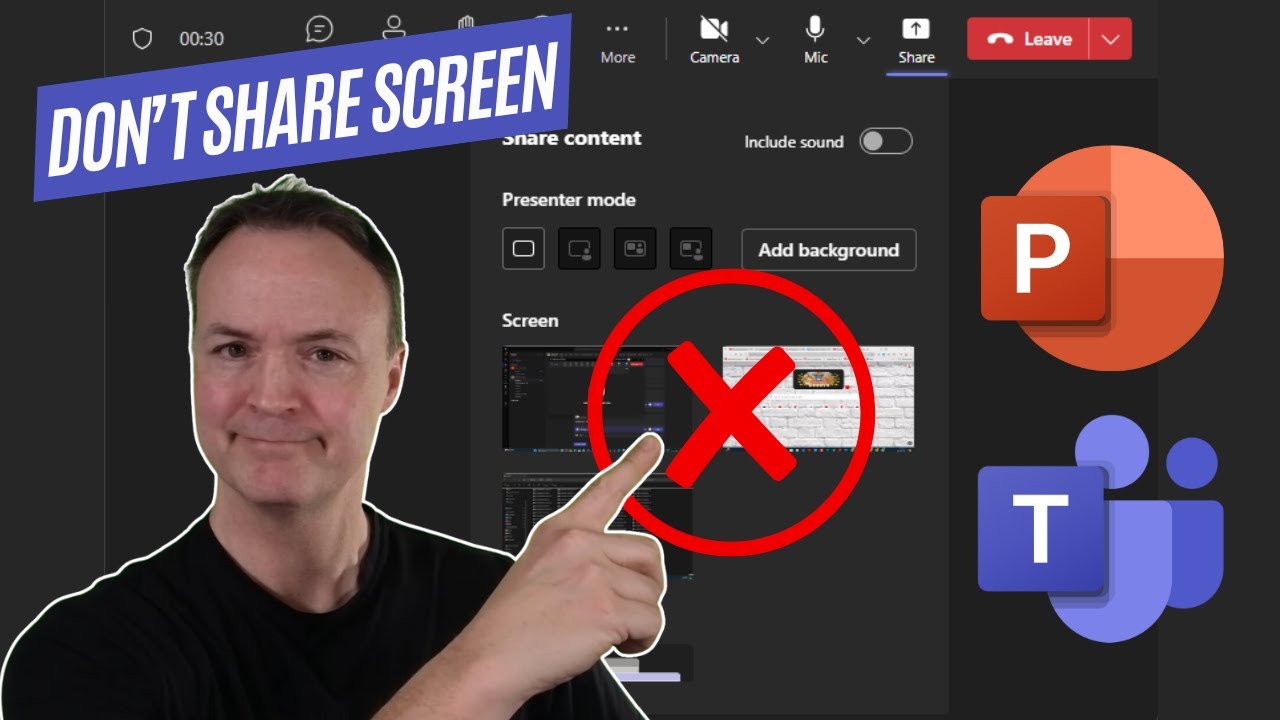
How to Present PowerPoint in Teams Like a Pro
7:38

How to Present PowerPoint in Teams Like a Pro

Teacher's Tech 09.09.2024 159 325 просмотров 1 439 лайков обн. 18.02.2026
Поделиться Telegram VK Бот
Транскрипт Скачать .md
Анализ с AI
Описание видео
In this video, I’ll show you how to present a PowerPoint presentation in Microsoft Teams with ease and confidence. Whether you’re leading a business meeting, teaching a class, or collaborating with a team, mastering the art of sharing PowerPoint in Teams is essential. I’ll guide you step-by-step through the process of sharing your screen, using Presenter View, and optimizing your presentation settings for a seamless experience. 💡 In this tutorial, you’ll learn: ✅How to share PowerPoint presentations in Teams ✅Tips for using Presenter View to stay organized ✅How to switch between different views in Teams during your presentation 0:00 Introduction 0:45 Properly present your PowerPoint from Teams 4:14 Present directly from PowerPoint to Teams 5:23 Add a Cameo to your PowerPoint to present in Teams

Оглавление (4 сегментов)

  1. 0:00 Introduction 155 сл.
  2. 0:45 Properly present your PowerPoint from Teams 685 сл.
  3. 4:14 Present directly from PowerPoint to Teams 248 сл.
  4. 5:23 Add a Cameo to your PowerPoint to present in Teams 401 сл.

0:00

Introduction

today I want to show you how to present your  PowerPoints like a pro in Microsoft teams and it's   not by using share screen I still see a  lot of people when they're presenting PowerPoints   in Microsoft teams just go and share a window so  they go up here Click Share and they see their   PowerPoint on one of these and they share it from  there there's a much better way to do this when   you share the way I'm about to show you you're  going to get this view right here where you're   going to be able to see all the people that are  in it you can see the chat you can quickly change   through views and see what you need to see and  then you can just go through your slideshow and   Mark it up as needed let me show you how you set  this up using PowerPoint and Microsoft teams I
0:45

Properly present your PowerPoint from Teams

want to show you three different ways to present  your PowerPoints in teams so you can choose what   works best for you I'm just in one of my demo  teams here and I'm going to go and start a meet   now so you can go through setup just like normal  you pick your background pick your cameras and mic   and so on I'm just going to click join now and  I'm going to go in at a participant just so we   have one in here and then I'm going to show show  you their screen so you can see what's happening   on their end so I'm going to request them to join  so they'll just get an invite and I'm going to   accept it on my other screen and click join now so  this person has been added so that this is just a   normal part of doing a teams meeting but what  I want to point out here is if we look at share   and like I said a lot of people just want to share  their PowerPoints through their screen keep moving   down here you're going to see different PowerPoint  live options and these are saved in my one drive   here I can open them up from here so I'm going  to choose this one here and you're going to see   now and I'm going to stretch out this window so  you can see things a little bit better so things   aren't so squishy uh you can see how everything  adapts I have the person who joined up here you   can see I'm in the presenter but I can also change  quickly if I wanted to see the chat on the side or   even if I want to see someone raise a hand I can  see uh that pop up if Ashton here would raise his   hand I would see that as well so this makes things  much easier to navigate now I want to point out a   couple things down below you can navigate through  your slideshow here just by moving it forward   you can see how it changes and I will show  you the other slide or the other screen in   a moment but I also want to show you how you can  uh display so if I click this you can see all the   different slides you could go to this way you  could jump ahead if I go to the more actions I   can go to uh show presenter View and then I can  jump ahead to different slides as I need we have   the tools uh here to increase uh font size if I  had any notes all the notes would be right here   so it makes it incredibly easy to read your notes  you're presenting you have your PowerPoint if you   want to mark up anything you can draw you can  highlight all the way through here so what's   the other person seeing right now let me just grab  their screen and bring it over to you so I'm here   on the side so they're seeing me because I have  my camera on and that's part of it and here's the   markup notice here that I can move it forward as a  participant if I go back to mine here I can go to   private View and at this point you can stop the  people uh from moving the presentation on their   own so if I click that and bring this back over  notice now I can't do that so that's an important   thing if you don't want people to jump ahead make  sure you have that turned on and just looking at   all the different options that you have from your  layout uh you have right now we're doing content   only notice there's cameo and I want to show  you how you can add a cameo to your slide uh   and this is an interesting way to have yourself  embedded into your slide and I'll show you that   in a moment but let's show you a different way  you can present your PowerPoint let's go ahead
4:14

Present directly from PowerPoint to Teams

and just stop sharing on this PowerPoint that I  showed you how to set up and I'm going to click   it again stop sharing and you can see it just goes  back to the normal meeting now this next time what   I want to do is present right from PowerPoint so  if I go over to a PowerPoint here notice up top   here present in teams and I am using Microsoft 365  that's the subscription I have and the PowerPoint   that I use I can click on present in teams now  you do have to have this saved in the cloud uh   to have it work if you don't have it saved in  the cloud when you click on this it's going to   tell you to save it in the cloud but in my case  I do have this one saved in the cloud so since I   already had this meeting open I can go ahead once  I clicked on it and click present from here and   it's going to go to PowerPoint live so now I have  this power I went right through PowerPoint and   clicked on that present and teams and it quickly  got me there as well to the same place just make   sure that you have your uh teams meeting open to  do this now the last thing I want to show you is   the Cameo and I'm just going to click stop sharing  again stop presenting and I'm going to go back to
5:23

Add a Cameo to your PowerPoint to present in Teams

the PowerPoint here so what a cameo does here is  is I can add a place where I can have my video in   here so just rather than off the side uh like in  a normal teams meeting I can place it inside the   PowerPoint now to do this I can go Cameo for one  slide or all slide so I'll just do a couple as an   example so if I pick this slide The Cameo is right  down here so I can move this around I can size   this I can apply Styles as I hover over these  you can see uh what each of these will do now   you can do a preview in here if you have multiple  cameras if I go up to the top you can see I have   two different cameras so if I pick insta 360 here  I have this camera showing me how it will be in   the preview and I can still go through and size  it so then I could pick let's say slide three   and I could add another Cameo to it so under the  record I could go again I could go all slides but   if I go this slide I could also use the designer  so I can take a look at the one ones that they   kind of recommend if I click this one I have this  in place right here so I could go through and do   more I'm just going to keep these two here so now  if I go back and present in teams here and click   present you're going to see that when this opens  up since the cameos in there by default and I'll   just stretch this out so you can see more options  under the layout I'm under the Cameo so if I go   ahead a couple of these slides here you'll see on  slide three I have the other cameo in here as well   so that just gives you a different option to play  around with how you want to present uh your teams   and how you want people to see you in there so  I hope you like these tips about how to present   PowerPoint in Microsoft teams to make sure you get  look as looking as professional as possible thanks   for watching this time on teachers Tech I'll see  you next time with more Tech tips and tutorials

Ещё от Teacher's Tech

Ctrl+V

Экстракт Знаний в Telegram

Транскрипты, идеи, методички — всё самое полезное из лучших YouTube-каналов.

Подписаться


