Install JetPack 7.1 on Jetson AGX Thor

Install JetPack 7.1 on Jetson AGX Thor

Machine-readable: Markdown · JSON API · Site index
Поделиться Telegram VK Бот
Транскрипт Скачать .md
Анализ с AI

Оглавление (4 сегментов)

Segment 1 (00:00 - 05:00)

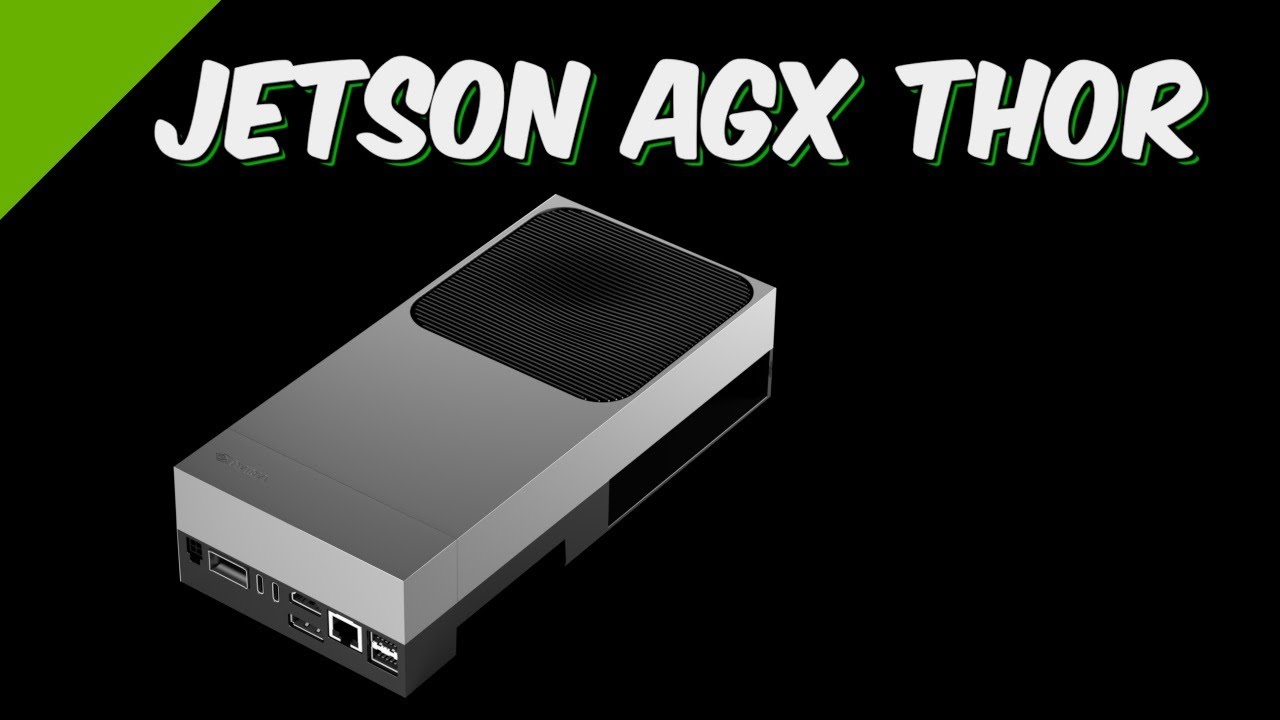
When it comes to actually getting Jetack 7. 1 onto your AGX Thor, you've got four primary paths, and the right one depends entirely on where you're starting from and how much control you need. If you're already running the Jetack 7. 0 early access build, your quickest route is a distribution upgrade. Using standard apt commands, you can move straight to 7. 1 while keeping your current system state and configurations intact. It's the path of least resistance. For that fresh start, most people gravitate toward the USB ISO method. You just flash an ISO image to a thumb drive and boot the Thor directly from it. The installer takes it from there, automatically provisioning the software stack onto your internal SSD. It's the recommended path for initial setups because it's fast, about 15 minutes, and it doesn't require a secondary host machine to get the job done. Now, for those of you moving into production or custom development, you'll likely find yourself using a hostbased approach. The first way is command line flashing using the Linux fortegra or L4T tools. By installing these on an x86 Ubuntu PC, you can flash the Jetson over a USB cable. This is the go-to for power users who need granular control over the kernel, the partition layout, or the device tree. Finally, there's the NVIDIA SDK manager. Think of this as a user-friendly wrapper for those same L4T tools. It gives you a guey to manage the entire installation and update process, making it much easier to keep your development environment in sync with the latest system software. First up is the distribution upgrade. If you're currently on Jetack 7. 0, you can move to 7. 1 using standard apt commands. It's easily the most convenient path since it keeps your environment intact. However, we need to talk about what's happening under the hood. Jetpack 7. 0 was an early access release strictly intended for feature development and initial hardware bringup. Jetack 7. 1 is the general availability release. This means the software has moved past the experimental phase and is now considered stable, fully supported and ready for production deployment. Because of that jump from EA to GA, there can be significant architectural differences between the two. While the apt upgrade is tempting, my general rule of thumb for these major milestones is to perform a clean install. It's the only way to ensure you don't carry over any legacy ghosts from the EA build. That said, if you've got a complex system state that would be a nightmare to rebuild, you might choose to roll the dice with the upgrade path. Just do yourself a favor. Image your drive and back up your work before you pull the trigger. This is pretty simple. Let's modify the app sources list. We need to change every 38. 2 to 38. 4. Make sure to save the file. Now we tell apt about our changes to its repository and tell it to update. Then we start the distribution upgrade. Do you want to continue? Yes, please. I would like you to continue to do what I specifically told you to do. It looks like it ran into some issues. Always a bit difficult having a machine modify itself on the fly. We'll do another upgrade and see if it fixes itself. It seems a little happier this time. Let's power down and restart the machine. Interesting. It doesn't power down, but instead updates the firmware. Then it reboots and soon we are back at the desktop. At first glance, everything appears to be here. Which version of the Jetack libraries are we working with? Jetack 7. 1. That's a good sign. Which version of Jetson Linux. Let's verify that it is 38. 4. Looks like we're good to go. When you're first unboxing the hardware, the most common path to getting Jetack 7. 1 up and running is booting from a USB flash drive using a standard ISO image. To get started, you'll need a flash drive with at least 16 GB of capacity. Once you boot the Thor from the USB, the installer takes over, provisioning the module and copying a minimal operating system directly to the internal storage. Keep in mind, this is a destructive process. The installer will reformat the SSD in the Thor, so anything currently

Segment 2 (05:00 - 10:00)

on the drive will be wiped. It's a fast, streamlined way to get a clean environment with the entire process taking up about 15 minutes. Nvidia has a solid, quick start guide for the initial setup, and it's worth a look if you're prepping your media on a PC or a Mac. In those cases, you'd typically use Etcher to flash the image. However, Etcher isn't an option if you're working directly on a Jetson. The good news is that we can handle the entire prep in Ubuntu using the disks application. It's a straightforward way to get your flash drive ready without needing to jump over to a different machine. Let's download the Jetack ISO image. Then we open up the disks application. I have already inserted the USB flash drive. Let's select it. It has some junk on it, so I'll reformat it. This isn't necessary, but I'm superstitious. Now, click the kebab menu and select restore disk image. Find the Jetack ISO image that was just downloaded and select it. Click the start restoring button and answer the ever popular password question. Then, we're off to the races. The flash drive is now ready. Eject the drive. Make sure your Jetson is powered down and insert the flash drive. The 8GX Thor comes from the factory ready to flash with the USB drive. However, if you flashed the Thor previously, you may have to work around an issue that requires changing some of the firmware settings. Unfortunately, I am unable to make a screen recording of this. Fortunately, the user guide has a step-by-step guide on what to change. Also, if you're trying to flash a Thor that already has been updated to 38. 4, the procedure is slightly different. Follow the procedure described, but on the last step, instead of setting SOC display handoff method to EFIFB, set it to simple FB instead. When the splash screen appears, the current version of firmware is displayed. Select jets and Thor options. Select flash on NVMe. It will take a few seconds to start the process and then takes about 10 minutes after it gets started. When finished, the Jetson will reboot and the firmware will update. Once the flash is complete, the system will reboot. The firmware version will be 38. 4. 0. We then start the process called OEM config. This is where the system asks a series of questions and I make up answers full of lies trying to satisfy it. Now we're ready to install the Jetack libraries. First update the app repositories. Next, we'll apt install the NVIDIA Jetack Meta package. Oh no, it looks like there's an issue with Nvidia container. Let's install the Chromium browser. I've done several of these installs and the NVIDIA container issue does not always happen. I'll put it in here for completeness. I seem to remember that this issue was addressed in the forums. Let's launch a browser and see what we can see. Ah, yes, here it is. I'll leave all these links in the description below. Now we'll give Nvidia Jetack a go again. Now is a good time to make sure the entire system is up to date. And let's take a look at the current version of Jetack 7. 1 just like we planned it. Installation complete. The final method is flashing the Jetson directly from an x86 host machine

Segment 3 (10:00 - 15:00)

running iuntu. This is the most involved flashing process of the bunch. This isn't for a quick setup. This is for when you need to get under the hood modifying the kernel, tailoring the device tree, or configuring a custom root FS for distribution. If you're just starting out, stick to the ISO method. You'll hear two terms when performing a low-level flash of a Jetson. Think of the BSP as your hardware enablement layer. This package contains the low-level essentials, the bootloadader, the Linux kernel, and the device tree that handle the hardware to software handoff. Its job is to initialize the SOC, manage system resources, and provide the specific drivers needed for the GPU and networking interfaces to communicate with the OS. It also includes the QSPI firmware and the flashing tools required to provision the module. Essentially, if it involves waking up the silicon and mapping hardware pins, it's in the BSP. Once the kernel is up, we need an environment to run our applications. That's the root file system or root FS. Effectively, your Jetson Linux operating system. This contains the entire user land, system libraries, background services, and the shell utilities you use every day. It handles package management through apt, but most importantly, it houses the Nvidia specific libraries. These provide the optimized hooks for CUDA, Tensor RT, and multimedia processing that allow your code to tap into the Jetson's hardware acceleration. We're on a x86 PC running Auntu. We'll need to get the BSP and root FS. We'll go in through the Jetack archive. Here you can find all the Jetack releases, which is useful in case you want to downgrade. Select Jetack 7. 1. Now we scroll down until we find the Debb files we want to download. Let's grab the BSP. We'll make a new folder to store it in. Make sure to save the file. Now download the sample root FS. I've opened a terminal on the directory where we downloaded the files. Expand the BSP files first. It's the directory structure the tools in root FS will use. Then expand the sample root file system. Remember to use sudo Switch over to the Linux Fortegra working directory. Execute the shell script to install support tools. We're getting closer. We need to start building the image to flash. Note the open RM flag, which is different than previous versions. Plug your USB cable from the PC into the force recovery USB port on the Jetson. It's the one next to the display connectors. The cable must be data capable. Plug the other end of the cable into the PC. Then we finish up connecting the rest of the peripherals to the Jetson. Connect the keyboard and mouse. Plug in the Ethernet cable for internet access. Attach a monitor. Now we place the Jetson into force recovery mode for flashing. To place the Jetson Thor into force recovery mode, first power down the Jetson. Then press and hold down the middle force recovery button. Next, press the left power button and release it. Finally, release the middle button. You should see the Thor in force recovery mode on the USB bus. Finally, we are ready to start flashing. I'll leave this command in the description. Hopefully you don't go blind looking at it. Then we're off to the races. This entire process takes around 30 minutes. All done. Notice that it tells you where it saved the flashing log in case you need to review it at some point. Let's switch over to the Jetson. When we reboot the Jetson, we can see that the firmware is at 38. 4. 0. zero. We then start the process called OEM config. This is where the system asks a series of questions and I make up answers full of lies trying to satisfy it. Now we're ready to install the Jetack libraries. First update the app repositories.

Segment 4 (15:00 - 16:00)

Next, we'll apt install the NVIDIA Jetack Meta package. Oh no, it looks like there's an issue with Nvidia container. Let's install the Chromium browser. I've done several of these installs and the Nvidia container issue does not always happen. I'll put it in here for completeness. I seem to remember that this issue was addressed in the forums. Let's launch a browser and see what we can see. Ah, yes, here it is. I'll leave all these links in the description below. Now, we'll give Nvidia Jetack a go again. Now is a good time to make sure the entire system is up to date. And let's take a look at the current version of Jetack 7. 1 just like we planned it. Installation complete. This was a long one. Thanks for hanging in there and thanks for watching.

Другие видео автора — JetsonHacks

Ctrl+V

Экстракт Знаний в Telegram

Экстракты и дистилляты из лучших YouTube-каналов — сразу после публикации.

Подписаться

Дайджест Экстрактов

Лучшие методички за неделю — каждый понедельник