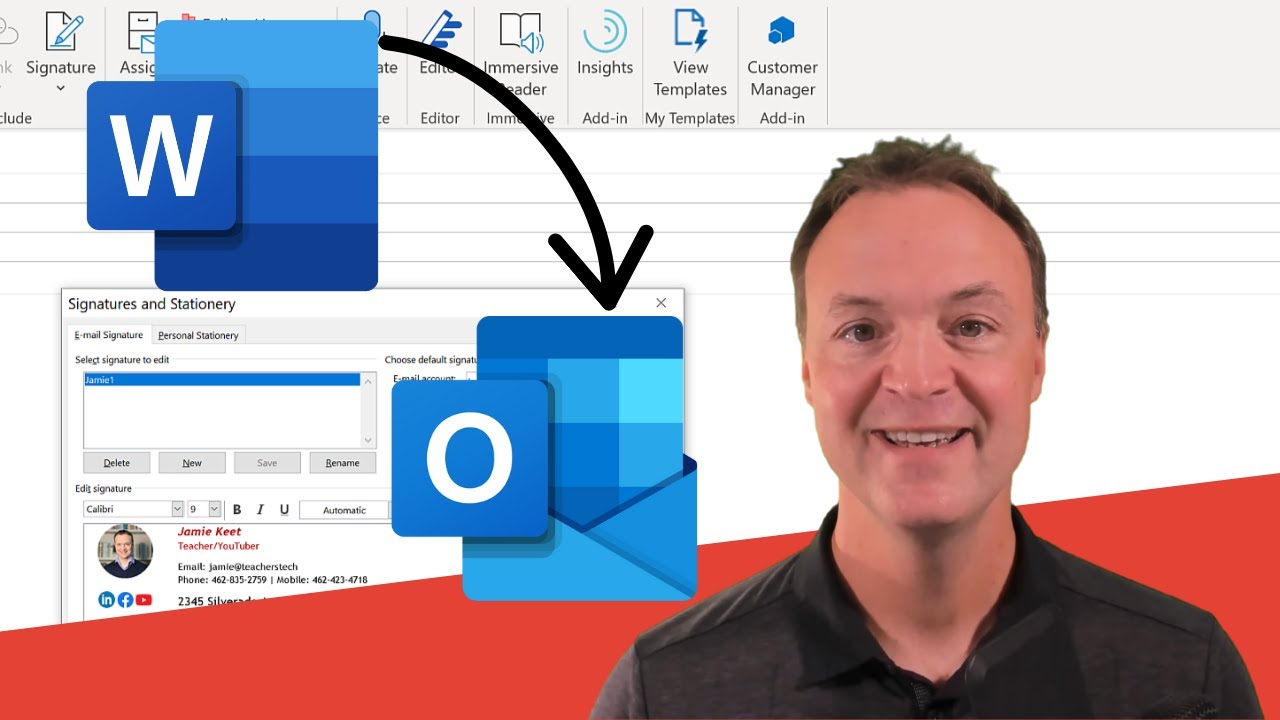
How to Create a Professional Email Signature in Word for Microsoft Outlook
10:22

How to Create a Professional Email Signature in Word for Microsoft Outlook

Teacher's Tech 11.11.2021 199 347 просмотров 1 557 лайков обн. 18.02.2026
Поделиться Telegram VK Бот
Транскрипт Скачать .md
Анализ с AI
Описание видео
In this video tutorial, I will show you how you can use Microsoft Word to create a free email signature for Microsoft Outlook. Starting with the email signature template that Microsoft provides you can quickly customize it to the way you want. Update text, pictures, effects, and social media icons. After you are done simply paste it into Microsoft Outlook when you go to create a new signature. 0:00 Introduction 0:13 What is an email signature 0:40 Download email signature template 1:26 Choose and format your email signature in Microsoft Word 8:40 Creating your new signature into Microsoft Outlook Microsoft email template: https://templates.office.com/en-us/email-signature-gallery-TM55682965 Update your icons: https://www.iconfinder.com/

Оглавление (5 сегментов)

  1. 0:00 Introduction 43 сл.
  2. 0:13 What is an email signature 86 сл.
  3. 0:40 Download email signature template 154 сл.
  4. 1:26 Choose and format your email signature in Microsoft Word 1428 сл.
  5. 8:40 Creating your new signature into Microsoft Outlook 306 сл.
0:00

Introduction

today on teachers tech i want to show you  how you can create a professional looking   email signature in your microsoft  outlook using microsoft word my name is jamie and welcome to teachers tech  so if you're new to using your email signatures
0:13

What is an email signature

this is what it is so if i go and create a new  email here you'll see it pop up i already have   this email signature built into it because if i go  up to signature up here and i have this jamie one   i have one of these in here so if i open up  signatures you can see i have this and this is   what i want to show you how you can create using  microsoft word to save you some time in creating
0:40

Download email signature template

this email signature we're going to start with a  template that microsoft provides for you and i'll   put the link down below in the description to this  page and then when you get to it just go ahead and   click download and open up that word file so it  won't take very long i'll open it up and you're   going to see i'm just going to click enable  editing you can see a lot of different email   signatures available that you can copy the format  so i'm just going to zoom up here a little bit for   you so you can see them a little bit better i  and any of these you can modify using word so   i'm going to choose one of these here and then  i'm going to put it into my microsoft outlook as   another signature so for this demo i'm going  to choose signature number 18 here to create
1:26

Choose and format your email signature in Microsoft Word

and modify so what i'm going to do actually first  is just copy this so i'm going to right click and   copy but you can go ctrl c so i'm going to copy  this and i'm going to open up a brand new blank   document just to put it in here just like this and  then you could save it separately maybe of your   of different email signatures you're using uh so  i want to start modifying this and some things   are very simple to modify i could change  the name just by typing my name in here i   will just get rid of this you can see how the  spacing starts to correct and everything from here   now i could change the name here and i'll  just keep this quite simple for this demo here   and you notice the font color any of this can  be changed just like using microsoft word i can   go to it and change it to any color i want now  the next thing you might want to change is the   picture so if i go ahead and click on the picture  if i right click on the picture and go change from   file so i've downloaded a different picture that  i have and i go from a file so i click on that   and i have them on my desktop here so i'll just  click in here and i'll go to this folder and i'm   going to use this one right here so notice when  it got put in this one i'm going to crop it a bit   because i want it to kind of zoom up a little bit  more i don't want that rectangle look and notice   the shape of it changed but i'm going to show you  how you can change the shape of this too so if i   go to this first of all i'm just going to go to  picture format here and i want to crop it so i'm   just going to select crop and i want to make it  more square for my purposes here so i'm just going   to oops bring in the handles for the crop here i'm  just gonna bring this down a little bit and bring   this in just a tiny bit like this so uh for the  demo this will work for me and i can click off it   it's a little bit more square now i can change the  shape and add effects to this too so if i click   on this again notice if i go back to crop and drop  down i can crop to a shape depending on what shape   do you want a circle so if i would have left it as  more that rectangle it'd be a little bit more oval   but since i squared it up it's a little bit  more circle so i could go through and pick   uh any of the different shapes from here the other  thing i can do you can see there's all these kind   of these four picture formats that i can if i  hover over you can see how it quickly changes   any of these two so you don't have to pick one but  you can use all your picture um all your different   picture properties that you use in microsoft  word to change this one i'm just going to keep   this one really simple here so some other things i  might want to change is maybe put my website here   through here you could decide to change your font  larger if you want i do want to show that this is   built in table so if i highlight everything and  what i'm going to do is just show you all the if   i put all borders on notice how they've made this  so they just have it in a number of different uh   different it's a table that is created into  different spots so sometimes if you're editing   if you turn on the table then you understand how  you can be moving things around so maybe at the   end you want to i turn this table outline back off  i'm gonna leave it on for now some other things   that you'd probably want to update uh  would be you know your email address so   i could put my email  address back in here like so and then so now the other thing is  are all these social media links   so with the social media links uh maybe you notice  that well google plus we're not using anymore so   i can hit delete and remove them maybe you want  different pictures on this too so you can download   for free different social media links so if i go  and just think about okay i want to update these   to kind of a more modern look i can go on any of  these and right click i can change the picture so   i'm going to save from file again you can see i  have this one i've downloaded i'll put the page   to where i downloaded it here and it makes the  quick change so the page that i downloaded it to   is this one i just was looking for free icon uh  there make sure you read the uh the different   regulation in use on it when you download  it but i just i'll put the uh this link down   there i'll just go back over to my word file  so you can see how i can quickly update any of   these here so change picture from a file i'll go  to facebook and i'm just gonna go and delete the   twitter one for now and i'm going to drag this i'm  just dragging it over to line them up and now i'm   going to oops i'm going to right click on this  one here change picture and i'm going to go from   to put this youtube on so it just has a little bit  more current uh look to it uh the other thing is i   want these to be links and i'll just give you the  one example here uh if i hover over it you can see   it is already linked but that's just linked to  youtube i wanted to link to my youtube channel   so if i right click on this i can go edit link  so at this point uh you could go to your youtube   channel so if i go to my youtube channel i could  grab the url from here go back over to word and   just paste it into there so i just did ctrl v so i  hit ok and as i hover over it now you can see that   it will go over i'm not going to bother for this  demo here going through all of these but i just   want to point out you could stretch these  out you could start to modify uh the table   too so if you hover over you know in different  spots on the table and get your handle you can   change how you might want to have things laid out  so even though you're starting from the template   you can really create uh things the way you want  all right so maybe even on this one do i want this   further down aligned so what i can do is if i want  this more aligned towards the bottom i could go   add space before paragraph and now it's down  here aligned this way i can make a couple other   changes maybe i want this just to be teachers tech  here and again i'm not changing everything this   is just for a demo i can see my font size uh  maybe i want this all the same here i can make   my font a little larger if i want through any of  this stuff and then you might need to stretch out   your tables to fit it so i can stretch this out  if i wanted my fonts to be larger you can see   if i increase them and i don't want to have this  to happen so just to show you how you can adjust   this by changing the table so let's say now you're  all done your formatting and everything you've   made all these changes you can go back and i can  get rid of and put it back to no borders like this   so let's go put this in our microsoft outlook as  a new signature so if i go to this all i have to
8:40

Creating your new signature into Microsoft Outlook

do is select it i'm going to go control c you  can right click and copy too i'm going to go   over to my microsoft outlook so i'm just opening  it up and what i'm going to do is i'll just go to   new email here so you can see it has this  one that i started with that i showed you   i could go to signature i'm just going to click  on it this on signatures and i'm going to create   a new one so new and i'm just going to call  this jamie 2. so i hit ok notice it's blank   i'm going to just go ctrl v and paste it in here  so i hit ok so now when i si when i send an email   i could have different ones for different email  addresses too so if i want jamie 2 you can see   how it quickly changes to this one i do want to  point out now i was editing inside microsoft word   you can copy paste that directly from your  microsoft word template and paste it into here   because any of these when i click on this picture  you can see i'm getting the same options as   what i was in microsoft word i just like working  zooming out better inside microsoft word rather   than outlook but you can do from table design  and layout everything's right in here where you   could do the same thing so i hope you like this  little tutorial here today on how to create a   microsoft outlook signature using microsoft  word let me know if this helps you out what   else you're like looking to learn about microsoft  or other uh tech products out there thanks for   watching this time on teachers tech i'll see  you next time with more tech tips and tutorials

Ещё от Teacher's Tech

Ctrl+V

Экстракт Знаний в Telegram

Транскрипты, идеи, методички — всё самое полезное из лучших YouTube-каналов.

Подписаться




