Drag & Drop Images Directly to any Other App with ClipDrop
6:00

Drag & Drop Images Directly to any Other App with ClipDrop

Teacher's Tech 06.11.2021 12 417 просмотров 149 лайков обн. 18.02.2026
Поделиться Telegram VK Бот
Транскрипт Скачать .md
Анализ с AI
Описание видео
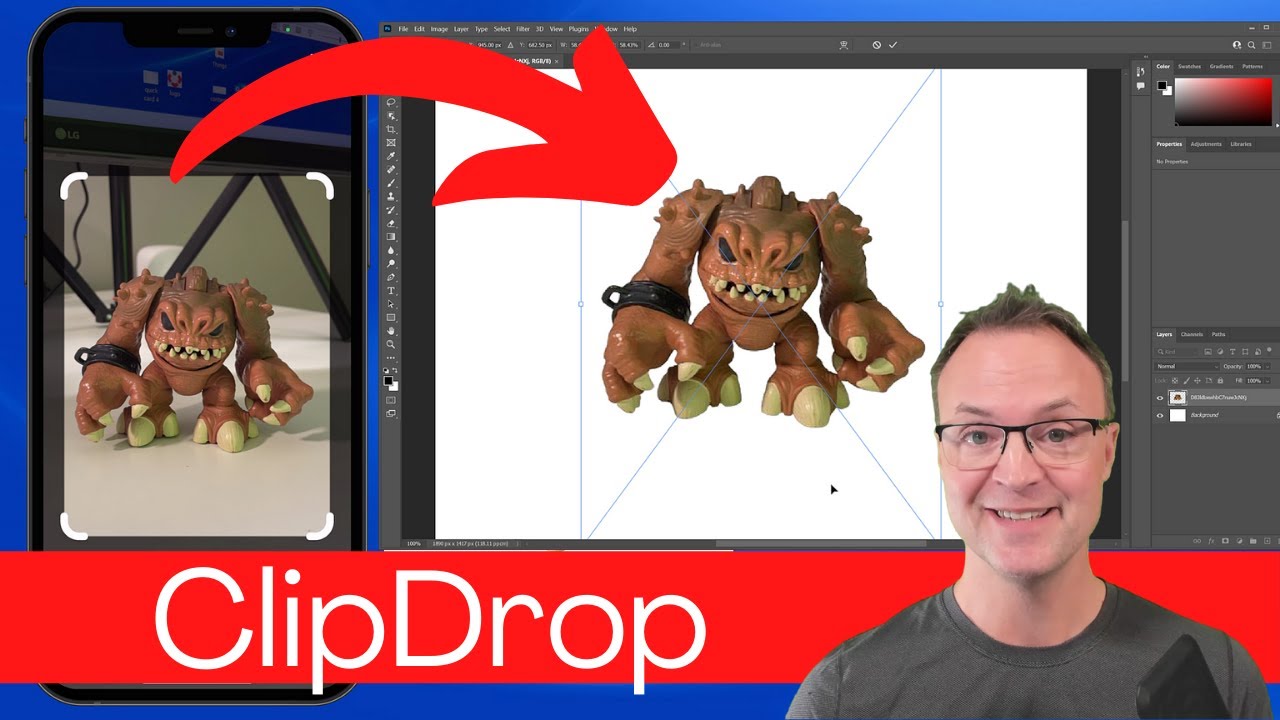
In this video, I will show you how to use ClipDrop. ClipDrop allows you to take a picture, quickly remove the background through advanced AI then drag it into any app. You can also use ClipDrop to capture images and remove backgrounds from web pages. Use ClipDrop on your iPhone or Android device then install it on your Mac or Windows computer. Website: https://clipdrop.co/

Оглавление (2 сегментов)

  1. 0:00 Segment 1 (00:00 - 05:00) 1046 сл.
  2. 5:00 Segment 2 (05:00 - 06:00) 203 сл.
0:00

Segment 1 (00:00 - 05:00)

hi there Jamie Keet here today Teacher's Tech, hope you're having a great day today   today i want to show you a cool app  that i've been playing around with   that can quickly grab a picture delete its  background and you can move it over to other apps   like photoshop or powerpoint or any of your google  apps let me show you in a quick demo here before i   dive deeper so i have this picture here i'm gonna  i'm gonna snap a quick picture of this toy monster   just like this and you're gonna see it appear  right on the screen right there so you can see   how fast it deleted the background now what  i'm going to do with my phone is just press   on it with my thumb here and it's going to pop  up because i'm logged in on two different ones   onto my screen and onto my phone with the  same account at this point now i could do   i can just go and drag this on to any app so  i'm in photoshop right here where i can size it   so i'm going to show you a few more examples  how you can use this today on teachers tech   so the app i'm showing you here today is the  called clip drop it's clipdrop. co i'll put the   link down below in the description so you  can check it out you need to install it on   your mobile device whether it be android or ios  then you need to install the app on your computer   being windows or mac and today i'm demoing  it on my windows computer now once you get   it installed on both you've got to make sure  that you're logged into the same account on both   too so i'm logged into both of the my same  account so when i uh just tap on my phone or   hold down on the picture it just pops open on my  computer by because i'm using the same account   over both so uh just you can check out some of the  options that it has i'm going to show you some of   the cool features right here in this kind of this  quick tutorial of using it just so you know it   isn't a free app i actually did purchase it you  can test it out for three days free i believe   but i did purchase it because i could saw myself  using it quickly to grab some images deleting   the background and just pulling it over to some  other apps like if i needed it in a presentation   but now let me kind of demo it a little bit more  for you so let me give you another quick demo and   this time i'll drag it into a powerpoint in a  google docs i'm going to take a quick picture   here so i'm going to just line it up i can change  the frame on this too so whether you want it to be   how large you want to be around it i'm just going  to and you can turn the flash on i'm going to   leave it off and just take a quick clip just like  that and when if i look at the top right hand   corner you can see when it has the cloud there  i know it has synced with my computer so now i   know i can press on it and it's going to go ahead  to my computer but before i do that i just wanted   to show you some of the options down below you can  see where there's delete we do have edit where we   can change you know the landscape uh portrait  in different parts even if you wanted a square   and you can change the background i'm just going  to quickly click on a few of color ones i'm   going to leave this transparent for this example  just like this and i'll go to the original size   so i'm going to go ahead hit ok now all i have  to do remember when it is that cloud and i see   that cloud i know it's all ready to go i'm gonna  just hold down my thumb on it and then it pops   open right here so at this point i can drag  it in so this is a powerpoint that i just   brought it right into so just like any other  images i can resize it move it where i want   if i was using google here so this is google  docs i could just drag it into a google docs   so anything that you could put images in you can  quickly use it for that but there's even more you   can do with this you can use it just off the web  too and i'll show you how i'm just on pexels. com   here and i want to just demo how you can use this  as to capture images off the web and take away   backgrounds in a hurry too so i'm just going to go  to this image right here and go to a larger size   on my windows if i go uh i need to go to my uh to  my clip drop app right here so i'm going to click   on this and it opens up a few more things here it  has clip here so when it when i click on clip now   i can highlight what i want to get so as soon  as i draw it around here and what you're going   to see is it's going to open it up and it's  going to remove the background of that image   so there we go so just from the internet it was  able to quickly drag quickly grab an image and   bring it in and again i can bring this into any  of the apps that i want like i showed you before   with powerpoint with a simple drag over when you  open up the app from your computer you're going   to see that all the images that you took are right  here because it's just being moved back and forth   between that account i can go ahead and copy any  of these i can download them out into my computer
5:00

Segment 2 (05:00 - 06:00)

i could delete them from here i could open  back up at any point and drag them into any   of the apps that i showed you before there's  some slight editing you can do from these from   the presets uh you can see that the different  if you wanted the different color backgrounds   but your phone has that just built in now the  other thing i just wanted to point out on it   and i'll just pop back over to their website  they do have a plug-in for adobe photoshop that   you're supposed to be able to just hover your  phone over an area and then it will go right into   the cat onto the canvas and it will put different  layers i was playing around with that plug-in   today but had some problems with it working  so i'll keep playing around with that to see   if i can get that going anyway i hope you liked  this little tech tip here today about uh clip   drop i find this a very interesting app and kind  of could speed up some workflows for you thanks   for watching this time on teachers tech i'll see  you next time with more tech tips and tutorials

Ещё от Teacher's Tech

Ctrl+V

Экстракт Знаний в Telegram

Транскрипты, идеи, методички — всё самое полезное из лучших YouTube-каналов.

Подписаться




