Complete Lesson in Excel Text Formulas that use References to Dates, Money & Arrays. EMT 1920.

Complete Lesson in Excel Text Formulas that use References to Dates, Money & Arrays. EMT 1920.

Machine-readable: Markdown · JSON API · Site index
Поделиться Telegram VK Бот
Транскрипт Скачать .md
Анализ с AI

Оглавление (2 сегментов)

Segment 1 (00:00 - 05:00)

Welcome to Excel magic trick 1920. And in this video, we're going to learn how to use the text fix dollar and array to text functions that we're going to use in this formula to go from this financial data into this formula created text string to use in a ledger. Now, the goal is to create with a text formula this text string, but we're going to have to type text directly into the formula like debit amounts from, but also pull with cell references dates and currency amounts. But the ultimate problem with text formulas is formulas do not see number formatting. And what that means is in our text formula when we use a cell reference and point to this cell with that date, it cannot see the 12/13/2025. But what does it see? Well, as we know from number formatting, if you apply the general number formatting, it's like an eraser. It will erase all the number formatting and show you the underlying number. And when I apply general, yep, that's a serial number. 46,04. That means how many days since December 31st, 1899. Yes, January 1st, 1900 is the very first day Excel knows. And the reason we have these serial numbers is of course so we can do date math. Subtract two dates and get the number of days between dates. Ctrl Z. Similarly, down here we see 14. 00. But if we apply general and the keyboard for general is control shift tilda or grave accent that's what the formula pulls it can only see the 14 controll Z not the dollar sign point and 0. So we have to contend with that fact. Anytime we create text formulas that use text and numbers to create the formula we type an equal sign. And anytime you have text in a formula, it's got to be in double quotes. Debits from space in double quote. Now, right there, that's a ridiculous formula. But when I controll enter, you could create a formula like that. F2 to put it in edit mode. Now, we're going to have to use the join operator, shift 7, the amperand, that allows us to join multiple items together in a text formula to create a single text string. Now, let's just see what happens if I click on this date. Sure enough, formulas do not see number formatting. F2. Luckily, there's an amazing function called text. And if you read this tip, converts a value to text in a specific number format. That's exactly what we want. Now, there's the cell reference pointing to the number, comma, and we have to know custom number formatting. And that has to be in double quotes. But the lucky thing is for dates it's easy. Y represents year. M for month and d for day. So in double quotes I want mm. mm for one would show a leading zero 01. M for one shows one. Mm for 12 shows 12. Also m Slash dd that will show a leading zero. For example, it'll show the 13, but down for three. When we point down there, it'll show 03 slash YY. That just means the last two digits of the year. And double quote close. Controll enter. And there's our cell reference pointing to a date with R added number formatting. Now check this out. I can copy this. Ctrl C. I need text that says two between the two dates. amperand double quotes space 2 space and double quote and then CtrlV double click B6 and point to B23 controll enter and our formula is starting to take shape F2 actually I'm going to edit this and put amounts and at the end I do not want to amperand and join each one of these together so I'm going to use an amazing function called array to text. Hey, here's an array. We're going to give it a range of a bunch of numbers and comma. By default, it'll use concise, which just puts a comma space. If you use strict, it puts it in array syntax with curly brackets, but backspace close

Segment 2 (05:00 - 07:00)

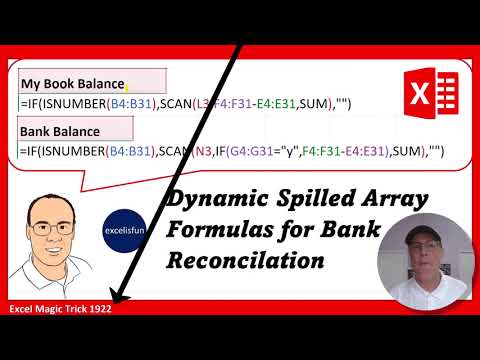
controll enter. That's already looking great. But sure enough, there's that 14. and I want 0. F2. I'm going to show you two different ways to do this. The first is the dollar function. And there it says converts a number to text using currency format. That's what we want. Tab. So now dollar is going to if I highlight this, you can see the dollar amounts and that'll work inside array to text. Controll enter. Now I'm going to show you two ways. We'll use F2 dollar and then I'll show you how to use the fixed function because sometimes in a text string like this those dollar signs are too busy. F2. But for now we want the dollar sign. So at the end amperand double quote space equal sign a space double quote and dollar again the total close. And there's our first formula. Controll enter. Oh, look at that right there. That's no good. Luckily, editing is easy. F2. Right after the amperand, double quotes. And I'm going to put an equal sign and double quotes amperand. Controll enter. And that is looking good. Now, F2, Ctrl A, Ctrl C. I'm copying it this way so that relative cell references don't move. Enter. F2 controlV and instead of dollar fixed is an obscure function. I use it all the time because by default it'll show two decimals and commas without the dollar sign. So oftent times I use fixed when I don't want things to be as messy. Controll enter. And there are our two text strings. Now I'm going to copy this text string and paste it over in the ledger. So, Ctrl C. Right now, that's copying the whole formula. But when I come over to 1921, rightclick, and there it is. Paste special or I can use the keyboard control shift V. And just like that, I've pasted it as values into my ledger. Now, this ledger, which is going to be part of next video, it has my book balance. That means all the things I've entered into this check registry. and the bank balance based on the y's in this column. So when I put the date 12/3 controll enter they show up and I'll show you how to do that next video. —

Другие видео автора — excelisfun

Ctrl+V

Экстракт Знаний в Telegram

Экстракты и дистилляты из лучших YouTube-каналов — сразу после публикации.

Подписаться

Дайджест Экстрактов

Лучшие методички за неделю — каждый понедельник