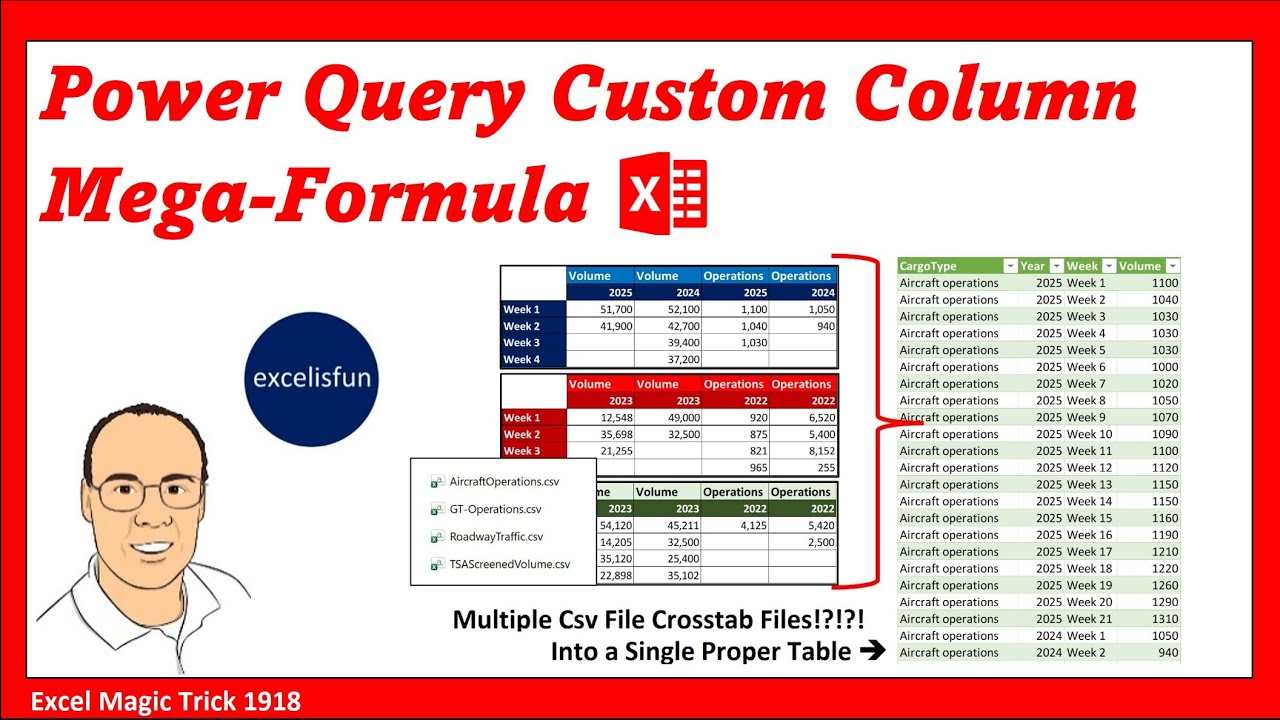
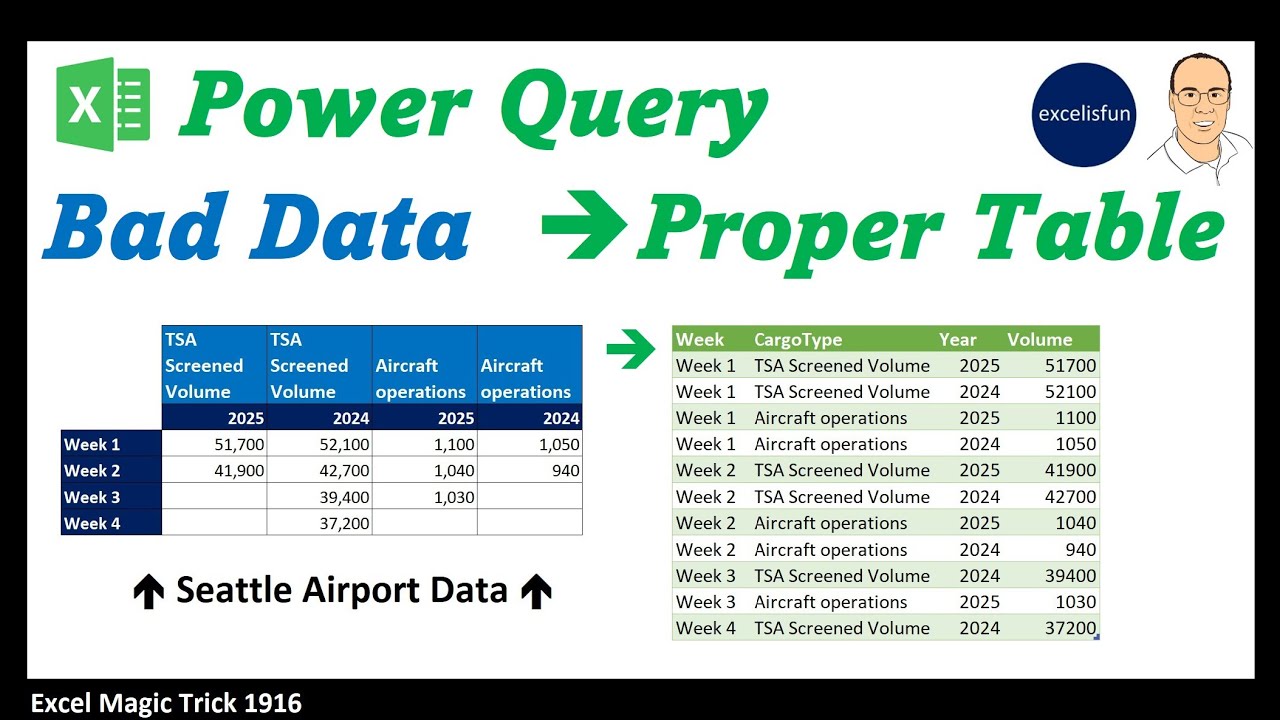
Welcome to Excel magic trick 1919 1918 1917 yes one two three this is the third video where we take these crosstabulated tables that are in CSV file form and transform them into a proper data set but in this video we're going to build a custom function but we're going to use a parameter because parameters make it simple to edit if you need to edit later. Now, in all three videos, we use a lot of M code. M code is the computer language behind Power Query. I wrote a whole book all about it. Here are the links on the sheet PQ book. They're also below the video. Now, as we did in 1917, we created a custom function. And if we look at the result up in advanced editor, we created all this code as part of the initial query, but then we copied and pasted it into a new query where we created the function. And although we left the code here as a trail, it would be really hard to edit later. Now, the advantage is, and the reason I do this often is I have one query and one function query. Now, here's a preview. We're actually going to have to create a bunch of different queries sample file, convert it to a parameter, then point the function query where we do the transformations to the parameter. But then we can simply rightclick this because it's using a parameter and automatically create the function. And then if we need to edit later, it's simple. We edit it here. it shows up here and wherever we use that function that updates also. Now we talked about this in earlier videos and although a cross tab with two variables at the head of each column and one row although it may be good as an output it is not a good place to store data. It's too hard to do things like sort or pivot tables. If we can convert all these different cross tabs into one table, then it's easy to sort, create pivot tables, and other data analysis tasks. Now, you can download and unzip this folder. This is what we're going to use. We'll add these files later to see if everything updates, but we're going to point to this folder and import these CSV files. So, the task is simple. CSV files cross tabs into a single table. We want to start by going to data get and transform get data dropdown from file from folder. We want to make sure and point to the second folder. Click open. We don't click combine or load. We click transform data. This opens up the power query editor. We can see our new query down here. F2. I called it one table with all CSV data. Now we have a single line of code here from folder. There's the onremise folder location. Remember that's different on your computer. And this will be the final query where we use our function. But now we need to create a sample file, a parameter, the function, and the function. Now I'm going to rightclick and duplicate the code. I don't want a reference because that query is going to change a lot. I want to duplicate. So I see up in the formula bar I have the same line of code. Now F2. Now I called it A1 sample file. That's just a naming convention that I use. Now we need a sample file. That means just the actual CSV file. And the way we look up a particular item whether it's a file or text or a date from an intersecting column and row is we use Mcode lookup. Now, we saw how to look up a column from a table by using field access operators. But in this case, we're going to look up the row and then the column. And together, those two positions will extract the item. Now, we come up to the formula bar, and guess what? Folder. files is just delivering a table. So, that's a table. Then, we use the row positional index operator. Now, last couple videos we saw that curly brackets create lists. But if they come directly after a table and you put a row number, it'll look up that row. Now, Power Query does not go by 1 2 3. It's base zero. So, it goes 0 1 2. So if I put a zero and then click the check mark to enter, we have looked up from a table the entire row or a record. The record contains field names and then the data for each item in that row. Now we need
Segment 2 (05:00 - 10:00)
to look up the binary from the content column. And how do we look up a particular item from a column in a record? Well, we use our field access operators. Now, we used this operator the last couple videos when we looked up a column from a table and returned it as a list. But we're using the field access operator on a record. So, if we use the field access operator with the column name and hit enter, it does a two-way lookup to return the item. Now, from the CSV file, now we need to create a parameter because the parameter is the whole trick to this solution. So I select the sample file home parameters manage parameter drop-down new parameter. We want to give it a name and a description. All right, I gave Now what type? Well, we're dealing with a binary. Suggested value is binary. Also default value, we want the sample file we just created also for current value. Click okay. Now that we have the parameter, everything that comes after is based on this parameter. Step three is to build the code for our custom function. So we go to home, new query, new source, other blank. Now over here in properties and name, we're going to call this C03 build code for function. Enter. Now, up in the formula bar, I want to type equal CSV because remember that's the first function we've used in the other two videos. Tab open parentheses B. There's the parameter. Tab. Now, when I click the check mark, there's step one. CSV. doccument got the commaepparated values and brought it back as a table. Next step, we have to transpose the table to get the first two rows as columns. transform transpose. Next, we need to take the first row and promote to headers. So, in the upper left of the table, click use first row as headers. Now, we can rename the first two columns. Double click. Cargo type. Enter. Arrow key F2. This is year. Enter. Next step, we need to unpivot. So, I have year selected. I hold shift, click cargo type, rightclick, unpivot. other columns. We want to rename these two columns. We come up to the formula bar. Double click. We'll call this week. Doubleclick. We'll call this volume. Click the check mark. Now we come over and we need to filter blanks. Filter dropdown. Uncheck blank. Click okay. With volume selected, I hold shift. Click cargo type. Transform. Detect data types. Make sure that they are okay. We want to come over and rename these steps. Get rid of the spaces. Now we rename the steps. And these are all the steps that we want to run on each file. But first we need to convert this to a custom function. Right click and from the drop-down click create function. We want to name this function. That's the name I gave it. Click okay. Now I created this folder and left these other two queries in other queries. I'm going to click the first one, hold shift, click the second one, and then we want to drag it. Click, hold the click, and drag up. You see the green bar? Let go. Also, I want to rename this F2. This is the finished table where we're going to use our function EO5 at the beginning and enter. Then I want to click and drag it down. It doesn't automatically sort. Now what we've done is we created a sample file because we needed that inside the Power Query editor to convert to a parameter. Once we built our code pointing to the parameter, notice it's right there. All the magic happens because there's a parameter. Cancel. We rightclick created the function. We go and look in advanced editor. And look, it's very polite. It says you should go change your code there, not in the function. Click okay. But we're just looking at the code. And sure enough, there it is. Now, anything we do to our build code for function query, it'll show up over here automatically. Click done. Now, we'll use the function in this query. We want to add a column. Invoke custom function. We'll name the new column it's going to create. And we select our query to work in each row. There it is. Click. And there's content column. That's the input for this function. Click okay. And sure enough, in every row, we have a cleaned up transform table. Now, I want to name this F2. Just remove the spaces. Now, we
Segment 3 (10:00 - 13:00)
want to look up a column. Return it as a list. I'm going to F2. Controll C. Escape. Click F ofX. It's pointing to the previous step, which is a table. And we're going to use our square brackets here. field access operator CtrlV with a column name. So now because we're looking up from a table, when I click the check mark, it returns it as a list, which is exactly what we need for table. combine open. And that's the required form tables as a list. Close. Click the check mark. And there's our finished table. Now, I only want to load this table right here. So I want to come up to close and load. Close and load two. And for all of them click only create a connection. Click okay. Now we can come over to our final query. Right click load two as a table on a new worksheet. Click okay. And there's our loaded table. Now we get to test it. Let's come over to queries and connections. And we want to open the third query by double clicking. And remember any changes we make here should filter through to the remaining queries. Now over in applied steps we're going to select filter out blanks and we want to add a filter. Notice up in the formula bar we have one filter on volume. Let's filter out the year 2019. When I click okay, you can see both filters are in an and logical test. And the most amazing thing is when I go over to the function, click advanced editor, click okay, that filter is totally over here also. Done. Final query. We're going to look and see. And sure enough, 2019 is not there. So the real power of using a parameter is if you need to edit the code later, you just edit in one place and it flows through to the function and anywhere that function is used. Last video the advantage was well yeah we had to write a lot of code in this column. But look we have everything done in a single query. 1917 we built our code here and built a single extra function and then used it. Now the last thing we do is test it. We're going to add two new files. Click shiftclick copy. Ctrl C, doubleclick, controll V. Now the folder has six files. And if I come over to the table, rightclick, refresh, I can see it has updated to 1,649 rows. We can go look at the query. Double click. Go back to the step. Invoke custom function. Home refresh preview. And now we can see all six files. All right, that was a lot of fun with 1917, 1918, and 1919. We'll see you next video.