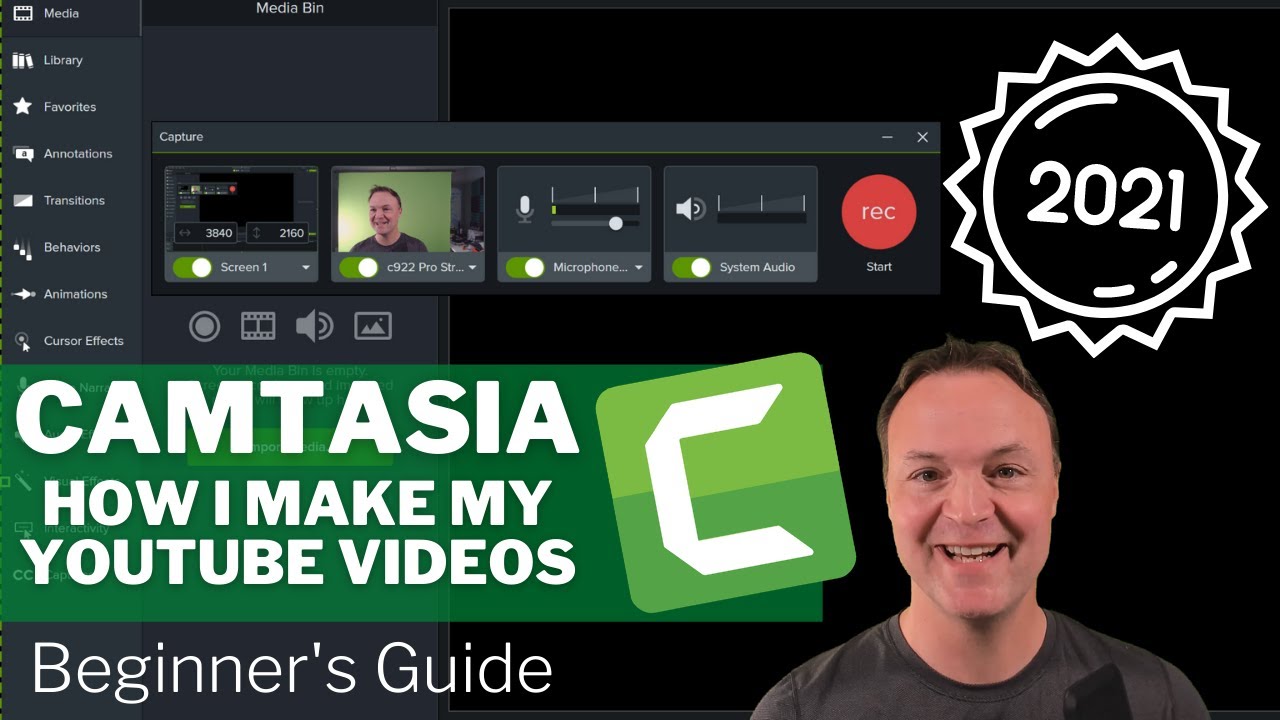
How to Use Camtasia with Tips and Tricks - 2021 Beginner's Guide
29:00

How to Use Camtasia with Tips and Tricks - 2021 Beginner's Guide

Teacher's Tech 03.05.2021 49 666 просмотров 463 лайков обн. 18.02.2026
Поделиться Telegram VK Бот
Транскрипт Скачать .md
Анализ с AI
Описание видео
In this video, I will show you how I use Camtasia 2021. This tutorial is for beginners so they can start with no experience when using Camtasia. Camtasia is a great product to create instructional videos for class or platforms like YouTube. Camtasia records your screen and webcam at the same time in different video tracks. It's available on Windows or Mac OS. I use Camtasia for all of my YouTube Videos. Use this coupon code: TEACHCAM10 Camtasia purchase with 10% OFF code applied: https://techsmith.z6rjha.net/c/1264585/701976/5161 Camtasia EDU 10% OFF with code applied: https://techsmith.z6rjha.net/c/1264585/704928/5161 Download Free Trial Camtasia Download page: https://techsmith.z6rjha.net/c/1264585/489271/5161 0:00 Intro 1:03 Starting Camtasia 1:34 Recording your first screen recording 5:08 Importing more media (videos, images, audio) 6:07 Basic video editing in Camtasia 2021 12:04 Bring an image into the timeline 13:12 Separate audio from video in Camtasia 13:52 Adjust clip duration or speed 14:52 Removing the green screen in Camtasia 18:42 Using the zoom effect in Camtasia 2021 19:55 How to highlight your cursor in Camtasia 21:00 How to use transitions 22:29 How to use Annotations (Callouts, Shapes Blurring) 25:26 Take advantage of the amazing Library in Camtasia 27:33 Exporting your finished video to your computer or YouTube What I use in my setup: Logitech BRIO Ultra HD Webcam: https://amzn.to/3udOeFc Rode NT1KIT Cardioid Condenser Microphone Package: https://amzn.to/3nFjL0a Elgato Green Screen: https://amzn.to/3tce4Z0 Neewer 3 Pieces Bi-Color 660 LED Video Light and Stand Kit: https://amzn.to/3aX1zu5 DISCLAIMER: This video and description contains affiliate links, which means that if you click on one of the product links and end up purchasing it, I’ll receive a small commission. This helps support the channel and allows us to continue to make videos like this. Thank you for the support!


Оглавление (15 сегментов)

  1. 0:00 Intro 225 сл.
  2. 1:03 Starting Camtasia 96 сл.
  3. 1:34 Recording your first screen recording 749 сл.
  4. 5:08 Importing more media (videos, images, audio) 209 сл.
  5. 6:07 Basic video editing in Camtasia 2021 1235 сл.
  6. 12:04 Bring an image into the timeline 224 сл.
  7. 13:12 Separate audio from video in Camtasia 132 сл.
  8. 13:52 Adjust clip duration or speed 212 сл.
  9. 14:52 Removing the green screen in Camtasia 798 сл.
  10. 18:42 Using the zoom effect in Camtasia 2021 218 сл.
  11. 19:55 How to highlight your cursor in Camtasia 221 сл.
  12. 21:00 How to use transitions 322 сл.
  13. 22:29 How to use Annotations (Callouts, Shapes Blurring) 595 сл.
  14. 25:26 Take advantage of the amazing Library in Camtasia 422 сл.
  15. 27:33 Exporting your finished video to your computer or YouTube 289 сл.
0:00

Intro

hi there jamie keate here today at teachers tech hope you're having a great day today today i want to show you how to use camtasia 2021 so i've been using camtasia to create all my youtube videos and i just love how i'm able to sit down at my computer and start creating right away it just makes things incredibly easy now i'll be going through all the different ways i use it or even like how i get the floating green head in front of my screen and that's just done with a few clicks so take a look down below in the description you can see everything's time stamped so i'll be able to you'll be able to jump around to different parts of the video if you're looking for something specific so let's get started with camtasia 2021 today on teachers tech if you don't have camtasia yet i'll put the links down below so you can get it there's also a 10 discount code that you can use there's two different links one's for use for education and the other sort of personal use that the discount code will work for both of them there but do take advantage of that if you don't have it yet and just so you know those are affiliate links now when you go
1:03

Starting Camtasia

ahead and open camtasia you're going to get this version 2021 and i'm just going to go ahead and create a new project you can jump right to recording and everything but i usually tend to start a new project if i had projects already i could open them from here but i'm just going to go ahead and create new project camtasia 2021 will open up and then we'll be ready to go ahead and capture um our screens and bring media into it so now it's all open we're ready to get started with
1:34

Recording your first screen recording

camtasia21 all right let's start by creating some content we're going to capture what i'm going to do is capture my screen and capture from my webcam at the same time just here's a quick tip make sure you have good lighting i have two different lights shining on me from the front from each side and i have one on my green screen too well making sure it's well that will make your videos look so much better the other thing is thinking about having quality audio you don't have to spend a ton on this there's so many different uh mics out there too i'll list what i have uh down below in the description not that you need the same things but it will give you an idea what i'm using to create my videos so we're going to go ahead and start just by hitting record right up top and this is how simple it is to get set up so i'm going to hit record and you notice it just drops down and i get this uh this window opening up here and nothing started recording yet now i'm actually using camtasia 2020 to show you this because this one even be captured inside camtasia 2021 if i was trying to show you so what uh what this is right here so you have some options i'm going to capture screen one i have dual monitor set up but i can say oh do i want screen one or screen two and i could go and put screen to and you can kind of see how that changes with all the different icons i have on that one i'm going to capture from screen one but maybe there's a region so i could actually go through and draw an area like this and you can see that now the capture is a smaller window it's going to pick a certain one or i can go through widescreen 720p you pick what you're going to want i'm going to go back to screen one here so it's going to select everything on my screen one to capture what camera do i want so i drop down i have two different cameras i'm using right now the one recording in camtasia 2020 is the brio i find this is a far superior camera to this one but i just wanted two different cameras set up so that you would see this right here and i love in camtasia 2021 how they've created this larger so you can get a quick glance to see uh where you are in the screen and how things are working on it so i'm going to leave this at this webcam here what audio do i want so you can see where i could capture from the webcam if i want but i have a separate mic that i'm going to do there do i want the system audio yeah if i had any sounds or anything capturing from there that's what i want so i'm going to go ahead and hit start here and then i'm going to open up microsoft excel for a moment just to give some different change in my screen here so i'll just hit record now you don't see this anymore but i still see that bar with the account to show me how long my video in the nice size and it also will show me where i am in the video like this but it disappears and i can keep it on the same screen still so if i go ahead i'm going to open up some excel so let's say i move over to this sheet here and i'm just talking about one of my lessons that i'm teaching and that's fine and i have stopped right in front of me here that i'm going to hit stop and you notice that this bar comes back up again even though you couldn't see the other ones i'm going to go ahead and go over to camtasia 2021 open that up and i'm going to close this capture bar here and now i have this captured so if i go ahead now you don't see this anymore but i still see that notice that in the middle you don't see on my capture in 2021 what that screen uh what that bar it disappears after because i'm recording it on a different program
5:08

Importing more media (videos, images, audio)

program now you can also bring in other media we'll do some editing in a moment here but sometimes you're going to be editing other media i use lots of times i use camtasia to edit other videos without even capturing so i could right click right in here and go import media or i could go ahead and hit import media right here and let's say i want my intro so if because in all my videos i have an intro that i bring in and i'm just going to hit open and it's a video that i'll use and i'll show you how i bring that in a moment but then i i'm going to bring in we could bring in uh image too so if i go ahead and grab an image here's a uh one from just an old thumbnail that i created for youtube i can bring images in here too so if you had songs or different or audio you could bring it in here and all your media is going to be right here okay so now that we have some media brought into camtasia 2021 let's show you how you can do some basic editing okay so if you haven't saved
6:07

Basic video editing in Camtasia 2021

your project yet i would do that right away just go up and you can see file go ahead hit save or save as if you're renaming it but make sure you save your project the other thing i just want to point out you can change your project settings uh i tend to do it like this so there's multiple ways to do different things but i'm just going to show you how i work with camtasia drop down and you can see there's project settings right here you could change how as i hover over different if you were trying to do it on a maybe an iphone or something like that it shows what it would look like uh but i'm you can go pick custom and then put in the numbers exactly what you want i'm keeping at this uh this at high def here 1080p i'm going to hit apply could it just hit cancel all right so we have it saved we have our project settings let's talk some just some basic editing in this camtasia beginner's tutorial here's how i work on with it so if i select now notice if i click the top track here this is my webcam track here now if i click the bottom one now this is my background so camtasia recorded on two different tracks and that's really important especially with the green screen to be able to eliminate it i need those layers now what i tend to do if i click on any of these notice on the right hand side there's properties now if i have a clip selected the properties show up for that clip so you can see if there's scale since i have my webcam one as i make it larger i can it grows now these this right away if i hover over it has the move tool and i can move it around another way i size two is if i go up here if you just have to make sure this edits selected you can go and grab your handles and size it like this all right you notice there's a few other tools here that you can play with if you wanted it to kind of be see-through a lot of times i'll use the change this to zero and maybe you'll see this in video if i don't want myself in there i'll just do a cut and then have myself disappear just by changing the opacity on it all right so this tool right here is to move this is your pen tool the other tool i use lots is the crop one because you can see with the green screen i don't want this edge right in here i just want it green behind me so if i go to the crop like this i can pull this in and make it just to the green like this make sure if i was selected on a different video track that wouldn't work you got to be on the video track that you're working on uh when it then i can position again and if you want to move it again make sure you switch back to this because a lot of times if you try to size it it's on crop it won't work you need to switch back to this handle and then you can still change the size and everything like that i'll show you a little later on this video how to delete the green uh behind this how you get the floating head on this now just some basic editing here since this is just a beginner's tutorial we have our two different tracks and here's the way you can split or cut something out of it if i select on one track i can drag from the beginning and i can trim so i'm trimming just that one video clip so if i hit play or hit the space bar you can see it plays nothing but i still see that and then i pop on so i can do it individually per track or whatever layer i'm on or if i have both selected so i could draw my selection tool to have them both you can see how they're highlighted or i could click on one hold shift and then select and if i grab them both now they're being trimmed at the same time so a lot of times when i start recording i always have some extra footage there at the beginning that i trim away uh just like this and usually at the end there's something i trim away to go you notice this is a little lopsided sometimes it records one a little bit extra i can trim them exactly i could drag this back one at a time back to match like this or another thing i can do and notice that you can do undo or control z so if i go back a couple steps you can see how or i can go redo too the other way i do this to trim if i take my playhead and i just right click on top of my playhead right here so i right click notice i have split all and if i have one selected i can go split selected or split all i'll go split all and then i could select these clips right here i could move them around or i could just hit delete and then they're gone so do notice whenever you click on a clip and watch these icons get highlighted where you can either cut a clip i'll undo that or you can go through you can see where you can paste it copy paste you can split your clip where it's selected or you can even take a frame shot here it will take a picture of the frame and i use this for my youtube thumbnails a lot of times i'll take a frame shot and it'll export it as an image but i tend to do the right click just as a habit when i'm going through and splitting my clips so very easy if i wanted something out in the middle maybe a chunk with both tracks i might go split all and then move over and split all again and then i can go ahead and take this chunk maybe i want it somewhere else or i can just hit delete and then i can move them back and fill in the gap just like that because when you're recording you will make little mistakes and sometimes you don't want to record the whole thing over again you can just edit something out from the ends or take that little mistake out maybe that gap in the middle and just piece it back together and gnarly no one will notice and it's not that big of a deal to worry about especially if it's a long recording that you just did so some other things i just want to point out here is in just in kind of your size of the screen i can bring this up so i'm going to add a track so notice i have track one track two i can click and there's another track added to it
12:04

Bring an image into the timeline

so maybe i take this image that i brought in i can drag this on top and then what happens is if i hit play watch the playhead as soon as it comes to that bar this pops up well i could move over i could resize it here move it up and so maybe i want that with the image just to pop up of that moment i just drag it in over top on another layer and size it using this edit tool to quickly edit it to scale it to the size or i could make sure i go over to the properties and see it over here too all right so those are some just some basic editing here i'm going to show you a couple other tips here just so that if you're looking how to do something that it just is quick to do and that's with the right click on top of the clips so for an example if i go ahead and right click on this clip right here you get all these different options that you can use i use some different ones i'll use is clip speed and i'll show you that in a moment on my intro and i also sometimes separate audio in video but you can take a look at the
13:12

Separate audio from video in Camtasia

different things that you can do if i go ahead and separate audio video now i have an another track at it but this is just the audio to this clip so if i click off and just select the one you know since it's just audio right now i get this gain where i can make it quieter if i want if i wanted the track to be quieter i could just bring it down notice when i have this selected here take a look at the properties and it's open right here what you can switch with it again you can always edit undo any of these and i talked about the clip speed and this is it right here so i'm going to go ahead and delete this section
13:52

Adjust clip duration or speed

section and i'm going to bring in my intro so my intro is actually um is too long it's like 10 seconds long it's too slow for how i use it so i always speed it up and what i do to speed this up if i right click on it and i pointed this out before is add clip speed so if i go add clip speed i can go ahead and drag this down so if i start dragging notice i said notices the duration is getting shorter shorter and i tend to make this around three seconds so i'm watching the time all right so get to about three seconds right we'll go about right there and so now i have this clip just like this so again if i look at the properties keep looking at the properties i could go ahead and adjust it up here i'm just showing how i tend to do stuff i could just write it in what i want up here probably be a little bit quicker but always look at the properties at the same time so hopefully that gets you into some basic editing let's move on to some of the more some things you can do more in camtasia
14:52

Removing the green screen in Camtasia

okay so i recorded another little clip and i just put this inside here with my other camera so the quality uh of the brio is uh better than i said the 922 in here so i have this clip and i'm gonna show you now some of the other features like the zoom tool the green screen that i do inside uh my videos and the cursor effect so i'm going to drag this down actually before i do that i'm going to delete all this here i'm going to drag this down into these two tracks right here and notice as i drag it automatically creates tracks if the tracks weren't there so going back to this little review what if i already did i'm going to uh size quickly so this is kind of like working over my shoulder if i was editing here i would size this i could crop this like this and you can see how quickly you can do all these things with camtasia so i have it cropped and like i said before when i record you can see i'm doing nothing there at the beginning why would i want that on my video so maybe i'd go to here and go split all i would delete this and i can move this back to the beginning like so now i have all right so here's a little example me starting to talk right at the very beginning so the next thing what i want to do is i usually get rid of the green and i'll show you how quick this cool feature is and this is under visual effects here so the visual effects and if i go down here you can see that there's gonna at the very bottom here there's remove a color now i'm not gonna go over all of these different effects these are something i'll create more videos about camtasia but i'm gonna go remove a color and again there's different ways to do it this is how i do this i drag just on top of the uh and notice actually i'm going to go undo i it added to the both i just wanted top here so but it did add it and right away as soon as i i dragged it over top of this one because this is where the green screen is i want to remove the color of the green if i look over here under properties now i have this remove a color and what i want to do is i'm going to click in this screen here so i'm just going to click on this and notice that this eyedropper i could choose a color here but i'm going to use the eyedropper here the dropper select tool and move it over what do i want to have removed and i'm just going to click and i click try to click as close as i can to me and i click and look the green is gone and right now i notice there's a little bit of and i'm gonna zoom up so you can kind of see this a bit here there's a little bit of green right here so different things i could do to fix this is maybe improve the tolerance but didn't like what happened there so i'm just going to go undo that but what i probably do is just crop that out because i have that ability just crop this out here because i can tell the lighting was a little off uh in that spot so but if i crop as tight as i can it just can help eliminate any air so if i hit play of a demo using excel then you can see how clear it is with the contrast on the white there so again if i wanted myself to disappear at some point maybe i take this top layer and i right click i'm just going to split select it so i'm haven't changed i didn't make it i'm just going to click in a couple different if i go back to this one and go up to my properties here so if i go up i'm just going to make sure i'm under the right one here and move up to the very top under here and bring this down so you can see right there click in a couple of still talking but so you can't see me i could make another clip cut here and bring this back to a hundred and then i'm back again i just did here using just like that so if i wanted myself to disappear or not and that gets pretty easy now the
18:42

Using the zoom effect in Camtasia 2021

next thing i do a lot of my videos is i zoom up on things and this is why i love camtasia again it makes it so easy and that is under animation so with animation i can just zoom up on an area so what clip i'm selecting the background here and i'm going to select and zoom up position where i need to be i could position it right through here like this so maybe i want to zoom up and i'm going to back up my playhead and notice did here using the i zoomed up on myself too i didn't want that i can go ahead and delete this zoom i can also now if i go back i have this effect using the game of thrones so it's zoomed up i could change how long the zoom lasts for i could make it longer or shorter just by grabbing that arrow and here using and changing how fast it happens so that's a great feature so in another part of the video maybe i go to somewhere else i can just drag it over maybe if i'm pointing up here and i delete this here so you can see the zoom adhesive using the very own exact quick to use now the third
19:55

How to highlight your cursor in Camtasia

tool i use a lot is the cursor effect and you can see right on the side here we have cursor effect and i'm not going over these all again i'll talk about more of this in more detailed videos uh in the playlist that i'll create for camtasia 2821 so check the link down below in the description and i'll give more of those i'm just using this highlighter and i'm going to drop it onto my background it's not on my not on me i'm to my background where my mouse is and notice as soon as i just drag and drop so this is a good enough clip i'm it's there it moves around maybe i don't want it yellow check the properties again and i can quickly change the color and maybe i don't want it that dark i want a little bit more see-through so i can change the opacity to it there and just that easy it's going to follow my mouse so those are three things that i do some tips and tricks that i do inside my tutorials inside camtasia that i kind of use all the time so i want to show you a few more things that you can do in camtasia to make sure that you're ready to get started
21:00

How to use transitions

started so i have three more things i want to show you before i show you how to export your finished video and you can upload it to place like youtube or save it on your computer but uh and i'm gonna leave this whatever we've been working on down here and that the first thing is transition so this is really quick here in transitions i could have showed you this when i was editing but between clips and different things in it if i go ahead and let's bring in another clip so i'm going to just bring in this clip right here again so i you can bring in multiple clips here too so i'm just going to bring this side by side and you can see how it kind of just jumps from one of the other a transition if i go ahead and take hover over them you can see what it will do but i can go ahead and drag it right over top of the two clips and now it will go through and i had a transition there so this is a good night so you can see as it goes through if i click on the transition just like anything and this i'm trying to point this out lots check the properties after you click on that object or media check the objects i look how i can change it right from here i can go ahead and change uh it to different ones from here i could drag another one on top of it too but if you wanted i'll just quickly change it and i'm only changing the top one so i actually have two different ones here but as i click on them and you can also size how long you want these transitions you can see as i drag now these transitions are so this is a good enough
22:29

How to use Annotations (Callouts, Shapes Blurring)

a lot different length so that's something that you can play with is with the transitions that you're just dragging and dropping in between the clips and it could work between pictures or videos on it all right so the next thing what i want to show you is annotations and i'm just going to select it right here and notice everything's just going to simply like drag and drop check your properties after and how you can change it now with annotations this is where i could add maybe like speech bubbles or arrows and text but i can also do things like blur something if i have sensitive information i want i could add keyboard shortcuts if i'm telling a person that people what a keyboard shortcut the actual keys would come up and i'll just show a couple examples here uh so if i was gonna maybe want myself with a speech bubble here i have these ones here i'm just under the callouts and i can drag it down and it goes to where my playhead is so if i go ahead drag it in notice it's gonna go i could drag it i'm going to undo that if i drag it in this way and drop it goes the same right where the playhead is so with this i can move this around on it i can change the angle what i want again check all the different ways you can change this check the tabs up top here because sometimes you've got people won't notice that you can tab through these here if i wanted it to be a different color again i can quickly change it this is the font i can write something in here whatever like this i can go through change my font and all the different spacing in between it so go ahead and play with those different things now again looking at some of the other options and everything's going to be very similar to this you have your arrows you have some basic shapes that you can bring in here's the blur so if i wanted to blur myself if i drag this on top of myself like this so notice i it created another layer here on top and again check your blur so this is the intensity how much you want it you can change how long you want these to be do i want my face blurred the whole way you can drag it longer using accents like this so again i use this if i have maybe i've showed an email that i don't want or a phone number i can cover up ver very simply using this we have again our sketch motion and as i said if you wanted some keyboard shortcuts if i would i just uh click and drag these in and notice whatever i type over here if it wasn't ctrl a i'll just put t or whatever i type i can type it in here and you notice as it starts to change like so you can go through and add these things stretch it that keeps adding the layers here i can move these around at any time too they're not glued to where i put them but they're quick to move around all right so the last thing i want to show you before we get to our export is the library is an amazing resource and again this is what i think makes camtasia so good so many things
25:26

Take advantage of the amazing Library in Camtasia

are right there for you if i go to the library we have different things and again i'm only going to show you a few because you can play and see what it will do but we have our different icons if you're looking to you know if i'm teaching something if i need an icon an education and i'll just drag a cap here i can bring these icons in i can change them i can move them around and place them so you can have some fun of where you want them again stretch it out for how long you want it to play for so there's all these different icons so go through these different ones there's intros in here so if i look i'm going to click everything notice you can just drag everything i'm moving it all over and i'm going to maybe i want an intro and i go through oh here's a computer one i'm just gonna drag it in like this and then i can go ahead and i'll move it back so now i have this intro uh that with a little animation like this and this is all included inside camtasia and i can go through and notice uh that you change uh change things again by simply typing in uh changing even the effects and how it comes in but there's all these cool things the other thing that's really handy are the lower thirds right here so these here and i'm just going to scroll down here i'm going to just close out of this one because i don't put that other window but the lower thirds are you know if you want to put some information coming across and i'll just show you one example here we'll use this one so if i have a lower third and i'm going to drag it in and i'm just going to clip you can see it come up last excel they're so professional looking and anytime i can and if i have it selected check your properties change your colors change what it says take a look at all the different things that you can do to really customize these professional looking things to make your uh you know your teaching or however you you're using camtasia to like make it look so professional all right so that is kind of a beginner's overview with all the different things that uh camtasia can do but we i haven't showed you how
27:33

Exporting your finished video to your computer or YouTube

to export your final product for me um i always export to youtube and everything you know as we share as we go along if we look at top we have export you could export it to a local file so it will save on your computer so if i go export you can go through these steps and it will you pick what you want to save it as you know if it is mp4 if you wanted to save on your computer and upload it after you can do that you can pick your spots you can go right to youtube or google drive so if i was going to youtube this is where i would sign in and so it's going to go through and process this and then when it's done it's going to upload it right to youtube and i'm going to log in with my credentials and it just makes it again very easy to export your final finished product that you can share it with everyone so i'm really curious what you're looking to learn in camtasia i'm going to make a lot more videos on this i just think it's such a great product it just saves me so much time when i'm creating videos once i know what i want to create i can sit down and just go through i tend to edit in sections as i go along but other people can record everything and edit it afterwards too but that's going to be on whatever way whatever formula you're going to find that works best for you so thanks for watching this week on teachers tech i'll see you next time with more tech tips and tutorials

Ещё от Teacher's Tech

Ctrl+V

Экстракт Знаний в Telegram

Транскрипты, идеи, методички — всё самое полезное из лучших YouTube-каналов.

Подписаться



