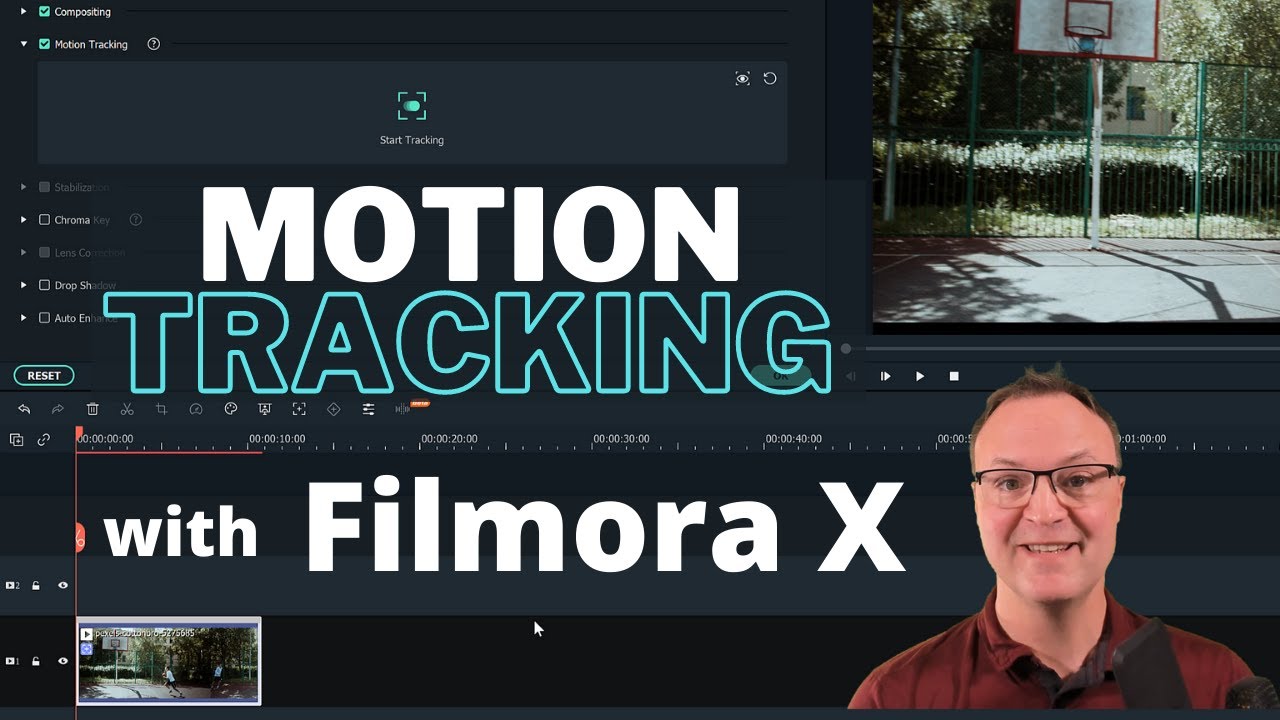
Motion Tracking with Text, Blurring and Objects in Filmora X
6:30

Motion Tracking with Text, Blurring and Objects in Filmora X

Teacher's Tech 01.04.2021 16 428 просмотров 292 лайков обн. 18.02.2026
Поделиться Telegram VK Бот
Транскрипт Скачать .md
Анализ с AI
Описание видео
In this video tutorial, I will show you how to motion-tracking in Filmora X with text, blurring, and objects. Filmora X is one of the best video editors to use and is certainly one of the easiest. Download Filmora X here https://bit.ly/2T6leBw Filmora X Tutorial for Beginners: https://youtu.be/SO9-X-llODQ 0:00 Intro 0:41 Motion tracking with text 4:20 Motion tracking with blurring 5:21 Motion tracking with objects I use Camtasia to create my videos: Use this coupon code: TEACHCAM10 Camtasia purchase with 10% OFF code applied: https://techsmith.z6rjha.net/c/1264585/701976/5161 Camtasia EDU 10% OFF with code applied: https://techsmith.z6rjha.net/c/1264585/704928/5161 Camtasia Download page: https://techsmith.z6rjha.net/c/1264585/489271/5161 DISCLAIMER: This video and description contains affiliate links, which means that if you click on one of the product links and end up purchasing it, I’ll receive a small commission. This helps support the channel and allows us to continue to make videos like this. Thank you for the support!


Оглавление (4 сегментов)

  1. 0:00 Intro 142 сл.
  2. 0:41 Motion tracking with text 750 сл.
  3. 4:20 Motion tracking with blurring 213 сл.
  4. 5:21 Motion tracking with objects 224 сл.
0:00

Intro

hi there jamie keate here today at teachers tech hope you're having a great day today today i want to show you how you can quickly add motion tracking in filmora 10. so what i mean is how the text comes up here and follows the person across the screen and i'm going to show you how you can add text to this or a blur an object to follow the person in video you can do this in seconds with filmora 10. let me show you how so if you haven't used femora 10 before i think this is one of the easiest video editors out there that you can create some great looking videos i'll put a link to my tutorial down below in the description and up above in the card but let's get started on this tutorial with
0:41

Motion tracking with text

motion tracking and what i'm going to do is i already imported some of my media and i'm just using this one and i'm dragging it down to the timeline i'm going to match the settings and so what i have here is just this person doing the layup and i'm going to be tracking him and adding an object and blurring and different things to it so i'm going to go to the very beginning bring my playhead back a couple of ways to get to motion tracking and you can go to it from clicking right here and or else the other way you could double click on the clip and you get to see all the different options and this is the motion tracking so i could turn it on here or like i said you could just click on here and get to the same point now when it's turned on this turns green and i get this rectangle that i need to show what i want to have tracked and the object has to stay in frame the whole time it can't just it can't disappear somewhere so it needs to track it i'm going to make this smaller here and i'm going to put it over the person's head and what i found works easier than the whole body because he's dribbling the basketball and it seemed to get stuck on the basketball sometimes and not knowing what to track so i'm just going to try it like this and i'm going to hit start tracking and it's going to render this through and you can see it's following sometimes if it doesn't track right there right uh first time go back and maybe uh change it uh tweak the what you're selecting but i can see i like what it attracted all the way through for me so i'm going to leave it like that now i'm going to go ahead and add some text to this and i'm going to go and just hit ok to titles and i'm just going to go ahead and use the same one that i did in the demo is this one i'm going to drag it down up above so you can kind of see it's right now it's just this text demo and i'm going to double click on it and what i can do is open up i can size it now so i need to shrink this down so i'm going here and you can see it's not all grouped together so you got to go through and move these around put them in how you want and i'm just going to make this a little smaller here and hopefully this goes back here and i'm just going to nudge this down and i'm just going to leave the text as it is for right now so if i go back you can kind of see it will appear above his head right there and so i'll leave it like that and i wanted to start following uh his head at that point so what i'm gonna do is if i go to here and you can see i'm back under motion tracking what do i want so i drop down it's the call out and that's what i added here so now if i go back and play this you can see it's a little bit off it's tracking him so the way i put it on so i'd have to if i go back to where it comes on right here so if i go back and then i can see well i want to adjust this right so i could double click on this and open this up and move it over to here so you can go through and adjust these things so i'll move everything over and if i want to type in here you can see you can just click in here and i can put motion i'll put motion in there and you can see now if i go ahead and it matches where his head came up and it's tracking him across so it goes all the way through and it will disappear right there but i could grab this i can make this longer if i wanted to go through to the very end like this so that's how i added the text part first so let's go add something else now so
4:20

Motion tracking with blurring

i'm going to just delete this and let's try it with just some blurring so i'm going to go back and hit ok and this is where i like so if i if i'm on the clip and i go back to motion tracking blurring works super easy so if i go through here drop down add a mosaic right here so if i click on this you notice i get the mosaic i can shrink this and maybe i want to cover his face the whole time like so and i'll just go like this and i can go through i can change the type and everything the blur amount i can go through and adjust all these things on it and i'll just hit uh okay and let's watch this and now i have this blur following so this is handy when you're if you have a face and you don't want a certain face in there and the person's moving you can add that mosaic through the motion tracking and it will stay with it so let me show you one more thing here we'll go back i'm going to click on the motion tracking actually i'm going to hit ok and i'm going to go back to my media
5:21

Motion tracking with objects

and let's say a picture so in this case this is just an object of a dog you can see it's on a transparent background just a picture i'm going to have it the same length of the entire clip so i'm just going to drag it to fit here to the very end like this and i need to shrink this so i'm just going to double click on it and i want to grab the handles i'm going to bring my this back to the beginning here and i'll go back and click on it i'm going to move it down shrink it right down to here and i'll put it over his face like so go back to here go back to motion tracking if it's not open drop down and it's called unnamed this one so i'll hit ok and watch now it will follow right along so just like that i've added three different types of motion tracking to this very simple to do if you want to learn more about filmora 10 just check the tutorial like i said this is a super easy uh video edit editor to use i hope you like this tip on motion tracking this week on teachers tech thanks for watching i'll see you next time with more tech tips and tutorials

Ещё от Teacher's Tech

Ctrl+V

Экстракт Знаний в Telegram

Транскрипты, идеи, методички — всё самое полезное из лучших YouTube-каналов.

Подписаться



