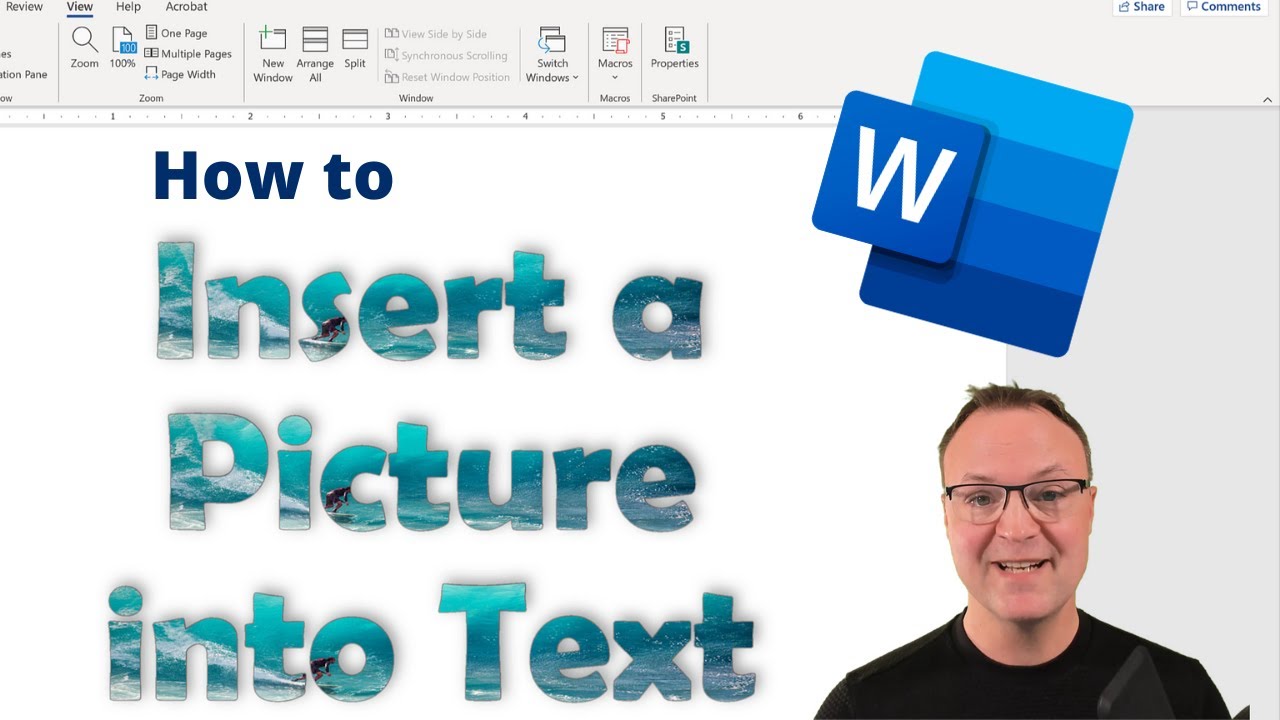
How to Insert an Image Inside of Text in Microsoft Word
4:50

How to Insert an Image Inside of Text in Microsoft Word

Teacher's Tech 25.03.2021 131 227 просмотров 1 116 лайков обн. 18.02.2026
Поделиться Telegram VK Бот
Транскрипт Скачать .md
Анализ с AI
Описание видео
In this video tutorial, I will show you how to insert an image inside of text in Microsoft Word. I will show you a workaround to do this because this option was removed in Microsoft Word 2013. I'm using Microsoft 365 for this demo. I use Camtasia to create my videos: Use this coupon code: TEACHCAM10 Camtasia purchase with 10% OFF code applied: https://techsmith.z6rjha.net/c/1264585/701976/5161 Camtasia EDU 10% OFF with code applied: https://techsmith.z6rjha.net/c/1264585/704928/5161 Camtasia Download page: https://techsmith.z6rjha.net/c/1264585/489271/5161 DISCLAIMER: This video and description contains affiliate links, which means that if you click on one of the product links and end up purchasing it, I’ll receive a small commission. This helps support the channel and allows us to continue to make videos like this. Thank you for the support!


Оглавление (8 сегментов)

  1. 0:00 Introduction 148 сл.
  2. 0:43 Insert Smart Art 128 сл.
  3. 1:23 Highlight Text 48 сл.
  4. 1:39 Format Text 145 сл.
  5. 2:22 Format Shape 63 сл.
  6. 2:40 Remove Image 47 сл.
  7. 2:54 Formatting Image 192 сл.
  8. 3:46 Move Handles 197 сл.
0:00

Introduction

hi there jamie keate here today at teachers tech hope you're having a great day today today i want to show you a little trick on how to add an image to text inside microsoft word so if you look at this example a bit a little bit more closely you can see that there's waves and a surfer inside the text and that's what i want to show you how to do so i'm going to start from a brand new document and show you how to quickly do this so you can do a lot of different things to the font by simply selecting and going up to the font group and from colors to gradients to adding all the different effects to it but one thing you won't find is how to add an image to any of this and so what you need to
0:43

Insert Smart Art

do is i'm just gonna delete this and you need to insert uh so if we go up to insert and then go to smart art so i'm gonna click on smartart here and i'm gonna put something in uh it's gonna be the list it's going to be actually this one right here so if you go to your list if it wasn't there it's this first one and i'm just going to uh you notice there's five different spots i only need one of these spots uh so what i'm going to do is actually just click on each of these on the edge and delete until i only have one left so now i'm going to type in my text right here at this spot
1:23

Highlight Text

like so i have the text now the next thing i can do with this is i'm going to highlight my text and i'm going to just right click make it a little thicker the text on this just something we're going to go with this one right
1:39

Format Text

here this will do the trick and then the next thing what you need to do is go to the format right here so if i go to format you'll notice that there's text fill here so if i go ahead go to text fill we have a picture right here so we can have gradient and texture and all that but if you want to put a picture into this we can go to picture and now i could upload i could go from stock images online pictures all this one so if i go from a file upload from my computer and i'm just gonna use the one in example with the waves and the server in here and then you can see it in the background so if i click off of it you can see i'll just click off that you
2:22

Format Shape

can see it now you're probably wondering well i don't want the blue on this what you can do though if you go back to format up top here notice that there this is the shape so this is the text fill over here and this is the shape fill well i don't want any so now i have my teacher's tech with
2:40

Remove Image

i'll just click off of it so you can see and white you can see it with the image inside of it you can still do more things to this if i go ahead i'm just going to right click on this and go to format shape
2:54

Formatting Image

you can see the format shape opens up and i have some options here so i can go make sure you have this highlighted for it to work but if i go over to uh you can see this is i could change it from this point here i could go insert another picture and it'll bring me back to the same thing i could go to the different fills and all those so you can alter it from there but i can also start to add my different uh parts here so if i wanted it to have a shadow i could go through and i'll just click and click off and you can see a little bit of a shadow around it so i can go back and i'll just add a couple more ones i'll go to just a glow actually go to reflection pick this and i'll just do this one right here because then you can see it a little bit better so you can add all these effects to it and go through and customize it just the way you want so that's just a little
3:46

Move Handles

trick on how to insert an image inside text of microsoft word and remember you can still move this around too if you click in it you can grab get your move handles and just drag it down you can change the size of it if you grab the corners and bring it in and notice that there's two different uh two different ones on it so if i click in this there's the inside handles and outside handles if i make the inside ones smaller it's still keeping the frame of the outside here and if you go back and i'm just going to click on this on the edge you have your layout options depending on how you want it to work with text so you can go ahead and pick which one if you're inserting this into text to see what would work best for you so i hope you like this little tip on how to insert an image inside your text microsoft word let me know if it comes in handy for you thanks for watching this week on teachers tech i'll see you next time with more tech tips and tutorials

Ещё от Teacher's Tech

Ctrl+V

Экстракт Знаний в Telegram

Транскрипты, идеи, методички — всё самое полезное из лучших YouTube-каналов.

Подписаться



