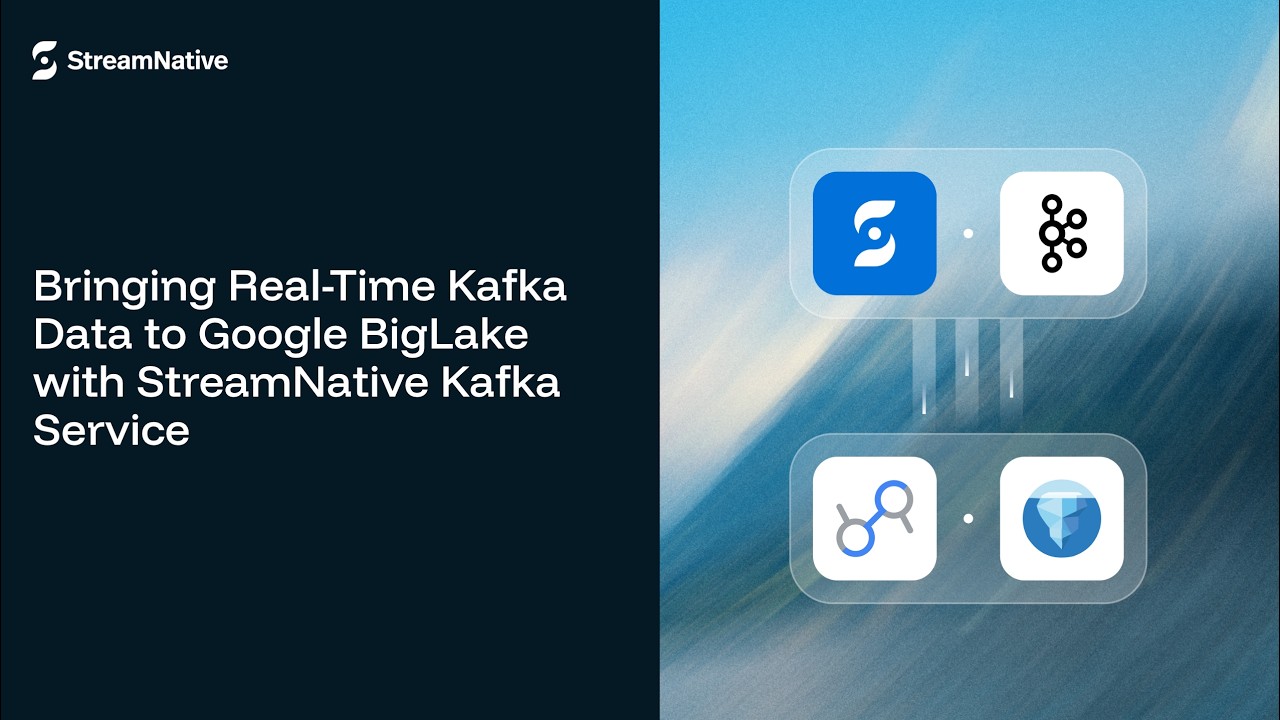
Bringing Real-Time Kafka Data to Google BigLake with StreamNative Kafka Service
7:12

Bringing Real-Time Kafka Data to Google BigLake with StreamNative Kafka Service

StreamNative 16.04.2026 20 просмотров

Machine-readable: Markdown · JSON API · Site index

Поделиться Telegram VK Бот
Транскрипт Скачать .md
Анализ с AI
Описание видео
🚀 StreamNative Kafka + Google BigLake: Powering the Modern Lakehouse with Real-Time Data In this demo, we showcase the native integration between StreamNative Kafka and Google BigLake, enabling Kafka topics to be seamlessly written as Apache Iceberg tables in a BigLake catalog. Learn how to connect real-time streaming data with your lakehouse—without complex pipelines or heavy operational overhead. 🔧 What you’ll see in this video: 1. End-to-end integration setup Create and configure a BigLake catalog in Google Cloud Register the catalog in StreamNative Cloud Spin up a Kafka cluster and enable the lakehouse integration Configure required IAM roles and permissions 2. Real-time data ingestion Simulate production-grade streaming data using shadow traffic Stream data into Kafka topics like customers and orders 3. Automatic Iceberg table creation Kafka topics are automatically materialized as Iceberg tables Data and metadata are stored in Google Cloud Storage via the BigLake catalog 4. Data validation and querying Explore how data is organized in storage Query Iceberg tables using BigQuery and other engines Verify real-time data consistency with SQL queries ------------------------- 🔗 Learn more about StreamNative: https://streamnative.io 🔗 Try StreamNative Cloud: https://console.streamnative.cloud
Оглавление (2 сегментов)

Segment 1 (00:00 - 05:00)

In this video, we're going to look at the native integration between stream native Kafka service and Google big lake. provides an ability to write topics as iceberg tables in big lake catalog. The tables are registered in the catalog and the data is stored in the storage bucket associated with the catalog. Stream native writes topics as iceberg tables by invoking the iceberg rest catalog interface exposed by big lake metas store. This happens by invoking the iceberg rest catalog URI and specifying the project name and warehouse name. Let's look at the steps to set up this integration. First, let's set up a catalog in Big Lake. Within Google Cloud Console, I'm going to look for Big Lake. Here I'm going to find an option to create a catalog. So you have to specify a storage bucket for the catalog. In this case, this is already specified. So you can choose a different bucket. You have to choose credential vending mode for authentication. Since I've already created a catalog, uh I'm going to look at the details of that. These details are important because you're going to be using them to register a catalog inside stream native cloud. Now let's look at the storage bucket. Right now there's nothing inside Acme Comommerce storage bucket. It's empty. Once the integration is working, we'll come back to this bucket to look at the data again. Now let's go to step two to register a catalog inside stream native cloud. Within Stream NATO cloud console, go to organization settings. That's where you'll find an option for cataloges. Click on that. Now register a catalog. Give it a name and select the option for Google Big Link. Enter the Google project and the warehouse. Click register. This creates a connection to the catalog and validates it. Here you can notice that a catalog is created. Click on the details to view all the project details and make sure they're all correct. We will be using this registered catalog while creating a Kafka cluster. Now it's time to create a Kafka cluster within Stream Native Cloud Console. On the organization homepage, click on create instance. Choose dedicated option for now. Enter the instance name. Select Google Cloud. Choose the Kafka cluster option. Give it a name. Select a region. Choose the cost optimized cluster profile which is based on diskless object storage. Skip the option to enable lakehouse. We will be performing this step after the cluster is created. Once the cluster is successfully provisioned, you can click on the link to navigate to the homepage. Here you can find the Kafka cluster. cluster details in the overview section like the broker URL, schema register URL and the storage type. Now let's go to the configuration section where we can edit this cluster to enable the lakehouse. Choose the option for Google big lake and now choose the pre-registered catalog which points to the Google big lake catalog. Now before proceeding further, we need to grant a few specific roles to an IM account within Google Cloud Console. Now I'm going to go ahead and assign these roles to that specific IM account within Google Cloud Console. Once we are done, we can save. You can see all these roles are assigned to this IM account which is associated with the cluster. After saving the changes, let's head back to Stream Native Cloud Console and continue with cluster size and finish. Once the cluster is reprovisioned with the updated configuration, you can navigate back to the cluster. Within the overview section, you'll notice there is a new section called the lakehouse storage section which points to your pre-registered catalog pointing to your big lake catalog. Now we are all set to populate data into this cluster. Now, to make this demo more realistic, I'm using shadow traffic to simulate live streaming data, which allows us to generate highfidelity real-time data streams that closely mimic production workloads. Now, this is incredibly useful when you want to test pipelines, validate integrations, or demonstrate end-to-end capabilities without needing access to real customer data. In this setup, shadow traffic is continuously producing events into our Kafka topics for customers and orders. You can run this command line interface to sample the data to look how that payload is looking. You can also run the command to continuously produce data into the Kafka cluster. Now let's navigate back to our Kafka cluster where the data is coming in from shadow traffic. I have two

Segment 2 (05:00 - 07:00)

topics customers and orders and you can notice that this topic is uh based on a Kafka schema the Averro schema. Let's look at some of the sample data which is produced by shadow traffic. This is one of the records. Looks good. This is the schema. And this is where you can check all the compatibility modes within schema. You can find both the registered schemas. Since the data and the schema is nicely showing up, let's go to the lakehouse table. This is where you can find the catalog settings. This points to the big lake catalog where all the topics are going as iceberg tables. Now let's go review the iceberg tables which are created within the big lake catalog. Within Google cloud console, let's navigate to cloud storage and uh select the storage bucket which is associated with the catalog. Within the acme commerce folder, there's a folder created for the cluster. This uses a name space which is cluster ID public default under which all the iceberg tables are created. These are the folders which are topics now created as iceberg tables. You'll notice the data and metadata is already here. These iceberg tables can be queried using any of the third party querying engines but we're going to use bitquery to query these tables. Now let's click on SQL query to create a query. So this SQL statement is selecting data from the project catalog name space and the iceberg table name. You'll notice all the data is showing up nicely from the iceberg table. You can view it in the JSON format as well. Let's query the other table as well. We had another topic called orders which also showed up as a iceberg table. So all these orders are nicely showing up here within the query. So that concludes this video. We were able to natively integrate stream native Kafka service with Google big lake and write topics as iceberg tables within the big lake catalog.

Другие видео автора — StreamNative

Ctrl+V

Экстракт Знаний в Telegram

Экстракты и дистилляты из лучших YouTube-каналов — сразу после публикации.

Подписаться

Дайджест Экстрактов

Лучшие методички за неделю — каждый понедельник