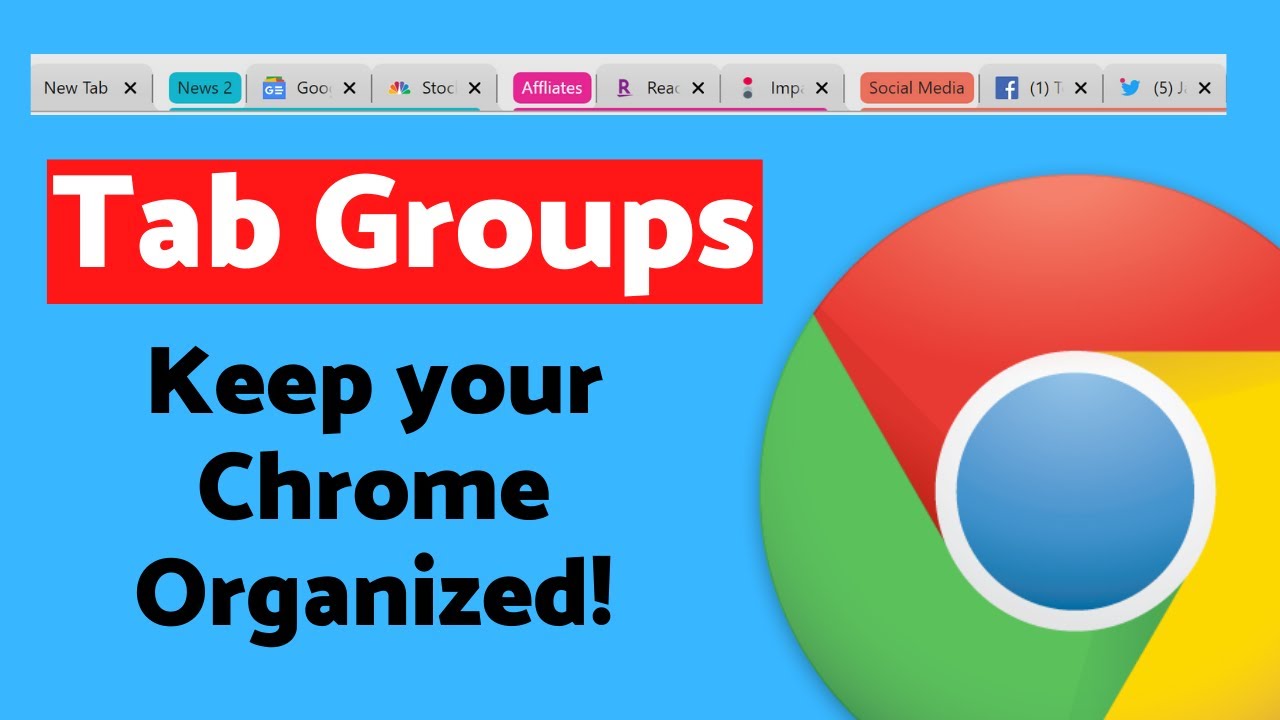
New Feature! Tab Groups in Google Chrome
2:53

New Feature! Tab Groups in Google Chrome

Teacher's Tech 16.04.2020 166 090 просмотров 1 672 лайков обн. 18.02.2026
Поделиться Telegram VK Бот
Транскрипт Скачать .md
Анализ с AI
Описание видео
In this video, I will show you how to use tab groups in Google Chrome. Keep your tabs organized in Google Chrome with the new tab group feature. Make sure you have the latest update to Google Chrome. I will show you how to enable tab groups in Google Chrome. Tab group in Google Chrome will allow you to group your tabs into colored and named groupings so you can easily find what you are looking for. Here's the link to set the default: chrome://flags/

Оглавление (4 сегментов)

  1. 0:00 Intro 43 сл.
  2. 0:15 How it works 388 сл.
  3. 1:59 Turn it on 107 сл.
  4. 2:37 Outro 63 сл.
0:00

Intro

hi there Jamie Keith here today a teachers tech today want to show you the new tab feature inside Google Chrome this route can really help you get organized if you have so many different tabs open like I do all the time
0:15

How it works

okay let me show you how this works and just so you know you do need the most recent update for Google Chrome so make sure you have that if it's still not there just hang on and I'll show you where to make sure to turn it on at the end of this video now I have a couple of tabs here that I have open and I want to add them to some groups I'll show you how to make a group too but let's say I take this Twitter one and I want to add it to my social media now I can add them in a couple different ways I'm gonna right-click on this one and you can see how I can create a new group if I wanted to but I can add to an existing group and these are the different groups that I have made so if I wanted to add this to my social media I just click on that and now it's added you can see the color I can still drag it over and it stays within this color I find this really helpful because I can just glance I'm a grouping of tabs now and saves me a lot of time finding out what I'm looking for the other way I can drag it right into a group I already have made so let's say I have this Google News I could drag it right over here to the news right inside of it and you can see how it's turned green now so you can add it that way too if you want to change the names of any of these just click on where it says the name and then you can add whatever you want so I'll just add a number here and you can see it's changed already up there I can change my color very quickly so I can have those color coded again so I can quickly find things you can see some other options you have here to ungroup to close the group and also to send feedback now let me show you where you can go to turn on this setting if it's not on by default on your Google Chrome okay so to turn this on if it's
1:59

Turn it on

not on already after you've updated it just go to type in your address bar type in Chrome colon forward slash flags and then you're going to get to this page right here now there's a big long list of different things that you can turn on but what we're looking for is the tab groups so just type tab and then start typing groups and you can see how it comes up right here and this is the one that we just drop down from default go to enable and then you're gonna relaunch have that option those options of what I just showed you prior
2:37

Outro

to this so I hope this works for you I've really enjoyed this feature inside chrome to really organize everything so I can quickly glance at the color groupings of it I know it helps me a lot I hope you like this tip today on teachers tech I do weekly tech tips I'll see you next time and have a great day

Ещё от Teacher's Tech

Ctrl+V

Экстракт Знаний в Telegram

Транскрипты, идеи, методички — всё самое полезное из лучших YouTube-каналов.

Подписаться




