Virtual Backgrounds and Lenses in Google Meet
3:49

Virtual Backgrounds and Lenses in Google Meet

Teacher's Tech 14.04.2020 275 985 просмотров 2 329 лайков обн. 18.02.2026
Поделиться Telegram VK Бот
Транскрипт Скачать .md
Анализ с AI
Описание видео
Want to find out how to put a virtual background or use virtual lenses in Google Meet. This quick video will show you how to have some fun in your next Google Meet meeting. Use Snap Camera to get this virtual world happening in your online meetings. Snap Camera: https://snapcamera.snapchat.com/ Learn how to make a personal 3D avatar for Google Meet here: https://youtu.be/tP1UKui7y14 How to start your Youtube channel: https://youtu.be/vcMCRDAjNt8

Оглавление (4 сегментов)

  1. 0:00 Intro 81 сл.
  2. 0:23 Install Snap Camera 110 сл.
  3. 0:53 Snap Camera Settings 318 сл.
  4. 2:25 Snap Camera Demo 293 сл.
0:00

Intro

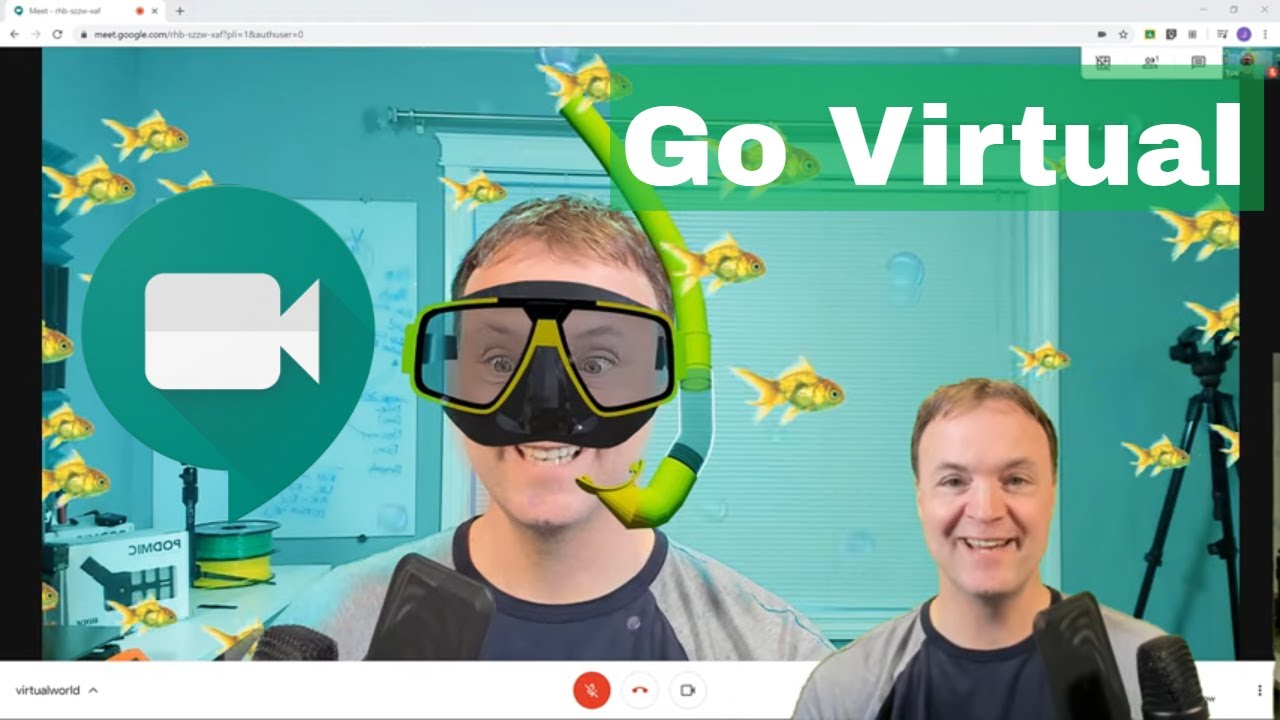
hi there Jamie heat here today a teachers tech today I want to show you how to have a little fun with Google meat so in Google me you could don't have virtual backgrounds like in zoom but with what I'm showing you here with all the fish swimming around with my snorkel gear on I'm going to show you how to put that in so you can use these virtual filters or backgrounds here and it's very easy to setup
0:23

Install Snap Camera

so first of all you will need to install another application on your computer and this is good for either Windows or Mac Wow so it's called snap camera here and I'll put the link down below so you can click and go to it you do have to go to download just agree to the licensing to it they have a spot for an email I never put my email in it but I did click and I went and downloaded it for and I'm on Windows today so go ahead get that installed and I'll show you the next step I have my snap camera app open here
0:53

Snap Camera Settings

and I'm going to show you this how to use this in Google meat but you can use this for other things too just by selecting what camera you want now in this one I just want to show you where the settings are really quickly this little gear you can see where you can change what camera you're using I'm using my Logitech Brio your camera resolution I'm just leaving these things the same right now but you can check things out the way you get things set up the way you want now I'm just going to show you a couple backgrounds and then some filters I'm just gonna go to this one right here Wynn from home and just scroll down as I click on a few of these you'll see kind of the changes the globe behind me if I wanted at the virtual background here's the beach I'll put this in I don't find the backgrounds actually work that great in here even when I put up my green screen you can see as I move around it doesn't work that well there's a few backgrounds that you can test out if you put yourself up against a solid wall it does work better but I'm kind of in the middle of my room so you can see the it doesn't come across very well I do kind of like these changes like this with these filters that lenses that you put on to have all these funny effects here I'll put the hoodie on here and so what I'm gonna do is so I pick the one I want like this and I'm gonna switch over to my Google meat and I'll show you how to select it to make sure you have this so I'm just gonna leave it as the hoody one right now so I'm just over in Google
2:25

Snap Camera Demo

meat here and I'm just about to start a new meeting if you want to know more about Google meat and you're new to it I'll put my tutorial down below but I'm going to start this one called virtual world and hit continue and you're already gonna see that my hoodie is already going to be on because I already have my settings in my google meet to pick up the snap camera and this is where you go and change it so these three little dots here and you can do it after the fact too but if I go in there and go to settings and then under video you need to make sure that you're under snap camera you can see the different cameras I have set up the app that we installed the snap camera app is this one here so you got to make sure that is selected and then you're gonna get the filter so you can go ahead hit join now and I'm just gonna close out of here and you can see I have the hoodie on here so it is fun the students are gonna see this when they log on this is what they're gonna see any Kosir camera the snap camera very easy to setup so if you want to surprise a few of the students on there or some other people in your meeting go ahead give it a try and remember you can use the snap camera for other things too so I hope do you like this tip today it was just a fun tip with to something to try with your google meets I do weekly tech tip so I'll see you next time on teachers tech

Ещё от Teacher's Tech

Ctrl+V

Экстракт Знаний в Telegram

Транскрипты, идеи, методички — всё самое полезное из лучших YouTube-каналов.

Подписаться




