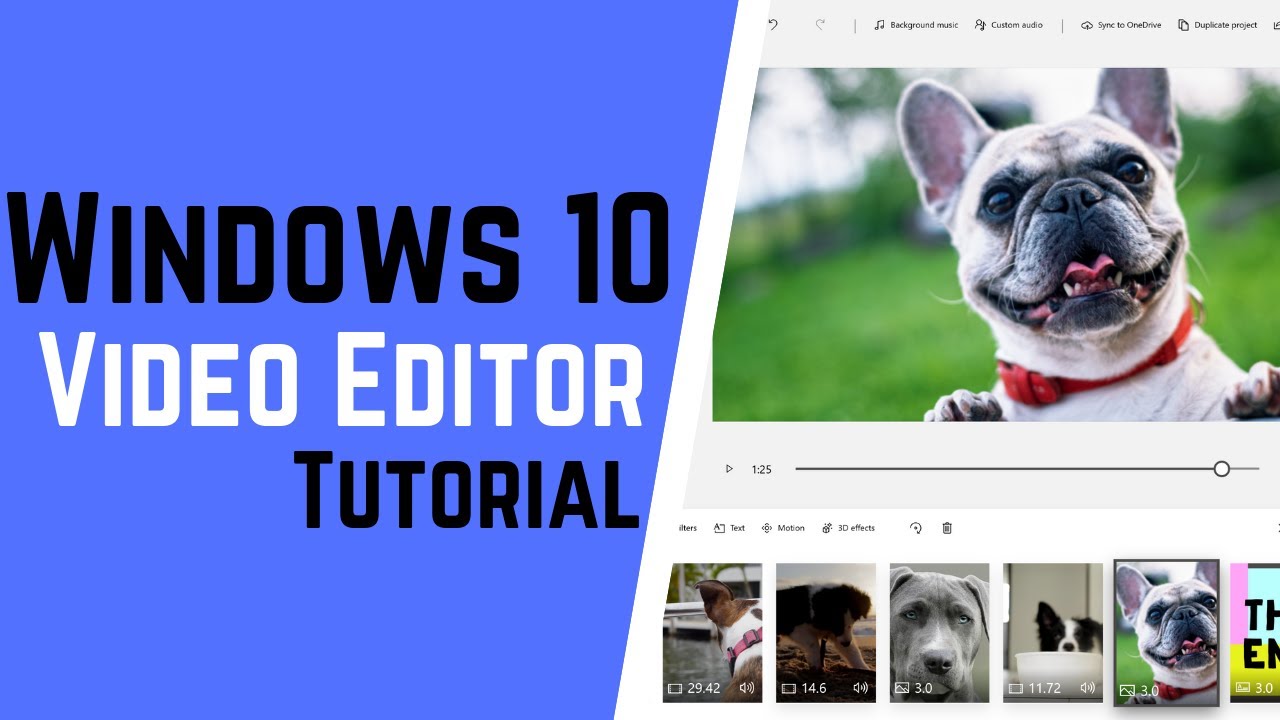
How to Use Windows 10 FREE Video Editor
14:19

How to Use Windows 10 FREE Video Editor

Teacher's Tech 23.07.2019 761 928 просмотров 12 078 лайков обн. 18.02.2026
Поделиться Telegram VK Бот
Транскрипт Скачать .md
Анализ с AI
Описание видео
3 Best Video Editors for YouTube Beginners: https://youtu.be/5vc0EZrisZE Read about Windows 10 Video Editor here: https://teachers.tech/how-to-use-windows-10-free-video-editor/ Stay up to date, subscribe to Teacher's Tech: http://bit.ly/Subscribe_TeachersTech Windows 10 has a FREE video editor built-in and it is super simple to use. This video tutorial will show you the basics of Windows 10 video editor and have you creating videos in no time! Use the timestamps below to jump to different parts of the video. Best FREE video editors for Mac and Windows: https://youtu.be/fMlnRTkTX_U Best Free Photoshop Alternatives: https://youtu.be/xAwmNiNeY38 1:09 Starting Windows Video Editor 2:08 Add media (photos and video) 3:24 Add title card 4:32 Add media to storyboard 4:59 Trim and split video in Windows Video Editor 6:11 Change picture duration 6:30 Resize clip 7:02 Add text to clips 7:48 Add filters in Windows Video Editor 8:19 Add motion to clips 8:53 Add background music and custom audio 10:44 Adding 3D effects 13:14 Exporting project when finished Get a FREE DOMAIN NAME and 50% Off Web Hosting For Your Website: https://www.bluehost.com/track/teacherstech/ I use Camtasia to create my video tutorials: Use this coupon code: TEACHCAM10 Camtasia purchase with 10% OFF code applied: https://techsmith.z6rjha.net/c/1264585/701976/5161 Camtasia EDU 10% OFF with code applied: "https://techsmith.z6rjha.net/c/1264585/704928/5161 Camtasia Download page: https://techsmith.z6rjha.net/c/1264585/489271/5161DISCLAIMER: DISCLAIMER: This video and description contains affiliate links, which means that if you click on one of the product links and end up purchasing it, I’ll receive a small commission. This helps support the channel and allows us to continue to make videos like this. Thank you for the support!


Оглавление (13 сегментов)

  1. 1:09 Starting Windows Video Editor 218 сл.
  2. 2:08 Add media (photos and video) 270 сл.
  3. 3:24 Add title card 244 сл.
  4. 4:32 Add media to storyboard 103 сл.
  5. 4:59 Trim and split video in Windows Video Editor 236 сл.
  6. 6:11 Change picture duration 79 сл.
  7. 6:30 Resize clip 89 сл.
  8. 7:02 Add text to clips 158 сл.
  9. 7:48 Add filters in Windows Video Editor 101 сл.
  10. 8:19 Add motion to clips 125 сл.
  11. 8:53 Add background music and custom audio 380 сл.
  12. 10:44 Adding 3D effects 499 сл.
  13. 13:14 Exporting project when finished 225 сл.
1:09

Starting Windows Video Editor

so there's actually a couple different ways you can open video editor i'm just going to go down and search here and i'm just going to start typing video and you can see this is what it looks like right here video editor and you get the options right away if you are using it right away you want you can pin it to start or taskbar so if i pin it to the taskbar i have it right here the other way if you were looking if you're going to go if you just go to photos it actually is connected with photos on this one so you can see we have new video so there's two different ways you can get through it now if i was just entering in from my quick launch from my taskbar that i just started you can see how it's the new video up here so right away i'm just going to go ahead and start a new video project you can see where you're prompted right away and i'm going to click on it and now i'm going to name it in this one i have some videos about dogs here today so i'm just going to hit ok now the first thing what i want to do is
2:08

Add media (photos and video)

add my media and so by media i'm going to be adding my videos and pictures and i have them in a folder on my desktop so i'm just going to click add here and i'm going to save from pc but you see the choices you can go from my collection uh in your photos and everything or you can actually go to the web but i'm just going to go from pc today these are i could bring them in one at a time i'm actually going to bring these all in there's some pictures and some videos so i'm just going to grab them all and select them i could drag them right into here too so if i had another window open i could drag just like a lot of their applications you can just drag things over that would work too so you can see i've brought these in now they were all selected i'm just clicking off these are videos over here and these are pictures uh rep the videos are represented with the play sign so right away what i'm going to do is go and start a title slide here a title card and i'm just going to go down at the beginning down here now this is different than some of the other video editors that you might see because it's working more of a storyline storyboard mode rather than timeline with channels and everything this is a easy way to where to begin with video editing so this would be a great start if you haven't done any video editing
3:24

Add title card

before but i'm just going to add a title card to start with so now with the title card you can see where it just says title on this one but i'm going to right click on this and you can see i have some different options i can change the duration right now the duration is at three seconds that's what that three means down there i'm going to go to edit and i want to edit some text so i'm going to go to that and i'm just going to go and write a title up top here so i'll just write i'm going to say about dogs like that and you can see as i click on different ones how quickly it changes so you can go through and pick different ones that you like i'm going to leave it at joy right now but there is a long list if i scroll down you can see all the different ones and you can change the location where you want but since this is the title uh what i'm going to do is just leave it right here and i'm going to go ahead and hit done and then i have this beginning so i'm going to go i can play it up here do a preview you can see there's some movements to it so next thing what i want to do is bring in some video i'll and pictures
4:32

Add media to storyboard

bring in some video and pictures i'm going to take this one right here so i'm just going to drag it into the second spot so you can see this is 14 seconds long if i can go ahead and you can see i can start playing the video and it goes through so maybe i don't want things uh that long 14 maybe i only want a four or five second clip now what i can do you have all these options up here you notice where it says trim and split so what i can do with trim if i go
4:59

Trim and split video in Windows Video Editor

ahead and click on it i can move my markers to a certain spot so if i wanted it to be started at five seconds and end at 10 seconds and then when i hit done you can see now the time that was left in it is just of the one that i selected to it now another thing that i could do and i'm going to bring down another video right here you can also use a split tool so what the split does so if i go to it and hit split i can find a spot where i want to split it and when i get it i can hit done and then you notice i have the first 4. 7 seconds and then the 7. 03 seconds on it so it's just some different options to have uh what i can do is i could just hit delete and leave that part so i have this little video now uh i have a title slide and then it will just go over to the 4. 6 seconds and then over to uh the other one there now uh just to add in i'm going to add in this picture here drag it down so this is just a picture and some things happen i have a few different options because with pictures i can change the duration so do i want
6:11

Change picture duration

it to be three seconds i can click on duration you can see how i can pick if i wanted to be a different time or i could do a custom one if whatever i put in here you notice how it changes like this and now the other thing i want to point out notice the black lines here you might not want the black lines showing and we have uh resize on this so if i go
6:30

Resize clip

to resize if you ever notice those black bars just go ahead and click this and it just makes sure it sized it and so now as it plays through this we can go through and then it's just going to play it as normal so far it's very quickly all i'm doing is dragging things down i'm just editing i can trim very easy i can change durations of pictures and i'm just putting them in the order that i want any individual clip you can add titles
7:02

Add text to clips

to so our text so if i go to any of these and click on them and then i go to the text i can go ahead and write something up here so if i was going to write beach i could stay with the theme that i was on before or pick a different one you can see and the other thing to point out so if i was going to pick well we'll go with this one i'm going to just stretch that change the distance on here like this i'm going to hit done and now if i go back i'm going to hit play and you'll see as it goes through it doesn't come up until i told it to come up and we have the title that goes through so it's very easy to add those titles some other effects that you can add to these ones i'll just use this if we
7:48

Add filters in Windows Video Editor

go to filters here we have some filters we can quickly add just by clicking on it so that was pixelate you can see arcade and you can just go through there's not a lot of effects but if you want to change it slightly you can see when you get it the way you want you can just go ahead and hit done on it and then that effect is added to it uh then there is also motion here so motion uh i'm gonna go to this one you don't notice it a lot so if i click on
8:19

Add motion to clips

the clip uh the motion if i was gonna go to a tilt down and tilt up so what it does is move the camera slightly so if i play it through here there's a slight tilt down if i go and play it this one now there's going to be a slight tilt up so you can see kind of difference of what's happening and when you get what you want just remember to hit done on it if you need to go back and change them at any time if i go back to motion you can see how i can go back to none and then i can go and hit done on it like so let's move up to adding some
8:53

Add background music and custom audio

music or custom audio and all i need to do is go right up top where it says background music and they have some that's already built into it that you can use so if i was going to pick this one you can listen to it i'm not sure if that sounds like dog music but i'll use it as my example uh you can see some options here with sync your video uh sync your video to the music's beat and this controls the volume level i'm just going to leave it at max and one thing i wanted to notice these times are going to change the duration so if i hit done then the duration has changed to match the length of that so now if i go ahead and play this let me just make sure i'm on the first one i'll hit play and you can see now how it just adapted very quickly just by using uh that across the slides so i'm going to go back and actually take out that so go back background music and i'm going to go hit none and done like so now there's also custom audio so maybe you're doing a voiceover and you recorded your voice and you wanted to add it in it or you had your own music you can go and add the file from here so if i go to this one i just have some music here uh you can hear it now this is where it sets where you want it to so if i wanted to be across i just move that white one back first and then i can bring this actually bring this to all the way to this end and then i can stretch it out if i wanted to play it during that for a full 14 seconds so you can adjust where you want to play it on that but now if i go ahead and play it you can see how it's added to it so you can add your own music too uh now let's just move over to a couple of the other effects the 3d effects that you can add so i'm just going to go ahead and add
10:44

Adding 3D effects

another video when i show this last example with the 3d effects here so if i go and click on this video that i just brought in and went to 3d effects uh i'm just gonna it takes a moment to load this up not too long and then you have all these different options through here you can see so you can kind of scroll through you can see there's some dust explosion to just a normal explosion so if i was going to put a confetti blast here so i'm going to drag this over here and you can see i drag it on there's volume associated with it so maybe you don't want it or do want it but you can see how i can adjust i can have the move effect of this one i can actually increase the size and move it to different places here and this tells me where this is going to be placed in here so i'll just put it fairly close to the beginning and i'll hit done and then when i go done and then if i just play this here from the or on this one here and hit play you'll see that the confetti came out like so now just like all the other ones if you go click on it and then you go back to 3d effects you can get rid of this one by clicking the x and then it's going to be x out but you do have to hit done after that too or else it won't save it so there is a lots of different effects that you can play with that work the same way there's also the 3d library in here where there's lots of different ones that you can kind of go through that so you can go through and search and pick different ones so if i was just going to quickly and i'll just quickly show you how you can make some adjustments here maybe if i wanted to put another dog into the video i can click add add it to it so i'm going to go ahead and just click this and hit there we go and it's adding it in and then we have this in here and again i can change my location of it in this size and you can actually add some quick animation so right now it's not really doing anything so if i hit play on it it's just going to stand there like that but then if i add let's say jump and turn to it there's going to be some different animations that you can go through so you can see how it adds it to it just by adding those simple effects and if you like what you want you hit done so let's say you're done your whole project now you've added music added some effects got everything edited the way you want
13:14

Exporting project when finished

all you do is go up to finish video and you can see the different ones you can go from 1080p 720 and 540. i'm just keep it at eight at 1080 here and then you can go ahead and hit export and that's all there is to it so you tell it where to save so if i was just putting it back onto my desktop and then it's exporting it i'm going to have that video in 1080p so that's windows 10 video editor on it so you can see very simply use is not going to have all the bells and whistles that other video editors but if you want to do some quick trimming of video adding pictures uh working with video or working with pictures in there and creating as kind of a slideshow it works very good and there's our final project but do take a look at the other video if you're looking for a little bit more take a look at the video that i mentioned that uh just goes a little bit extra with all the different options you have with the free video editors so i hope you like this today this uh this tip on windows 10 in this tutorial thanks for watching this week and i'll see you next time on teachers tech

Ещё от Teacher's Tech

Ctrl+V

Экстракт Знаний в Telegram

Транскрипты, идеи, методички — всё самое полезное из лучших YouTube-каналов.

Подписаться



