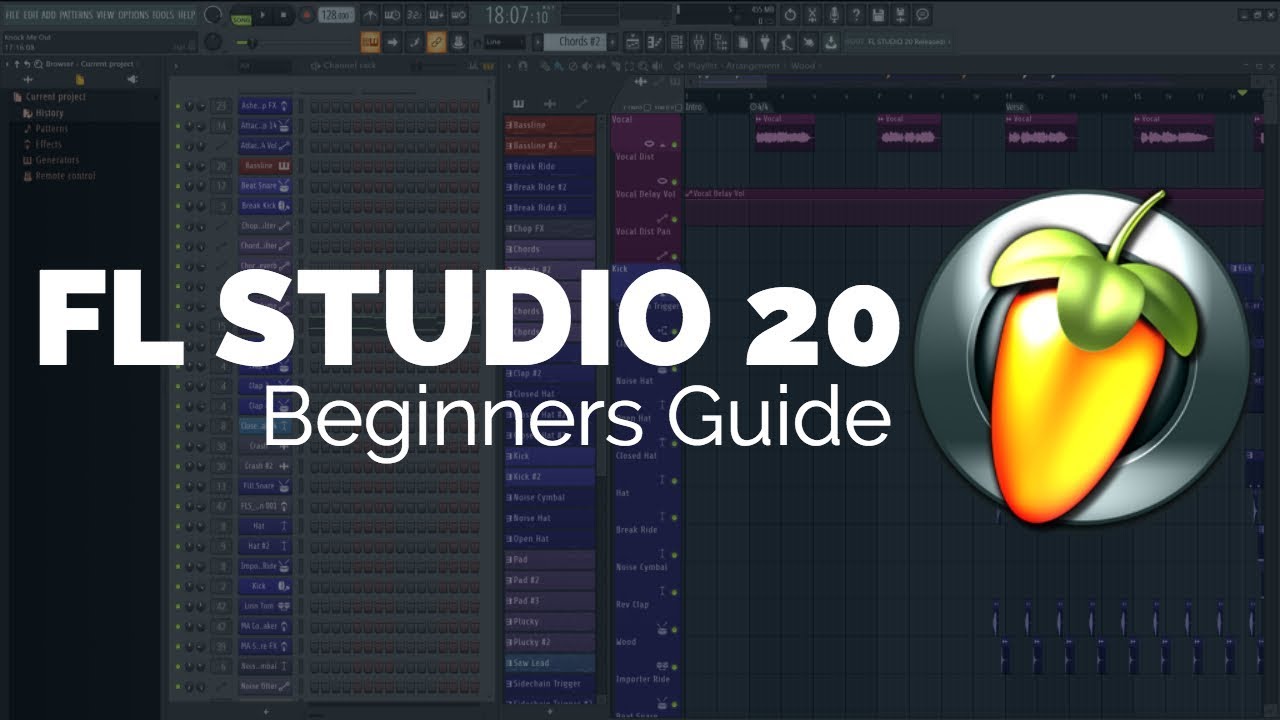
FL Studio 20 - Introduction Tutorial
13:45

FL Studio 20 - Introduction Tutorial

Teacher's Tech 05.06.2018 122 328 просмотров 1 125 лайков обн. 18.02.2026
Поделиться Telegram VK Бот
Транскрипт Скачать .md
Анализ с AI
Описание видео
Start making beats with FL Studio 20. FL Studio 20 is one of the most popular Digital Audio Workstation (DAW). With FL Studio 20 you can compose, arrange, record, edit, mix and master professional quality music. This beginner tutorial will show you how to use FL Studio 20. Check it out here: https://www.image-line.com/flstudio/

Оглавление (4 сегментов)

  1. 0:00 Intro 135 сл.
  2. 0:40 Example 283 сл.
  3. 2:09 Walkthrough 2015 сл.
  4. 12:08 Export 342 сл.
0:00

Intro

hi there Jamie Keith here tonight a teacher's Tek hope you're having a great night tonight I want to go over FL Studio 20 or fruity loops to do 20 it's just recently come out it's one of the most popular digital audio workstations out there where how you can rearrange and create such great music so this is going to be a general overview for you tonight it's kind of going over the basics try downloading the free download play with it this is not a free program but the download will give you a lot of information how it works and hopefully this tutorial will help you out with just getting started with it tonight so let's get started here today with FL Studio 20 so before we get started here today I
0:40

Example

just want to give you a little example how the whole process works inside this example file that we have here so you can see over here on the play list I have the green line representing what's being played right now and I can drag through it and you can see all the different components of it now when we start though we just start with a pattern so when we start our example in a few moments we'll be starting with a pattern that will be blank and we'll have nothing in it so these patterns though get put on to the playlist just by dragging them into the place I am manipulating them how you want but to get these patterns you need to kind of look over to the left in the channel rack so we have all these channels in these rows and if I just go ahead and let's say click on a certain channel so if I drop down I can select different channels if I was gonna pick chords you can see how this one is highlighted here so if I just go ahead I'm just gonna stop this one and I'm just gonna open up chords and just play it within here you can see that's just that one channel or say that one powder and that's making this sound but when put together inside everything this gets put over here making that sound in when you can when you're compiling or composing your music at the end you're putting all those patterns together inside your playlist to get that sound that you want so to get the new screen that I am in
2:09

Walkthrough

right now we want to open a new project our menu in the top left hand corner you can see if I go file new I can also start from templates but in this beginner walkthrough I'm just gonna be showing the basics from just the new project right here so once you get into this right here you can see you have a lot of different windows and let me just give you a brief explanation how some things move and what things are now you can grab these grab everything and move them around to get it to the way you want maybe you have dual monitors and you can move things around if any of these windows get closed at any time like this you can simply open them up by finding the correct menu item here to open them back up one important thing that I really like in this they sit they have the hint panel right up here so what you do is just hover over anything so if you're wondering what something is like this you hover over you can see that's the tempo there if you want to know what this is that's the song position so it's a great way for beginners to make sure that they know everything around FL Studio now just going around a little bit more here the browser we have our browser panel over here and this is where you can be bringing in things into your channel you can go over your history so if I look at this is everything here this is just based on the current project but if I look at all you can see all the different things that you can bring into the project that you're doing so if you wanted a different plugin or demos I'd let's say if we wanted to just put in some packs and I went down to vocals you can see if I click on this it will show what it is and these are the different things I can bring right in into my patterns that I'm creating with the vocals that they have so that's just a quick walk around let's start by creating some music now so when we started a new project we get it automatically get a new pattern called pattern one so inside this channel rack we have this pattern when it defaults with kick and clap hat snare as the channels for this one in represented in each row with each one with each row we have steps so you can see there's four steps and that represents a beat and it alternates color and we have sixteen in total here so right now if I just go up to kick and I click on one of the steps we'll just click here I'm gonna hit my spacebar to play it and it's gonna be in a looping one that goes around and the nice thing about the looping as I add more I can right away here the differences that I'm making as a plays over and over again I can also hit play right here and up top here and pause it back and forth so I can go and add to the different channels at these click more steps and hit play and I start to get two beats half from here if I don't want any of these steps just simply right-click on them and they'll go away so it's very simple to add the steps or take them away now another thing that you might want to do is change the tempo and this so if I just hit play and I want to change the tempo I could drag in here and adjust it or you can right click and a lot of times what I'll do type in the value but you can see there's some quick ways to just adjust it so if I want it slower to 90 you can see how at the temple it gets adjusted right away to it I'll go back to 130 hit stop over here if I just right click you can see how it's the music's being measured with the bar step tick I can change that here but I can just click on it and it change this really quickly back and forth - depending on how it's being measured so once in here I have all these different steps and you can see as it plays through wherever I click represents what's going to get played but I can actually have this longer than this - so if I go ahead and stretch this out you can see how more steps appear although they're not highlighted yet all I have to do is click once and then the next 16 comes up and then I could add my steps very quickly to this and it will repeat it over and over again now I can add more of these channels if I want so if I go here and hit the plus you can see if I wanted to add the FL keys so in this case it's like a keyboard and this one so if I go ahead I'll just move this a little bit and I'll pick a couple spots for it to come in and you can hear as it goes through I'll put some more in here you also do have if I just go up top here you have your main swing so you can adjust this I'll just play it and you can hear how it makes the adjustments to it also now when we go over to the side these are mutes for the different tracks or if they're if you did want to turn them off you can just go through and then just listen to the one track at a time or maybe two to see how the different ones are operating on it so you can also adjust with these knobs we do have our pan on this one but volume for the track if we want to adjust the level of the individual tracks on it we can add some more toys some more things to add to this if you take a look and I showed you this briefly before inside the packs two different places to look would be in missus miscellaneous here if you open up some of these ones you can see different ones that you can drag up or I go to the pack so you have lots of loops I was showing the vocals before you can drag these and then put them right over on top of one of these ones and we'll replace so if I go ahead and hit play you can hear the vocal coming out through a tier two so this is just in one case of a pattern right I'm just showing you kind of that beginners mo justiça start playing with this but this would be pattern one if I want to add more patterns to this I can just simply type so I'll just leave this as pattern two but I could rename this if you were talking about melodies or percussion or something like that you could have more of those so I'll just quickly hit enter here and I'll add some different ones from right for my example later so if I hit play doesn't really sound like my chair but for example purposes it will work some more things that you can do you can adjust the way these looks so maybe you're getting a lot of tracks and you just want to visually change it with color if you right-click on these ones you can see how you can rename color icon so it could change the color and you can pick it and then how it stands out you can even add an icon to it you can go through and pick what you would like and it will add it there just so you can have that visual representation to see how to quickly find different things so this kind of just gives you what we've started here we've started with a couple patterns here I'll create one more here so I'm just gonna leave this as patent pattern 3 you can see how it goes blank each time I can add more tracks to this or more channels if I want but I can just click and add these so now I have three different patterns I can represent all the different patterns as I click on each one you can see how they change so we have our patterns here so let's get ready to kind of put this into our final arrangement inside our playlist on the right hand side make sure you're hitting save every once in a while to make sure you don't lose anything just go up here and click now let's move our patterns into the playlist so we can get ready to put everything together and then export it after so with these patterns I can just simply drag them in you can see all the different tracks I have I can get the move handles and I can move it all the way around in two different places if I don't want that pattern there just simply right-click on it another way I could do it if I'm on the pencil up here I could just pick a certain pattern and click and it will appear also so if I click in multiple places it will just appear wherever I click on it in another way if I use the paint tool here if I click on it I can just simply in a hurry lay it down many times in row and copy it across a certain track on it if you wanted to select multiple one so if I right-click you can see how one disappears if I hold down the control with these and I can select them all now I can move everything if I get the move handles on this I can move everything at once so if I was bringing in another one and I'll just hold down control again I could be moving all these arounds and you can make adjustment so you can see how they all change and they're all selected or I can make too or delete them all at once like that now if I bring them you can see how I have selected up here I can also select up top so I can select the different patterns and so I have it ready depending on what tool I'm ready to use so if I bring I'm just going to bring them back in a few these patterns here you can see how you can kind of overlap them and move them around at you watch and you can also loop them inside here so when you're ready to play so I'm just going to go up to here and hit play and right here and when it plays you can see I have the space there and then it's gonna go ahead and hit play I'll hit my spacebar to end it you can actually loop it through here so if there's a certain area you want it loop I'm just gonna right click and you see that red area so if I go ahead and hit my spacebar it's just gonna loop in that one area so in this actually when we export it you can tell this certain region right here if when I go to export it that particular area will be exported in the format that I want so what you need to do is take your patterns that you created bring them in to your playlist and arrange them or the way you want and then you're ready to export in our next step before
12:08

Export

we do our exporting at the end take a look at the history you can go back at any steps so I'm under the history under the project for the current project you can go back in steps and it shows you everything that you've done now let's export this so right now I don't have anything selected inside the repeat zone so what I can do is go file and export and at this I can choose what I want to export it as so if I go mp3 and then I pick a name so I'm just gonna give it an example name and you save it into place that you would like then now you can go through and kind of pick with the settings that you want do you want to be a full song pattern leave a remainder and go through and pick what you want and you from the bitrate bit depth on it and continue on and then you're done go ahead and hit start and it will go through and let you know when it's done if I was picking a certain area so if I go back and highlight a certain area now if I go to file and export and I'll do the same thing and give it another one I'll just call this test and now if I you can see I have song selection on this one so it gives you just a different option if you only want a part of it here so I hope you liked this little walkthrough beginner walkthrough just to kind of get you playing like I said download the free trial play around with it you can make some quite some interesting music here and it's a lot of fun to play with so if you have make sure you let other people know about this I do weekly tech tips and if you like what you see please subscribe my channel thanks for watching this week and I'll see you next time

Ещё от Teacher's Tech

Ctrl+V

Экстракт Знаний в Telegram

Транскрипты, идеи, методички — всё самое полезное из лучших YouTube-каналов.

Подписаться




