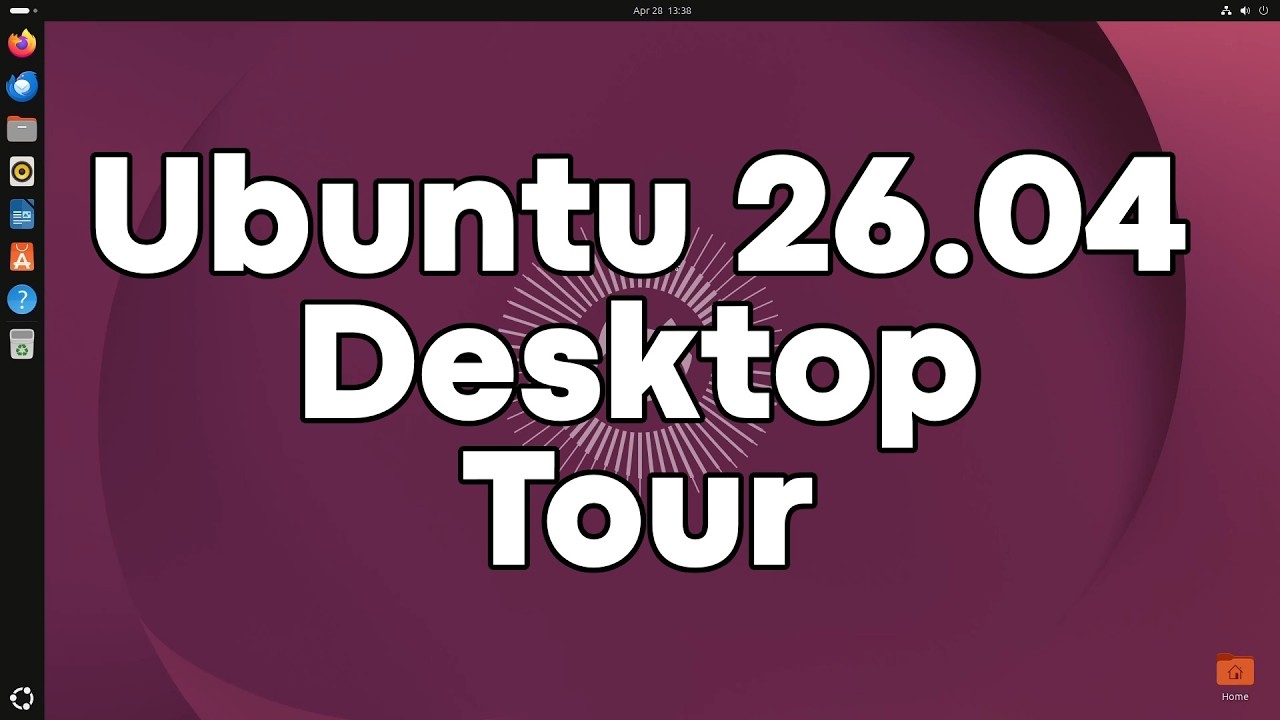
Ubuntu 26.04, code named "Resolute Raccoon", was released a few days ago with GNOME 50, Linux kernel 7.0, and long term support. Here is a full desktop tour to help you get started.
---
⭐ Please support my channel on Patreon!
Get early access to videos, members-only content, behind-the-scenes updates, and join the Gary Explains Discord! Join here 👉 https://www.patreon.com/GaryExplains 🙌
Twitter: https://twitter.com/garyexplains
Instagram: https://www.instagram.com/garyexplains/
#garyexplains
Оглавление (2 сегментов)
Segment 1 (00:00 - 05:00)
Okay, then when I did my video about Ubuntu 26. 04, I said I would do a desktop tour and that's what this video is. Okay, so here is the Ubuntu desktop. Now, we're going to go through all the different parts, but let's just start with something really simple. Kind of give you a reward. If you right-hand click anywhere here on the desktop area, you're going to get a small menu coming up. Let's go down to change background. And here you can do two things. One is you can change the theme. I'm currently in light theme. I actually I prefer the darker theme. So, we're going to pick that. See how it all changes to dark. And then we'll scroll down here and we can pick any of these different wallpapers. I like this one. Okay, and that's it. It's all done automatically. There's no apply or anything like that. You just need to go up here, click the X to close the window, and now I'm in dark theme with a new wallpaper. Now, looking around the desktop, on the left-hand side here, we have this kind of taskbar, activities bar, which shows you some pinned different applications like Firefox or the file explorer. And if you click on one of them, it'll actually launch that application. And if you just notice here, there's a little dot next to here to show that it's actually a running application. At the bottom of that, you've kind of got your what would be the equivalent of your start menu. It's called show apps. That shows you all of the different apps that are available to run. Of course, you can install more apps. We'll go more into that in a minute. Here in the middle, you've got the clock and calendar. If you click on that, you get to see the calendar. And here on the right-hand side, there's a systems menu where you can do things like lock screen, we can actually shut down, we can do the stuff to do with the networking, do not disturb, all that kind of stuff in a nice little compact menu here. And as with other operating systems, you can actually have icons on the desktop. So, here is the shortcut to the home folder. So, that allows us to double-click on that. If I close it already, I started it over here. If I double-click on it here, it comes up in the same there. So, that's the basic overlay of what's going on. Now, let's go to some of the apps. So, as I said, here down the left-hand side, you've got Firefox. That's for your web browsing. You've got Thunderbird for email, files, you've got a music player, then you've got LibreOffice Writer. Let's just start that. Now, LibreOffice Writer is basically a word processing. This is a document, a word processing program. But at the whole suite, it can also do other things. If you go up to new here, text document, spreadsheet, presentation, drawing, formula, HTML document, and so on and so forth. And those are also available. If we just close this here, no, I don't want to save this one. We go down to this show apps. You can actually see here LibreOffice gets you into the main app, Calc, LibreOffice Draw, LibreOffice Impress, LibreOffice Math. So, you can get into all the different ones there via the show apps menu down here. We've also got the app center, which is how you can install more apps. So, here's the app center. It allows you to install different apps. They can it's kind of curated, like an app store, basically. Of course, you can install things from other third-party sources. You're not just restricted to this. And it comes in some different categories: featured, productivity, development, games, and so on. Let's say I want to install VLC, the very popular video player across Windows and Linux and macOS and Android. So, let's click on that. And then you just click on install. You need to type in your password. Just so that, you know, not anybody can just install things on your system. And that will go ahead and install that. And it's now installed. You could click open here to open it up. Or if we just leave that there, we'll go down here to show apps. And you can see that VLC has been installed there. We can click on it to bring it up. And if you want to, you can right-hand click on it and say pin to dock, which means it's always going to be here on that left-hand side. So, even after I close it now, it's still there. If it's one of the apps that you use a lot, any app that you use, you can click it on there. Now, another interesting thing is, let's bring up VLC and let's restore that window there. Okay, let's move these around like this. Is that you can see there are multiple desktops is what I want to show you. So, at the moment, we've got all this on one desktop. If you go up here, you can see this kind of this like long oblong white and then a dot. That means there are two desktops. You're currently on desktop one, and there is a second desktop available. In fact, if you go down here to the show apps, you can see the same thing. Here is one desktop and here is the other. In fact, from here, I could take VLC, look at that, and drop it on the second desktop. Now, if we click on the first one, go back to it, we can now see that VLC has disappeared. And if I click up here, I'm able to switch between the different desktops. Now, because I've got automatic desktop management switched on, it's actually created me a third one as well as an empty one in case I want to do something else. So, it always has one spare that I can move things into. In fact, if I then
Segment 2 (05:00 - 09:00)
go back to move VLC back into this one, it doesn't leave me with two spare. I've now only got one spare. So, one disappeared. Okay, so now that I'm back on my desktop, I can switch between these. So, I can do it here on the activities little desktop thing here. That's one way to do it. Another way is to use a keyboard shortcut. For example, you can just press the Windows key and that doesn't bring up the show apps. That actually brings up this same desktop switcher. So, again, I can switch from it here. Or I can press the Windows key and page up to go up to desktop one. Windows key and page down to come down to desktop two. So, it's a really easy way to switch between desktops. So, if you haven't got multiple monitors, you can have multiple desktops. You can also move apps between desktops. So, if we go back down now to this one with VLC, if I click on it, it's now the app that I've currently got selected. If I press shift Windows and page up, it will send it, there you go, to that first desktop. And now there's nothing on the second desktop. Go back to that one. I could move the files one now to the other desktop. Shift Windows key and down. Okay, now look, it followed me. It wasn't VLC that disappeared. It moved to the second desktop. I moved the files up. Cuz if I go page up now, there's VLC back on that first desktop. Go down here to show that there you go. That's the way around it is. Okay, so lots of handy things you can do there with the desktop as well. Let's just quickly look at this systems menu. I can go into settings here by pressing this cog. Loads of different things you can play with here. Look at the displays, sound, power, multitasking, how you want different things to work. Look, there's some hot corners you can enable, for example. Then you've got your ability to connect to different online accounts like your Google account, your Microsoft account. You can do things with the mouse. Just like you can with other operating systems, everything is able to be tailored. You can add in printers, for example, from here. Networking, of course, is important. Bluetooth. If you've got Bluetooth on a laptop or something like that. And of course, resolution here in the display section, you can change. I've currently got it at full HD. So, everything can be done here from the settings. And that's really, really useful. And finally, let's just look at the file manager itself. Of course, like other window desktops, you can make a window bigger from, you know, any way you want to fiddle with it. This X means close it, as you've seen. This one means go to full size. Click again to go back to what it was. And then the little one there to minimize it. And you can always find it here in the dock to bring it back up again. And just like anything, you know, I can go in here. This is in fact a document I created when I was doing my initial video about Ubuntu 26. 04. If I double-click that, it'll bring up LibreOffice. This is LibreOffice Look, Mom, I Can Type. Well, almost. So, just for example, I can do copy. Then I can right-hand I get right-hand click to do again paste. Second one comes up with the word copy in it. I can right-hand click and rename it hello. You know, you can do all the things you'd expect on any desktop. Move to trash. Let's move the untitled one to trash. Move to trash. There you go. Now, there's something in the trash. You just saw that trash is now full. You can double-click on that. Click empty to empty the trash. Are you sure? If we right-hand click on it, then we can go back to restore from trash. So, the trash gets empty and my document's back. Just as the same as we are familiar with all desktops. Okay, I think that's about covered all the basics. So, show apps is the start menu if you're not if you're coming from a Windows environment. You've got things here in the dock on the left-hand side, including the app center, which allows you to install things from the kind of the app store. You've got Firefox, files. Over here, you've got this system menu. That's it. It's usable from there. You can surf, you can do your email, you can write documents, you can connect to the internet, you can watch media. All here. Just very simply on the Ubuntu 26. 04 desktop. —