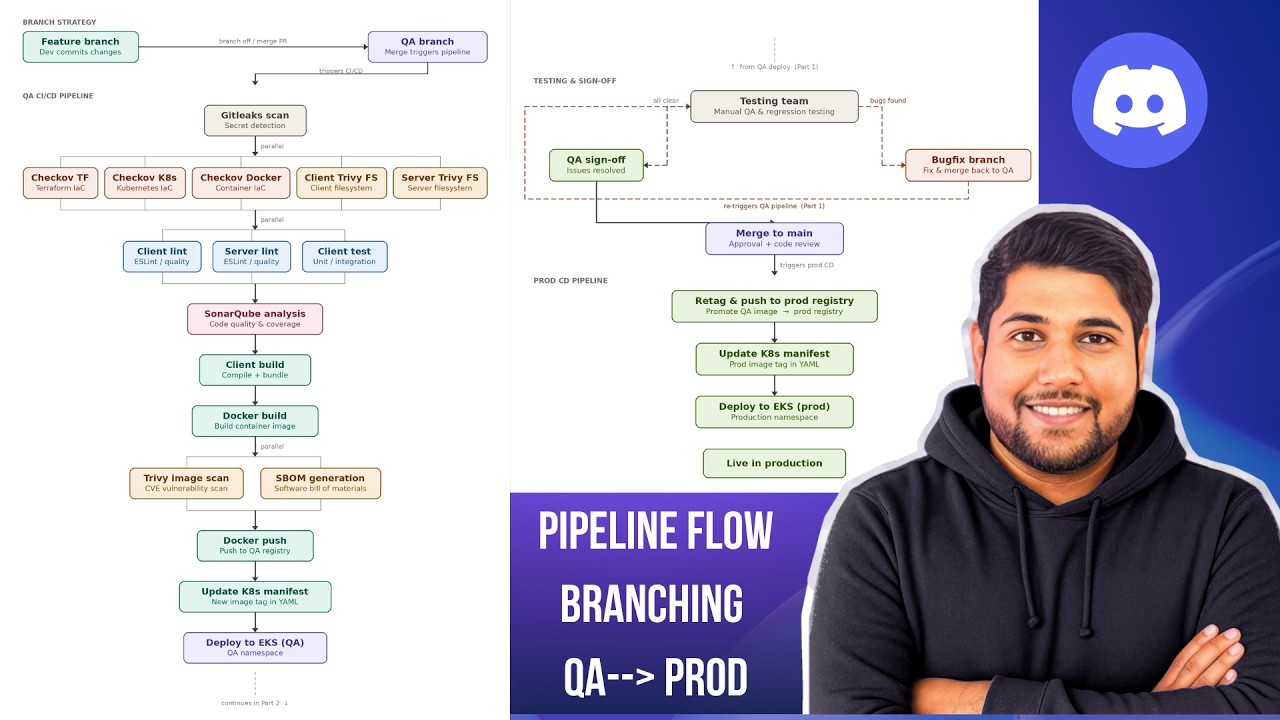
Day-1 | Architecture & Core Features | 30 Days Of GitLab DevOps
35:28

Day-1 | Architecture & Core Features | 30 Days Of GitLab DevOps

DevOps Shack 10.05.2026 823 просмотров 106 лайков

Machine-readable: Markdown · JSON API · Site index

Поделиться Telegram VK Бот
Транскрипт Скачать .md
Анализ с AI
Описание видео
Day-1 | Architecture & Core Features | 30 Days Of GitLab DevOps Docs & Assignments: https://discord.gg/sWad6rcKHF GitHub Actions End To End Project Course: https://www.udemy.com/course/devopsshack-the-production-grade-end-to-end-devsecops-project Timestamps: 00:00 Intro 00:07 Overview 01:16 What is GitLab ! 03:24 Git VS GitLab 06:39 Gitlab Architecture 07:00 GitLab rails 07:35 Layer-1 [ HTTPS & SSH Access ] 10:10 Layer-2 [ Nginx & GitLab Shell ] 12:00 Layer-3 [ Gitlab Workhorse ] 13:11 Layer-4 [ Sidekiq & Puma ] 15:37 Layer-5 [ Storage ] 18:55 Real-Time Flow in Gitlab 22:31 Setup GitLab Account 25:43 Core Options in Each Project 26:14 Gitlab Jira Board For Ticketing
Оглавление (15 сегментов)

Intro

Hello team and welcome back to the

Overview

channel. So today is day one of our GitLab advanced devops series. So today we are going to get started with understanding the GitLab architecture. What are the core components that exist inside GitLab so that we can understand whatever task happens on GitLab internally, how exactly it works and what is the exact flow that happens in the back end. Then we are going to understand how we can set up our GitLab account step by step. And then we are going to understand what are the core features that exist in GitLab and those features how exactly they make GitLab different from any other dev sec ops platform. Right? So all these things we are going to see practically. So make sure to watch it. Also guys the documentation for today's session will be added in discord server which you can get the link inside the description of this video. Now with that being said let's get started. also uh assignment I'm giving you that whatever I teach today make sure to implement it make sure to make small and short notes for yourself and once you have completed make sure to put it on LinkedIn so that you can showcase your work what exactly you have learned as of now and what you have done make sure to tag me so that I can also help you with the reach by commenting on your post right so yeah with that being said let's get started

What is GitLab !

so now let us get started with the day one so first thing that you are going to understand what exactly is gitlab so gitlab This is what GitLab is a all-in-one DevOps platform that is going to combine things like these. What are these? So, let me quickly make it quicker. Okay. So, what things uh GitLab combines? So, basically first source code management will be there. Proper end to-end CI/CD pipelines. So, you can create security scanning. Inbuilt security scanning is also included. Project management is done. Uh manage project management is available. That means key you can create uh boards for uh creating the tickets and managing them to track the work progress whoever which developer is working on what DevOps engineer kind of pipelines all those things can be done using creating the tickets and board inside project management then we can perform monitoring also basic Prometheus integration is available but we can integrate other things as well proper all these things and analytics under a single web interface that means inside a single platform you get all these features at one place. This is what GitLab is about. Right now, let us understand the key idea. Why do we have GitLab and at this point how it's better than any other CI/CD tools also. Okay. So, traditional tools uh for example, let's say I'm using uh GitHub or I'm using Genkins, I'm using Nexus, I'm using Jira for ticketing. Right? So, if I'm working with traditional tools, I have to combine all these things for different task. GitHub I have to set up for uh storing source code. Genkins or any other CI/CD tool we have to set up for creating CI/CD pipelines. Nexus artifact management and artifact storage. Jira we have to integrate so that we can perform proper project management. We can track the work that is going on right but if you are working with GitLab you get all these things in a single platform that is going to be provided by GitLab. So you don't have to worry about creating these things or integrating these things separately. Right? So this is one thing. One more thing you should

Git VS GitLab

know like uh one common thing that it is even though it is very basic but still you should know get versus gitlab even though it is a very basic thing that everyone might already know but still is like some people might be there who are fresher that might not know already right. What exactly is git? It's a version control system. It's a tool that is going to help us manage our code. When I say manage our code means how to uh push the code, how to manage create different versions of the code that can be done using this tool. So, g tool has its own command. For example, these common commands that you see get push, get pull, get commit. So, these are commands of git tool. Okay, git is a tool. Talking about gitlab. So at this point, GitLab is what? It's a complete DevOps platform. Okay, at this point uh GitLab is a complete DevOps platform that also works with uh Git tool. That means key in if you're keeping your source code inside GitLab, you can manage that source code using Git commands. Okay, so that is something. Now one more thing like when we talk about uh like proper differences between them using uh like let's say points to points. So let me explain you quickly that. So these are some of the common uh difference points that we can understand. Okay. First get a distribution version control system. It's a tool. It works locally. That means if you want to work with our source code locally I can clone I can create a copy of the code on my local machine. Then I can execute all the get commands. So it can work locally. It does not have its own UI. No collaboration platform. Okay. Git does not provide any kind of CI/CD. So, and no issue tracking is also there other than commits. In GitLab, it uses Git internally like inside GitLab. If you are storing your source code, it will be managed by Git tool. It has its own web UI. It has CI/CD pipelines creation uh platform. It has proper issue tracking uh option available. Proper security scanning is also inbuilt available inside GitLab. Okay. And all other DevOps life cycle tools are already provided by GitLab for free. Right? So these things will be there. One more question that you might be thinking like Adita why not use uh GitHub instead of GitLab right? So at this point even though GitHub also has lot of features but when we compare it with GitLab then it has less features and less inbuilt features by default as compared to GitLab. Okay. So at this point GitHub is also like it is also strictly like uh one of the most preferred option from developers point of view that means for code management keeping the code and all but when we talk about GitLab it is strictly and it is like uh really uh very much preferred for DevOps plus developer right so that is the reason that at this point many organization prefer to use GitLab in company right so now let us understand

Gitlab Architecture

the internal architecture of GitLab what are the core components that exist inside GitLab and let us understand them properly okay so this is the one of the main architecture that you'll be able to see and this is what we are going to understand okay so there are multiple layers inside it total around nine components are there which we are going to understand one of them uh each one of them one by one okay before anything

GitLab rails

first thing you should know about which is GitLab Rails application. Okay, what exactly it is? This is the main web application of GitLab. Okay, this is going to be handling the UI part, API part of GitLab, authentication and the business logic. Okay, so this is GitLab Rails app. This is the main uh web application of our component. Now once we understood this let's move to next part. So first we have layer 1.

Layer-1 [ HTTPS & SSH Access ]

Layer one with where this is also we can call it as the entry point for our GitLab. That means whenever any request comes it could be from UI uh git b git bash like the g tool right. So layer one will be entry point which is https and ssh two points are available. One is available on port 80 and 22. Right? Let us understand what exactly this means. First we have HTTP and HTTPS. Okay. This is the standard web protocol from for our browser. That means key when we are uh opening GitLab for a UI, we are going to be using the requests uh sent via HTTP or HTTPS uh protocols. Okay. And the port that will be utilized for this request to be reaching to GitLab it will be ATN 443. Even though you don't use HTTPS automatically your HTTP requests are going to be converted to HTTPS. Okay. And this is just note that this is uh mainly for UI part. Even though this uh like uh GitLab repository URLs could be used like in HTTPS format but I'll tell you like how exactly it's different from uh second format which is SSH second entry point we have which is SSH okay port on port 22 okay this is the secure tunnel for developers and this is going to be used mainly for git push and git pull and this is like when uh this request is usually gone through git platform uh git tool you can say through the code. So this is going to be sent and this is going to be uh this request is going to be authenticated with an SSH key. One of the main differences between HTTPS and SS such request is that as I told you HTTPS is mainly for UI part even though like we could use in git command like get clone HTTPS URL but if you're working with SSH just note that all the everything will be much faster in case of SSH that means key the request that you are sending via SSH those requests will be faster and they can be easily they can be like uh they can get response much faster as compared to HTTPS. Okay. So layer 1 was entry point where we can have HTTPS and SSH. Right. Let's talk about second layer.

Layer-2 [ Nginx & GitLab Shell ]

Now layer two we have which is for routing. Okay. Once requests are received via SSH or HTTPS where exactly they are going to go. So the requests that are received via HTTPS and HTTP URLs they are going to go to next component which is NX. Okay. Now so NX is going to be the first thing that is going to receive our browser request. It is going to handle the TLS encryption. block the bad traffic. It is going to s serve the static file images and CSS of GitLab. Okay. And then it's going to forward all the whatever request we have received to the next component. So it is going to be the first thing that is going to receive request from our HTTPS or HTTP UR request. Second component we have which is GitLab shell. Now as you can see directly from the diagram also key it is connected to SSH that means request that are coming via SSH format that is going to be sent to GitLab shell. It is going to receive all the uh SSH connections. It is going to check the SSH key that we have provided. Confirm that you have permission to access the repo and then handle the get operations off to next component. Okay. So these are two these two components are existing in the layer 2 which is for routing like once uh request are sent from HTTPS or uh SSH it's going to be forwarded to these components. So now let us see the next component we have which is GitLab workhorse. Okay, you can see that all the requests coming from EngineX and GitLab shell both of them are going to GitLab uh work workhorse. What exactly it is? So, it is the component that is going to handle the first of all let me write it layer

Layer-3 [ Gitlab Workhorse ]

three. Okay. And layer 3 is about the application where the logic is going to be running. Okay. So, we have GitLab workhorse. So, a request that is coming from NX or GitLab shell, it is going to be forwarded to GitLab workhorse. What it's going to do? This is the component responsible for handling the large files. Okay, large files and whatever large files upload we are doing, whatever artifact of our project download we are doing. Okay. So this component is going to make sure key these task like uh heavy tasks like uploading large files, downloading files, they should not slow down. This is the component responsible for that. This is going to make sure no slowness occurs inside the whatever uh task we are doing heavy for example uploading large files inside the repository those things. Okay. This is the first component which is workhorse. After workhorse you can see it is connected to two more components which is sidekick and puma. What exactly they are? So let us understand that. Yeah. So next component we have which is

Layer-4 [ Sidekiq & Puma ]

puma. What exactly it is? So this is the component that is going to uh run the rails gitlab rails application for live request. Okay. So basically every time you uh load a page you call an API or submit a form Puma is going to handle it and it's going to send back a response immediately. See for example if I'm trying to like uh refresh a page to load a page like let's say I'm clicking on some button to load a new page that is happening live that is a live request. So those live request is going to be handled by Puma making sure that immediately you get a response without any kind of slowness. So just understand that Puma is a component that is going to be handling the uh live request. Then we have side kick. What exactly it is going to be do? See Puma I told you it's going to be running the GitLab Rails application. Sidekick is also going to be do that going to be doing that and it's also going to accept the request. But the differences between puma and sidekick is that sidekick is going to uh handle the request that is coming in background. Okay. So basically uh puma is the live request handler. Sidekick is the background request handler in back end whatever request is coming. For example, let's say after you have uh push your code. So sidekick is immediately going to start the pipeline because sometimes when we create our CI/CD pipeline we set up a trigger right in that trigger we define that as soon as code is pushed inside the repository pipeline should be triggered immediately. So this triggering of pipeline based on push who is going to handle that is a background task right that is going to be handled by sidekick making sure that there is no slowness and these tasks are also handled gracefully without any issue. Okay. So what kind of task it can handle? It can handles the email notification task. Whenever something completed or failed, you are going to receive a notification email that is going to be handled by this component. Pipeline trigger, pipeline starting, those things pipeline processing those things also going to be uh handled by sidekick. Okay. So these are the component these are the task that uh start or start stop or done in background. So that is going to be handled by sidekick component. So this is layer three which is application logic.

Layer-5 [ Storage ]

Talking about next layer. So in next layer what we have next layer you can see we have radius postgress and gitlay. So let us understand what exactly they are. So this is layer four. It is specifically for storage part. But see once every request is coming we have request will be handled by enginex and gitlab shell. Uh then request will be forwarded to workhost which is going to uh forwarded further which is going to handle heavy task and then it request is going to pumine sidekick right for uh whatever request is coming to handle those requests live or in back end then any request is coming there will be response generated right there will be other byproducts get created so where exactly it's going to be stored either it should be stored in such a way that you know like we can access those things later on or they should be stored in such a way that immediately they should be accessible. Right? So for that we have first component we have which is radius. What exactly it is? First of all it is a component that is going to store data inside RAM. Why it's storing inside RAM? So that whatever data that we have stored inside RAM it should be immediately accessible. It should not like there should not be any kind of delay. It like uh storing data making it extremely fast. Okay. So, GitLab is going to use it for login session space page cache and [snorts] job Q between Puma and sidekick. Okay, basically it's going to store data that is uh going to be stored inside RAM and it is mainly done to make sure key certain data that we need to immediately access those should be stored here and then it makes sure key we are able to access it immediately and extremely fast. Okay. Then we have Postgress SQL. Okay, this is the main database. database of our GitLab. Okay, and that is going to be like uh it is a permanent first of all it's permanent. It's structured storage and it's going to hold information like users, projects, issues. Okay. uh pipeline CI pipeline records then whatever audit happens it's logs okay so these things will be stored inside postgress because it's a permanent database for our uh gitlab next component that we have which is gitlay what exactly is gitlay so this is the only component that can read and write to repository files okay so in simple words we can say that this is the service that is responsible for git operations because it's going to perform the read and write to our repository files, right? What kind of things it's going to handle? So, it's going to handle tasks like we are going to clone the repository, fetch something, we are going to push something. So, these are you can so you can understand these are the common tasks that we execute. So, these are going to be handled by GitLab. Okay. So, this is the overall structure of a uh GitLab. Now let me explain you in simple way uh the flow that is going to happen so that you can understand those things also very clearly.

Real-Time Flow in Gitlab

So I have a diagram enabled uh created. Let me explain you quickly. So we'll be having two kind of scenarios for our di in our diagram. Okay. First scenario is that you are uh accessing GitLab over browser. That means you can understand it's going to be an HTTPS request. So what is going to happen in browser when we uh hit the GitLab URL so it's going to send a HTTPS request to GitLab on port 443 and GX is going to get this request. It's going to decrypt the TLS for like HTTPS uh certificates and it's going to pass the request to workhost which is the next component. Workhost it's going to see if it's not a heavy request then it's going to pass the request to Puma. Puma is going to see if like login session it's going to check in radius because as I told you radius is going to store login sessions or like data that needs to be accessed immediately first. So it's going to check the login session and then it's going to fetch the page data from Postgress SQL which data I need to show to this user. For example, see when I hit the URL then GitLab need to understand key Adita is hitting the URL. So I need to check his login that this is the person who is hitting the URL that is Adita. then I need to show Adita his projects and everything else right so those details they are like they are going to be stored inside postgress because it's a permanent uh storage right then uh Puma is going to then ask Gitly for the file contents okay and Puma it's going to send the response back to browser showing the HTML page means our project page and everything okay this is going to happen with respect to browser talking about when the request is coming from a term terminal that means key SSH uh access. So there terminal is going to run the g push using the SSH right. So first gitlab shell is going to verify the SSH key so that it can perform authentication. Then it's going to check if we have the right access. Then GitL is going to receive the uh whatever changes we have requested. And then Puma is going to get notified of the push. Okay. And that is going that information is going to be stored inside Postgress SQL. Then radius Q Puma is going to do what? Puma is going to drop the jobs inside that this task needs to be done. What task? Start pipeline. Send notification, deliver web hooks. Sidekick is going to pick up because be doing the background uh request. Right? So all these task start pipeline send notification deliver web hooks. These are backend task or background uh request that is going to be picked up by from radius to sidekick and then sidekick is going to execute them in background. So this is how it's going to work and this is the architecture of GitLab that you should know. Right now let us do one thing. Now let us get started with setting up our own GitLab uh account and then we are going to understand different features inside GitLab. So Tim before we move ahead one very important thing that I need to tell you that just be consistent with the video series that is ongoing and I want that every one of you make sure that you are implementing uh the whatever task that is being given in on each day video and at the end of the series there will be one capstone project. So I want that everyone should be consistent making sure that everyone is implementing all the tasks given in each of the video including the capsu project posting it on LinkedIn and sharing it in our discord server for us to review. So once everyone is doing that and so uh top three people who will be doing this uh will be given a surprise gift right so yeah make sure to be consistent and make sure to uh implement everything that we are sharing. So team first thing

Setup GitLab Account

that we are going to do is create a GitLab account, right? For that for you can go to browser and search gitlab. com. This page will appear. You can click on sign in and then you have to click on this register now option. Okay. So either you can login with your existing Google accounts or uh GitHub account or you can create a fresh one. So I'll just go with fresh and I will use a new email. Okay. And username you can give. So I'll just give the username same as my email first part. And password we can create. Okay. So let us create a password and click on continue. Okay. So I believe it might send some kind of notification email on your email ID. So let's wait for it. So verification is sent and let me provide the verification code which is going to be 202939 and click on verify email address. Okay. So it is done and now our GitLab account is created. Right. So here you have to provide some initial details. So role I will select as a DevOps engineer. I'm signing into GitLab. So let's say I'll just write I want to explore GitLab to see if it is worth switching to. And here what would you like to do? Create a new project. And here you can see who will be using GitLab. So I'll just go with just me. Click on continue. Okay. So it is going to like initially you have to create a first project or repository. Okay. So I will just create one demo page kind of thing. Okay. And create project. So now uh basically our GitLab account is created and as of now we have created a project as well. Right. So now let us understand few things very clearly. So as of now what we have done we have created a group and inside the group we have created a project. So from this you can understand key group is something inside which we'll be having multiple projects and one project I have created and inside gitlab each project will be having a lot of features and lot of things integrated by default that means each project will be like a self-hosted separate devops end to end platform. Okay, that means this project that I have just created. Here you can see this is the repository on left side you have multiple option like code, build, secure, deploy, operate, monitor, analyze, plan, AI and all the things. So these things are basically specific to this project. Okay. And again each project will have its own all these things integrated by default. So now let me quickly walk you through about all these options what options are available which we are going to explore in detail practically in upcoming sessions. Right.

Core Options in Each Project

First here this is the project name and here certain features which you want to pin will be you can keep it here. Okay. First thing that we have which is manage. Here in inside manage one of the most important part is the members. First we have activity inside which you'll be able to see activity. Whatever has been done with respect to your repository you'll be able to see. Second we have members. So members is a section where you can add different users. What kind of users you can add? How to give permissions that we'll be discussing in the next session. Coming to next thing

Gitlab Jira Board For Ticketing

plan. Now I told you key uh there is a uh tool known as Jira where you can perform you can where you can create tickets for tracking the work progress. Right? Same thing you can do here in plan you can go to issue boards and this will be a board. You can see open and close. Let's say I want to create a ticket. So I will provide the title as uh update feedback page. Okay. I'll create this issue. Right. And here you can provide uh like a description of the issue. What exactly is it is then you can assign this to someone. As of now only I am here. So my username is showing but you can assign this to some developer who going to update the feedback page. Okay. For example, it's I'll assign it to myself as of now. And here I can update the dates key when it is started and when it is going to be due all these things and here you can provide proper information like and on regular basis let's say uh developer is going working on this task. So he's going to update regular basis let's say key he wrote here that 20% task is done and can he can comment it right. So some other person like managers or architect they want to know the status of it they can go to uh comments or activity section of this ticket and there you can see the details right. So let's say a task is completed what they can do developers they can push it to close that means this task has been completed. So if task is completed, it can be moved to this page. Okay. Here in work items also we have. So if I go to work items, let's say you want to create different kind of tickets. Previously we opened a uh issue. What issue is going on? But if you want to create task where you can log your hours also click on new and here type you can select in uh task. Task is going to be uh created for whatever task you are working on. Right? When we have incident also if some critical issue is happening that needs to be resolved immediately then you create incident. So we can create task provide here let's say key uh fix uh no uh let's say we will write add a button on web page for feedback. So this is my task and let's say I want to add some description also. So I'll add it here some descriptions. Okay. And here let's say we will assign it to some developer who is part of the project and create the task. Now anyone who want to get information like managers or architect who is working on what kind of task they can go to task section and they can see the status. Okay. Right. Then what we have then we have issue boards which I have already shown you. Then we have milestones. Okay. Milestone is what? Milestone group issues and mo requests into a time boss deliverable. For example, let's say I'll create milestone. I'll write like XYZ milestone start date is let's say first and due five. Okay, some description we can write. Okay, just to let you know like what exactly is milestone. So if I explain you with an example. Okay, here you can see milestone group issues and merge requests into time was delivered. If you have multiple task and multiple issues, we can keep it inside a separate group. This is my milestone inside which we have these many tasks that are pending right and here it will be like track uh completion uh percentage let me say let's say 10 issues are there. So there will be a proper percentage shown key how many issues are fixed, how many are still pending. Right? So let's say I'll create a milestone. Okay. Here you can see multiple work items you can in uh put them put inside here. Okay. Whichever you want to put. So team basically we can add let's say this is our one of the task that you are currently working on. If I open this on right side you can see milestone. So you can open this and you can add this task to milestone. So now we can go to milestones and inside here we should be able to check our task. If I open this you can see open closed and all and here in ongoing status you can see one ticket is has been added right. [snorts] So this is the milestone section boards we have already seen. Okay coming to next part which is AI. Inside AI we can have agents and sessions. So let us understand what exactly are agents and what exactly are sessions. So I'm talking about the agents part. So if I go to AI, you can see two options available agents and sessions. So in agent section, if you click on AI catalog catalog, you'll be able to see different kind of session for different kind of tasks. For example, we have CI expert agent that can help you write the CI pipeline properly. We have data analyst agent. We have security analyst agent. So each agent can perform different kind of specific task and this is really useful because these are pre-built that means they can they are already they have information what they want they have to do you can simply integrate and you can start using it then we have sessions are basically conversation that you are going to have with agent what task is being done and all those things so as of now it won't show anything because we have not utilized anything else then we have code section so basically here from this section you are going to manage your code if I click on repository you It will take you to your GitHub uh GitLab repository from here whatever changes you want to do you can do it okay and uh repository related options branch commit tags all those option will be visible here then we have build so this is the section where you are going to write your CI/CD pipeline and which you are going to trigger right after that we have security part of your project where you can perform sec you can check out the security capabilities audited events see security capabilities this is the example It can easily find out what issues are there inside your dependencies and it can generate a proper formatted report. Then we have security configuration. So here again uh you can see secret detection, static application, security testing, SAS uh analysis, dependency scanning all those things are here. These are also pre-created. That means you just need to start using it. Then comes the part for uh deploy. So how exactly you are going to deploy. For example, you can see uh see in deploy section, you can check out whatever things you are creating. For example, package registry. If you are creating any kind of packages for your project, you can push it here. Container registry, docker images, here and they will be visible here. Okay. Then we have model registry. Uh I believe this is for machine learning models. This is quite interesting because now you can understand that m uh machine learning uh task can also be put here. Model whatever models you create that can be push uh pushed here as well. Then we have operate. Okay. So next up we have operate which is basically the section that is going to provide tools to manage and observe your deployed infrastructure like Kubernetes cluster, terapform files and cloud integrations. All those things you'll be able to see here. Comes the next part which is monitor. So whatever error tracking you want to do it can be done from here. Alerts can be set up and incidents also we have right. So in alert section first of all what it's going to display alert from all your monitoring tools that you have integrated in incident section if I go so this is going to display your incidents in a dedicated view okay all the alerts are promoted to incidents automatically displayed within the list okay because you know alerts are generated but they are not handled then they are going to be promoted to incident that means this is now a critical task and that needs to be uh fixed so those things will be visible here. Comes the next part which is analyze. So next section that we have which is analyze and this section is going to provide the datadriven insights to your project's health, team performance, DevOps metrics, all those things you'll be able to see properly. For example, let's say you have ran multiple CSV pipelines. So here you can see the status like it is successful, what was the duration, how many pipelines run, all those things you'll be able to see here. Final thing that we have which is settings where you can perform different kind of settings. You can see we have general settings which is like the basic settings for your project. Service accounts also can be created and managed here. Different kind of integrations that you want to do. Right? So these are the all the features that each one of your project inside GitLab will be having and you can understand if each of the project is getting these many features for uh for your organization. it can be very useful because it will be very easy to manage each project how exactly it is working how exactly what it's doing and everything right so this is what the uh this is what we have covered in session one we have covered GitLab architecture and we have set up our GitLab account now what I want to do I want you to do is make sure that whatever I have shown make sure to make short notes of it even though I will be providing uh my own documentation but for your own learning make sure that you are creating proper short notes and then make sure that you create properly your GitLab account. In next session, we are going to proceed with the next part.

Другие видео автора — DevOps Shack

Ctrl+V

Экстракт Знаний в Telegram

Экстракты и дистилляты из лучших YouTube-каналов — сразу после публикации.

Подписаться

Дайджест Экстрактов

Лучшие методички за неделю — каждый понедельник