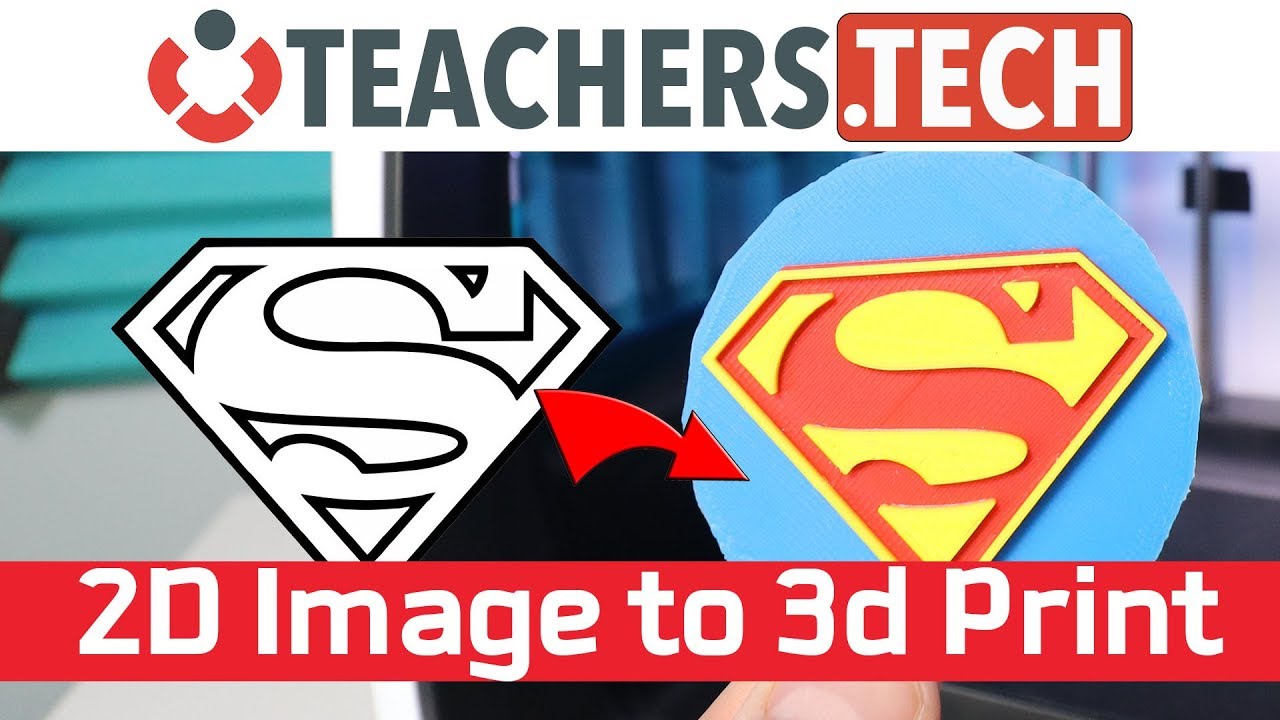
Turn a 2D Image into a 3D Print
11:06

Turn a 2D Image into a 3D Print

Teacher's Tech 22.02.2018 159 651 просмотров 1 807 лайков обн. 18.02.2026
Поделиться Telegram VK Бот
Транскрипт Скачать .md
Анализ с AI
Описание видео
This video tutorial will show you how to take a 2D image and turn it into a 3D object to print to your 3D printer. This first step is to convert your file to a .svg file then I will import it into Tinkercad. Tinkercad is a simple, online 3D design and 3D printing app. Convertio: https://convertio.co/image-converter/ Tinkercad: https://www.tinkercad.com/ Best 3D Printers under $20: https://teachers.tech/best-3d-printers-under-200/ Here's a video showing how to 3D print your photos.: https://youtu.be/L9_k88yo2q4 In this video, I am using the Robo C2 printer. It’s a great, ready out of the box 3D printer.

Оглавление (3 сегментов)

  1. 0:00 Segment 1 (00:00 - 05:00) 1053 сл.
  2. 5:00 Segment 2 (05:00 - 10:00) 882 сл.
  3. 10:00 Segment 3 (10:00 - 11:00) 234 сл.
0:00

Segment 1 (00:00 - 05:00)

hi there Jamie Keith here today a teachers tech who were you having a great day today we're going to do a little more 3d printing I'm using the Robo see to hear that Brayden from Robo sent me to try it out here and I'm using a project turning a 2d image here I'm going to do this Superman image here and turn it into a 3d image printing here in three different colors so I'm going to be using a converter online to turn into an SVG and then putting in a tinkerer cat and tinkering in with it showing you a few things to work on those this is something you could use as a lesson in for 3d printing in your classroom or just something at home just playing with anyways let's get started here today with this little turning 2d turning a 2d object to a 3d so I'm just going to use this site convert EO to put my take my image that I have a Superman of the logo and then convert it to SVG I'll put the link down below there's more than this one but this just happened to be one I use and it worked well for it I'm gonna click on from my computer and I have on my desktop I should have a Superman folder here right here and so you can see this is the logo that I'm going to use so I'm going to open this up and I'm just gonna you can see it's going to be converted to s VG here and I'm gonna click convert only should take a few seconds to do this here so when it's done I can hit download and what I'm gonna do is I'm just gonna move this into a different folder here I'm gonna just go copy and put it into my Superman folder here should be right there okay so I'll put it in the same folder and now so what I'm gonna do is go over to Tinkercad now taking our cat is all free I use it especially on Chromebooks at the school and everything works well for that so what I'm gonna do is I'm logged in with my free account you can go make one if you'd like and then what I'm gonna do is import that SVG file I just created so I'm going to go hit import and I'm going to choose the file and this is the one right here this is the SVG file now on it and I'm just going to leave it as it is and import it here I could scale it down because it will come out a little bit large but I can do this after the fact too so when it imports you can see how large it is I'm just gonna click on it hold down my shift key and shrink it down in here so I can put it just make a lot smaller to work with here so you can see now how its kind of give given a three-dimensional feel to it here so I'm gonna even go a little bit smaller on this one again I'm holding shift to keep everything kind of the same here alright so I can move around on this the top view you can see it has some depth to it now if I click on it I can take this white one and I can increase how thick I want to see so maybe I'll move to five here and this is something this is one just where I two up on the ground and I can move it back I'll leave it a little bit up because I'm gonna put something underneath it so I could send this I could send it as an STL file and print it like this but then I'd have pieces kind of by themself they won't stick on anything and I want to add more color to this so when you use change colors I can print in layers so what I'm gonna do with this is I'm going to put something underneath it so I'm just gonna take a cube here and I'm just gonna drag it over and I'm gonna make it larger just drag the corner and I'll just I'm gonna make it a square I think so well I'll just cover it like this so I'm gonna change my view here so you can see I don't need it this thick so I'm gonna maybe make this I'll make this about I'll do it just leave it as five for now and then one thing nice is sometimes when I print stuff I'll go back and change stuff after and see I'll scale it down to different sides sizes to see out came out so now you can see kind of I have this on top of the red let's turn this to yellow here just so it looks more like the Superman logo so I could print this it would print you don't want a square on a square one and it would look pretty good like that so but I want to add a few more colors on it so I'm going to do something different here so what I want to do is cut the edges here so I'm going to take this another box and I'm just gonna bring it to the side here and I'm gonna rotate this a little bit here so I'm just gonna rotate this much how much should I rotate this let's rotate it I'm gonna get it close and I'm gonna bring it to the side here I can adjust when I click on this again you can see I can I'm gonna put in a certain number here let's see if I put a 5 in hope we got a little closer here I'm trying to line it up right with that line to get as close as I can with it so when I click on this arrow here I can put it maybe if I go minus one here gets a little closer so why am i trying to do this so what I can do with Tinkercad now
5:00

Segment 2 (05:00 - 10:00)

I have the layer underneath I'm gonna turn this into a whole and what I'm gonna do now is just take I'm going to group these two with a hole and the bread here and I'm going to so now if I have them both selected here I can group them so when I group them it will cut away so what I'm gonna do now is I'm just gonna jump forward I'm going to do this and then come back to you when I'm gonna go round this Superman completely so I have it all done and then I'm gonna add something underneath it here so I'm down to my last cut here I'm just gonna turn this into a hole grab my other one and group them and it should be all kind of round so I do want to add one more thing underneath it what I want to do and I'm gonna group this actually together you're going to notice that the color will change to one color but that's fine I just want when I move this around I want to be able to take both those things together so I'm gonna put this cylinder on here and I am gonna make it skinnier I could choose other shapes but I'll go with a circle here maybe I'll go about 160 by 160 here that should be fine for my example and I'm gonna just rotate make this a lot thinner here I'll make this like five also or four or five and we'll put this doops down here make sure I move it in the right place here I want everything lined here and I want to bring this one up here so I'm gonna bring this one oops I don't want to make it thicker I just want to grab that arrow right here to bring it up and I'm gonna put this one on the ground so when it gets to zero here and a little bit more I could type it in but I'll just drag alright so then this one here I just want to put this one on top to do I grabbed one want to grab this here bring it down you'll see when it goes in I just want it slightly in like this so now I'm going to Center this around a little bit more just I it here and that looks kind of good for what I want to do so you can see nothing's floating in there I'm gonna have this I could maybe make those a little bit thinner maybe I should have taken off the edge here like I said before to make everything red but I'll use this so what I'm going to do now is just export this as an STL file and I'm going to just put it over because so you can see it's right there and then I'm going to load it up here I'm just gonna open up my Robo cura slicer and open it up and put it in there so I'm just gonna open up the file that I just saved here the STL and I'm gonna open up you can see this is my print bed size so it's a little too large so I'm just gonna scale this down I'm just gonna click on it I'm gonna type 60 should do the trick here yeah that should be good so now at this point what I want to do is just go through and I'm gonna leave actually going to leave everything the same here I could go to custom on this and set some but I'll try it on this one a lot of times I like to kind of change it if I was printing things again but I'm gonna lead see what how everything works on this one so I'm gonna go ahead and hit I'm just gonna save this and what I'm gonna do actually with this here is put it on into the file here and then actually better put it in the exact file that I want your so Superman shirt and there we go in ibbity turn into g code but what i'm gonna do now is actually put it into my Google Drive because I actually don't have this computer set to print from here so I'm just gonna use my phone here and if you're wondering you could use my eye take a look at the other video that I have about printing a little faint I kind of show you the whole process of printing on the phone to the rowboat see to here so I'm gonna go new and I'm just gonna go file upload and here it is here the g-code and now once this loads up I'm going to take out my phone and hit print and it's going to be sent to the printer what I'll do in a time-lapse for you right now well I have the final project product here in my hand and it turned out pretty good for just the first time through here there's a few changes I'd probably make on it maybe with the edges going around the edge maybe I take off that
10:00

Segment 3 (10:00 - 11:00)

yellow line and just looking on how it printed maybe I'd go a little thicker where it's yellow just so that everything gets filled in but it turned out pretty good for a first print here on it maybe submit on the adhesion on the bed too it just didn't quite stick well but I got away with it and it didn't move around or anything like this but like I said this is a fun project that kids like to do they can take home this stuff after and it can get them interested in 3d printing here and one of the things I like is just the constant change and practicing with 3d printing I like making the mistakes in it and trying to fix them and just tinkering with everything all the time so if you liked what you saw today make sure you try this in your classroom if you are doing some 3d printing if you're interested in the Robo see - I'll put an affiliate link of mine down below in the description here but thanks for watching this week I have more 3d printing to come check out my other video on the list levain printing here if you want to know how to turn a 3d photo in something you can print on it so that's all for this week and I'll see you next time

Ещё от Teacher's Tech

Ctrl+V

Экстракт Знаний в Telegram

Транскрипты, идеи, методички — всё самое полезное из лучших YouTube-каналов.

Подписаться




