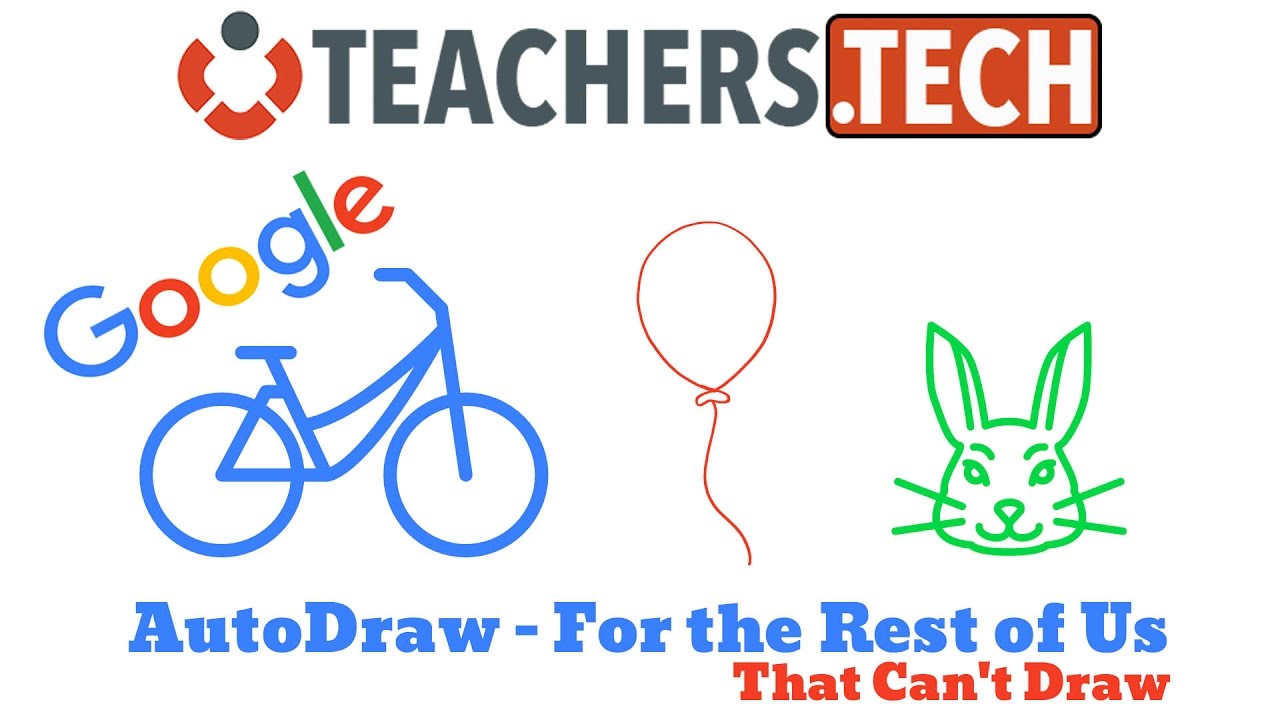
AutoDraw by Google: For Those of Us That Can't Draw
5:54

AutoDraw by Google: For Those of Us That Can't Draw

Teacher's Tech 12.04.2017 18 711 просмотров 287 лайков обн. 18.02.2026
Поделиться Telegram VK Бот
Транскрипт Скачать .md
Анализ с AI
Описание видео
This video will take a look at Google’s A.I. experiment, AutoDraw. AutoDraw helps people who do not possess the ability to draw accurate pictures. Through A.I., AutoDraw will match your attempted scribbles with drawings created by more talented artist. Use AutoDraw on your computer, phone or tablet. When you are done, you can download it as a .png or share it through social media. Check these A.I. experiments out! Link to Google AutoDraw: https://www.autodraw.com/ Link to Quick, Draw: https://quickdraw.withgoogle.com/ Link to A.I. Experiments: https://aiexperiments.withgoogle.com/

Оглавление (6 сегментов)

  1. 0:00 Intro 198 сл.
  2. 0:55 Other Drawing Tools 110 сл.
  3. 1:28 Using AutoDraw 313 сл.
  4. 2:57 AI Experiments 322 сл.
  5. 4:38 Download PNG File 109 сл.
  6. 5:08 Artist Drawings 159 сл.
0:00

Intro

Hi there, Jamie Keat here tonight at Teachers Tech bringing you my weekly tech tip here and today I want to show you autodraw. So this is released by Google uh experimenting with AI or artificial intelligence and it's going to help people draw. So for someone like me who's a terrible drawer, if I'm doodling, if I want to make the pictures look like what they're supposed to, uh this is a quick way to do it. So, I'm just going to give you a little run through of this product and a couple other uh AI experiments that Google uh is putting uh together. And this is all free. I'll put the links to this stuff uh right down below in my description here. And so, let's go ahead and get started. Uh so, as a draw tool, easy to get to. You just go to autodraw. com. You can use it on your tablet, on your phone, laptop, whatever desktop computer. You just need your browser. Uh you can see that if I go down the side here, I have a move tool or select tool. And I have my autodraw. Uh before I get
0:55

Other Drawing Tools

to the autodraw, you can see that there's the other uh drawing tools that are quite common with a lot of them. So if I was going to draw something, I can draw my shapes. I can change the thickness of my line. I could change the color of my line if I wanted to do like so. Now the interesting part, and you can kind of guess the other parts with the shape and everything, but the interesting part is this pencil, the autodraw here. So, I'm just going to go ahead and create a new start over here blank so you can see how easy it is to
1:28

Using AutoDraw

do that. And I'm going to use autodraw. So, if I wanted to draw, I'm going to start with something simple like a balloon. And bear with me. I'm not a very good drawer. So, if I have that, I'll put a string on it. And I can see if I start going through up top here, it has the gold star uh beside a selection there. If I select it, and then I have my balloon. I could go ahead and fill this into if I wanted to pick different colors. If I wanted, let's say, a red balloon, I'll fill in there. So, I can color the objects. So, again, if I was going to try I'll go back. I'll just draw a couple quick things here. If I wanted a Let's see if I can guess this. This will be a my attempt at a bike, a really bad bike. Let's see. Oh, I'm getting some bikes around here. So, I have some choices I could select through depending on what I want. And again, I could go through and color and change it. Uh, we'll try one more drawing here. And I'll just try let's try a cat maybe or a rabbit. It's Easter coming up here. This is terrible, I know. Sorry. Uh, oops. I got to be on the right. So, that time I'm just on the draw. I'm going to go back to autodraw here. So, pointy ears and I'll draw a head around it. Don't laugh at my drawings. Oh, I'm already getting some like uh so up here. So, I have a rabbit right up here. So, I'm just going to give up while I'm already losing on that drawing and show you right there. So, quickly I drew the balloon, the bike, and the rabbit using the autodraw. It figured out kind of
2:57

AI Experiments

what I was drawing there. So, this is under AI experiments here with Google. Uh, and as I said, it's all free on all the devices here. I'll put the links to this, too. So, these are uh artificial or AI experiments from Google here that they have different ones. I'm just going to go back uh screen here. You can see this is the autodraw one here. They have a camera that can recognize objects. And I'm going to show you this quick draw here, which is a fun little game using the same idea of autodraw. So, I'm just I already have this tab uh open, and I'll put this link down below, too. But this is quick draw. And so, if I go to let's draw here and uh so I'm going to go get it. And they're telling me to draw the cello. So, let's see. I'm a terrible drawer. Don't laugh. I see nose or river or spoon or garden hose. I see pear or pliers. I just realized how bad I am. I don't know how to draw this. I see violin or getting closer or stethoscope or peanut. Sorry, I couldn't guess it. Okay, so you get the point. Uh if you're a good drawer, this might go a little bit better. But uh let's try a mouse. I'll try this one more time here. Let's try to I see bun or potato or bread or pillow. Oh, I know it's a mouse. Oh, I got that one. So, two tries. Um, and I'm going to stop there before again uh I keep embarrassing myself. So, a couple neat uh programs. So, today uh Autodraw, something new. Uh it's on your phone, too. So, go ahead and try it on your phone. Just open up your Chrome browser, type in auto uh autodraw. com, and you'll see all the exact same uh menu that you
4:38

Download PNG File

have here. If I click on the menu, just a couple other things. You can see I can download it as PNG file. So if you like your work and save it, the thumbnail I'm going to use for this one today, this video is going to be made in here. I can share it uh through social media, different social media uh parts here. So it's a go. You can see where Twitter, Facebook or Google Plus there or I could copy the link. If I go back, oops, I'll go ahead one and uh I'll just go back to here. Uh very simple here. So the other
5:08

Artist Drawings

thing is what's happening with this and how it works is that there's artist drawings that it's trying to connect you with. So that's how the artificial intelligence there is working. So it you start to draw and it's trying to match with uh drawings that artists have uh added to this. Uh so you can kind of go through and check the different uh artwork that different ones have added. And I believe uh different people can add uh more here. So, if you have suggestions or you'd like to submit some drawings, you can uh do you can go here. So, I hope you like this little tech tip this week. Remember, I do these uh weekly uh tech chip tech tips here on my channel at Teachers Tech. And if you like what you see, please share this with a few people. Uh, hit that like button and thanks for watching and I'll see you next

Ещё от Teacher's Tech

Ctrl+V

Экстракт Знаний в Telegram

Транскрипты, идеи, методички — всё самое полезное из лучших YouTube-каналов.

Подписаться




