How To Build Polished WooCommerce Sites Fast with Blocksy
11:44

How To Build Polished WooCommerce Sites Fast with Blocksy

CSS Weekly 09.05.2026 252 просмотров 10 лайков

Machine-readable: Markdown · JSON API · Site index

Поделиться Telegram VK Бот
Транскрипт Скачать .md
Анализ с AI
Описание видео
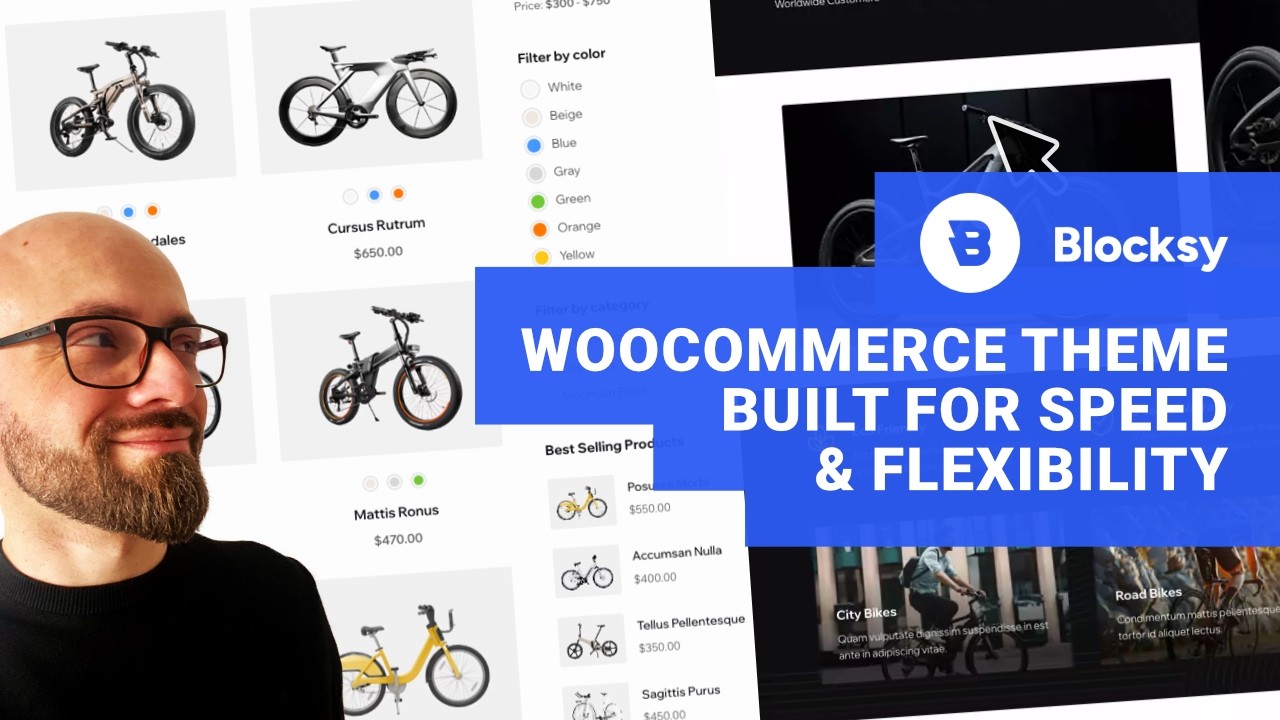
Learn how to build polished WooCommerce and business sites fast with Blocksy, a premium WordPress theme built for speed, flexibility, and smooth customization. In this video, you’ll see Blocksy’s Header Builder in action, along with live edits, real-time design changes, starter sites, and WooCommerce-friendly features that help you get to a professional result quickly. 🔥 Download Blocksy Today: https://creativethemes.com/blocksy/pricing/?utm_source=baw28.04.26&utm_medium=baw28.04.26&utm_campaign=baw28.04.26&utm_id=baw28.04.26 📖 Chapters 00:00 About Blocksy WordPress Theme 00:23 How to use Blocksy's Starter Sites 02:12 How to use Header Builder in Blocksy 04:58 How to tweak Desktop, Tablet & Mobile Headers in Blocksy 07:25 How to adjust WooCommerce settings in Blocksy 10:19 Overview of Blocksy Pro Extensions 11:08 Why you should start using Blocksy Subscribe to CSS Weekly Newsletter: 💌 https://css-weekly.com/ Help support my channel ☕️ Buy Me a Coffee: https://buymeacoffee.com/cssweekly 💖 Become a member on Patreon: https://www.patreon.com/cssweekly 🪧 Buy CSS Stickers pack: https://stickers.css-weekly.com 👨‍🎓 Get a course: https://masteringlinting.com/ Keep up-to-date with CSS Weekly: 🦋 Bluesky: https://bsky.app/profile/cssweekly.com/ 🐦 Twitter: https://twitter.com/@cssweekly 🎶 TikTok: https://tiktok.com/@cssweekly 🎇 Instagram: https://instagram.com/cssweekly 📘 Facebook: https://www.facebook.com/CSSWeekly/ Keep up to date with what I'm up to: 👨‍💼 Blog: https://zoranjambor.com 💼 LinkedIn: https://www.linkedin.com/in/zoranjambor/ - Zoran Jambor #woocommerce #blocksy

Оглавление (7 сегментов)

About Blocksy WordPress Theme

If you want a premium WordPress theme that feels fast, smooth, and flexible, especially for VooCommerce and business sites, you want Bloxy. Here's why. Bloxy is the most innovative, lightning fast, and supercharged free WordPress theme. You can use it for WooCommerce stores, business and agency sites, content-driven sites, portfolios, personal brands, and more. Essentially, you can use it for pretty much anything.

How to use Blocksy's Starter Sites

This video is kindly sponsored by Bloxy and the best way to get started with it is to download it completely for free, add it to your WordPress, and you can use it immediately. So, I'll jump into my WordPress admin where the Bloxy is already installed and ready to use. And the best way to get started with it is well to use one of the starter sites. These are highquality pre-built templates that you can use as a starting point for your own project. There are plenty of starter sites here and you can just browse through them or you can search for something specific or you can filter the templates by category, by a plan. I strongly suggest you get a pro plan because you get a lot more than in the free version and I think it's definitely worth it. And you can also filter the starter sites by builders. Bloxy supports Gutenberg, Elementor, Breezy and some other page builders. you only have start profiles in those that you see here. But if you're using something like Beu Builder, you can also use Bloxy with that. Check out the landing page of Bloxy to see exactly what the support is. It's pretty extensive. For this demo, I'm going to use this ebike template because I do want to showcase WooCommerce capabilities of Bloxy, which are pretty great. So, I will import this. I'll use Elementor. I want to import all content and I want a clean install. And if this starter site requires a specific plug-in, I'm going to be asked to install it right here. I already have all plugins available, which is pretty cool. So, nothing needs to be installed, but if you're missing a plugin that a starter site requires that you will be able to just click next, and it will be added to your WordPress installation. The starter site has been imported successfully. I'll preview it. There it is. All content is already here. The WooCommerce shop is ready to go. I have some content from before. Everything looks really good, but we do want to customize this theme. Bloxy, as you

How to use Header Builder in Blocksy

clearly see, works right within WordPress customize admin, which I really love because you never have to leave WordPress. You're working directly from the admin, and that is precisely what I prefer when it comes to WordPress themes. The most important part of every website is navigation, and we do want to customize that. Fortunately, Bloxy has a really fantastic header builder that you can use. Let me show you how great it works. I'll go into header. This allows me to customize the global header which is available across the site. In the sidebar, I see all elements that are available for my header. And here underneath the preview, I can see exactly the structure of my header. So, the first row features context here and here. The second row is logo and my menu options. If I want to rearrange them, well, I can very easily do that. I just drag and drop them. It works really nicely. It's really smooth and really great. Let's customize the main row, which is the second row. For example, let's just tweak the menu height. And as I'm dragging the slider, you can immediately see that the preview is updated live. I really love that because it just allows you to visually edit the site exactly as you want. Now, let's tweak our actual menu. And this is going to be menu one. So, I'll just click it here. As soon as I click it, customization options will be opened. I can tweak top level options. I can tweak item spacing and I do want to reduce this a little bit. Again, it's updated live on the side so you can see exactly what you're doing and exactly what the design looks like after you change something. Now, what I want to do is I want to tweak the design as well. Let's tweak the active item. This slider is again updated live so you can see exactly what you're doing. So, you can see exactly what the changes look like. And you have all available colors from the team right here in the bottom row. So if you want your design to be consistent, then use colors from here. But of course, you can customize it to something entirely different. Perhaps I want a little bit more prominent yellow. I'll just copy it here because I do want to set it to my indicator color as well. I'll open the active state here. And I'll just paste in this new color. And I kind of like this yellow a bit more for my active menu item. We tweaked top level options now, but we can also tweak drop-down options if we want. For example, you can change the interaction from hover to click. Let's do that. So now when I hover more, the submen will not be opened. I will have to click on it. And now it appears. If I want to tweak the styling for that, well everything is again right here. If I tweak it, the preview will be visible immediately as I open the dropdown.

How to tweak Desktop, Tablet & Mobile Headers in Blocksy

Another really cool thing in Bloxy is that you can actually tweak desktop header and mobile header or tablet header separately. Usually, there's not enough space on desktop or tablet. So, you do want some kind of off-c canvas menu and Bloxy allows you to do that very easily. As I switch to a tablet and mobile header, I can see that the layout has been changed completely. So, I have this off-campus area right here. And I have my main row that features a logo and the trigger for my off-c canvas menu. I will click the trigger option here. And let's tweak the icon. I like this one. Let me just change it again. So, you can see exactly what happened here. This not only changed, but this is actually animated. Changing from this icon to this one is really smooth and really nice. And this is exactly the theme around Bloxy. Everything is really fluid, really smooth, and it works really beautifully. There's ton and ton of attention to detail in this theme. That is precisely why you do want to use it. We only have the icon visible currently, but I do like the label as well. So, I will turn it on for tablet and for mobile. You already know by now that you can customize everything in Bloxy visually. And just as well, we can customize the position of the label. I want it at the left side. label text menu is fine, but I do want to tweak the design as well. So, I will jump into the design tab and I will tweak the label font color. And again, as I'm moving around this color picker, the changes are immediately visible in the live preview. I've adjusted my off-vas menu. And of course, if I want to tweak the canvas items, then I can just click on it and adjust my offvas area. I prefer the off-vas menu as a side panel instead of a model, which is the default here. So, I will switch to side panel. I will reduce the panel width a bit. Let's also adjust the panel backdrop here. I want it to be yellowish so it's in line with our active state. I'll switch to the design tab. And in the panel backdrop section, I will select this orange color and tweak its opacity to something like 0. 4. As you surely noticed by now, everything in Bloxy is really smooth, really nice, and you're working visually. As you're tweaking settings, the changes are applied immediately to the preview. You don't have to reload the page. refresh the browser. Everything will be applied immediately and you can adjust all settings very fluidly. Let's

How to adjust WooCommerce settings in Blocksy

publish this and let's adjust WooCommerce settings within Bloxy. I'll go back here. I will scroll down here and let's say I want to edit a single product. So, I will just close the side menu here. Scroll down and let's open a product in the preview. Here it is. Actually, I'll switch this to desktop. Let me just mention this again. Switching from desktop to tablet to mobile is again animated and really fluid. And I love when somebody pays attention to details like this. I will open the single product screen here. For example, I want to add a right sidebar to this view. So, I can have my bestselling products right on the screen. Just as is the case with the header, you can adjust everything specifically for mobile and tablet. I will not go into that right now, but I do want to show you other options that you have at your disposal to customize WooCommerce product pages in Bloxy. I'll scroll down and I have plenty of page elements that I can tweak and adjust exactly as I want. I'll open product elements. And again, you have a ton of options here that you can adjust. For example, I want to move at the cart a little bit higher perhaps right underneath the price because I do want to make it prominent on my shop. I'll just drag it up right underneath the price and the preview will update. I see my add to card option right where I want it. Let's also adjust the design here. I'll expand it and I will adjust the button height. I want to make it a little bit shorter perhaps like this. If you want to adjust the design of those elements, well, just switch to the design tab. And you can tweak fonts and colors for the entire page. Everything is organized nicely into clean sections from title to price to breadcrumbs, so you know exactly what you're working with. I will hit back here and I will also show you related and upselles option, which is a really nice option that you should have on your WooCommerce site. You want to redirect customers to related products so they buy more. I'll scroll down here so you can see exactly where this section is. Blooded products. We're dealing with a slider here. And I'm not a huge fan of sliders, so I want to turn this off. And well, you guessed it. It's really trivial to do this in Bloxy. I will just switch the type of related and upselles from the slider to default. I only want to show three products. So, I will switch this to three columns. And I also want to show this on tablet, not just on desktop. So I will enable related products and upsell products for tablet as well. I can verify if it works if I switch to tablet view. It is exactly what I want it to be. I'll just switch it off for a moment. So you can see that the preview again updates live instantly. I will not go into more WooCommerce options of Bloxy because there are too many to show here. But you get the idea. It's really simple. It's really fluid and all you need to do is just open the customizer of VooCommerce, play around with the settings and you'll be perfectly clear what each option does. And speaking of

Overview of Blocksy Pro Extensions

WooCommerce, let me just show you another really cool thing in Bloxy. I will publish this, close the customizer, return to the Bloxy dashboard, and I will open the extensions tab. The pro version of Bloxy, which you should be using, as we agreed before, offers a number of extra things that you can enable for your shops. You're going to find them all here under shop extra. And the ones that I really like are floating chart and quick view. If you're not sure what those options mean, there is a nice description under each one of them. But you can also just open the site and see for yourself how nicely they work. Again, too many options here to go through them all. So, open the screen and see for yourself which options you want to enable. There is really a ton of options here that you can enable for your WooCommerce shop. Hopefully, this

Why you should start using Blocksy

short introduction made it perfectly clear why you should use Bloxy for your WooCommerce stores, business and agency sites, and more. All you need to do is download Bloxy, grab one of their starter sites, import it, adjust the design and content according to your wants and needs, and you're ready to use it. So, hit the link in the description and start using Bloxy today. You'll be really happy you did so. Thank you so much for your attention and thanks so much to Bloxy for sponsoring. My name is Zoran Yamar and I will see and hear you in a different Bloxy starter site or rather in the next video.

Другие видео автора — CSS Weekly

Ctrl+V

Экстракт Знаний в Telegram

Экстракты и дистилляты из лучших YouTube-каналов — сразу после публикации.

Подписаться

Дайджест Экстрактов

Лучшие методички за неделю — каждый понедельник