Introducing YouTube Channel Visualizer
11:47

Introducing YouTube Channel Visualizer

CSS Weekly 20.04.2026 317 просмотров 16 лайков

Machine-readable: Markdown · JSON API · Site index

Поделиться Telegram VK Бот
Транскрипт Скачать .md
Анализ с AI
Описание видео
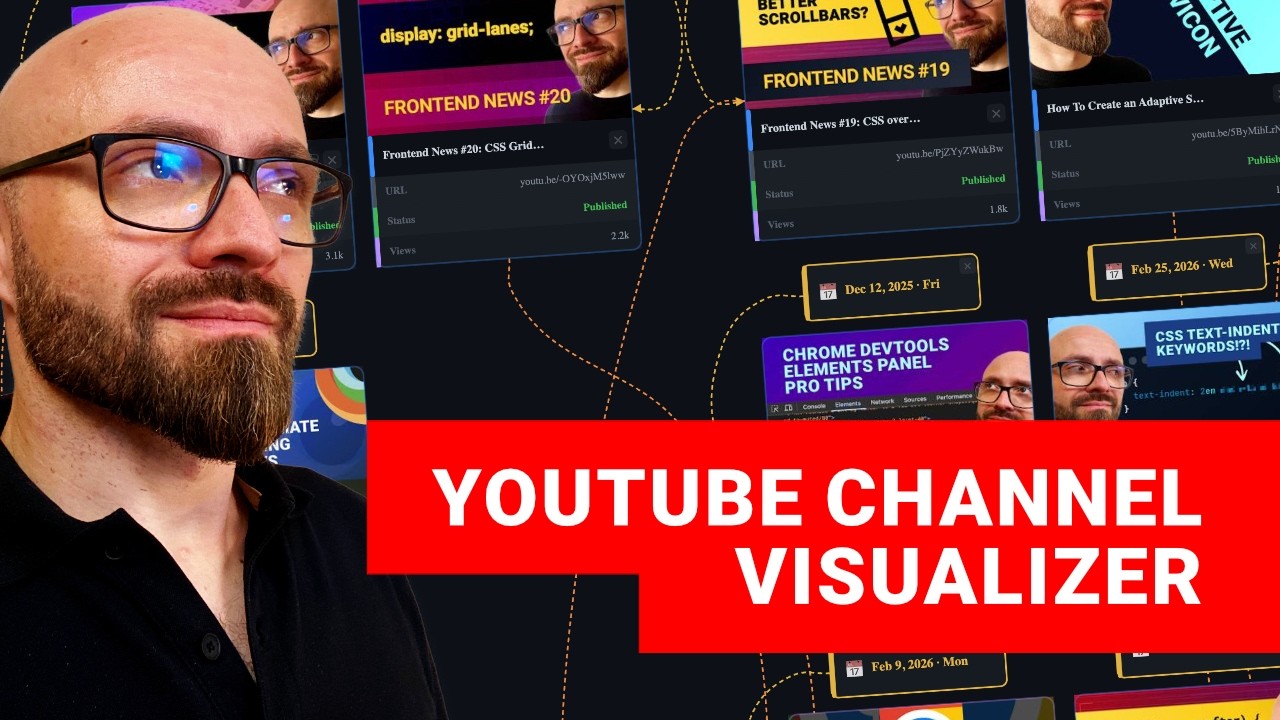
An overview of the YouTube Channel Visualizer tool that allows you to visualize your channel on a diagram to be able to surface key metrics that will help you create better-performing content. Additionally, you'll learn how to vibe-code a tool like this using the JointJS Claude Playground plugin for Claude Code. 🔗 Links YouTube Channel Visualizer: https://cssw.io/youtube-channel-visualizer JointJS Claude Playground: https://github.com/clientIO/jointjs-claude-playground Guide on using JointJS-enhanced Claude Code Playground plugin: https://youtu.be/GSYSbJo6ras 📖 Chapters 00:00 What is YouTube Channel Visalizer 00:40 How to visualize link connections differently 01:30 How to arrange the videos by Timeline, Tags, Views, and Grid 01:39 How to work with tags in YouTube Channel Visualizer 02:37 How to arrange videos by Views 03:09 How to filter videos by type (Long/Short/Live Stream) 03:29 How to edit video properties 03:59 How the app persists settings through localStorage 04:44 How to export the channel visualization for social media in PNG format 05:06 How the Calendar view in YouTube Channel Visualizer works 05:21 How the Stats view in YouTube Channel Visuzlizer works 05:41 How to import your own channel using YouTube API Key 06:36 How to use YouTube Channel Visualizer as a YouTube planning tool 07:55 About security and privacy of the YouTube Channel Visualizer 08:19 How to create visual tools using JointJS Claude Playground plugin for Claude Code 09:32 How to install and use the JointJS Claude Playground plugin 11:22 Why you should share the tools and channel visualizations you create Subscribe to my Newsletters: 💌 CSS Weekly: https://css-weekly.com/ 🤖 AI Developer: https://aideveloperweekly.com Keep up-to-date with CSS Weekly: 💖 Become a member on Patreon: https://www.patreon.com/cssweekly 💼 LinkedIn: https://www.linkedin.com/in/zoranjambor/ 🦋 Bluesky: https://bsky.app/profile/cssweekly.com/ 🐦 Twitter: https://twitter.com/@cssweekly - Zoran Jambor #claudecode #jointjs

Оглавление (17 сегментов)

What is YouTube Channel Visalizer

I published a lot of videos on this channel, and I always wanted a tool that would actually allow me to visualize those videos somehow. Well, I'm a developer, so I built that tool. Actually, I live coded it. Stick around, and I'll show you how you can visualize your own YouTube channel in this tool, or even better, how you can build your own tool like this one very easily. The link is in the description, so check it out yourself. And this tool essentially visualizes the latest 20 videos from CSS Weekly YouTube channel. Let me quickly show you what you can do with it. On this main canvas, you can zoom in and zoom out. And also, all nodes here, all elements, are interactive, so you can drag and drop them, adjust them, arrange them any way you like. And you also have

How to visualize link connections differently

a number of options to visualize things differently. The first options here are lines, which are connections between those elements. So, if you change the lines, you're going to see different connection types between years, dates, and tags. The options available are direct, Manhattan, and metro. And you can have a different style of those lines, rounded or curved. So, this allows you to actually visualize the connections between different elements of your YouTube channel easily. Direct and rounded is something that you would see in the standard diagram, but if you want something a little bit nicer and smoother, then you can go with the curve and play around with either Manhattan or metro. I think this looks really interesting, and it just gives you an idea about how much work goes over time into a simple YouTube channel that publishes a couple of videos per month.

How to arrange the videos by Timeline, Tags, Views, and Grid

Another cool thing is that you can visualize the videos on your channel in the timeline view, as we have here, or alternatively, by tags views and grid.

How to work with tags in YouTube Channel Visualizer

I'm going to switch to tags, and this will group the videos by tags that are available. The most videos are tagged with tutorial, then we have news, which is actually front-end news series, and the last group is quick tip with only two videos. I've used just a couple of main groups to visualize my channel, but you can do anything you want, of course, with it. If you open the tags view in the sidebar, you can drag any number of other tags and connect your videos to those tags like this. Or you can even add new tags here. Just add a name, my tag, and if you want to have a nice icon, you can just add an emoji, and you're going to have the exact tag for your channel. I'm just going to delete those two because I don't think they're really necessary here. Everything here is interactive because this is powered by JointJS library. I actually live coded this tool using the Cloud Code Playground plugin. And I've enhanced it with JointJS library. I'm going to talk about this in a bit, so you can see exactly how to build a tool like this yourself. But first, I still want to show you how it actually works. Another view that we

How to arrange videos by Views

have here is views, which is really cool because it allows you to see which videos are performing well on your channel. For example, in my use case, most of the videos are going to fall into the category between 1,000 and 2,000 views. There are a few outliers here, specifically those two, my funny take on the Cloud Code source code leak and a guide on Calc Size function. So, this gives me an idea that maybe I should create more videos in this style if I want to get more views on my channel. Pretty cool. The last

How to filter videos by type (Long/Short/Live Stream)

view is grid, which essentially groups the videos in this nice grid. The filter group here allows you to visualize videos by the type. I have only short and long videos. I don't have live streams on my channel, so I'm not going to see anything here. But if I turn on videos, I should see all my videos. And if I turn shorts, I should see my shorts. And now I actually see

How to edit video properties

that one of the videos is not properly tagged, so I'm just going to tweak it right here. There we go. So, now this is properly tagged, and I have my short exactly where it is. Of course, I mentioned it before, you can drag those around any way you like, and the connections are going to still work exactly as you expect. And of course, you can add new connections here. Maybe you want to tag this video as news as well, and this is going to, well, create a connection between this video and this

How the app persists settings through localStorage

tag. One thing that I want to mention here is that everything in this app is actually stored in local storage, so if you refresh the page, anything you change will be preserved. So, you can play around, tweak things, and when you return to the app, you're going to get exactly the state that you had before. Local storage is not 100% persistent, but you can export the entire state of the app if you open the second sidebar. You have the export available as JSON, markdown, and state. So, you can just copy the JSON, paste it into a file, save it, and later on, if you're going to move to a different browser, to a different machine, or if you just delete the entire cache of your browser, you can simply import that JSON into the app, and you're going to continue exactly where you left off. The upside of this is, of course, that you don't have to create an account to use it properly. Another cool feature that I

How to export the channel visualization for social media in PNG format

really like is export PNG, which actually exports the PNG of the current state. So, if you do that, you're going to get a really nice image, this visual representation of your channel, that you can then share on your social media. I really like this because it clearly shows how much work goes into a single YouTube channel and how much work creators are doing to actually give you the content that you're watching. So

How the Calendar view in YouTube Channel Visualizer works

this diagram is actually the default view, but you also have two different views, a calendar view that allows you to visualize your channel on a simple calendar grid. I didn't do enough work in April on my channel, nor in March, but February was much better. And the

How the Stats view in YouTube Channel Visuzlizer works

last view here is stats view, and this one will just surface some of the important things about your channel. For example, these are the best performing videos on my channel. I can clearly see what the difference is between the first and second one. And there are some other stats here that you can dig into to learn more about your own channel. Of

How to import your own channel using YouTube API Key

course, this tool wouldn't be useful if you couldn't actually import your own channel into it, and you can very easily do that because there's an API section in the sidebar here that you can open. Just enter your channel handle and API key. Link to get the key is right here, so just hit it. Once you do that, you can specify how many videos you want to import. JointJS, the diagramming library that handles all of this, is actually pretty robust and really great at performance, so you can't actually push it to limits. As you've seen, 100 videos were fetched from my channel, which is quite a lot, as you can clearly see, and the diagram is really smooth and works really great. There's no issues whatsoever here, so if you have a bigger channel, you can visualize it here as well. Let's arrange the diagram by views. And again, I can see which videos are doing well and which videos might not be doing that well. You can also use this as a

How to use YouTube Channel Visualizer as a YouTube planning tool

planning tool for your channel. So, for example, if you're planning a new video, well, let's say I'm recording this video right now, so I'm going to switch to timeline view, and I'll just go all the way to the end. There are a lot of views here, but luckily, I can zoom in quite far out. So, I will add another card for the video that I'm just recording. This is going to be YouTube Visualizer video. The type video. I don't have a link yet. I don't have the image URL because I didn't create it yet, and there are no views currently, so this is going to be enough for starters. The status is planned. I can switch to recording, and that is the current status because I am recording this video right now. I know that this will be released in April, but I don't know exactly at which date, so I'm just going to connect it like this. So, I actually can use this tool not only as a YouTube channel visualizer, but planner that allows me to visualize what type of content am I going to create next. Well, let's do a short video here. I don't know what the title will be here, so let's just say TBD. And yeah, now I can see exactly that I have one video in the recording state and one in the planned state. Of course, in the stats view, I can see that I do have one planned video and one video currently in the state of recording, this video that you're watching. In any

About security and privacy of the YouTube Channel Visualizer

case, I want to mention again here that this tool is just 100% local. It's a single HTML file, and the API key that you're going to save here will not be sent anywhere. It's just locally on your browser, so you can play around with it and visualize your own channel, export it, share it on social media. If you do use it, if you do create a nice screenshot for your channel, tag me in the post because I'd really love to see it. And now, let me quickly show you how

How to create visual tools using JointJS Claude Playground plugin for Claude Code

I actually built this tool. I'll jump into Visual Studio Code, and this is exactly the file that we're talking about here. It's a single HTML file. It's quite large, and it was 100% live coded. Okay, to be honest, I did jump into the code and tweak some things myself because I think it's a little bit faster and easier to do so if you know what you're doing. But essentially, I did live code this entirely using the Cloud Code Playground plugin. If you're not familiar with Cloud Code Playground plugin, well, then you should check it out because I think it's really cool. It allows you to build simple tools that are essentially one-page HTML apps that you can share and tweak any way you like. As I was testing it out, I realized that there are quite a lot of downsides if you want to do something like this, a nice visual interactive representation on a diagram. So, I actually plugged in a JointJS diagramming library, which is a proper library that is running all of this that you see here. And for that, I actually also built another Cloud Code Playground plugin that comes with JointJS built in. So, if you want to build a tool like this where you can just visualize something on a graph, on a diagram, then you should try the custom version of Cloud Code Playground. This JointJS

How to install and use the JointJS Claude Playground plugin

enhanced version of the plugin is available on GitHub. Link is going to be in the description, so check it out yourself. And essentially, you just install the plugin through the third-party marketplace. Installation instructions are right here. You need to run two commands in your Cloud Code. I'll just copy this command here. I'll jump into my terminal. I'll enter cloud, and I'll just paste in this command. This will add the marketplace through which the plugin is available. If I go into plugins now, I can see this new marketplace that I've added, JointJS, and if I open it, then I can just browse its plugins directly, or I can just copy the second command, paste it into Cloud, and this will install the third-party plugin. When I install it, I need to exit and enter Cloud again for this plugin to be actually available, and you can see all skills that are available in this plugin under JointJS, because this is the namespace under which the plugin is created, and JointJS is the library that plugin actually uses. I actually created a YouTube video about this on JointJS YouTube channel, so check it out there. The link is going to be in the description, as well. But, all in all, what you need to know is that you can build any visual tool using this plugin. If you want to build a code map, you can just specify {slash} code map, and React. This is then going to build a code map for React, but you can just also interact with Cloud Code as you normally do. Build me a JointJS visual tool for a YouTube scheduler, or whatever it is that you want to build. It took me about 20 or something prompts to build this YouTube visualizer. I did tweak some code manually, but essentially, this is Vibe Coded using exactly the plugin that I've shown you. So, if you want to build a tool like this one that utilizes a proper diagramming library, well, then you should check out JointJS Cloud Playground plugin that I built specifically to be able to create tools like this one very easily. So, check out

Why you should share the tools and channel visualizations you create

the plugin. If you do create something with it, please share it with me. I'd love to see it, and I'd love to feature it in future weekly, as well. Just as well, if you use this tool to visualize your YouTube channel, share the results with me. I would really, really love to see it. Thank you so much for your attention. My name is Aram Mambar. I will see and hear you in a different YouTube visualizer, or rather, in the next video.

Другие видео автора — CSS Weekly

Ctrl+V

Экстракт Знаний в Telegram

Экстракты и дистилляты из лучших YouTube-каналов — сразу после публикации.

Подписаться

Дайджест Экстрактов

Лучшие методички за неделю — каждый понедельник