🚀 Learn to Build Full End-to-End Products with AI: https://learnproduct.design/cursor
🤑 Get 50% of your first month on Cursor — https://cursor.com/referral?code=BQ7HMBSGJSH4
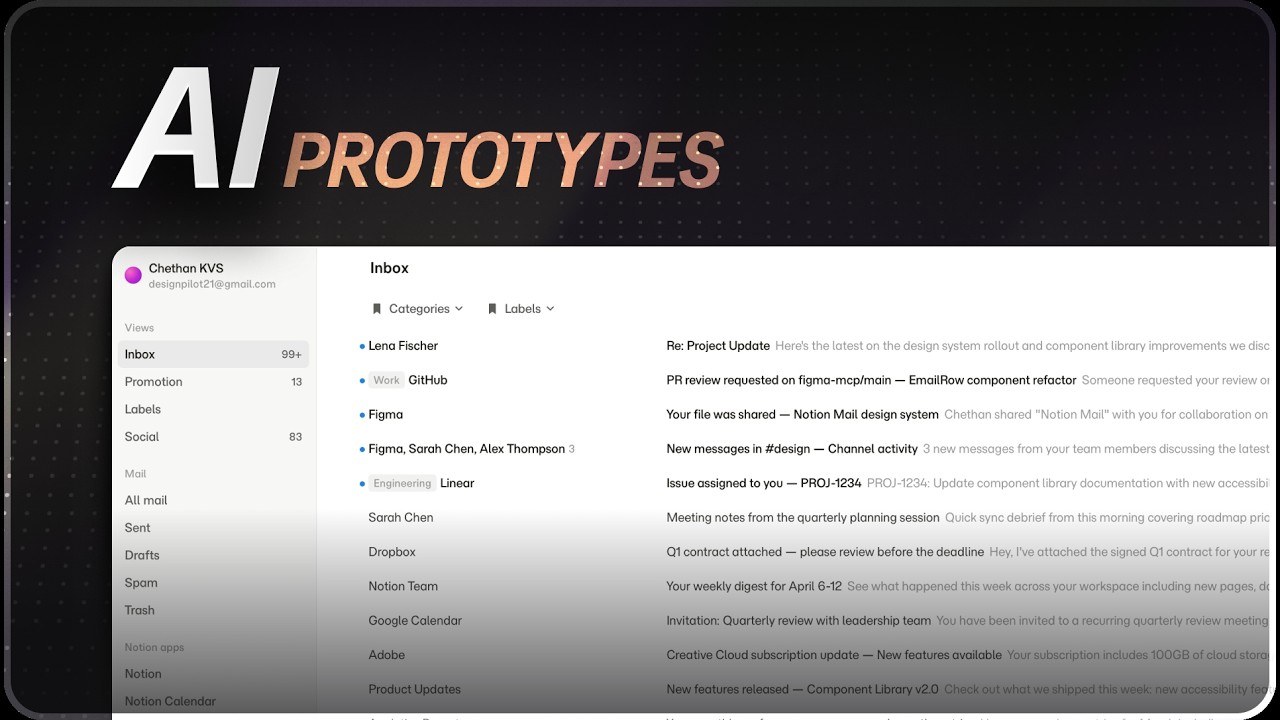
In this video, I continue building an AI-powered Figma workflow by creating a reusable Claude skill that uses a published design system, Figma components, design tokens, and MCP tools to generate UI designs directly inside Figma. I then expand the workflow into generating full screens using design system templates, while also optimizing the skill to reduce tool calls, improve reliability, and make AI-assisted design generation faster and more practical.
🔗 COMPLETE GUIDE TO AI-POWERED DESIGN PROCESS: https://youtu.be/idPrScvnSro
🧰 AI Designer Starter Pack
— Get 50% of your first month on Cursor — https://cursor.com/referral?code=BQ7HMBSGJSH4
— Prompt Faster with WisprFlow: https://ref.wisprflow.ai/chethan-kvs-2fot
— Create an account on Mobbin for free: https://mobbin.com/?via=chethan
— Which AI Vibe Coding Tool to use in 2026: https://youtu.be/_MXdrajtg2U
— Ultimate GitHub Guide for Beginners: https://youtu.be/1iiq__N1SYk
— Free AI Code Reviewer — https://www.cubic.dev/invite/design-pilot
— Easiest to use Backend Service — https://convex.dev/referral/CHETHA8049
🔶 Chapters
00:00 Introduction to AI-powered Figma workflows
01:00 Reviewing phase 4: creating an email row skill
07:40 Publishing components and answering setup questions
15:00 Reviewing and creating the email row skill
21:40 First test run in Figma
28:00 Debugging slot, icon, and sender-count issues
35:20 Second test and workflow improvements
46:00 Switching to official Figma MCP skills for better execution
54:00 Expanding from a single row to a full inbox screen
1:08:00 Testing full inbox generation and optimizing performance
-------------------------------------------
Mega Product Design Course for Beginners:
https://www.youtube.com/playlist?list=PLERed4ILxkJ1_kDOXCrEGmB58IsLOiIc3
Webflow Course for Beginners:
https://www.youtube.com/playlist?list=PLERed4ILxkJ1N4PxzGE_ywogtBeeOaqc8
Photoshop Tutorials:
https://www.youtube.com/playlist?list=PLERed4ILxkJ372RTmi1rQmfqbIqXr3opi
Illustrator Tutorials:
https://www.youtube.com/playlist?list=PLERed4ILxkJ0pK595gwPLmcVF-P_jx0V1
After Effects Tutorials:
https://www.youtube.com/playlist?list=PLERed4ILxkJ23p3SZD49unrbkh_F8q9Dk
UI Design Tutorials:
https://www.youtube.com/playlist?list=PLERed4ILxkJ1uHAE-_rAxeDMBnhzzmYuW
Design Resources, Tools and Softwares:
https://www.youtube.com/playlist?list=PLERed4ILxkJ1-qY3TQToZWn3vYWVo6EA9
Adobe XD CC Tutorials:
https://www.youtube.com/playlist?list=PLERed4ILxkJ11D_9_jX80GDenpMUWjTtv
eSports Design Tutorials:
https://www.youtube.com/playlist?list=PLERed4ILxkJ3lLdkQmG-Ebw90KdChq56P
--------------------------------------------------------------------------------------------
Contact me :
Portfolio: https://chethankvs.design
Twitter: https://twitter.com/kvschethan
Instagram: https://instagram.com/design_pilot
Mail: designpilot21@gmail.com
Behance: https://behance.net/chethankvs
Dribbble: https://dribbble.com/chethankvs
--------------------------------------------------------------------------------------------
LIKE, SHARE, COMMENT & SUBSCRIBE :)
Оглавление (10 сегментов)
Introduction to AI-powered Figma workflows
— Hey everyone, hope you're all doing well. Welcome back to another video on the channel. Now, this video is the second part of a 4-hour long video that I recently released on my channel. It was all about creating AI-powered design workflows. Now, in this part, I'm going to focus a little bit about teaching you how you can create skills that make it easy for the AI to create a designs for you in Figma. So, this basically helps you design a lot faster. Now, you can either make it use your design system to make designs in Figma or use the code that's there in your code repository and convert that into designs in Figma. And I'm going to show you how to do all of that in this video. So, without any further ado, let's get started. Now, before we move to phase number four, let's quickly take a look at what we actually have. So, maybe I'm going to open up Cursor. And I have this plan over here. Now, in the plan that we created, phase four is basically a skill, which is an individual email row, which basically creates a design and adds it to Figma. All right, we're going to create a definition of the skill as to what the skill actually does. We're going to implement the skill logic, all
Reviewing phase 4: creating an email row skill
right, and then we are going to wire the code file references into the skill context. So, we can ignore all of this. What we need to do here is come down here to the details. And in the step number four, which should be over here, all right? So, we're going to it's going to create a skill called as the create email row, and it's going to be triggered when we use the phrase create email row or design an email row. It reads the code files from phase number three as context for accurate design generation. And then it uses some tools over here, Figma set text, Figma instance properties, Figma initiate component, and outputs a configured email row instance into the current Figma page, all right? Perfect. So, now, what I also will do is I have a set of instructions over here that I want to execute when it is executing the skill. So, I'm going to provide this as well. So, let's go ahead and go to Claude. And I'm going to come down over here and create a new conversation. We're going to choose the same folder and this time I'm going to go ahead and choose um probably Opus and we can go and choose probably a high, that's fine. So now I'm going to say Let's go ahead and start building phase four. Let's go ahead and update the plan to execute phase four. All right? So for creating any design and to be pasted into Figma, always use a combination of the official Figma MCP and the Figma console MCP. Evaluate which one is better to use in which situation and use the right MCP. Now if we compare the Figma MCP and the Figma console MCP over here, you can see that Figma MCP has this one tool called as use Figma and this is the name of the tool which basically does all of these things. So it can resize, rename, create, manage variables, modify auto layout, it can create components and create frames, it can do everything. But the console MCP has specified dedicated tools for all of this, all right? And it's going to use a command called as the Figma execute which is essentially going to design in Figma. Now it's difficult for us to actually figure out what to use in what case and maybe we just let AI make the decision on whether it should use this tool called Figma use, which is called use Figma, or use the dedicated tools of the Figma console MCP. So I'm actually giving that complete freedom for AI over here. Now I'm also going to come to Figma and make sure we go to dev mode and we can see here that our MCP is enabled. So this is good to go. Now I can actually go ahead and also copy this entire thing. Maybe it's a little bit easier to do that. Come here to Claude code and I'm going to paste that over here but I guess it pastes in a very weird way. So let's go ahead and actually mention one by one. So I'm going to go ahead and say always refer to the code component of the email to get the various specs and then use that specs and to create the design in Figma. All right. Then the next one is include inputs from user if not there. So, I'm going to say always ask the user for additional inputs to gain more context. Provide a summary or an understanding and confirm with the user before implementing in Figma. All right. So, we're going to ask it to give us a summary of its understanding and then we're going to paste that into Figma. All right. Then every time the fill skill is executed, we create a checklist and update that checklist as and when the steps are created. So, this is also going to be a part of the skill. That's fine. And now we can also say include detailed instruction on how to execute each of the steps of that particular skill. All right. So, we're going to go ahead and copy this and paste this over here as well. So, this is essentially going to be creating a skill and we're going to update this to say execute phase four of creating a skill. All right. Then ensure to ask follow-up questions if unclear with this is fine. I think we already sort of to an extent covered this and ensure to include a step towards the end that takes a screenshot, reviews it and makes changes up to three times if needed and then don't create unnecessary files and redundant information and then set up parameters that allow us to control the variants of the email with realistic data. Now, I'm going to do this later on when we come down to the phase five because in phase five we could have multiple emails that we are creating and then we could control the various parameters and I'm going to talk about this when we come to the next phase, but I think for now this is fine. All right. And I'm actually going to probably go ahead and uh type here and say let me know if you have any questions and need additional details. All right. Now, one of the things that I only want to do before I actually go ahead and paste in the prompt is that in Figma I quickly came here and change this to now take an instance of the master component and customize that instead. Now before we had decided that we're going to go ahead and make it construct everything from the code, but instead of doing that we're actually going to go ahead and publish this component that we have in our library and then once it's published it will then use that take an instance of that master component and then customize it. And the rest of the things will stay as it is. So I'm going to come here and just paste the prompt that I had created and I'm going to go ahead and just um put these out into bullet points so that we can quickly see it and I'm going to give you a quick overview of what we are going to be doing. All right? So number six and number seven are here. Okay. Uh we actually don't need the last one. That's fine. So we're going to be focusing on phase four of the plan and we're going to go ahead and update the plan in order to create a skill that helps us generate email rows and allow the and allows the AI to paste it into Figma. So we're going to take an instance of the master component and customize it when the skill is triggered and the email row component is going to be published it to our library along with all the other variable tokens. And then we're going to mention that we're going to ensure that the skill includes the inputs that it needs from the users and ask any questions if unclear and then it shows a summary of what will be implemented and then once the confirmation is taken from the user it's going to build the component in Figma. And then every time the skill is executed create a checklist update that checklist as and when the steps are completed. All right? Then include detailed instructions on how to execute that step and also use the Figma MCP and the Figma console MCP. I'm going to probably say the official Figma MCP as well as the uh console MCP with the respective tools depending on the task. Ensure to include a step that takes a screenshot, reviews it and makes changes up to three times if needed. And then don't create unnecessary files
Publishing components and answering setup questions
and information, right? Now with this I'm going to go ahead and run this. All right, so Claude is asking us a couple of questions so we can answer that. So, before I rewrite the phase four, I have a few questions that meaningfully change the plan's shape. So, first one, you said that the component is going to be published to library. Is it already published or should phase four include a published to library step? This affects whether the skill uses the Figma initiate component from the same file or from a team library or whether it needs to verify the variable tokens as well. So, basically I'm going to come here and just publish this first of all. So, if I come here to the email row and I can open this up and I can just publish this. Uh if I come down here to variables and uh actually I need to come down to the library, I guess. It should be somewhere over here, the library. Go to assets and then over here, I'm going to click on this and we already have a couple of things publish. I'm going to click on publish and now we're just going to select the email row. This is the only thing that I want to publish. Later on we'll publish the rest as well. And maybe to be honest, we could also publish the inbox template together, right? So, that you know, this is to an extent done. All right? So, there we go. These two are published and we probably don't have to publish anything else. Maybe we have to publish some of the other components like the action bar, the action button. Maybe you don't have to publish the icons. We'll see what we want to do with the icons. We'll see if we have to publish the icons as well. And then the filter, the icon button, the nav menu item, the subheader, the tag button um and the section header. So, all of these are something that we want to publish. We'll go ahead and say publish. Um so, I'm just ignoring all the icons and publishing the rest. We'll go ahead and say publish and this is going to publish it to our library. All right? So, now I'm going to come back over here to Claude and I'm going to answer this question. I'm going to say the email row component as well as all the other atoms have been published to the team library. All right? And I'm also going to say along with all the tokens. Right, perfect. Then the skill location. Should the skill live at this place or at a project level? So basically what it's asking is that if you see the URL, you can see here it says Claude skills and then Figma create skill. Now if it saves it over here, this is going to be at a user level, which means no matter what project you have, it's going to create it at a global level. But we could do it under a project level inside the Figma workflows tutorial. I'm going to come here and say create the skill under the project, right? So I'm going to go ahead and mention that out. That's great. Then number three is placement target in Figma. Where should the instance land? At the user's viewpoint center, inside a specific frame, the skill creates a scratch frame, and user clicks user picks pre-run, right? So where do we want to choose? What we can do is we can go with option number A and we can paste that over here, placement target, all right? And we're going to go ahead and paste that over here. All right? And then we're going to number four. All right. Single row or multiple per invocation. Phase four is email and phase five is groups. Should phase four be strictly one row per run or should allow N rows in one go and phase five adds the section header grouping layer on top. Let phase four strictly be one row per run because I want to test if this approach works and make the necessary changes before we move on to making phase five, which makes multiple rows. All right? Then inputs explicit versus generated, right? So when the user triggers the skill, the skill asks for every field, the skill offers a mock data defaults and only ask the user want he wants to override, and a hybrid where required fields are prompted, optional ones default to mock content. So this is completely left to you depending on what exactly you're trying to build over here. I'm going to go ahead and say skill offers mock data defaults and asks the user what they want to override, all right? Next. Then, number six is the component has eight variants plus instance props. Expose all of them in the skills input step or start with a minimal subset and expand later. Now, I'm not 100% sure what number six is and I'm so I'm going to say, "Not sure I understand. Can you elaborate? " And I'm going to say, "Once we clarify number six, only then go ahead and make the changes. " All right? And let's go ahead and run this. Hopefully, it understands what we're asking for. All right. So, in Figma, the email row component has two types of configurable properties. Variant properties that make up the component set and these are distinct things like theme, state, and red. Changing these means the skill picks a different variant from the set. Instance properties, toggles and overrides can be set on a placed instance. So, basically, the question is when the skill asks, "What do you want to override? " Should it expose every variant access and every instance property the component supports so that the user can configure anything the component allows in one go? More powerful, but the input step is longer. Start with common ones, theme, red, sent, subject, preview date, maybe, and add more fields later once validated flow. Faster to test with phase for loop, easier to iterate on. Now, again, I'm not fully sure what it asks what it means. So, I'm going to say, "What do you mean by expose? Because when you take an instance of the master component, all the component properties are already going to be a part of that component. " All right? And I'm going to run this and hopefully, now we can get an answer and actually understand what it is that it's actually asking. So, it says, "You're right. I was wording sloppily. All the component properties exist on the instance automatically once you initiate. Nothing to expose in Figma terms. What I actually meant about the skill prompt surface was which properties the skill proactively asks you about during here's the mock data, what do you want to override X step. Every property is always settable via this Figma set instance properties. The question is which ones the skill surfaces in the conversation. The skill walks you through every variant axis and every instance property offering a mock default for each and letting you override any. Longer confirmation step, nothing hidden. Option B is the skill only about the core subset. The remaining properties stay at whatever the mock data defaults to, but you can still change them in the confirmation step. Shorter loop, faster over here. So, what I'm going to do here is I'm going to say the AI can take a decision and come up with a random selection of component properties every single time unless there are actual specifics provided by the user. So, I'm going to let it make the decision and customize it the way it wants unless there are actual specifics provided by the user. Does this help? All right. So, it's actually understood and it is also going to go ahead. I think it already updated the file, so which is pretty great. So, it says the it's updated summary of what it wrote and we can actually go ahead and take a look. Do you want me to go ahead and look at the create the create the skill file or would you rather review the plan first? So, let's go ahead and actually review the plan. So, I'm going to open up cursor and over here we should have phase four, all right, which is great. So, a
Reviewing and creating the email row skill
one-shot skill that initiates the published library email row library component into the user's current Figma file, configures it with the mock data plus a random selection of component properties and verifies the output with a screenshot, right? Exactly one row per run. Multi-row and grouping layouts are in phase five, so this is fine. So, this is where the skill is going to be and over here we would have a folder called as skills, and that would happen once the skill is created. Right now, we are just updating the plan that will create the skill for us. All right? And all of this is fine. So, every invocation of the skill requires a to-do list with the 11 steps and updates it as each step completes. So, step number one is it's going to read this file, which is essentially contains the list of properties, then the utilities, and then also the specs only if the visual mapping is unclear, right? Now, ideally this step is not important because the component is going to have all the paddings and spacings and tokens and everything. So, there's no need to actually review the specs over here unless there is something broken. So, that's totally fine. Then, detect the placement target. So, it's going to figure out where to place it. So, that's fine. Then, generate the mock data. This is also fine. And it has the various rules for dates, as you can see over here. So, that's fine. And then the summary, and then you can see here it says, "Do not touch the Figma before the final confirmation. " So, once we confirm it, only then will it actually touch Figma and do the actual work. And then it does the work, all right? And it's going to apply the various component properties. That's fine. And then apply other properties as well, I guess. I'm not 100% sure here. Pretty much looks like the same thing, but that's fine. And then it sets the text, screenshots it, reviews it up to three times, and then reports it, all right? And then here we have the tool selection rational. So, the official Figma MCP reads high-fidelity screenshots during the review loop. It returns richer context and better image quality, right? So, probably this makes sense we're trying to validate, but the Figma console MCP is better for execution, maybe. But it doesn't matter, we can let it do its thing. Now, this is phase five and phase six, which we can ignore for now. So, let's come back to cloud code, and we're going to say, "Yes, execute phase four. " let it do its thing. All right. So, it's gone ahead and written everything, which is pretty good. So, let's go ahead and take a look at that. And let's go and open this up in cursor. All right. So, now if I just close this up and probably refresh this by opening this up again, over here, we should have something the cloud skills. All right. So, we have that over here. It's not here, but it's here, which is totally fine. And here, we have what we call as a skill. md file. Now, every skill needs to be called exactly like this, all right? And the name of the skill is going to be essentially the folder name, but that's also something that we can change because the skill name is going to be over here. So, this basically creates exactly one configured email row instance in the current Figma file by initiating the published team library component, applying the mock data, plus randomize selection, all right? So, it's basically the same thing that we already saw before, all right? And now here is the file context. Now, over here, when you are building something for yourself, this file is going to change. Now, right now, I'm only having one file as one example, but right But ideally, this would become your design system component file, all right? And then we also have the email component node set to this, which is fine, all right? And there are some code spec locations. So, all the details regarding the specs are in this file called email row. So, if I open up the source, come down to components, email row, you can see we have all of this over here. And in the email row, we have basically all the various configurations, and we don't really have to look at all of that. That's fine. All right. Let's go back. Now, we have the checklist. Now, it's going to read the code spec for the email review. Email row. Now, I'm not sure why it has to read the code spec, but we'll come to that. Detect the placement target in Figma where to place it, generate the mock data, present the summary to user and confirmation, all right? Now, ideally I'm not sure if detecting the placement target in Figma is actually an important step. We could prob We could just focus on getting the summary from the user first, confirmation, and then we could detect the placement, all right? Apply the variant properties, instant properties, screenshot, review, and report the node ID, applied properties, and the final screenshot to the user, all right? Now, here it's going to read the codes back to actually understand the interface, the default values, variant logic, render structure, and pretty much everything. This is also totally fine. The output of the step is a mental model of every configurational prop, its type, its default, and its visual effect, all right? So, this is essentially for it to understand what are all the possibilities that we can customize this email component, all right? Perfect. Then, detect the placement. Now, I'm going to ask it to actually move this placement target detection a little bit later on because it's not important until we go ahead and confirm to the AI what we actually want. The rest of it is also pretty straightforward, I guess, over here, and all of this is fine. What to create? There we go, everything pretty good. Now, what it is missing is a checklist, all right? It actually has this checklist, which is fine, so we can keep that as it is, all right? So, I'm going to come down over here to Claude, and I'm going to ask it to do two things. Number one is can you defer the placement step later on because there is no point in knowing where to place the design until the user has given confirmation of the requirement. All right? And number two is going to be ensure that the checklist that you have in the skill. md file is going to be updated by the AI as and when it finishes the steps, all right? And send this off as So, it's updated the placement, so now it's we're going to read the spec, mock the data, confirm summary, and then detect the placement, all right? So, that makes a lot more sense. And then the to-do list now opens up a list, and every first action is a to-do, right? Flip to in progress before starting a step and completed, and never batch or do multiple steps in progress. So, if we come here and take a look at cursor, hopefully I think this should have changed, but I don't think it actually changed it, but I'm pretty sure it mentioned this steps over here, right? So, this is totally fine. All right, so now we can actually go ahead and trigger this. The skill should immediately call
First test run in Figma
the to-do, right? Read the source files, and then propose a randomized configuration, and then wait for you before touching Figma. So, what we're going to do now is going to go ahead and open up a new session. And over here I'm going to go ahead and choose the main folder, and this time you can probably choose Sonnet, and we can go with high, and we are going to say check Figma status, because first I want to make sure that the Figma console MCP is connected. So, I'm going to come down over here, and maybe let's just, you know, be over here. I'm going to right click, come down to plugins, go to development, and choose the Figma desktop bridge. Actually, not this one. Let's try it again. Plugins uh Figma desktop bridge. Okay, we've got this over here. Perfect. Now, let's go ahead and run the check if the Figma status is connected, right? And you can see here it's connected to Figma, so perfect, really good. So, now we can go ahead and say um create an email row. And I'm going to tag or get the skill, which is the email row. All right, and I believe we're not able to find that skill, or maybe actually I need to type in slash, because I guess slash will get the skills, right? Perfect. So, here we have a bunch of my skills, and I'm going to choose this one, which is the Figma create email row, all right? And just to double check that's the name, it's called the Figma email Figma create email row. Figma create email, perfect, all right? For um assuming that you are a CEO coming back to work on a Monday morning, all right? Now, let's go ahead and just run this and we'll see how this works and let's see if we have to change the skill or make some changes at any time. So, you can see here it's launching the skill called the Figma create email row skill, which is perfect. Now, it's going to run its own tool called as the to-do right, which is basically going to create all of the to-dos for us. All right? And then now it's going to go ahead and start reading all the components. So, it's doing the first step which is reading the code spec. So, that's why it's opening up this source components and it's actually reading the email row. It's reading the utilities as it decided and it's reading all the lines and it's thinking as well. So, we just wait for it and see what happens. Okay? And now it scratched off the first one because I guess it understood everything. And now it's going to generate the mock data and then present a summary to me and get explicit confirmation, all right? So, let's see and wait for that. All right. So, here's the configuration. So, it's going to be a light theme, status is unread and default, which makes sense unread because it's on a Monday morning. And this is going to be an email random sender, there's going to be a random subject like a weekly leadership sync. This is going to be the preview date, all right? And then there's going to be a count as well accumulated over the weekend. So, it's actually understanding that maybe there was some conversation over the weekend. The category is hidden labels urgent and Q2, which is nice. And then a trailing is a star icon. Now, the trailing icon cannot be a star icon because it has to be either a paper clip or a calendar icon, right? And the placement in Figma will be detected automatically right after you confirm current selection, etc. Proceed yes or no. Now, I'm going to go ahead and actually run this and I'm not going to correct anything over here because this logic of choosing which icon to have, which is if I come over here to Figma, we can either have either the um if I find that over here, yeah, either the paper clip icon or the calendar icon. Now, this is a part of the actual skill. So, in order for me to correct this, I will do it later on in the skill but because right now it's actually running the skill and I don't want it to sort of deviate from its task, all right? So, I'm going to go ahead and say yes. All right. So, you can see here that if I come down to Figma, you can see here that it actually pasted that instance, but it actually pasted it in some random place and we're going to make sure that it doesn't paste it, you know, on any other com uh area, you know, by mistake. And so, for now, let's just let it just But for now, we'll let it do its thing and we'll fix this later and, you know, point out all these issues, all right? And so, it's actually doing a lot of stuff over here. Now, I don't know if all of this is actually needed because this is going to take up a ton of context um and tokens. So, we'll try to see if we can optimize this to a certain extent at any point in time. But for now, we'll wait for it, all right? Um it's going to ask us for permissions to change things. So, now I think it's going to set the instance property. So, we probably just can see this and, you know, make it update things in real time. So, hopefully it can do that. So, all the booleans applied, now setting text content, all right? So, now it's probably going to change the name over here. All right, let's take a look. So, um now when I allow this, it should probably come here and change it. As you can see, it changed everything, which is fine. It probably will change this as well. So, let's try this again. Now, it's taking a screenshot, all right? So, uh let's see how this looks. So, it got a screenshot, which we can barely see anything over here, but you know, that's fine. And let's see what it gets from that because it still hasn't updated the last two items, the labels over here and the icon. So, we'll take a look and see if it can understand anything. All right. So, the row is rendering correctly. All right, and need to verify the trailing icon. The label show placeholder need to set that to urgent and Q2 with correct uh colors. So, starting fix iteration one. Getting the updated node tree to locate the label instances. All right. So, I'm not sure what this means, but it's going to use Figma execute to actually do that. All right. Found two label buttons set setting the label text and checking the tag button colors, but I guess it ran into some issues. The node shifted after the boolean toggle, so retraversing to get fresh IDs. All right. So, let's see if it can actually fix that this time. All right, let's just wait. All right. So, you can see here that it added the first one which is urgent. And I think it has to change the other one and also change the color of this because this can't be gray. All right. So, it's taken another screenshot. All right. So, you can see
Debugging slot, icon, and sender-count issues
here it says the labels live inside a Figma slot node. And the Figma renders them, but the plugin API cannot access them. The tag button also exposes a type variant and no text property. This is a known slot mechanism limitation. The label placeholder text is the component's default slot and cannot be overridden programmatically. All right. So, the second screenshot shows the progress urgent landed correctly on label one. All right. Label two still shows label. One more fix is needed. Let me find the second label's current accessible text node. All right. So, it fixed this one, but it didn't fix the other one. So, let's just wait to see if it can actually fix that. All right. So, you can see here that it actually finished everything. And there are some issues with that it was not to fix, all right? And we're going to go ahead and understand how we can fix this, all right? Now, I'm going to take this out and bring it over here. So, everything to was actually fine. And you can see here it also made a mistake where it was supposed to show the names of multiple people over here, all right? Because it was 12 people, so it missed out on doing that. Uh this was fine. This is okay. And here it missed out on doing a couple of things. So, there are actually quite a few things that we have to fix. So, I'm going to come back over here and we're going to change set this to Opals because we're going to need some brain power over here. I'm going to come here and say the first run was partially okay, but there are quite a few issues that we have to fix. Let's make sure we consider this and make the skill a lot more stronger and update the necessary documentation to make sure we don't make these mistakes, all right? Perfect. So, the first thing I'm going to do is the AI ended up placing the instance not in an empty area, but on other frames that were already there in the file. So, make sure to place the frame in an empty area. All right? That's going to be the first thing. Then, number two is you don't always have to use the Figma console MCP. You can also use the official Figma MCP and use the use Figma skill in order to do things if the Figma console MCP is not allowing you. For example, updating the components in the slot could be done with the Figma official MCP. All right? That's great. So, I'm basically saying that you don't always have to use the Figma console MCP. You can also use the official Figma MCP and use the Figma skill in order to do things if the Figma console MCP is not allowing you, all right? That's that. Then, number three is that the trailing icon button can either be a paperclip icon or a calendar icon. You used the star icon, which is incorrect. This logic should already be available somewhere. If not, add this logic. All right? Then, we also have this is all of this was fine. And over here, all right? In the email instance that you created, even though the count was 12, there was only one name, which was called Rachel Morrison. It needs to follow the logic that we had initially set in code where we would show three names if the count is more than three. Do you know where this logic lives currently in the project, or do you not know what I'm talking about? All right? Then, last one. It looks like a lot of tokens was unnecessarily used, and the AI was trying very hard to find information. Is there anything that we can do to reduce and optimize token usage as much as possible, and make the system a lot more efficient rather than utilizing a lot of tokens? All right? So, what I'm going to do is I'm going to go ahead and actually run this, and let's see what we can do over here. All right. So, as you can see here, it's back with our findings, and we can quickly take a look. So, the first thing is the empty area placement. So, now it's added a line in the skill, which basically figures out a way to add it in a place where, you know, it's not overlapping anything else. So, there's some sort of a logic. Second one is using both the MCPs and the Figma MCP, uh the official one as a fallback, all right? So, in case there's a problem, then it uses the official Figma MCP, and it's also created this new file called as the feedback Figma MCP strategy, all right? So, there's some sort of rule over there. Number three is the icon, so it's added the icon, that's fine. Number four is senders and count coupling. So, this was essentially the problem that we had where, even though it's more than three senders, uh you know, it would show only one. So, now it's basically you can see here that the first run was ignored and now the skill. md has a hard rule to follow that, right? So, if it is equal to or more than four, then we essentially flatten via then it essentially applies that logic where we show multiple names. Now, finally coming to the most important one, which is token optimization. This is super important. So, added an entire token efficiency rules section in the skill. md with eight hard rules. So, first one is to use presets and not generate mock data. Now, I'm okay with this and I can probably remove this line as a hard rule so that it doesn't really do this. I don't mind if it spends extra tokens trying to generate or think about what text to have and it's fine if it doesn't really use presets. I'm fine with that. The next one is the get Figma component for development deep once caches the five text nodes and never traverses after toggling booleans. So, I believe that once we get it, it's going to cache the text node IDs. And this essentially means that it's going to identify all the various text layers that are there and it's going to sort of store that so that it doesn't have to look for it every single time, all right? Then, batch the boolean right into a single call, which was basically it is applying the booleans, it does it in one go. Parallelize text writes in a single message. Never retry Figma set text, all right? So, every time it was trying to type in a text, it was running an error called as the node does not exist. And this has to be verified by screenshot, all right? And this could have alone saved five tool calls in the first run. So, it was trying to find that text five times and it couldn't do it and so I guess there was an issue there. Next one is don't run a page-wide find all to find the instance subtree. So, in order to find a single component, it was going through the entire file, which is obviously quite useless, all right? And then, don't burn the review iterations on the slot limitation, right? So, if there is an issue with regard to slots, it shouldn't burn that or utilize the three chances we have for iterations, all right? And so, basically, it's updated a lot of these files. We can just quickly take a look at the this new file that was created. And let me just close this up and uh let me open this again. Um I'm not sure exactly where that file is, but we can take a look. So, it's not in the skills file, that's fine. It's probably supposed to be somewhere over here in the components email row, not here as well. But actually, if you see here that it's there in this place called as the memory.
Second test and workflow improvements
All right? And this memory it seems to be a global thing for Claude code, right? And so, maybe we don't really have to access this file for now, and we can leave it as it is. So, now I'm going to say, Okay, should we do another test run, all right? So, yes, that's the right call. The skill now has a lot of new rules, all of that is fine. And want me to cook kick off another one. And here are a few suggestions, right? A designer reviewing a PR on a Monday afternoon, team lead with seven different replies, legal team archiving last year's contracts. All right. So, what I'm going to do now, I'm going to go ahead and say, run that skill, which is the Figma create email row. And I'm going to say, create an email about a discussion between designers on making a choice between a few different candidates for a senior product designer role, all right? So, just going to take an example over here, and we're going to make sure that the plugin is actually connected, so maybe we do that first. So, it's connected over here. So, instead of this, I'm just going to cut this and I'm going to say, check Figma status and see if this is working. Right, it's connected. So, as you can see here it's connected so good to go. And now we can go ahead and just run this. All right. So, it's given us a summary. So, it's going to be an unread default and we have three names which is nice. So, because I said it's going to be a conversation of people so it'll assume that there are five and it's flattened into three and it's also nice it's included an Indian name. Pretty cool. So, subject line is senior product designer candidate debrief. All right. And then we have this preview. We've got a date. The count is going to be five that's fine. Category hidden. Labels are going to be none. The icon is also going to be hidden over here so it's trying to sort of simplify things for itself. The source preset is unread with count so this is fine. And looks like now there's some sort of a preset and the placement in Figma will be resolved automatically after you confirm a free area in the current page computed from existing top level nodes. Place 80 pixel below the lowest existing content. So, this is pretty fine and this is okay. And what I want to do is I'm going to say can you this is great but can you add an a trailing icon in an appropriate trailing icon. So, let's say an appropriate or let's say a contextual trailing icon. And a label. All right. And then we run this. All right. So, let's take a look at what we got and then we can see what happened. So, it actually pasted it underneath over here which is actually correct. So, it just found an area which is an empty space and it pasted that over here. And you can see here, this is exactly how it needs to be. It's gotten the title also pretty well, the description, and it's truncating also really well, and it also got the paperclip icon. But, it's not able to fix this slot issue. Now, let's take a look at understanding what actually happened behind the scenes, and this will help us understand things a little bit better. So, if I go all the way to the top, this is where it actually started. So, it got pretty much everything that it needed, and it found a place to paste it. So, it found this area, which is -870 by 3314, and it figured it out. Then, it actually figured out and checked what are all the various texts that are available. Now, over here, it did this entire thing, which I feel like is probably an overkill to actually just get the list of all of these five text layers. And so, what we're going to do here is I'm going to ask it to see is there something that we can cache and store as a part of the skill. md file, and instead of it always having to identify where these text pieces are. All right? That's going to be the first question that I have. All right? Then, the second thing here is that it actually pasted a screenshot. It got most of it correct, but then the labels were showing as label and label, and this is basically the slot issue that we're having. The trailing icon was also not clear. All right? So, then it said, "Let me attempt the slot right with the use Figma official MCP per the skill and verify the icon identity in one shot. All right? Now, it used that skill called use Figma, and you can see here it says, "The official MCP can see the slot children proper instance nodes, which the Figma console MCP could not. All right? " And then it figured out that these are all the variants. All of that is fine. Now, here it's inspecting the main tag button component to understand how to set the label and color. Now, I don't think it actually has to check the Figma component. I think this could be documented inside as well. So, that's one thing that we can save. All right. Next one. It's not able to name those labels, so which is why it's really struggling very hard to uh get this to work. So, that's something that it's really struggling with. And then we get a report and the new screenshot. All of this is fine. And there was also another issue where it was trying to find the paperclip or the calendar icon, but it was actually not published. So, what it did is that it actually let me It said, "Let me do one last check for any local unpublished components. " And so, it actually went through the entire file and found two components which I had not yet published. So, if I come down here to Figma, it was actually searching for it in my component library, but I had not published those components, right? So, you know, basically these two icons it couldn't find it. All right. Then it was able to finally swap it with the paperclip, which is fine. So, now you can see it's giving a summary where all of that was done within less than 10 tool calls and I think we can continue to improve this. All right. And then the extra calls were spent on two design system gaps, which is the label color and the text, which is essentially the slot issue that we have, and the icon swap. Now, the icon swap we can solve just by publishing. So, let's go ahead and quickly do that. So, I'm going to come here to our components. Click on this. Click here. on publish. And we can pretty much publish the entire thing as well, the rest of it. Go ahead and just publish that. All right. Now, we'll come down here to cloud code and we're going to go ahead and try to make a few changes. First one is I'm going to say all the icons have now been published to the library, so you can refer to that. All right. Actually, I'm going to stop that. Copy this. Paste this again and let's start all the way from the beginning. All right. So, let's try to see what where we could improve things. All right, so the first thing is this, which is the cached IDs, all right? So, I'm going to say when getting the cached ID for the text, it looks like the AI ran the Figma get component for development deep tool. Now, is this actually needed to be done all the time? Does this actually consume a lot of tokens? Or is this something that we can store inside the skill. md file because the text layers will not move around as we are getting an instance from the main component, all right? So, I don't really know what is happening and it looks like there's a lot of things that's doing and I'm not sure if you know, we actually need something like this, all right? So, that's one thing that we want to go ahead and mention, all right? And then this is fine. This is also fine. So, here it is just setting the Figma text, all right? Now, here it looks like the Figma official MCP seems to be a better job. So, what I'm going to do here is I'm going to say, do you think it's a better idea to always use the official Figma MCP and the use Figma tool with the use Figma skill for most of the execution work in Figma rather than using the Figma console MCP, all right? So, I'm going to ask that one question and that's also fine. All right, that's also pretty good. And then let's come down over here. Let's try to see if there's anything else that we can do a little bit better, all right? Is there anything we can do to investigate this issue about not being able to rename the labels inside the slot section, all right? That's also one thing that we want to do and um I guess that should be fine, all right? And let's run this. Now, you can see that we have a brand new interface and that's because while recording Cloud Code suddenly decided to redesign their entire desktop app. So, now we have a brand new interface. We've got a lot of new things, and this is also absolutely brand new to me right now cuz it just changed immediately while I was waiting for it to run this. And so, we've got a couple of new things. We've got this context window, which I've always wanted, which is fantastic, to be very honest. Uh we've had this in other tools, and finally it's nice to see that they're bringing it to the desktop app, so that's good. But anyway, let's go ahead and take a look at what we have. So, the first one is that now the icons are published to the library. So, you want to make sure that all your icons are published to the library. All right. And so, this is good. Next one is the caching the node IDs in the skill. md instead of re-query. So, you can see that it says it's absolutely Yes, that we can absolutely cache them because the instant IDs follow a stable pattern. All right. And we have this master node, and then we have specific titles or text layers for each of that. Now, this is actually great, all right, because this tool that it looked at, which was the Figma get component for development deep call, returned around 11 KB of data, all right, just to discover the IDs, which we could have hard coded. So, caching this gives us some savings, but the risk is that if the master component gets restructured, the cache becomes useless. And so, we probably have to update the skill to use the new cache. All right. So, mitigation is it's going to add a one line called as the cache staleness check, all right, to ensure and check if there has been a change or not. Now, coming to the MCP, now it's basically telling us not to use the official MCP by default and only use it as another option. Now, what I'm going to do here is I'm actually going to come here and say, "Agree with you on point number one and two. No problems there. " All right. The next thing I'm going to do here is I have installed new skills for the official Figma MCP. Can you go ahead and
Switching to official Figma MCP skills for better execution
look at those official skills that help the Figma MCP and now take a decision on whether we should still use the Figma console MCP or the official Figma MCP for all our use cases above. All right? And I'm going to go ahead and run this. All right. Now, before I show you the answer over here, I'm going to show you something that I wanted to check. Now, I actually went to the official documentation and I was looking for this place called as the Figma skills for MCP. Now, these are the list of various skills that the Figma MCP actually gives you. And when you combine the tools that the official MCP gives along with this, things can get a lot better. And initially, I only had a few of these skills and I essentially gave this entire website to Cloud Code and it I asked it to go through the entire list of all the skills and it installed the ones that we didn't have. And Figma use is one of the most important skills that is actually there. So, if I come down over here to Cloud Code and I can actually open up another conversation that I was in. All right? So, over here, I actually basically gave it the link to that and I said, "Do you have all the skills that are mentioned in this post? " So, it actually only had four of this and it did not have these three, which are also very important. Figma generative design is a very important skill and Figma use is also a very important skill. All right? So, basically, it went ahead and installed all of that and you can see here it's added a star because it's got a lot of file, which is around 20 reference files along with one skill file, which is like super important, right? — [snorts] — And once that these are set up, I then went back and asked it to check whether the new skills are import are beneficial now. And you can see here, now that the verdict is where we switch the defaults. For writing, we use the use Figma tool and the Figma use skill file now wins. Three specific things that resolve the earlier caveats against it. So, the font handling is now documented. So, it explains how to exactly handle fonts. And then you can see here that there are a couple of MCP calls that the original Figma console MCP does and a single use Figma script can do all of them together. All right? And so, we can save a lot of tokens definitely because we're going to be doing one call. All right? Now, it also says that the console MCP is also important. So, for example, getting screenshots is critical. The Figma console MCP screen shot capture gives us the real state. So, we probably don't have to change anything. All right? And so, now the new execution model for the skill reads are essentially going to be the console MCP, which is anytime we're collecting information. Writing is going to be use Figma, which is for creating things. And the library search, which is when we need to check from our component library, it could be either of these two. The both of them work. Right? So, now the tool calls drop from 12 to five to six and it handles the slot label, the nested icon swap cases natively rather than no limitations and this is super important. And you can see here it says that we've been addressing the slot children by the virtual IDs, which fails. We never tried to find one traversal from the stable parent slot. So, apparently there's a different approach on how we can identify this. Right? So, now we're going to let the Figma use tool use these skills that come along with the Figma MCP and then it's going to save us a lot of time and tokens. So, the suggested sequence is the next run. We restructure steps five and eight to use the use Figma script and then we run the find one slot skill to update the slots, all right? So, do you want me to rewrite the skill with this new model and run it once to validate? So, I'm going to go ahead and say, "Just update the skill for now. I will run the skill later in a different context window, all right? And you can also see that we're almost, you know, towards the extent we are used up 60 70% and you can also now finally actually see what is actually being used up over here. And this is actually a very good way to actually understand what is actually taking up this context, all right? So, that being said, I'm going to go ahead and hit return. All right. So, it's gone ahead and updated everything for us and we are good to go. And essentially you can see here that it is caching some information so that it doesn't have to trigger this tool every time to get information about the component from Figma. Then it is compressed some steps by using one single skill called as use Figma, which is going to do a lot of the work. Then for screenshots, we're going to use the Figma console MCP itself, all right? And for slot label, apparently there is an experiment that's baked in and we're going to see how that works. Icon discovery is going to happen through the search design system tool because now the icons are published and the Figma use skill, all right, is going to be listed as a prerequisite for the use Figma call, all right? So, every time we use the tool called as use Figma, it we need to pull up the skill and then we need to execute that. Now, obviously we don't have to do anything, it's going to do that automatically. And so, what we're going to do now is I'm going to go ahead and create a new conversation, new session over here. And now we have this very nice overview as well and also the usage of our models on a monthly on a daily basis which is actually very interesting. But anyway, let's go ahead and click on this which is going to allow us to choose our specific file. And I'm going to come over here and I'm going to trigger that skill which is the Figma email row skill, all right? And I'm going to say, "Create a single email for a use case where a HR comes back to the office on Monday and is in the middle of compensation review cycles. " All right? And let's say we're going to say yearly compensation review cycles. And we're going to go ahead and this time let's try to choose Opus just to make sure that we get it right because once we make sure that this skill works perfectly, then we can choose a little bit of a smaller model which it would be Sonnet, right? So let's go ahead and run this. All right. So it's giving us a configuration which we can review. So there's going to be three senders, so that's three is fine. Subject regarding engineering organization compensation ratings need final sign off before Friday and there is a preview date, there's a count, right? Now all of this is fine. What now because we want to test, I'm going to say, "Can you add a category, a label, and a contextual sensible trailing icon button as well to the email? " All right? We're going to go ahead and run this. All right. So let's take a look at the generation and it actually finally got it right. So it added the neutral category which is correct. We have three people, we have the number three which is perfect. Then it added the subject line, the description, all of that is fine and it also finally figured out the slot issue and it updated the text as well and also used the right icon. So this looks exactly like how a designer would design it. So now that this is done, we can then finally move on to the next step, which is going about which is about combining the phase four and actually phase five and phase six. I'm going to go ahead and for phase four, I'm just going to mark that as completed and we can design phase five and phase six. Now, I might actually combine these
Expanding from a single row to a full inbox screen
two because phase five is about creating an entire stack of tables and phase six is about using that template that we have to fill in the emails. So, what we're going to do now is going to come over here and take a look at this. And now, essentially, what it needs to do is it actually has to now build these two elements as well. So, it needs to build this navigation bar and top filter bar. And then once it builds the filter bar, then we can add the slots here. Now, one of the things that we can actually do is in order to save time, I'm going to come here and update the plan to do something very interesting. So, phase five is going to be this one, all right? Update the email row design screen to create an entire table. Actually, we're going to take this. I'm going to copy this and I'm going to paste that over here. So, we're now going to update this entire thing to create an entire screen and fill the emails inside, all right? That's one thing. Now, because we're going to be asking AI to actually take this template, make a duplicate, it doesn't have to actually code any of this. This will be needed when we want to prototype it. So, what we're going to do now is phase six will be build the rest of the template, which includes the side panel and the filters bar in code so that we can use it to prototype workflows. All right? So, phase six is about building those components in code so that we can then prototype, all right? So, we're going to go ahead and start off with phase five. Now, before we do that, we need to actually go ahead and explain to it the various section headers that we have and how it all fits together. Now, ideally the section header and the list items, they sort of go together. So, if I were to show you a quick example of how we would do this, let me just make a copy of this. I'm going to get the email, all right? Um I'm going to go ahead and copy that and I'm going to paste that over here, all right? We can actually just place it inside the slot, okay? And we can set this width to be fill container and uh we can delete this. We don't need this. And I'm going to make a couple of copies over here, all right? And then we can also take this section header and I'm going to take that. I'm going to drop this one also inside. All right. Let's uh let's try that again. Take the slot, drop that inside, and then we can take some of this and then paste this as well, right? So, ideally this is how the email would look where we have this divider, this title, which is going to separate, and then we have the rest of the emails over here. Now, one of the things that we want to do here is we want to have this logic where we will have yesterday, last 7 days, and here I'm going to say last 30 days. And then I am going to actually we can um move this down. Instead of March, that's going to be the previous month, I guess. So, we're going to do the last 30 days and then whatever month comes before that. Now, this doesn't really matter that much because at the end of the day anybody can sort of to an extent override this. So, it's not really um rocket science here. So, I'm going to come here and set this to March. All right. So, with this, you can see here um I'm going to add the annotation here as well. So, this is going to be last 30 days and anything before the last 7 days or we can say uh before the last 30 days, all right? Whatever month comes after that. All right. Amazing. So, now we're going to go ahead and prompt AI for this. So, I'm going to open up Cloud Code and I'm going to be using Opus 4. 6 to go to plan mode. So, we'll go here set to plan mode. All right. Let's move on to the next phase. This time, let's combine phase four and five, where we need to update the skill to create an email row to include additional things. All right. Now, just to double-check, I'm going to check if this is phase four or five. Actually, phase five and six. So, I'm going to come here and update this to phase five and six. Phase five and phase six. All right. The skill can either allow the user to create a single email row, or it can use a template, which has a sidebar navigation, a top filter bar, and a slot section, which can be used to fill in multiple rows of emails along with an email section header. All right. So, what I'm going to do here is I'm going to make sure that everything is published to the library. So, I'm going to come down over here to assets, click on the library button, click on publish, and there's nothing to publish. So, we are good to go. So, what I'm going to do here is I'm going to come here and click on this, and I'm going to say here you can find the section header, which separates email groups. All right. And then, I'm going to come over here, click on this email template. Copy that. And then, I'm going to say this is the email template that you can use, which has the slot to fill in the emails. All right. I'm going to paste that over here. So, now it knows this. Now, I'm also going to say here for the section header that there are some annotations, so you can check that out. So, I'm going to come here and say for the section header, there are annotations attached that you can read to understand when to use these section headers and how to separate email groups. All right? And this is fine. Everything is looking pretty good. And now, I'm going to come here and say there is no need to code the entire inbox screen template in code as of now because all you need to do is make an instance of the inbox template that is published in the library and add in the emails and the section header inside the slot component provided. Right? I'm also going to come here and just add to this one piece of line. All right? And add a piece of text here that says the section header and the inbox template have been published to the library already. All right? And I'm going to come here and say the email inbox template and section header. Are we calling it the section header? Yeah, we're calling it a section header, so that is totally fine. And there we go. So, I don't want to go ahead and make sure we're in plan mode. And let's say let me know if you have any questions and need additional clarification. All right? Now, before I go ahead and run it, I'm going to open up the plugins, go to uh development and choose the Figma desktop bridge so that it's running. And we're going to go ahead and run this now. All right. So, we finally have some questions, so let's go ahead and take a look. So, how should the skill decide whether to build a single row or a full inbox template? All right? So, what we're going to do here is we're going to say auto detect from the trigger phase, which is, for example, phrases like create an email row or create phrases like create inbox, create full inbox, create an inbox with groups, etc. Right? So, it's going to auto-detect it depending on what the requirement is. So, we're going to go ahead and do that. In mode B, how should the group structure, headers plus row counts, be decided, right? So, follow the annotations rules where, for example, use the date-based rule from the section header, which is today, yesterday, last 7 days, last 30 days, month, pick two groups per run, randomize two to five rows per group, and derive a header text from the annotation, right? So, this is fine, all right? Then, in mode B, how should each rows content be chosen? So, from presets, all right? For each group, pick presets from email row templates, tailor details to match the user groups, etc. Other properties can still say randomize, this is fine. Pick random presets without catering to the date coherence, this is also fine. I'm going to go with the first one over here, all right? When mode B runs and an inbox template instance already exists on the page, what should the skill do? We'll say always add a new one, all right? So, that's fine. All right. So, we can now see that the plan has been created. We can go ahead and move this over to the side, and we can read what is going on over here. Now, I don't know if I can actually increase the size of this. Looks like I can, so I'm going to go ahead and just do that slightly. All right. So, the plan is to extend this skill where the phase five and phase six of this plan over here, which is today that skill supports exactly one behavior is to drop a single configured email row, and we're going to extend that so that it can also create a published inbox template component and fill the slot region with the section header instances and multiple email row and components, right? So, we've got a couple of user decisions that we already answered, this is fine. It actually has the node, the inner text has a single piece of text called as the title. Then, there is no component property, which is great. Then, we have the fonts, we have the size, all right? And right now here you can see that it's fixed, but we are going to test it out and see if we want to set it to fill if it does not automatically. All right? All of this is fine. Grouping annotations is copy variance don't show for today. Email all of that, right? So, today rows render without a header. Yesterday, last 7 days, last 30 days are literally little headers. Anything older uses the full month as example March or February. All right? Now, the inbox template, we have those specific details as well. We've got the slot region. All right? It's a single vertical auto layout, which is perfect. Empty by default, so no clear step needed. All right? Now, it's going to affect all of these files. We can ignore all of that, and there's going to be an implementation system, and it's basically going to figure out how to implement all of this. Nothing for us to do. We also have this checklist now. Now, for mode A, we have this which is the initial one, which was basically the single row. There are unchanged items. We keep it as it is. And for mode B, which is a new one, where we're going to create this template, we're going to have new checklist items. So, read the presets and code spec, build the plan, group split, row counts per group theme, resolve each row's presets, present inbox plan to user, and get explicit confirmation. So, this is fine. Then, we place it. Then, it's going to place it in Figma, and it's going to build it in Figma, screenshot it, review it. Here, we have a hard cap of five iterations. I want to reduce that hard cap to uh three iterations. All right? And I'm going to just come over here and uh say uh reduce hard cap to five to three iterations. All right? And uh it's going to add that to the plan, which is a very nice feature. All right? Then, update the cache library keys in skill MD if newly resolved. All right, this is also good. These are the various steps for each step of this checklist. We don't have to really look into this. We can just All of this is, you know, pretty fine. There's some a lot of logic over here and uh looks uh pretty good over here. No problems over here, verification plan, all of this is fine. Stress test, how to run, whatever, all of this is fine, right? So, I'm going to go ahead and I'm going to say revise over here. All right. So, now you can see that it's edited. It should be reduced over here, so we should be able to find it somewhere wherever that thing was. All right. Let me just open this up. Uh that was in the checklist, I believe, right? So, let's go back to the checklist. All right. And over here, yeah, now it says hard cap three iterations. Right. Now, we can go ahead and execute this plan. So, I'm going to go ahead and say um accept allow edits. Now, we're already at 55%. Now, I guess this is okay. Ideally, I could have started in a new conversation, but I think this is uh fine. And uh I don't know if it's actually starting the implementation. Okay, you can see here it started the implementation. Now, while this is going on, I want to give you a bit of context of what actually happened behind the scenes cuz a lot of interesting things. So, when I gave these instructions, it actually created a sub agent and that sub agent is using Haiku 4. 5. All right. Now, what it basically did is that it was inspecting the header and the inbox template. Now, because this is such a very small task, it doesn't require you don't need a super high model. And so, it ran a sub agent to do this automatically. And if you click on this, you can actually see that this is the prompt that was given by the main agent to Haiku. And when I see show more, you can see that there is so much context. This is an actual prompt that was given by the parent agent to the sub agent to do the job. And you can see here it says report back in under 500 words of structured bulleted content, include any raw ideas verbatim. Those are most the valuable input, all right. And you can see here it says do not attempt to write in Figma, read only, do not propose the overall plan, just report the facts above, right? And you can also see this is how they work, right? Next. Then it's going to run an agent. Now, this is using Opus 4. 6 because it needed a little bit more brain power and it's using the design skill extension. And here it's extending the plan. So, here you are designing the Claude called skill upgrade, all right? Produce an implementation plan. I need step-by-step execution. Do not write code or edit files. Return the plan as a structured prose and okay. You can also see here that there is so much context that the parent agent gave to the sub agent, all right? Now, both the parent agent and the sub agent can also have the same AI model being run, but it's just that these sub agents have their own context window, right? So, they are focused on completely one single task, all right? And now we're going to let it do its thing. I'll be back when it's done. All right. So, now it's gone ahead and updated it. Now, what we can do is run it. Now, I'm going to go
Testing full inbox generation and optimizing performance
ahead and open up a new conversation. And over here, I'm going to probably choose Sonnet uh over here. For um hi, I think that's fine. So, I'm going to go ahead and say execute. All right. Figma email raw skill. And I think sometimes uh this issue happens where we can't really trigger these skills. So, Figma email Yeah, okay, we got it over here. So, there we go. Okay. So, I'm going to go ahead and run this and say create an inbox where the user is a senior product designer at a fintech company. All right? And maybe I'm just going to give it this much at a fast-paced high-growth fintech company, all right? So, maybe we give it something very vague and we're going to go ahead and run this. All right. So, it's gone ahead and created it. So, let's take a look in Figma and see how that looks. Okay, so this is what we have and you can see here that it's an instance and it's actually done a pretty great job. So, it's a design review payment on boarding flow feedback needed. This is fine. And there are some small inconsistencies over here and that's because of my component. I think there was an issue when I was building it. So, you know, we can ignore this for now. Not important because it's just using an actual instance. So, if you see here, this is an actual instance. If I open go to the file, you could see here it's actually using an instance and then, you know, and then everything is working as it should. It looks pretty good. All right. It did miss only one icon over here, but I guess that's okay. We can do it in exception, but it was able to figure out every single thing. It even added the section headings correctly. So, yesterday, last 7 days and then, you know, it added March. So, this is fine. And I think this looks pretty good, right? So, if you're creating emails and you want to quickly mock up designs, well, this is something that you can do to quickly do them. Now, one of the things that I also did was that once it prompted, I basically went and asked it, "Do you think is there anything we can do to improve the skill execution, make it faster, reduce mistakes, and or reduce token optimization? " All right. Now, you can see here it did quite a few screenshots and it was running around multiple times over here because you can see that it used this tool around five times, which actually wasn't needed. And so, it found out a couple of things that it could fix. All right. So, now you can see here that instead of running 10 trips, it's going to, you know, go to Figma two times, all right, and it's going to have 30% less token consumption. And I asked it to basically implement all of the steps and it was pretty much done. So, the next time we run this again, it should be a lot faster. All right. So, now that this is done, we can go ahead and mark this as completed. So, phase five is officially done. So, that's pretty much it for this video. And in the next video, I'm going to show you how you can take what you have in code and create really cool interactive prototypes with it, and how you can also set up an environment and work collaboratively with your team. So, that's pretty much it for this video, guys. Thank you guys so much for watching. Hope you guys really enjoyed it. If you did, let me know in the comment section down below. Make sure to leave a like and subscribe to the channel for more amazing awesome content. I'll see you guys in my next video. So, till then, take care, and bye-bye. —