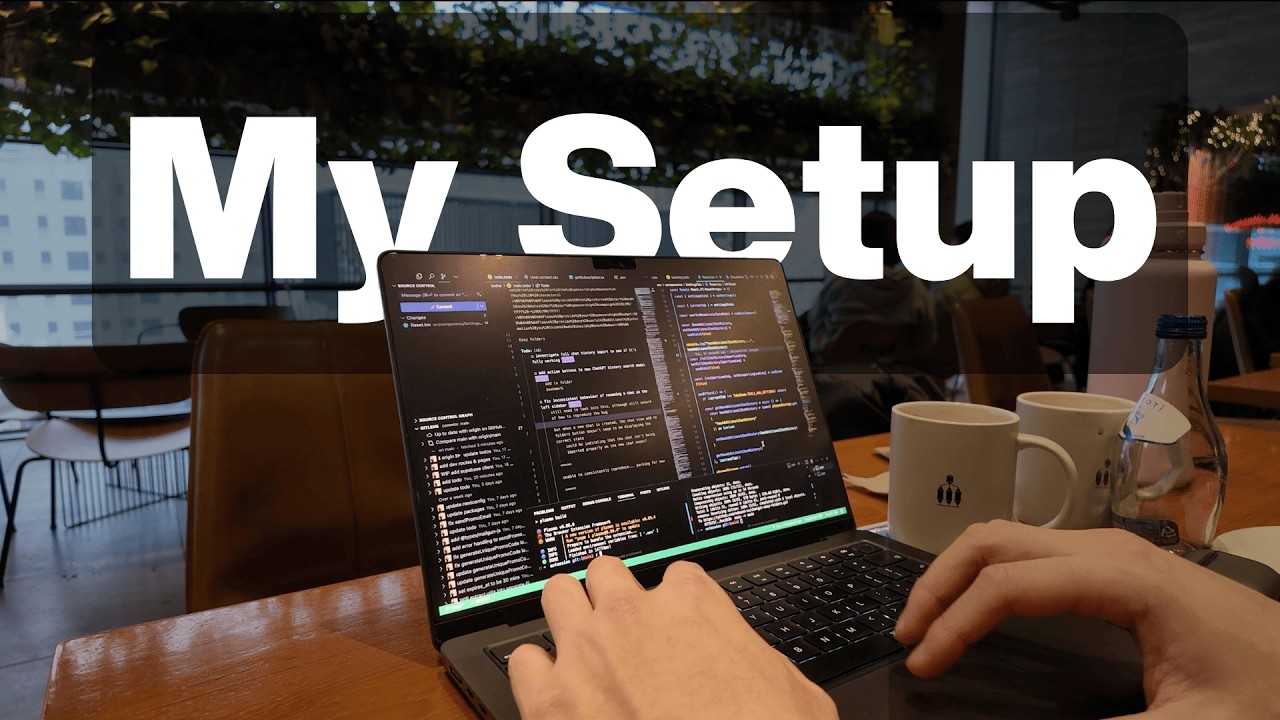
talk about software. Every app I download and every setting that I tweak is all optimized to help me get my work done, remove distractions, or make my MacBook feel faster and more pleasant to use. And one of the first apps I install for every new setup is called better display. The main reason being screen brightness. For all of the M-series MacBook Pro displays, they all ship with a display called the Liquid Retina XDR. These displays are capable of going up to 1600 nits, but for some reason on my M3 Max model, Apple caps the maximum brightness at only 600 nits, which is not very bright at all, especially if you're working in an environment that's well-lit. And all Better Display does is bypasses this restriction to allow me to use my MacBook's display at the actual peak brightness all day long, which just greatly improves the viewing experience, especially when I'm doing work that's heavy on visuals, like designing UI for my apps, video editing, or just reading code snippets. And the obvious downside is that it will drain your battery life slightly faster compared to using the default brightness. So, I usually keep the laptop plugged in whenever I crank up the brightness to the max. And I personally haven't experienced any side effects from using this app. So, I highly recommend trying it out if you want to get the most out of your MacBook's display. Next essential is Raycast, which is basically a replacement and upgrade for the default macOS Spotlight. The feature I use the most is probably the clipboard history, because it's super convenient to be able to pull up snippets of text I copied days, weeks, or even months ago without having to trace back to the app or website where I copied it from. I also use the custom snippets feature to save time on typing out the same things over and over again. For example, when I'm writing out a prompt for AI agents, there tends to be some instructions that are always repeat. With custom snippets, I can just assign it to a keyboard shortcut and it will automatically insert those instructions instead of having to type it out manually every time. I also use this VS Code extension that allows me to quickly browse my recent projects, which is super useful if I need to make some quick bug fixes or small changes to a project. And it's also great for little things like connecting to my Spotify account and control the playback so I can loop the current song, add songs to playlists, or search for songs, all without having to touch the mouse or open the Spotify app. Now, for more on the business side of things, I use an app called Superhuman to manage all of my emails. The key factor in choosing this over other mailing apps is that it allows me to consolidate and manage multiple inboxes from different providers all in a single app. This is super useful and important to me because I currently manage multiple inboxes for all of the different apps I've built. And Superhuman also has this nice feature where it shows you when your emails have been read so you can keep track of who's ghosting you and when to maybe send some more follow-up emails. For my web browser, here are three extensions I always install first. First one is Vim. It just allows me to navigate between web pages using purely keyboard shortcuts. It does take some time to get used to, but once you get the hang of it, you'll be able to jump around pages, open links, and move through different tabs much faster without your hands ever leaving the keyboard. And as a bonus, it also matches the way I navigate my code editor. So, having this whole setup in the browser just makes everything feel more consistent. If you're a heavy YouTube consumer, you probably already have this extension installed, but if you don't, it's called Unhook and it's a great way to remove distractions and keep you from accidentally wasting hours binging on videos. It hides things like recommendations, sidebars, comments, and other parts of the interface that is all designed to keep you clicking and on the platform for longer. And finally, I use this extension called Freedom to block out the remaining distractions from my browser. Whenever I need to do a block of deep work, I'll just toggle this on and it will block all of the blacklisted sites I've configured. Now, let's talk about the more technical and coding related tools that I use. My main coding agent right now is Code X. I mainly use it for planning, brainstorming, or research because these days I try to resist the urge of just token maxing everything and relying on the agent to do all of the work for me because I find that it actually slows me down more whenever I just blindly accept code from the agent just for the sake of speed or shipping fast. Given that I prefer to have more control over my work, I use Cursor as my main IDE when I'm coding. Useful features like inline edits and tab suggestions makes it much easier for me to stay in flow whenever I'm writing or editing code. I use the Vim extension for fast file navigation and editing. For task organization, I use these extensions called To Do Plus and To Do Highlight. This just gives me a file to write down all of my upcoming to-do's for the session, which I can tick off as I go or make any notes if needed. My current terminal of choice is Kitty. It's fast, minimal, and very easy to customize to the way I like it. I also pair it with some TUI apps that gives me useful information at a glance right inside the terminal like LazyGit which gives me a visual interface for managing Git without leaving the terminal or Yazi which gives me a visual file explorer or Btop which gives me a real-time overview of my system's resources and performance so I can spot anything that might be slowing down my machine. I also use these tools called Yabai and SKHD. Yabai handles the window and space management and SKHD gives me the keyboard shortcuts. The biggest thing I care about here is that it eliminates the animations whenever I switch between spaces in macOS which I do very often as I run most of my apps in full-screen mode to maximize screen space and remove distractions. This might seem like a minor improvement but once you've experienced the speed and snappiness, you'll never want to go back. And speaking of animations, I always paste this block of commands into my terminal to disable all of the unnecessary animations that are enabled by default in macOS. This just makes the dock, mission control, and all other UI transitions feel way faster and more responsive. So, that's pretty much it for my setup and everything that I install and configure whenever I get my hands on a fresh MacBook. I'll leave links to all of my configs in the description if you want to check them out. And as always, feel free to check out Startup Club if you want access to a private community of solo founders and resources to help you grow your apps.