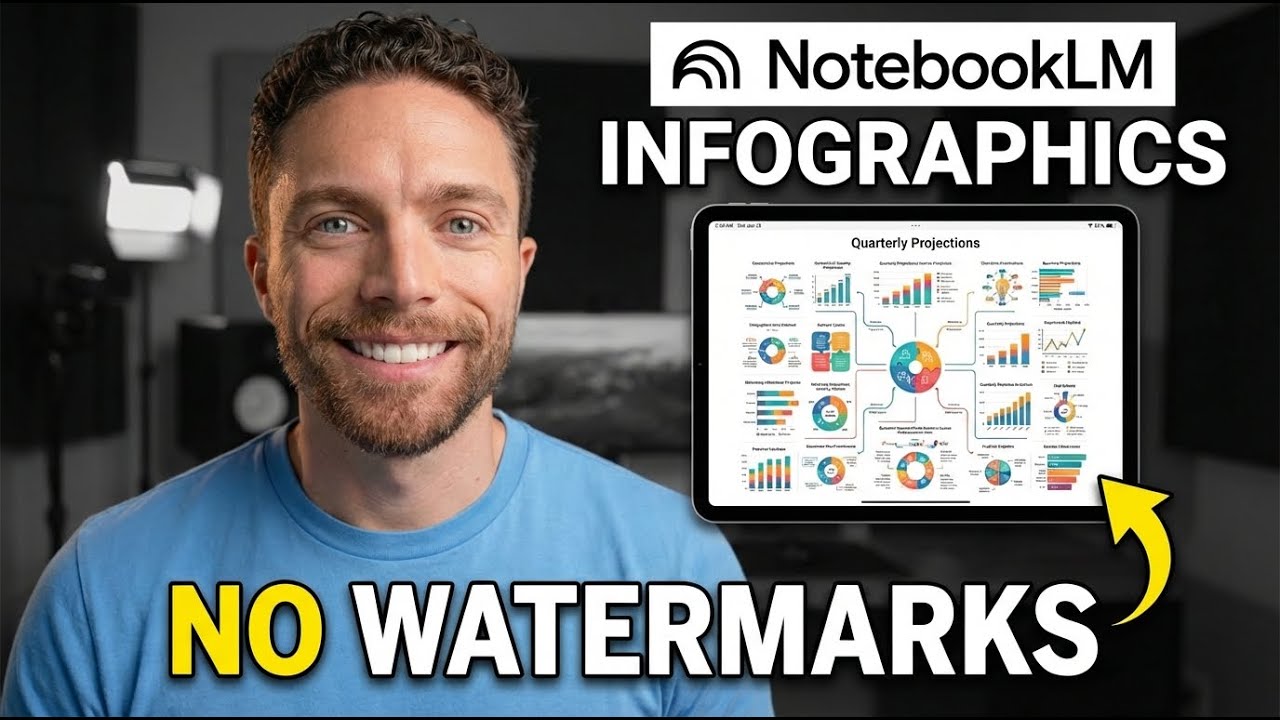
How to Create INCREDIBLE Infographics with NotebookLM (No Watermarks)
10:33

How to Create INCREDIBLE Infographics with NotebookLM (No Watermarks)

Paul J Lipsky 25.01.2026 79 273 просмотров 3 534 лайков обн. 18.02.2026
Поделиться Telegram VK Бот
Транскрипт Скачать .md
Анализ с AI
Описание видео
Try i10x: https://i10x.ai?fpr=paul53 Save an additional 15% by using the code "PJL15" Discover how to create stunning, professional-looking infographics completely for free using NotebookLM's hidden features and custom style prompts. With NO watermarks. Prompts Used: Mini World: Miniature World Look with Geometric shapes, "blocky" characters, and a clear sense of depth without using true 3D perspective. Chalkboard: Chalkboard style Anime Battle: Anime Battle Style 3D: Tactile 3D style with Neumorphism (soft shadows that make shapes look extruded from the background), glossy finishes, and inflated 3D shapes. 90s Video Game: 90s/Y2K Retro style with pixel art icons, bright neon or "bubblegum" colors, and chunky, rounded typography. Whiteboard: Whiteboard style Kawaii: Kawaii Doodle Art style Resume Journey: Create an infographic that shows the journey of my career and major milestones. Make it in an Oregon Trail style. Time Stamps: 0:00 Intro 00:25 NotebookLM Recap 01:15 Secret Settings 02:33 Mastering Style Prompts 04:01 Creative Style Examples 04:50 Logo Remover 07:10 Maps and Timelines 08:11 Visualizing Careers 08:50 Source Selection 09:34 Exploded View 09:52 Data Visualization 🔗 This video is sponsored. Some product links are affiliate links which means if you buy something we'll receive a small commission.


Оглавление (11 сегментов)

  1. 0:00 Intro 90 сл.
  2. 0:25 NotebookLM Recap 170 сл.
  3. 1:15 Secret Settings 273 сл.
  4. 2:33 Mastering Style Prompts 305 сл.
  5. 4:01 Creative Style Examples 151 сл.
  6. 4:50 Logo Remover 463 сл.
  7. 7:10 Maps and Timelines 211 сл.
  8. 8:11 Visualizing Careers 130 сл.
  9. 8:50 Source Selection 157 сл.
  10. 9:34 Exploded View 64 сл.
  11. 9:52 Data Visualization 143 сл.
0:00

Intro

In this video, I'm going to show you how you can create beautiful infographics for free using Notebook LM. Now, this is a feature that has been out for a little while now, but most people don't realize all the incredible things that you can do with it. And the best part is you don't need any design experience. You just have to know the right buttons to press and the right prompts to use. This video is sponsored by iTX. Let's start by coming over to notebookm. google. com.
0:25

NotebookLM Recap

If you're familiar with the basics of how Notebook LM works, use the timestamps down below to skip to the next section. But if you want the one minute recap or you're not familiar with it, this is notebook LM. It allows you to create these different notebooks on different subjects. When you come over here to create new notebook, you'll be able to upload your source material, things like files, think PDFs or even images, links to websites or YouTube videos, things from your Google Drive, or even copied text. And what makes this unique is that all the information that you put into your notebook becomes part of the source material for that notebook and it's grounded in that material. So for this notebook, I want to learn about wormholes. So I'm going to paste in some links to YouTube videos. I have some articles here. So I'm going to grab the links to those and then go ahead and click on insert. Once you have all the
1:15

Secret Settings

sources that you want uploaded, come over here to the right and you'll see the button for infographics. Now, if you just click this button, you're going to get good results, but they're not going to be exactly the way that you want, and you will not be taking full advantage of what Notebook LM can do. Instead, what you want to do is click on this pencil icon right here. That will then open up the settings and allow you to customize your infographic. So, obviously, first choose the language of the infographic that's going to be outputed. There's a lot of different languages here. I'm going to leave it on English. And you can also choose your orientation, landscape, portrait, or square. Use whichever one that you want. I'm going to leave it on landscape. Then you can choose your level of detail. Concise, standard, or detailed. And to give you an idea of what all of these look like, here's what concise looks like. Here's what standard looks like. And then this is what detailed looks like. So you can see they put a lot more information into it. Now, in my experience, having tried all three of these a lot, I have found that you should really avoid detailed. with that one. They try to pack too much information onto one infographic, and that's usually when Notebook LM starts to mess up, and some of the text is just a little bit wonky and off. So, I would go ahead and stick with standard or concise. And finally, we have the prompt box. This allows you to describe not
2:33

Mastering Style Prompts

only what the infographic is about, but what you want it to look like as well. And this is where we can begin to have a lot of fun with this. So, I have a bunch of tips I want to share with you on how you can use the prompt inside this box to get some really cool looking infographics. The first thing I want to show you is how you can create infographics in any style that you want. So, let's say you're browsing the web or social media and you see an image that looks really cool to you. You love the style of it and you want to be able to use this as a sort of template for your own infographics. All you have to do is download that image or take a screenshot of it and then come over to your AI chatbot of choice. You want to go ahead and upload that image and then simply ask it what style is this. Then you can use this answer as a prompt inside of notebook LM. For instance, here it tells me that this image is classic sketch noting. So coming back to notebook LM, I'm going to say make an infographic in the sketch noting style. And here we can see it did exactly that. Check out this style versus the original. You can see how similar they are. So, really awesome way to copy any style to be able to use that with your own infographics inside your own notebooks. Now, whenever I'm browsing Twitter or Instagram or even YouTube, and I see a style that I like, I just take a screenshot of it, throw it into Gemini to get a prompt, and I've come up with some pretty cool looking infographics using that technique. So
4:01

Creative Style Examples

here's one that I really like. This one is mini world. And I just used a prompt that said, "Miniature world look with geometric shapes and blocky characters. " Here's another fun one. This prompt is literally just chalkboard style. This style has to be one of my favorites, though, and the prompt for it is really simple. It's literally just anime battle style. We also have this tactile 3D style with inflated shapes. I'll have all these prompts, by the way, in the description down below. Some of my other favorites are '9s, kind of has that retro90s gaming look. We also have whiteboard, which has a pretty cool looking effect. And then finally, one of my other favorites is this one, which is Kawaii, I believe I'm pronouncing it correctly. K A W A I. And it just makes these really cute, fun-looking infographics. So now you have a
4:50

Logo Remover

beautiful looking infographic, but there's a small problem. Down here on the bottom right is the Notebook LM watermark or logo. Now, there's a few ways to get rid of this. You may have noticed that I do not have that logo on any of my infographics, and that's because I have a Google AI ultra plan that runs you about $250 per month. So, absent that, there are a few options. So, first, I found this tool called magic eraser. org. I tried it out. It does appear to be completely for free. The way it works is you upload your infographic. You can then choose the size of the eraser. Just move over it. Click on apply changes. And just like that, the logo will now be gone. And you can just go ahead and click on download. And then you have a completely logo and watermark free infographic. Before I show you some other cool ways that you can use infographics inside of Notebook LM, let's quickly hear from today's sponsor, I 10X. If you work with different AI tools, you're probably spending a lot of time switching between them. Chat GBT for one task, Claude for another, maybe Gemini to create images, and each of those is costing you $20 a month or more. Well, I 10X brings all of those AI models into one place, and it starts at just $8 a month. When you come over to their AI chat, you get access to all the top models, the ones from OpenAI, from Google, from XAI, from Anthropic, even from Deepseek. So, you can choose exactly which model you want to use. And if you're not sure which model is the best one for the job, just leave it on auto and i 10x will pick the best one based on the prompt that you give it. You also get access to image generation tools from all the top models like GPD image 1. 5, Nano Banana and Nano Banana Pro. We even have Flux and Dolly in here as well. There's also AI video generation models like Sora 2, Cling 1 version 1. 6, Google Vo 3. 1, and Sora 2 Pro. One of my favorite tools though is Chat arena. This allows you to send the same prompt to two different models to see which one gives you the best results. The best part is it starts at just $8 a month if you go with annual billing or $10 a month if you want to pay monthto-month. If you're tired of juggling multiple AI subscriptions and want everything in one workspace, check out iTX. I'll have a link for it in the description down below. And thank you 10X for sponsoring this video. Another
7:10

Maps and Timelines

incredible use case for infographics inside of notebook LM is to have it create maps for you. Now, it doesn't make a lot of sense for this notebook, but check out this one that I have all about fly fishing. And I asked it to actually create an infographic that is a map of all the top places in the United States to fly fish. And here you can see it highlighted some of the best places to do that. Here's another example. This notebook is all about how to start training for a marathon. So, I had it put together for me a map that shows when you're actually running a marathon, at what points you should be fueling up, either eating food before the race, drinking water, or eating like those gels during the race to give you a boost of energy. But another great use case for notebook LM infographics that would work really well with this notebook are timelines. So if I ask it to create something like a timeline about the history of wormhole research and then it will produce something like this that details step by step the entire timeline of all the information in your notebook. This next one is pretty fun. Go ahead
8:11

Visualizing Careers

and upload your resume or a PDF download of your LinkedIn profile and then use Notebook LM to create a visual representation of your career. In this case, I had it do it in the style of Oregon Trail to kind of give it this cool 90s digital look. For those of you who like to cook or bake, you can use Notebook LM to create stunning looking infographics that are recipes for your favorite foods. And what you can do is create a notebook that just has all your favorite recipes in it. And then when you're ready to actually pull one out, just ask it to create an infographic for that specific recipe. And it'll create something stunning and beautiful just like this. For this next example, I'm
8:50

Source Selection

going to show you how you can transform a YouTube video into an infographic. But I also want to show you something that most people don't know about Notebook LM. That's extremely helpful. So over here on the left, of course, we have all of our sources. But let's say you just want to use one or two or just a few of these videos for the actual information that goes into the infographic. Well, you can just select whichever sources you want to use and not use the other ones. And then when you come over here and actually generate the infographic, you'll see that it's just using those three sources instead of all the sources on this list. And that will allow you to narrow down the information that goes into the infographic to get exactly what you want for the visual representation of the YouTube videos that you're interested in learning more about. If
9:34

Exploded View

you do any type of market research for physical products or you're just interested in technology, such as maybe how iPhones are made, try this prompt. come over to infographics and type in exploded view diagram and you'll get a really cool infographic just like this one. And finally, if you have a notebook that has a lot of data in it, such as
9:52

Data Visualization

this one that's all about AI adoption, make sure to come over to infographic and tell it to visualize that data. Here, I'm asking it to visualize the data about how people are adopting AI. I can even tell it what style I want, like make it professional but futuristic style, and you'll get a nice visual representation of all that data. So, there you go. You now know how to create beautiful, professional looking infographics with Notebook LM for free and how to customize them with all kinds of different styles. Now, if you enjoyed this video, you're absolutely going to love this one right here where I talk about how to create the best slide decks using Notebook LM. So, definitely click right here, check out that video, and I'll see you over there in just one second. Bye for now.

Ещё от Paul J Lipsky

Ctrl+V

Экстракт Знаний в Telegram

Транскрипты, идеи, методички — всё самое полезное из лучших YouTube-каналов.

Подписаться



