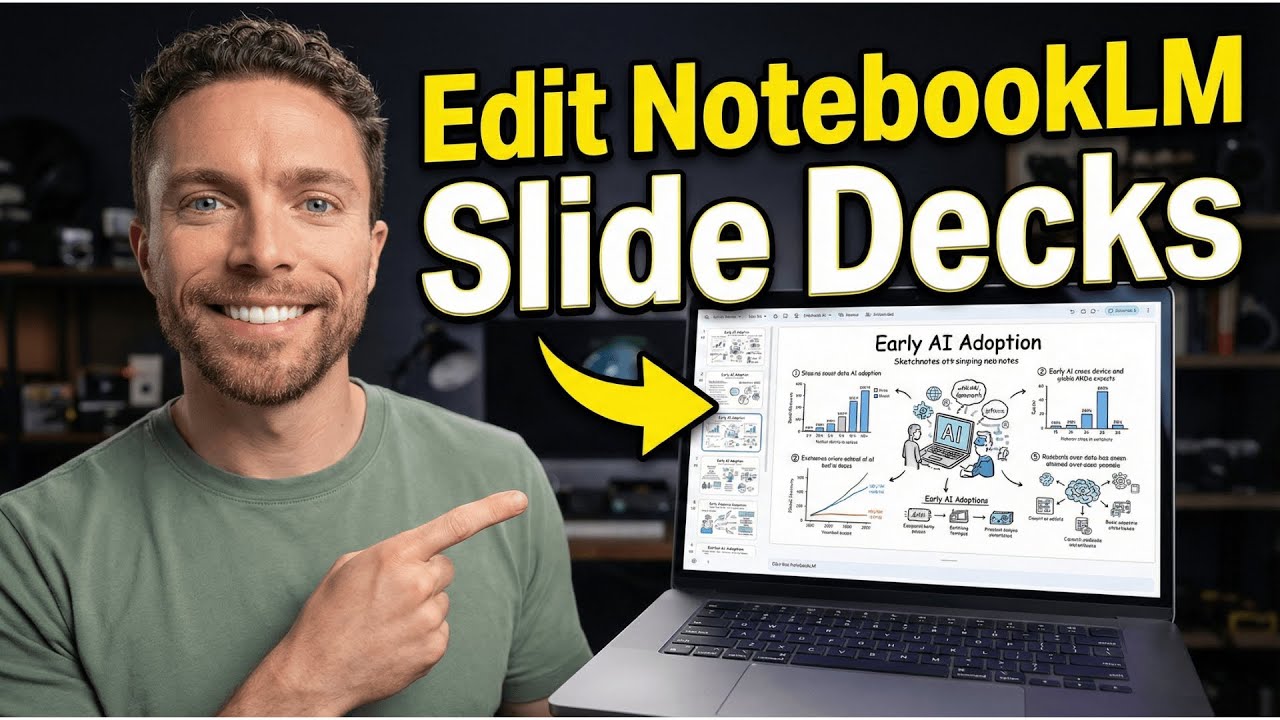
How To Make STUNNING Slide Decks With NotebookLM! (+ How To Edit Them)
9:08

How To Make STUNNING Slide Decks With NotebookLM! (+ How To Edit Them)

Paul J Lipsky 21.01.2026 140 145 просмотров 8 562 лайков обн. 18.02.2026
Поделиться Telegram VK Бот
Транскрипт Скачать .md
Анализ с AI
Описание видео
NotebookLM creates stunning presentations and slide decks for free, but there's one major problem that's been driving everyone crazy—until now. NOW you can actually edit them, if you know how!


Оглавление (2 сегментов)

  1. 0:00 Segment 1 (00:00 - 05:00) 1054 сл.
  2. 5:00 Segment 2 (05:00 - 09:00) 856 сл.
0:00

Segment 1 (00:00 - 05:00)

Notebook LM is capable of producing some incredible looking presentations that are visually absolutely stunning, but most people who use this just get some pretty sad, mediocre results. Today, I'm going to show you how to get the most out of Notebook LM so that you can create slide decks exactly like this one. Ones that you can actually edit as well to get them exactly the way that you want. Like I said in the intro, Notebook LM it creates amazing slide decks, but there are a few problems with the way that it's set up and the way that people use Notebook LM that results in slide decks that are not exactly what we're looking for. I'm going to show you how to fix all those problems, though. So, the first thing you have to understand is that when you are creating a notebook inside of Notebook LM, you have to make sure it's set up correctly. Otherwise, the slides you make with it are going to be inaccurate and they're not going to look nice. So the way that you do that is you have to be very particular about the sources that you save in here. So what most people do is let's say they want to create a notebook about woodworking. So they might type in here something like how to get started with woodworking. And then this is actually going out and finding sources for you about how to get started with woodworking. And then once those are all here, you can go ahead and click on import. And those will all be now inside your notebook. That's not the way you want to use Notebook LM though. What you actually want to do is put only vetted sources inside of here. So, I've already gone out. I know that I started doing my own research on woodworking and there are a bunch of blog articles that I really keep coming back to. I really like these ones and there's a few YouTube videos as well that I keep coming back to. I want all of that information to be inside this notebook so that when I create a slide deck, it's only pulling information from those sources that I actually like. So, I'll go ahead and add all those in here. There are my three YouTube videos. I'll grab the links to these articles as well. And there we go. And so, now these are becoming part of my notebook. And because all these sources are vetted, the results you get out of this and when you actually create a slide deck is going to be much better. to create a slide deck. You of course can do that over here on the right hand side in the studio section. There's a button right here that says slide deck. Now, the problem is that this is encouraging you just to click this and that will start generating a slide deck for you. If you do that though, that is a massive mistake. What you should do instead is click right here on this pencil icon. That will then open up the settings so that you can customize your slide deck and get it pretty close to exactly what you want. At the top, there are two choices. There is detail deck and there is presenter slides. Now a detailed deck you should use if you're using notebook LM to learn about this new subject on your own. It's going to be a lot more comprehensive with full text and details. The presenter slides on the other hand is for when you're actually giving a presentation. It's going to have less text on the actual slides and you're going to be talking as you're showing those slides. Since we're trying to learn about woodworking, I'm going to go ahead and select detailed deck. You can of course change the language, but I'm going to leave this on English. And you can change the length as well from short to default, which is sort of a medium length, and then long. For this one, I'm going to leave it on default. And then finally, down here, you can describe the slide deck you want to create. And this is the key area. So here, I'm asking it to put together a slide deck for a presentation I'm calling woodworking 101, your crafting odyssey. And I want it in sort of this anime style with a lot of anime style illustrations in there. I told it to focus on safety first, essential hand tools, wood types, and any and a simple first project for a beginner. And the way I came up with that prompt was I just came over to Gemini and I said to it, "Hey, I need your help creating a prompt that I can then give to Notebook LM to help me create a slide deck about woodworking. " And I wanted to be in an anime style. It then produced for me this much more refined prompt. And then I took this and just refined it a little bit more before I threw it into Notebook LM. So definitely use Gemini to help you refine your prompts. So both the presentations are now complete. Let's look at them back to back so you can see the difference in results. So this first one is the one that was generated just by clicking on the button without custom prompting. And it looks fine, right? It's actually a pretty good presentation. We know the information in here is going to be good because we vetted all of our sources, but it's just kind of a generic looking presentation. Now, compare that with this one where we put in the custom prompt, and this one is a lot more fun. This one is in the exact style that we wanted as well, and it looks more like what we want for the final product. Personally, I think they come out a lot better when you use the custom prompts. At this point, you have a pretty good presentation, but it's not perfect. There's always going to be small changes that you're going to want to make in here. And this is where Notebook LM really begins to frustrate
5:00

Segment 2 (05:00 - 09:00)

people because there is no option to edit slide decks once they're created. If you want to make any changes, you're going to have to generate a completely new slide deck. And of course, that is just going to introduce new errors and new things that you're going to want to change. The ability to edit and export this to Google Slides is apparently coming, but it's not here yet. So, in the meantime, I have a very easy workaround for you if you want to edit your slide decks. Before I show you how to do that though, if you've been enjoying this video so far and if you've learned something from what I've shown you here today, do me a quick favor. Just give this video a thumbs up and subscribe to the channel. It really helps me out and lets me know that you want to see more content just like this. So, to edit your slide decks, you first want to come up here and actually download it. That's going to download it to your computer as a PDF. Then you want to come over to Google and just search for Canva PDF to PowerPoint. This is a free tool by Canva, which will convert these PDFs to a PowerPoint presentation. So, I'm just going to go ahead and upload that here. And now you can see your presentation inside of Canva. Now, you will need a Canva account to do this. However, it does work on the free plan. At this point, you have two options. The first option is you can just edit this directly inside of Canva. In particular, if you have a paid account, there are some amazing AI tools you can use. So, I can use grab text for instance. That will allow me to select any text. It will then extract that text from the presentation. So, I can now move it around or edit it to get it exactly the way that I want. I could also grab elements like I could grab this guy if I wanted to delete him for whatever reason. I can add new images. So, yeah, there's a lot you can do inside of Canva. But if you don't want to edit inside of Canva, you have another option. You can click up here where it says share and go ahead and click on download. And then you want to select for the file type PowerPoint presentation. It's all the way down here at the bottom. And then go click on download. So once that's downloaded to your computer, you want to jump over to Google Slides. Go ahead and start a new presentation. And we'll do a blank slide. And then you want to click on file, import slides, and upload the PowerPoint presentation you just downloaded. And now we can edit this inside of Google Slides. Now the way you do this is a little bit strange, but it does work. So if I click over here on the right on this banana icon, this will allow you to ask Google to make any changes that you want to the slides. So let's go ahead and make some changes to this one. It says situational awareness the unseen art at the top. Let's tell it we want to change that text. So I'm going to tell it change this headline and I typed it out situational awareness the unseen art to be careful danger. Now when I click on create what it's actually doing is it's not editing this image. It's actually generating a new image with those edits. So here we can see that right here. I'll go ahead and click on it. That will then put it on the slide. And you can either insert it as a new slide or on the dropdown. Just click on insert. And you'll see it's now this image that's over the original slide. So it's a little bit funky, but it does work. And I'll just go ahead and reposition this and slide it so it takes up the entire frame. Just like that. So a little bit of a strange way to edit the slides on Google Slides using Nano Banana, but it does work. And with a little bit of time, you can get these exactly the way that you want. And there you go. That's how to get the most out of Notebook LM's slide decks to create stunning presentations every single time. Now, slide decks are only one of the many things you can do inside of Notebook LM. I actually recently put together an entire course on how to use Notebook LM, and I'm currently offering it on YouTube completely for free. So, if you want to check that out, click right here. Inside of this video, I cover my three-step framework for getting the most out of Notebook LM and how to avoid the biggest mistakes that I see people making with it. So, click right here and I'll see you over there in that video in just one second. Bye for now.

Ещё от Paul J Lipsky

Ctrl+V

Экстракт Знаний в Telegram

Транскрипты, идеи, методички — всё самое полезное из лучших YouTube-каналов.

Подписаться



