Clean Wrinkly Backdrops FAST in Photoshop #Shorts
1:24

Clean Wrinkly Backdrops FAST in Photoshop #Shorts

PiXimperfect 16.02.2026 105 173 просмотров 3 200 лайков

Machine-readable: Markdown · JSON API · Site index

Поделиться Telegram VK Бот
Транскрипт Скачать .md
Анализ с AI
Описание видео
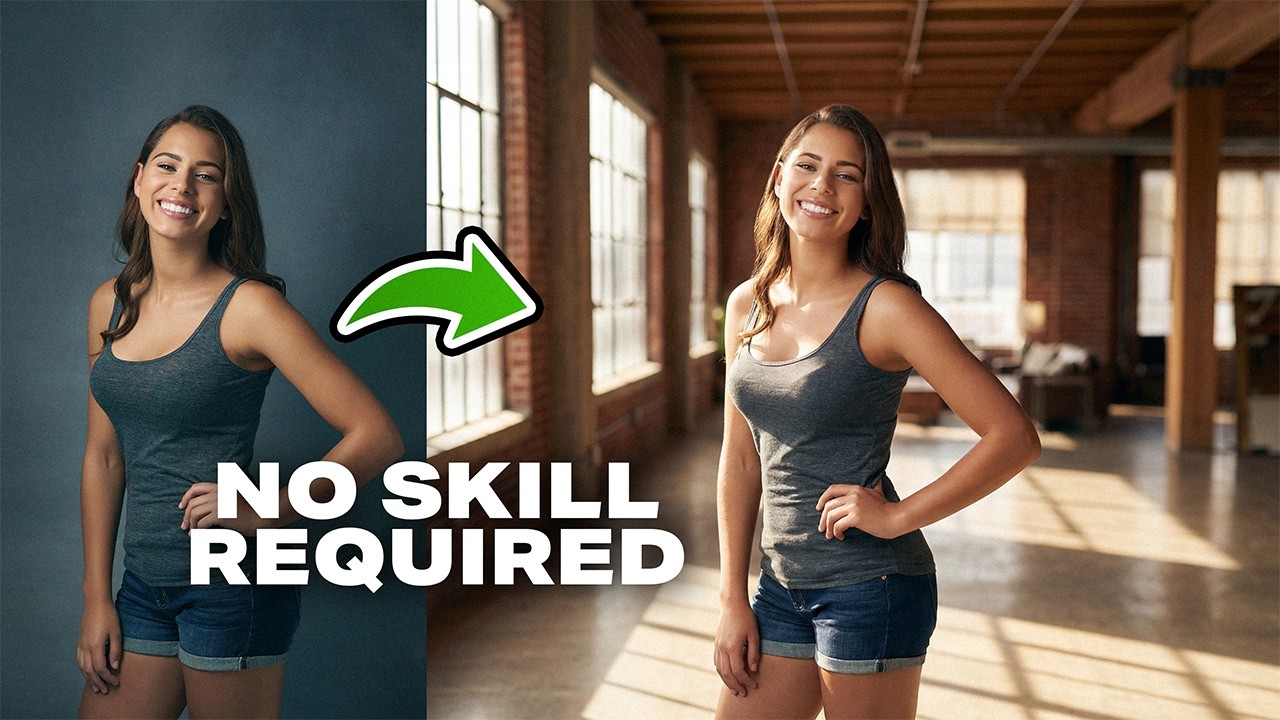
Discover a straightforward technique to easily clean wrinkled or dirty backdrops in Photoshop! We'll learn how to separate the backdrop from the subject and apply filters and texture to make it clean and seamless. I hope this video helps you. Thank you so much for watching :)
Оглавление (1 сегментов)

Segment 1 (00:00 - 01:00)

So what is the easiest way to remove wrinkles from the backdrop? With the background layer selected, press control or command J twice. Now click on remove background in the contextual taskbar. Therefore, now on the top layer, you only have the subject. Simply turn it off and select the layer beneath it. Now you can select the lasso tool and just make a selection leaving a bit of gap. Now simply click on remove. The idea is to separate the subject and the background. Once done, hold the control or command and select these two layers. Then press control or command E to merge them. You can even name it background. Now go to filter, convert for smart filter. So you can change the values later. Now go to filter again, blur, gaussian blur. Keep on increasing the blur until all the wrinkles are gone. So I'm going to keep it at about 320. Why not? Hit okay once you're satisfied. And now turn on the subject layer. And it should look perfect, right? But it doesn't because if you zoom in, there's grain on the subject, but there's nothing in the background. So just above this new background, click on the adjustment layer icon and then choose grain. It's available in the later versions of Photoshop. Just increase the amount and it automatically matches that with that of the subject. You can also control the size and everything. This is perfect. Now to bring back some of the hair of the subject, simply select the subject mask. Take the brush with white as the foreground color. Just bring back some of the hair around the edges. And that does the job for you beautifully. Wasn't this easy? Let me know in the comments.

Другие видео автора — PiXimperfect

Ctrl+V

Экстракт Знаний в Telegram

Экстракты и дистилляты из лучших YouTube-каналов — сразу после публикации.

Подписаться

Дайджест Экстрактов

Лучшие методички за неделю — каждый понедельник