10 Advanced Figma Hacks in 2024
16:08

10 Advanced Figma Hacks in 2024

Mizko 21.08.2024 50 718 просмотров 1 757 лайков

Machine-readable: Markdown · JSON API · Site index

Поделиться Telegram VK Бот
Транскрипт Скачать .md
Анализ с AI
Описание видео
⚡️ Join my monthly newsletter for exclusive goodies: https://mizko.net/newsletter --- ✅ Downloads: Status + Annotation Kits - https://www.thedesignership.com/products/figma-annotation-kit ⚡️ Timestamps: 00:00 - Download the exercise file! 00:12 - Statuses 01:30 - Annotations 02:34 - Using arrows 03:34 - Min-width / Max-width 04:50 - Variable breakpoints 06:23 - Figjam connectors 07:00 - Searchable icons 08:26 - Auto Layout parent frames 09:09 - Looping variables (Very advanced) 13:58 - User variables --- Become a highly-demanded Product (UX/UI) designer with me: Learn My Real-world End-to-end UX/UI Design Process (NEW! 200+ students) 👉 https://www.thedesignership.com/courses/ux-ui-design-course Master Figma with my Ultimate Figma Design Masterclass (7,500+ students) 👉 https://thedesignership.com/courses/the-ultimate-figma-masterclass Practical UX Research & Strategy Masterclass (700+ students) 👉 https://thedesignership.com/courses/practical-user-research-strategy-course Shipfaster UI - Advanced Figma Design System (3,500+ designers) 👉 https://thedesignership.com/products/figma-design-system/ Outline - Figma Wireframe Kit (500+ designers) 👉 https://www.thedesignership.com/products/outline-wireframe-kit Follow me on IG (Daily updates): 👉 https://instagram.com/themizko --- Follow and learn with me: Become a legendary designer: https://thedesignership.com Personal portfolio: https://mizko.net Instagram: https://instagram.com/themizko LinkedIn: https://linkedin.com/in/mizko

Оглавление (11 сегментов)

Download the exercise file!

the title says it all 10 Advanced bigma hacks of 2024 make sure to download the exercise file as well a link is in the description so you can follow along let's dive

Statuses

in all right so the very first Advanced figma hack is to utilize a status kit here is a real project that my team and I worked on we built and designed our own website for our product ship faster UI you can see that there are lots of different sections and parts of this website so obviously if I zoom out you can see everything to keep everything organized what we like to do is to utilize statuses for the different sections so as you can see at the top over here this is dedicated to the homepage if I click on this status we actually built and designed our own status kit so you can change the sizing you can actually go ahead and turn specific things on and off and you can also change the state depending on what stage that part of the website or project is at so inside fig hacks I've gone ahead and imported the status kit I can go to my assets and I can go ahead and drop down a status which you can see just like that I can go ahead and move this to the top and I can go ahead and change the size we can go ahead and turn on the description turn on the status and from the status we can change the different state this is a great way for you to manage all the different parts of your project keeping things organized and documented for other stakeholders to be part of the project as well the

Annotations

second Advanced Haack is around annotation obviously we work on lots of different projects uh my team and I so we always try to push forward the best practices we always like to document our design so the developers know what to build and some of the interactions we intend as you can see on the left hand side over here this is one of the note cards that we've designed and obviously on the right hand side in the properties you can see that whoops you can see over here we can change the direction of The annotation so on the left hand side on the right hand side we can turn off the background we can also put a title inside as well heading back over to my figma hacks I can go open up my assets and then I can actually go ahead and drop down a note and as you can see we have a note over here we can position it anywhere we want and we can set this to the bottom and we can extend it however we want so that's a great way for you to document your designs and if you want to download the status or for the annotations there is a link in the description for you to download and import then another Advanced figma hack

Using arrows

is to use arrows for nested items and what do I mean by that so let's go ahead and take a look at this component we've uh built you can see that there is a date picker with a calendar underneath and over on the right hand side under the properties for the components you can see that we have used an arrow to label or to the designer know or anyone in this file know that this label is associated to this label over here this might be something very simple but if you have built components with lots of different properties you'll notice that having these arrows to let people know what is nested and what is relevant can be very handy now another place to utilize nested arrows is also for your pages let's say we have a page for designs and then we have a section that we want to dedicate to let's say archived designs for example you can notice that having a nested Arrow once again is just very easy on the and lets people know exactly what this page or the context of this page is moving on to

Min-width / Max-width

another Advanced figma hack is to utilize minimum width and maximum width in your designs so take a look at this landing page over here we've got a section for different features and if we go ahead and reduce the size of this section you'll notice that the boxes don't really have a minimum width or a maximum width but what if we wanted to make sure as we collapse this landing page that these boxes stop at a specific width so it doesn't break the actual designs well we can by going ahead and just selecting all the boxes and then we head over to Auto layout under fill we can go add a minimum width and let's just say we want it to be 300 pixels the red line indicates that that's where the breakpoint will stop or the collapsing will stop so if we go ahead and select the features section and we go ahead and reduce you'll notice that there we go no matter how far we reduce the viewport size of this section the boxes will stop collapsing now once again you can also apply this to a maximum width and as you extend the actual viewport of this section it will stop at a particular point in time depending on what Max width you place now onto

Variable breakpoints

another figma hack so this one is around variable breakpoints now we all know that there is a lot of hype around VAR and I have updated my figma course around this as well but here's a very Advanced one that not many people are currently using but if you wanted to go ahead and go to your local variables you will see that I've already implemented and created some break points for you and depending on what project you are working on let's say you have some standard breakpoints for tablet desktop and wide desktop maybe you will have a mobile one as well but for this example I've kept these three very simple ones you can create these variables for tablet desktop and wi desk top you can then go ahead and select your design section and for the width you can actually go ahead and apply a variable so you go apply variable on the width and we can set this to break points and you can see that it's already assigned this to 768 because it's utilizing the value from the tablet so if I go ahead and select variables the parent container and I head over to appearance and under apply variable mode break points I can go ahead and select tablet change this to desktop change this to Y desktop and you can see that this will systematize the breakpoints for all our designs so if you are working on a project that has some set breakpoints and they won't change ever again or they won't be changing for a long period of time you can turn them into variables as well and then assign them to your frames another figma hack that I guarantee you

Figjam connectors

that you probably do even know is that if you have a fig Jam file open so hitting the plus and open up a fig Jam project if you go ahead and select the connector right and draw down a connector whoops you can go ahead and select that command C or control C on a Windows device paste this into figma and you'll realize that you can actually go ahead and Link specific frames up and recreate that same experience from fig Jam over inigma as well so it's a great way for you to annotate your designs and

Searchable icons

also link them up if that's something that you need another figma hack is to make your icons searchable so let's say you have a thousand icons but then when it comes to finding the specific icon that you need it becomes impossible it becomes such a monotonous task that you sometimes can't even find the right icon so if I go ahead and hit command uh forward slash and I type in assets this icon is actually called Audi book right so if I type in audio book it pops up but what if I forgot the name of this icon but I just know it was related to Maybe music right so audio books are related to music and I typed in music but nothing would come up what we can do is we can go ahead and double click onto our icons head up over into the top right corner under component configuration under description we can add in tags so we can type in tags for example or you don't even need to write in tags you can actually just type in music you can close this and then when you hit command forward slash and go to assets and type in music you'll be able to find everything that's related to music so you can make your icons searchable for Relevant tags and a great way is to just generate them with chat gbt or claw. a and copy and paste those tags and pop them in for each icon making them easily accessible for The Wider team another

Auto Layout parent frames

figma hack is to autol layout your parent frame I've selected this design we have three sections uh features hero and a header and if I wanted to realign you would notice that nothing really happens I have to manually realign all the different sections within this design so a very quick way is to just make sure you hit shift a onto your parent container that makes all the different sections inside easily adjustable so you can go up and down arrow on your keyboard and you can easily readjust the layout like that so it makes it very easy for you to finalize your designs and move different sections around so UT layout your parent frame and this one is a little bit more

Looping variables (Very advanced)

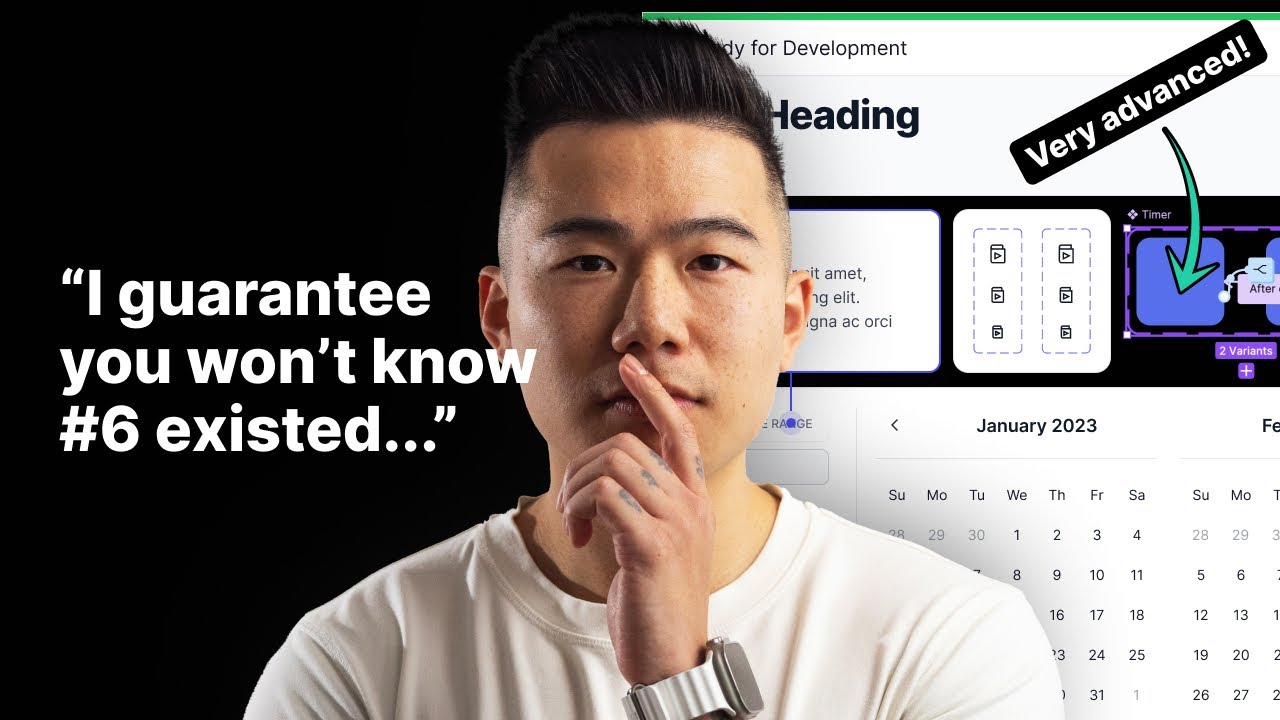
advanced okay so it might take a little bit of time for me to go through but it will be worth it let's say we have a progress bar and our goal is to make this over maybe 10 seconds or so this will go ahead and fill up to 100% And once it turns 100% we can turn the color green for example so how do we do that let's go ahead and take a quick look this progress bar that we've created is actually 200 pixels wide and then if we double click onto the actual progress of this bar it's currently at 20 pixels and the color is this blue the first thing we need to do is go ahead and create our variables so if I go over to my local variables you can see that in your file there's already been two variables created one for the color and one for the width so blue and it's 20 pixels first thing we need to do is go ahead and double click onto our progress bar and select the FI go to libraries and assign the variable blue over to this bar the second thing we need to do is take a look at our width you can see that it's currently at 20 pixels but we want to utilize a variable because we plan to change that over time so click on the drop down apply variable and we can make this progress bar you can see now this is linked to the actual variable itself and no variables are the Beloved feature of figma right now I have updated my figma course which does go into a deep dive into variables and Design Systems and advanced prototyping it doesn't include the new ui3 update just yet but once that is rolled out to the global audience of figma worldwide I then plan to do a release but for now the UI might be slightly different but it's still very relevant so now that we've got this linked up we then need to create an interactive component that Loops in the background so then it will increment this progress bar over time hit I on your keyboard and then go ahead and duplicate that and create two squares next to each other the first thing we need to do is actually turn this into an interactive component so highlight them both top right corner hit the three dots and then create component set now the first thing we need to do is double click onto the first rectangle go to prototype and then click and drag and Link it up to the second rectangle so what we want to do is every half a second we want this progress bar to increase 20 pixels each time so within 5 Seconds it should get to the end and become 100% complete once it's 100% complete we want to turn the progress Bar Green let's change onclick to after delay because every half a second which is 500 milliseconds we actually want to check if the progress bar is less than 200 cuz remember this progress bar is 200 so as long as this progress is below 200 pixels we actually want to add an action we want to set the variable of the progress bar to progress bar plus 20 right so every half a second if this blue progress is less than 200 pixels wide we are going to add another 20 another 20 until it reaches 200 and because won't be below 200 anymore we can then set another Trigger or another action okay so after that is done we can go ahead and close that we can then make sure that this is linked over to the second Square once that's done select the second Square drag the connector link it back to the original state change onclick to after delay and make this 1 millisecond and make sure the animation is instant so what's happening is that we're doing that half a second check every half a second and once it's made the check it's going to return back to the original Square over 1 millisecond which means it's practically instant and then it's going to check it again check it again so once that is done we can go ahead and move this interactive component outside we can rename this to maybe timer I'm going to click outside of my frame command slash asset timer there we go leave that in the top right corner and if I go ahead and preview my protype you can see that the progress bar completes that's exactly what we want and what's happening is once again when you place this component down it's running through that logic over here so it's a looping variable that will complete this progress bar every half a second it's going to check if it's below 200 and bang bang it goes all the way up the final

User variables

figma is around user variables so a lot of us are ux and UI designers and we create lots of different flows for different users and more specifically when we doing user tests we sometimes want to make sure that the test is as relevant as it can be for the participant so let's say we've got a user flow over here and we are testing with three users we can go over to our design panel go to our local variables we can create a new collection and we can might call this user testing we might go create variable string and it might be the name and we for the first participant the name is mizco we can do a second test their name is Jane and the third test might be Eric so from here we can close that hold down command or control on a Windows device directly select the name or whatever text layer you want to modify you can then can go over to topography you can go ahead and select apply variable and you can choose name and as you can see very quickly this has now been linked to the name of the Prototype so if we go to user variables the parent container hit apply variable mode user testing one that works two and three it's all working and as you can see you can then go ahead and apply different variables to all the different stats and all the different metrics to really make sure that your user tests are as relevant and precise for the participant that you are interviewing so hopefully this gives you some Advanced figma hacks that you can utilize in your workflow today feel free to check out my figma masterclass course it's been updated for the last figma updates it doesn't include ui3 just yet but it does include deep dives into variables Design Systems and so much more so hopefully you've learned a bunch if you like this video make sure to gently smash the like button subscribe for the Die Hard fans and for those who have made it this far let me know what you had for dinner yesterday let me know in the comments below and if you want to keep learning check out this video

Другие видео автора — Mizko

Ctrl+V

Экстракт Знаний в Telegram

Экстракты и дистилляты из лучших YouTube-каналов — сразу после публикации.

Подписаться

Дайджест Экстрактов

Лучшие методички за неделю — каждый понедельник