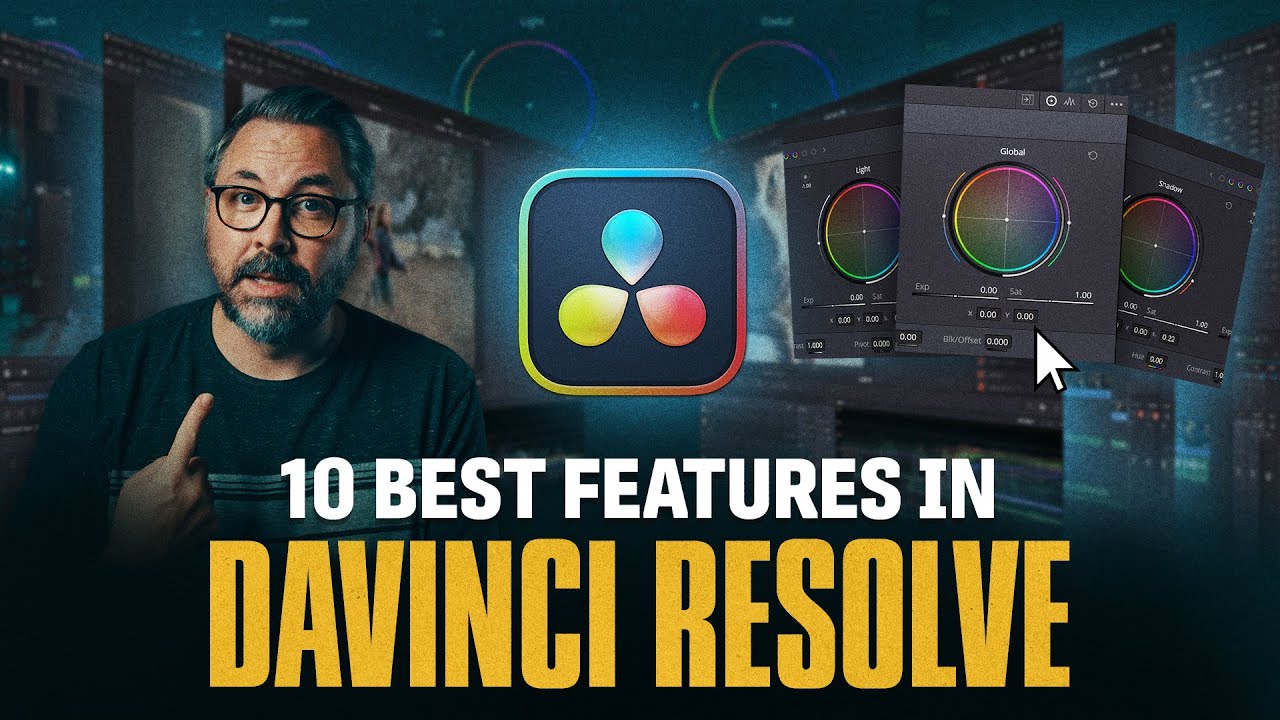
10 Things I Love About DaVinci Resolve
11:00

10 Things I Love About DaVinci Resolve

Film Riot 17.10.2025 42 545 просмотров 2 124 лайков

Machine-readable: Markdown · JSON API · Site index

Поделиться Telegram VK Бот
Транскрипт Скачать .md
Анализ с AI
Описание видео
Get TourBox here: https://bit.ly/47sIGN0 - For $10 OFF use the code: FILMRIOT10 Get DaVinci Resolve for free: https://www.blackmagicdesign.com/products/davinciresolve Color Grading Playlist: https://youtube.com/playlist?list=PLHyem5uRiQhgcRtTcZAUOG1rpytmAaziJ&si=ISc2qkrmg52_QjaE ▼ Timestamps ▼ » 0:00 - Intro » 0:23 - 1 Tabs » 1:26 - 2 Color Grading » 2:08 - 3 Denoiser » 2:43 - 4 Face Refinement » 3:23 - 5 Depth Map » 3:59 - A Great Editing Tool » 6:49 - 6 Magic Mask » 7:17 - 7 Keyframes and Curves Editor » 7:52 - 8 AI Voice Convert » 8:40 - 9 Export Tab » 8:57 - 10 Free Version » 9:32 - Things I Don't Like » 10:13 - Final Thoughts #FilmRiot #DavinciResolve #Editing ----------------------------------------------------------------- *GOODIES* The Film Riot + Smallrig Multitool! Multi-Tool Kit (7-in-1): https://geni.us/7in1wrench Multi-Tool Kit (10-in-1): https://geni.us/10in1wrench COLOR GRADING LUTs: http://bit.ly/buyFRluts SOUND FX: http://bit.ly/buyFRsfx MUSIC: https://bit.ly/storeFRmusic VFX ASSETS: http://bit.ly/buyFRvfx ----------------------------------------------------------------- Theme Song by Hello Control: http://bit.ly/hellocontrol
Оглавление (14 сегментов)

Intro

If you watch the show, you know that I am an Adobe user and I have been my entire career. But I do bounce around a lot and I try to know as much software as possible, including Da Vinci Resolve, which I mostly use for color grading. But a Resolve episode like this has been requested a ton lately. So, I wanted to dive in and take a look at 10 things I really love about Da Vinci Resolve. There's a good amount to cover, so let's

1 Tabs

jump right in. First thing is probably the most obvious and that's the pages. Resolve is pretty much four pieces of software in one. You have seven tabs or pages or workspaces, whatever you want to call them, with the first two being media and cut, which I literally never touch. The only time I ever use media is to do scene cut detection, but I'd rather do that on the edit page where I can go to timeline then detect scene cuts. So, since I don't use them, I can hide them here. But then of course you have edit then fusion which is nodebased VFX software then color fairlight which is their audio page and deliver for exporting. I also don't usually have the tabs visible here like this. I think it takes up valuable real estate so I can hide that as well up here. Then I just use hotkeys to jump between pages. For me it's shift one, shift two and so on. But the very obvious advantage here is that you can do all post work without ever leaving Resolve. No round tripping and things like audio processing, visual effects, and color get updated into your edit immediately.

2 Color Grading

immediately. Resolve is the industry standard for color grading. Whatever major film or TV show you watched last, chances are it was graded in Resolve, and there's a good reason for that. It's phenomenal. It's node-based, which makes building out a look far easier and more robust. Plus, their masking, parallel nodes, and L management are excellent. I also love being able to grab a still, then apply that exact grade quickly to any other shot or turn that into a power grade that I can access in any project. And it doesn't force me into one lane. There's a ton of ways I can arrive at the same place so I'm able to build a workflow that makes sense for me. If you want to dig into color grading inside of Da Vinci Resolve further, check out our color grading episodes in the links

3 Denoiser

below. The built-in noise reduction, which is also in the color page, is often all I need to clean up whatever image I'm working on. Recently, they've added AI Ultra NR, which does a killer job. But mostly, I'm just tossing on a small amount to clean up any nastiness in the shadows before adding some grain. Although, I will say Neat Video is still king for me. It's demon magic when it comes to noise reduction. When an image can't be saved with Resolve's built-in D noiseis, I'll drop on Neat Video and it vanishes the noise like a digital wizard. But Resolve's built-in deninoiser is more than enough nine times out of 10 when grading.

4 Face Refinement

Usually to clean up a face, I'll create a power window, but face refinement is like an all-in-one. So I'll drop it on, then click find in frame, and we get this perfect layout of the face. So now I can track this so it sticks to the face. Then I'll click show mask and refine that a bit. And now I can go through and soften the skin, adjust the color of the skin, remove shine, which is my favorite thing here. I'm always getting these little shiny hot spots like this here. And this pulls that down nicely. But you can also go through and adjust the eyes, cheeks, forehead, lips, teeth, all independently. So if I wanted to, I could really push it and make myself gorgeous. And the tracking is

5 Depth Map

insane. Now, if we take this same shot here and add a depth map to it, I can adjust my depth map to single me out and use this to isolate me from the background or invert the map to adjust the background, like bringing the background's exposure down a touch or even adding a bluish light to the background. And the usefulness of this can be seen even better in a shot like this here. As a bonus, similar to the depth map, we also now have cinematic haze. This is using a depth map to add in digital haze. And when used subtly, it actually works really well. Depending on the shot or how much you push it, it can break pretty easily, but it's a great extra tool to have for some subtle

A Great Editing Tool

additions. And side note, when it comes to grading in Resolve, I do prefer to use physical buttons and knobs versus click and drag. I want precise control in the grade, and a mouse drag, at least for me, always ends up being frustrating. That's where today's sponsor, Tourbox, comes in. It's a genuinely useful tool because it solves a very practical problem, giving you actual buttons and dials without the massive price tag of most panels, especially on this one. This is the Tourbox Elite Plus. So, I'm also getting haptic feedback, which I love. So, as I shift a dial, I'm getting a little vibration to let me know that the input was recognized, which is nice. And it's not just grading either. It's an all-in-one handling both editing and color grading in one device. So as I shift between the color and the edit tabs, Tourbox recognizes this and shifts its functionality accordingly. And likewise for all the pages in Resolve. So it's intelligently shifting as I move through media, cut, edit, fusion, color, fair light, and deliver. And it does the exact same thing between software as well. Like I said, I jump between software all the time like Resolve, Premiere, Photoshop, and so on. And Tourbox works seamlessly across all of those. But it's the physical control that goes miles for me. Specifically, I hate color grading without physical dials. It just feels disconnected. I'm always overshooting. So, while I personally do just like the experience of physical controls more, I also feel like I'm getting to my end result much quicker. They also have two new features inside Resolve specifically. My favorite is hover adjust. With this, I can hover my mouse over any color wheel, curve, or parameter, and Torbox gives me physical control. So, I can hover over exposure here and shift with the knob or scroll or hover over the color wheel and use the knob to shift the hue and the scroll to shift the saturation. And again, I'm working faster this way. And once muscle memory kicks in with a physical device like this, it really starts to feel connected. The second feature is shuttle playback, which I didn't think that I was going to use at all, but has become very useful when combing through a string of selects. You can assign this function to any dial and it gives you fluid control over playback speed and direction all the way up to 64 time speed. It also has reverse stop mode which lets you instantly stop playback with a quick flick. And what I've used even more is the shuttle browse. Hover over a clip in the media pool and you can do the exact same thing. Of course, you have the software as well that will allow you to customize every button and dial on this thing. So, you can really situate this so you have one hand on this and the other on your mouse and almost never touch your keyboard. There's also different versions from wired to what I have here, which has the haptic feedback, but can also connect to my system wirelessly through Bluetooth or even an iPad. So, if you want to check out Torbox for yourself, you can click the link in the description below to learn more and use the coupon code film riot 10. That's going to get you $10 off and you can stack that on top of any discounts they're already running.

6 Magic Mask

Magic Mask 2 is killer. It's AIdriven, of course, and stupid accurate and fast. You click on the areas you want the mask to grab onto, click track, and there you go. I do find it a bit frustrating at times with how the multiple levels of masks work here, but overall, this is insanely impressive and one of the most useful tools in Resolve for isolating what you need when grading, like selecting just an actor if you need to make them pop from the scene more.

7 Keyframes and Curves Editor

Another absolute favorite is how key frames are handled on the edit page. You have them in two places in the key frames editor, but also below the clip. Most of the time, I'm just working with them and adjusting below the clip here. And I very much appreciate that when you trim the clip past a key frame, those key frames stay visible. So, I can continue to adjust as needed. But when I need to dig in further to refine the motion, I'll go up to the key frame editor and into the graph here where you have After Effects like controls. I can add a curve and refine my easing and timing perfectly and even adjust those attributes against each other like position and zoom.

8 AI Voice Convert

I'm sure you've noticed in one of our episodes in the past where all of a sudden the sound of my voice changes. That's because we needed to redo a bit of voice over and mic placement or the room changing in some way or even my voice at a different time of day can make it really hard to match. So, say right now I flub a word like, "Hey there, I'm Ran Connelly. " I can now use AI Voice Convert to correct it. So, I can train this on my voice, which it does all locally, then record a guide track of me saying what I need, which I can just record to my phone. Hey there, I'm Ryan Connelly. Then, I'll drop that in, go to my voice convert, select my model, and there we go. I've tested this with longer sentences, and it sounds terrible. Starts to feel very robotic, but with very short bits or just words, it matches the original audio

9 Export Tab

surprisingly well. Simple and obvious, but I love the way the export section works here. It's intuitive, and more so, I love that I can select to export individual clips instead of just one full clip. I'm often needing to export a string of the effect shots. So, this is excellent for that.

10 Free Version

And for my final most loved, it's another very obvious one, and it's that Resolve has a free version. Of course, I'm on the studio version, but I love that they have a free version out there for people to get started on, especially young filmmakers. you are missing some great features that we talked about here like magic mask, D noiseis, voice convert, face refinement, and depth maps. The free version is also single GPU only and is limited to 4K, but it's free. You can absolutely get started on it and do solid work. And when you're ready to buy, it's a onetime $300 payment, no subscription, so that's a major plus, too.

Things I Don't Like

Can't have all this praise without some negatives as well. And as with any software, there are a lot of things that frustrate me. The biggest is not being able to open multiple projects. I do that constantly for Film Riot. Of course, you can do dynamic project switching, but that's not the same thing. I can't have two different timelines from two different projects open at the same time, pulling elements from one episode to another. So, it's a bit of a deal breaker as far as Film Riot is concerned. But, I'm also not a fan of how the pancake editing works. And overall, the layout inside the edit page specifically feels claustrophobic to me. I want to be able to move my workspace around however I want without restrictions, and I can't do that here.

Final Thoughts

And of course, I have plenty of other nuanced complaints, but overall, Resolve is excellent software, and we didn't even get into Fairlike, which I really love. When it comes to color grading, obviously, it's untouchable. But I'd love to know what your favorite features are. I've been using Resolve for years, but I am learning new things all the time. So share with the class, post below, and as always, if you dug the episode, do us a favor and like, subscribe, and hit the bell to be notified when we put up new content. And until next time, don't forget to write, shoot, edit, repeat. I'll see you later, tall.

Другие видео автора — Film Riot

Ctrl+V

Экстракт Знаний в Telegram

Экстракты и дистилляты из лучших YouTube-каналов — сразу после публикации.

Подписаться

Дайджест Экстрактов

Лучшие методички за неделю — каждый понедельник