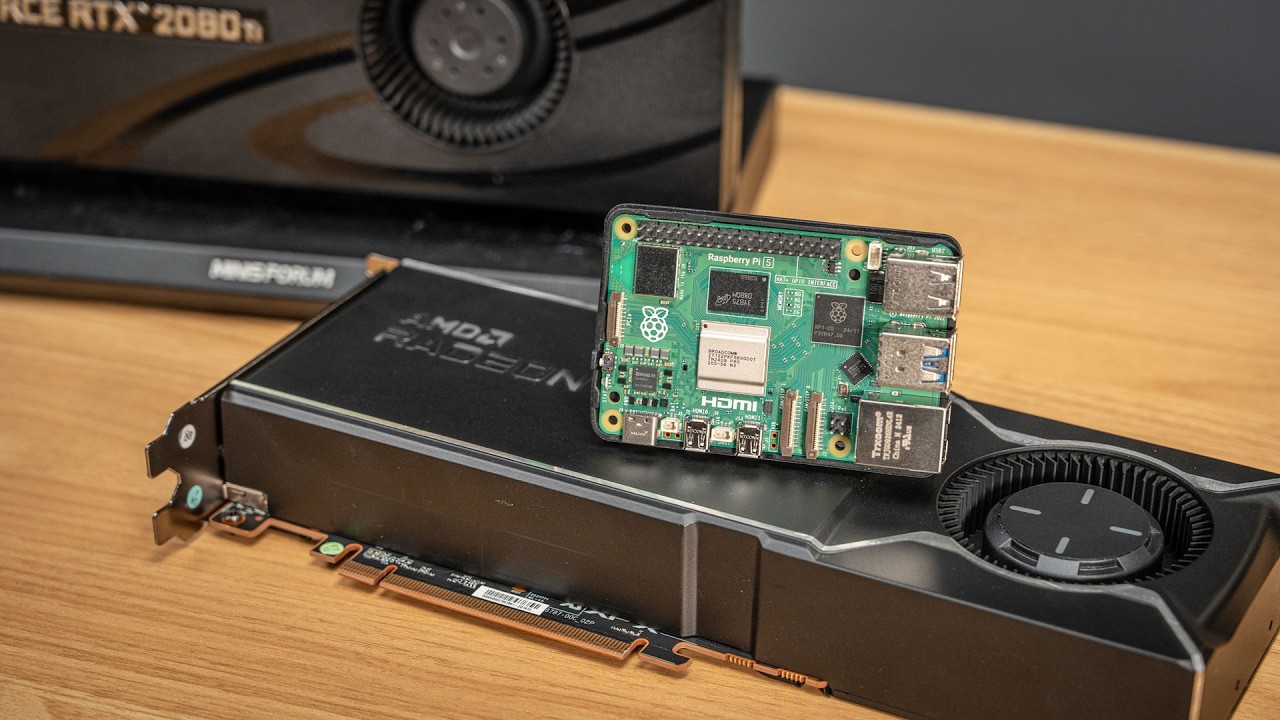
To get the full performance of a beefy graphics card like a 4090, you have to have a fast PC, right? Well, what if I told you don't? For some things, you could do just as well with a Raspberry Pi. And what if I told you could run multiple GPUs on one Raspberry Pi and still get full performance? Don't believe me? Well, what if I told you a segue to our sponsor, MicroEnter, and I'm here at the Phoenix, Arizona store specifically to look for graphics cards because somehow they're cheaper than RAM these days. But I come here a lot because for every project where I need a graphics card, a power supply, a PC case, or maybe even this weird little S-video adapter, MicroEnter has it. It's crazy to think they have everything from tiny electronics and 3D printers all the way to pro workstation graphics cards that I can run on a Pi. Thanks to MicroEnter for sponsoring this video. Whether you're a gamer, an IT pro, a maker, or whatever, this is a great place for all your tech shopping needs. The big question I had going into this video is whether a Raspberry Pi is enough to handle things like jellyfin or local LLMs, or are you leaving performance on the table if you don't use a full computer like this one for like gaming? Of course, there's no contest here. Well, we have some problems to sort out first. If you look closely here, the Pi only has one tiny little PCI Express lane. And not only that, it's two generations behind the times, running at a maximum of PCIe Gen 3. Gen 5, which this PC has, is way faster. So, one lane of Gen 3 bandwidth versus 16 of Gen 5, this seems like a pretty uneven matchup. Or so I thought. I got to testing both of these systems, and I found something interesting. The Pi can hold its own. A lot of that comes from how good support is for modern Linux standards on both of these systems. In my testing, I learned a lot about how PCI Express works and how to make up for the Pi's somewhat smaller stature. Like, look at this setup. GitHub user MP Sparrow plugged in not one, not two, but four NVIDIA RTX A5000 GPUs into a single Raspberry Pi, and he was able to get them working together to run a huge large language model, Llama 370B. On the Pi, it was generating responses at 11. 83 tokens per second. on a modern Intel server using the exact same GPU setup, he got 12. That's less than a 2% difference. While I was testing my own setups from a 4090 to dual AMD GPUs, I realized there was an interesting difference. My Pi setup, everything, including this eGPU dock that holds the graphics card and an external power supply, this whole thing costs about 350 bucks. This PC setup, 1,500, and that's pricing before the RAM shortages hit. So, the price of this thing is probably closer to two grand right now. Also, the Pi by itself, it idles under five watts. The PC 30. That's six times more power draw while they're doing nothing. And yes, 25 watts might not mean much to you, but to some people it does. And could you do a lot with something like a mini PC or a used desktop? Yeah, use what you have. Like I said, I do this stuff for fun and learning, and you might not. That's okay. So, let's get to the hardware. Starting with the AMD Radeon AI Pro from MicroEnter. And before you ask, I did try and I didn't get it to run Crisis or even Doom on this setup yet. Gaming on the Pi is a little hit or miss sometimes. Not only are we dealing with driver patches that aren't fully upstreamed, but also FEX or Box 64 quirks with Debian Trixie on ARM. I did try getting FEX working with Crossover, but Steam was having trouble getting installed. It just sat there waiting for an update to finish, but after hours it never actually finished. Anyway, I'm testing a few other ARM Linux gaming setups before the Steam frame launch next year. So maybe we can get the Pi going by that time. In lie of that, the focus today is raw GPU power, and I have three tests to stretch out each system. Jellyfin, Gravity Mark, and LLMs. Here's my setups for the Raspberry Pi. I'm using a Minis Swarm eGPU dock that plugs into a Compute Module 5 IO board with an M. 2 to Oculink adapter. The dock needs extra power, and most GPUs do, too. So, I also picked up an 850 W Superflower power supply while I was at MicroEnter. And yes, this setup is just split across the workbench. We're hot riding this thing. We're not going for looks here. As far as drivers go, I already covered setup in older videos in my blog. So, I'll link to blog posts with step-by-step instructions below if you want to replicate this setup. Switching tracks to the PC, I built it around a fancy ASUS ProArt motherboard, one that has a hidden feature that I'm going to talk about in a future video on time, so make sure you're subscribed. But I mounted it on my open bench table with another 850 watt power supply. I stuck in 64 gigs of DDR5 RAM, which Have you seen the prices on these things? Holy cow. I'm glad that I bought this set months ago for like 200 bucks. For the CPU, I went with the Intel Core Ultra 265K. And keeping it cool is a Noctua Redux cooler. And that's it. And for two GPUs, one Pi, well, we'll get to that setup in a bit. For now, I wanted performance baselines. Let's start with the most practical thing I think using a Pi as a media transcoding server. Since
Segment 2 (05:00 - 10:00)
Nvidia's encoders are more polished, I tested them first. Even an older budget card should be adequate for a streamer too, but I had a 4070Ti available, so I threw it on my Pi. The first thing I wanted to try was maxing it out with some big video files. I used Encoder Benchmark, a Rust tool that benchmarks hardware encoders using FFmpeg and RAW video streams. I ran it on the Raspberry Pi and the PC and well, the PC kind of does slaughter the Pi here. At first, I was wondering why, but then I watched the GPU with Envy Top and immediately spotted the problem. On both computers, the video file gets copied to the GPU, then the GPU sends back a compressed MP4 stream to save to the disc. Well, on the Pi, we're maxing out at like 800 megabytes per second over PSI Express. And with a video file that's like 10 plus gigabytes, that's going to take a little time. But it gets worse. The Pi only has that one lane of PCIe. So my boot storage is actually running on a USB SSD that tops out at like 300 megabytes per second. So the encoder on the card is kind of sitting there and waiting for the Pi to feed it data. And you can see that in the graph going up and down and up and down. Switching gears to the PC. This thing's chomping through the video files over 2 GB per second. And because it has a fast NVME SSD, the PC can feed that thing constantly and there's no dropouts. So yeah, in terms of raw throughput, the PC is hands down the winner here. But the way Jellyfin works, it's a different kind of use case. Most of the time, you just want to transcode your files on the fly. And assuming you're not storing your movies and TV shows in like ProRes RAW, the data rate is going to be a lot less than 800 megabytes per second. I installed Jellyfin and set it to use Envink hardware encoding. That worked out of the box. Like this is sneakers in 1080p and I can skip around with transcoding without any issues at all. I also opened up Galaxy Quest and tested out different bit rates like if I was watching a movie through my home VPN on my phone on the road and that worked fine too. Apollo 11 was good too at 4K without any dropouts and perfectly smooth playback. Even with two transcodes going on at the same time, like here for Dune in 4K and Sneakers in 1080p, it's running just as smoothly. It does seem to max out the decode engine at that point, but it wasn't causing any stuttering that I could see. So, I guess while the Intel PC wins in raw throughput, like if you were building a full-on transcoding server, the Pi is fine for real world use cases like with Jellyfin or Plex transcoding. Historically, AMD isn't quite as good at transcoding, but they're certainly adequate. And while transcoding worked on the AI Pro on the Pi, I had a few more stability issues. I mean, how do I know if the context is innocent if it was lost? Anyway, these are graphics cards, so I wanted to see how 3D rendering performed. So, I switched tracks to the Gravity Mark benchmark. This is a good cross-platform test that focuses on GPU performance pretty much exclusively. And no surprise, the Intel PC was faster, but only by a little. The rendering here is all done on the GPU side, and it doesn't really rely on the Pi CPU or PCIe lane, so it can go pretty fast. But what did surprise me was what happened when I ran it again on an older AMD card, my RX 460. This GPU is ancient in computer years. But I think that gives a leg up for the Pi. The RX 460 runs at PCA Gen 3, which is exactly as fast as the native Pi bus, and the Pi actually edged out the PC here. But the thing that gave me a bigger shock was this, the score per watt. This is measuring the overall system efficiency. And while Intel's not amazing for efficiency in general right now, it's not like the Pi is the best that ARM has to offer either. Anyway, I wanted to see how Nvidia did. So, I fired up a 3060, 3080 Ti, and A4000. And well, here are the numbers on the PC at least. Hopefully, we'll get a desktop environment going on the Pi for Nvidia cards soon. Something that doesn't need a desktop, though, is large language models or LLMs for running your own private local AI. And starting with the AI Pro, it has 32 gigs of VRAM, so it's perfect for my full gauntlet of AI benchmarks. I ran models anywhere from like 600 megabytes all the way to Quen 3's 30 billion parameter model that takes up 20 gigs. And here are the results. Pi versus PC. And ouch, this is not what I was expecting to see. I thought you just feed the GPU and the GPU goes wild, right? Apparently not. I was a little discouraged. So again, I went back to my trusty old RX 460. And okay, I mean, we only have 4 gigs of VRAM to play with, and the card's over a decade old now, but this isn't a bad showing at all. Maybe that R9700 performance is from like driver quirks, or it's like expecting a large bar, and that's somehow crippling the performance. I mean, I guess I can't blame AMD's engineers for not testing their beefy AI GPUs on Raspberry Pies. But that made me wonder if Nvidia's any better since they've been optimizing their ARM drivers for years. Well, this is the RX 360 12 gig. It's a popular card for cheap athome inference since it has just enough VRAM to be useful and it's a pretty modern GPU. And well, the Pi's holding its own here. Some models seem to do a little better on the PC like Tiny Llama and Llama 3. 23B, but some of those mediumsiz models, the Pi's
Segment 3 (10:00 - 15:00)
within spinning distance. Heck, the Pi beat the PC at Llama 213b. What really surprised me was this next graph. This measures how efficient each system is, accounting for the power supply, CPU, RAM, GPU, and everything. The Pi is actually pumping through tokens more efficiently than the PC while nearly matching its performance. Okay, well, that's just the 3060. That card's also 5 years old now. Maybe bigger and newer cards won't fare so well. I decided to run my AI gauntlet against all the Nvidia cards that I can get my hands on. Here's the 3080 Ti. The PC does kind of destroy the Pi and Tiny Llama again, but everything else is pretty close. And there again, somehow the Pi is eating out a win for Llama 21 13B, but how's efficiency? Well, here again, the Pi edges out the PC, at least for Llama 2. The PC does beat the Pi for the smallest model, but only just barely. Moving on to a newer generation of cards. I tested my 4070 Ti, which also has 12 gigs of VRAM, and it's a similar story. a few models the PC pulls away a bit, but in general efficiency is a little bit better on the Pi or a lot better actually for Tiny Llama here. I don't know what's going on with that. I think it's just an outlier. So, don't read too much into that particular benchmark. But next up, I wanted to try this workstation card. The A4000 is a one slot card, and it's more for stable, reliable performance versus flatout number crunching. And here, the Pi surprised me. It looks like if the card is built to be more reliable and less like overclockable, the edge on the big PC is actually a bit less. And I think the biggest surprise overall was this graph showing the Pi reliably beating my PC in every single model, at least as far as efficiency is concerned. But going all out with the fastest graphics card I own, here's the 4090 running on the Pi. And it's kind of comical. I kind of forget how funny it is that the GPU is like 10 times the volume of the rest of the whole system. It even dwarfs the PC a bit, though. It does look a little less out of place there. Anyway, this is what it looks like comparing the two for AI. Tiny Llama just completely nukes the Pi from orbit here, but surprisingly the Pi still holds its own for most of the models. And like the 32 billion parameter Quen 3 model is less than 5% slower on the Pi with a card that can eat up hundreds of watts of power on its own, how's the efficiency? I was thinking that since the rest of the system would be a smaller percentage of the power draw overall, the PC would fare better here. And it does actually for a few models, but the Pi is still edging out the bigger PC in the majority of these tests, which is weird. I honestly didn't expect that. I was expecting the Pi just to get trounced everywhere and maybe pull off one or two little miracle wins. Now, one major caveat is I'm using Llama's Vulcan backend for all my tests to keep them consistent from AMD to Intel to Nvidia. CUDA could change things a little, especially the individual numbers, but actually overall not that much. And it works fine on the Pi surprisingly if you want to run it that way. And for local llama folks watching this video and yelling at the screen about prompt processing speeds and all those other metrics, I have links to all the test data I used. So before you complain, go check out the GitHub issues. But so far with all these tests, we've just been running on one GPU. What if we could do two? For the dual GPU setup, I have a Dolphin PCIe interconnect board, which is way out of focus. There you go. And that has 2x6 slots. I think it's PCIe Gen 5 rated, maybe Gen 4. There's this card from Dolphin that has a PCI Express switch chip inside. And that is connected through I forget what this is. SFFF something. I'll put it on the screen. That goes into this M. 2 to SFF something. So, this is for signaling. And then I have external power coming from this power supply, which I was using in that dock for one GPU. and it has 12 pin power to this 4070 Ti and it has uh six pin power over to the A4000. So, we're going to run both of these GPUs and see if we can put them together to make things go fast. Oh, and I have this uh little Noctua fan sitting over here blowing air between the two cards because I don't know if you can see that, but down there there's a giant heat sink and that card gets pretty hot. And we're blowing we're actually blowing some pass through heat right through this card into that thermal zone. So, you can see I'm supporting the 4070 with an A400 because uh otherwise it kind of flexes and pulls on the board a little too much. So, yeah, let's uh let's see if I can get this to get started. I have that turned on. The Pi is plugged in. And then I press my power outlet down here, and this should turn on. There we go. And we can see the PCI Express card has a few LEDs to tell uh status for the different slots. And it's connected now to the Pi. And of course, we have no display output. um from the cards because I'm still working on that in the Nvidia drivers. But we do
Segment 4 (15:00 - 18:00)
have a display coming from the Raspberry Pi itself. So, this should come up with Raspberry Pi OS. And we'll see if we can see these cards. Let's see. I'll make this bigger so you can see them a little better. So, it shows there's an RTX A4000 and an RTX 4070Ti. And I should be able to say Nvidia SMI. And there's the two cards. Before I ran any LLMs, I wanted to see if I could share memory between the two cards directly. PCI Express has a feature that lets devices talk straight to each other instead of having to go north south through the Pi's CPU. That would remove the Gen 3x1 bottleneck and give the cards a full Gen 4x6 link. So, they could have tons of bandwidth. For that to work, you have to disable ACS or the access control service. And Dolphin apparently set that up for me already on their Switch cards. And you can see that setting here. Normally, you don't want that to be your default. You want your PCI Express devices to talk through your CPU for better security. But if you're building like a supercomput or like multiple network cards or GPUs, you want them talking as fast as possible to each other. So, you can disable it. Anyway, what I found is unlike MP Sparrow's setup where he was running four of the same Nvidia cards, I only had different model cards. And it looks like the Nvidia driver doesn't support VRAM pooling the same way if you have different cards like my 4070 and an A4000. But that's okay. There's still things I can do with llama. cpp and multiple GPUs going north south with the PCI Express going through the CPU. And here's the performance of the 4070 and A4000 compared to just running the same models on the A4000 directly. I'm guessing because of that extra traffic between the Pi and the cards, there are tons of little delays like you can see here with NVTOP. And there are some periods where all the traffic is just going to one GPU or the other regardless. So, it's not better for performance, but the setup does let you scale up to larger models that won't fit on one GPU. Like Quen 330B is 18 gigs, and that's too big for either of these two cards by themselves. Would it be faster to just buy a card with enough VRAM to fit the whole model in memory? Yes, and more efficient. But if you have two graphics cards and you want to run them together and run bigger models, at least it's possible. I also ran the two biggest AMD cards I have. These two monsters and that gives me a whopping 52 GB of VRAM to play with. But there again, maybe due to AMD's drivers, I'm not sure. But there I couldn't even get some models to finish a run. Like now the context is guilty. Earlier it was innocent. Which is it AMD? Make up your mind. To close out my dual GPU testing, I also ran all these tests on the Intel PC and it shouldn't be too surprising. It was faster. But at least with Quen 330B, the Pi holds its own. Again, I think if you optimize things more, like if you have multiples of the same card or if you use tools like VLM, which I couldn't get running on the Pi, you might do a bit better than my numbers. But the main lesson still applies. More GPUs can give you more capacity, but they'll definitely be slower than one bigger GPU and a lot less efficient. So, after all that, which one is the winner? Well, obviously the PC if you care about raw performance and an easy setup experience. But for a very specific niche of users, the Pi is actually better. Like if you're not maxed out all the time and have almost entirely GPUdriven workloads, the idle power on here was almost always 20 to 30 watts lower. And other ARM SBC PCs, like ones with Rock Chip chips, are even more efficient and have more bandwidth, too. But ultimately, I didn't do this stuff because it made sense. I did it because it's fun to learn about the Pi's limitations, GPU computing, and PCI Express. And that goal was achieved here. I want to thank MicroEnter for sponsoring this video and Dolphin for letting me borrow a few of their PC Express boards.