🤩 Try Zeemo AI: https://workwith.headai.io/46IQA58
🤔 Have a question about Zeemo? Drop it in the comments!
🔗 This video is sponsored. Some product links are affiliate links which means if you buy something we'll receive a small commission.
IMPORTANT DISCLAIMER - PLEASE READ:
⚠️ All content on my channel is my personal opinion. I am NOT a financial advisor. I do not have any professional licenses. My opinions are not a replacement for the guidance of a professionally trained and licensed individual.
Оглавление (2 сегментов)
Segment 1 (00:00 - 05:00)
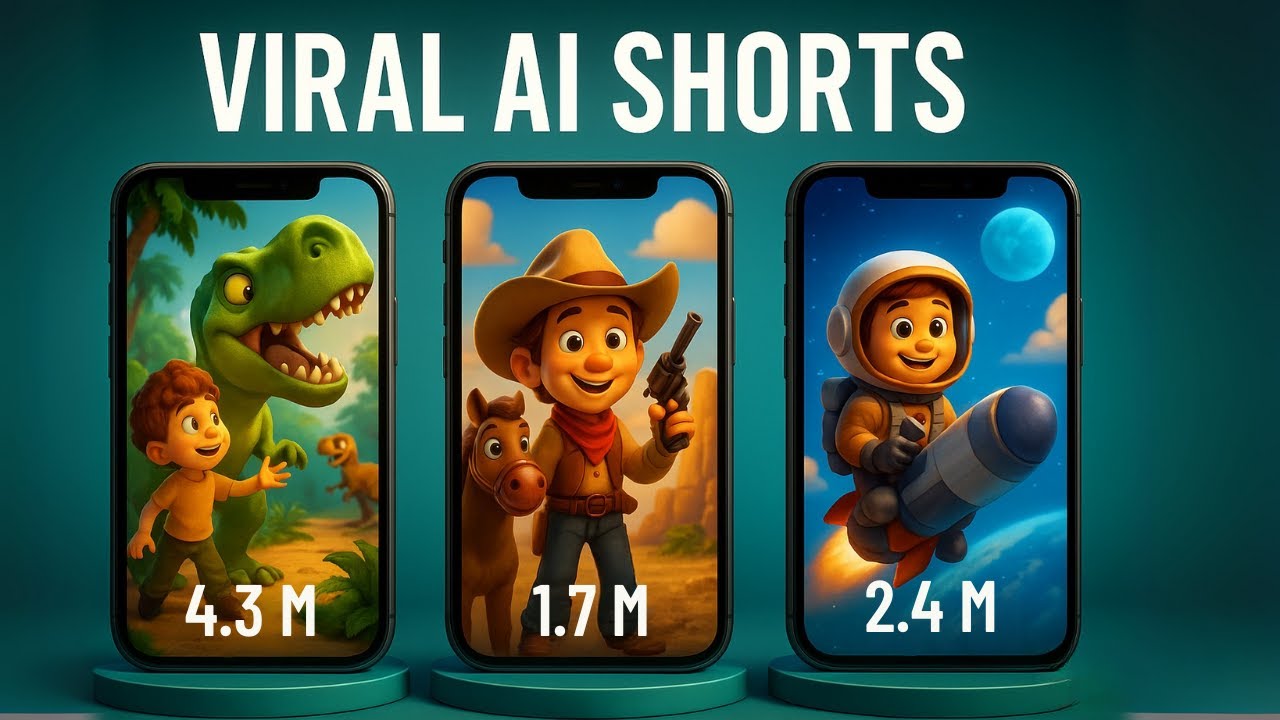
So, all of these YouTube shorts were made in less than five minutes using a new AI faceless video generator that I just found. You literally just type in an idea and it generates everything. The script, the voice over, the visuals, the captions, even the music all automatically. So, let's dive in and I'll show you what this tool is and how you can make viral shorts with it in a matter of minutes. So, this is a tool right here. It's called Zemo. And I've tried a lot of similar ones to this before, but what makes Zemo different is that this is the first one that actually keeps the same visual style and character consistency throughout the entire video. Now, quick disclaimer. Zemo is sponsoring this video, but they're allowing me to give my completely honest review of their tool. So, if you want to follow along with me and try Zemo out for yourself, just click the link in the description to sign up. All right, so let me show you how easy this is to get set up. Once you sign up, you'll land on the main dashboard that looks like this. It's pretty clean and easy to navigate. And right here, you'll see the AI faceless video section. That's what we want to click on. Now, here is right at the top where you can actually generate the videos and put in exactly what you're looking for. But what might be helpful is to scroll down and look at some of the other YouTube shorts that other people have already made with Zemo because this is going to give you a good idea of what you can do with this and kind of stimulate your imagination when you're looking to create your own videos. So, we see some here. For instance, this is one of a thirsty crow looking for some water. It's like a nice story about how we found some. Um, and we have another one here about an orange cat that's waking up for a sunny morning and he's stretching and yawning. And if you click on any of these, you'll be able to watch the entire video, actually hear the voice over and the music as well. And here's one more about ants carrying food. You see that this one is hyper realistic. So, lots of things you can do with this. Okay, let's have some fun with this and actually make some videos ourselves. So to do that, you want to come to the top up here. And you'll see that there are two choices. You can either just give it an idea or give it a full script. But for this first example, we're just going to keep this very basic. do idea to video. And I'm basically going to ask it to create a video story about the boy who cried wolf. Now, there's a lot of different settings here. We're not going to mess with any of them right now. I'm going to show you those later. So, we'll click on generate and see what it's able to do with just all the default settings. So, here's the end result right here. Let's watch a few seconds of it. In a quiet village, a shepherd boy watched over his sheep. Bored and seeking attention, he shouted, "Wolf! Wolf! " The villagers rushed to help, only to find no wolf. The boy laughed, enjoying the trick he played on them. Days later, he cried, "Wolf! " again, and they came running, but this time, there was a real wolf lurking nearby. The boy shouted for help, but no one believed him. The wolf attacked and the boy learned a hard lesson. — Now, if you're not happy with something in the video, you can click on the right here where it says scenes and change any of it. So, you notice that each of these scenes is about 3 seconds long. You can click on any of them. And this right here is the prompt that we use to generate that scene. So, you can change this scene by scene if there's anything in here that you don't like. You can also change the way the captions look. So, if you don't like these captions, you can change them to any of the styles that work for what you want. I actually think the default one is the best, though. And you can even change the music as well. Like, I didn't love the music that it chose, so I could definitely come in here and choose better music for this short. But honestly, we've only scratched the surface of what Zemo can do. So, if we dive into these settings up here, you'll notice that there's a lot more we can do. So, let's just put in a generic quick prompt right here that says Glass Kingdom. And if we go into these settings, you'll notice that for instance under languages, there's a lot of different languages in here you can choose from. I'm going to leave it on English. And you can also change the duration of the video as well. It goes anywhere from 30 seconds all the way up to 3 minutes, but because this is a YouTube short, I am going to leave it at 30 seconds and leave the aspect ratio on 9 by 16. But there are several options for that as well. Now what I will change is under generation model I'm going to switch from basic to advanced. So advanced will actually keep the same style and characters consistent throughout the entire video which is pretty big because a lot of these video generators are unable to do that and the characters will change from scene to scene. But by changing it to advanced it will be consistent. Now, under visual motion, I'm going to change this to animated visuals, so it really looks more like a video, like this one, instead of just having stills like this one right here. Now, under style, you can choose whatever sort of visual style that you want, but I'm going to choose for this dark fantasy. And then under
Segment 2 (05:00 - 07:00)
voice, I'm going to choose nova because that's a voice that I like. And once I make sure all the settings are the way that I want, I'll go ahead and click on generate. While we're waiting for that, if you're finding this video interesting, make sure to hit that thumbs up and subscribe to the channel. I'm always testing out new AI tools just like this one. So, you want to make sure you're subscribed so you don't miss out on future updates. Now, the video is finished, so let's go ahead and watch it and see what I came up with. — In a land of shimmering glass, a kingdom sparkled under the sun. The people lived in harmony. Crafting beautiful art from crystal. One day, a dark shadow loomed over the kingdom, threatening their peace. The brave princess gathered her friends to confront the darkness. Together, they discovered the power of unity and friendship. With courage, they faced the shadow and restored the kingdom's light. The glass kingdom shone brighter than ever, a symbol of hope. From that day on, they celebrated their bond and creativity. So, you'll notice that between these scenes, the princess remains the same. That's the same character we see here and here. It's the same consistent character, which is pretty impressive for a video generator like this. And just like before, if there's something in here you don't like, you can easily come to that scene and have it change it so it's exactly the way that you want. So, what's great about this is that this really allows anyone now to be a content creator. You're no longer limited by the equipment you can afford or having a nice camera or studio lighting. It's really just your imagination that's the limit with a tool like this. So, if you've been wanting to start a YouTube channel but felt held back by the technical stuff or being camera shy, this removes all of those barriers. You can just focus on your ideas and let the AI handle everything else. So, if you want to try it out for yourself, you can sign up using the first link in the description down below. Otherwise, thanks so much for watching the video and I'll see you in the next one.