Arduino Uno R4 WiFi LESSON 99: Adding Roll Graphic to our IMU Avionics Display

Arduino Uno R4 WiFi LESSON 99: Adding Roll Graphic to our IMU Avionics Display

Machine-readable: Markdown · JSON API · Site index

Поделиться Telegram VK Бот
Транскрипт Скачать .md
Анализ с AI

Оглавление (6 сегментов)

Segment 1 (00:00 - 05:00)

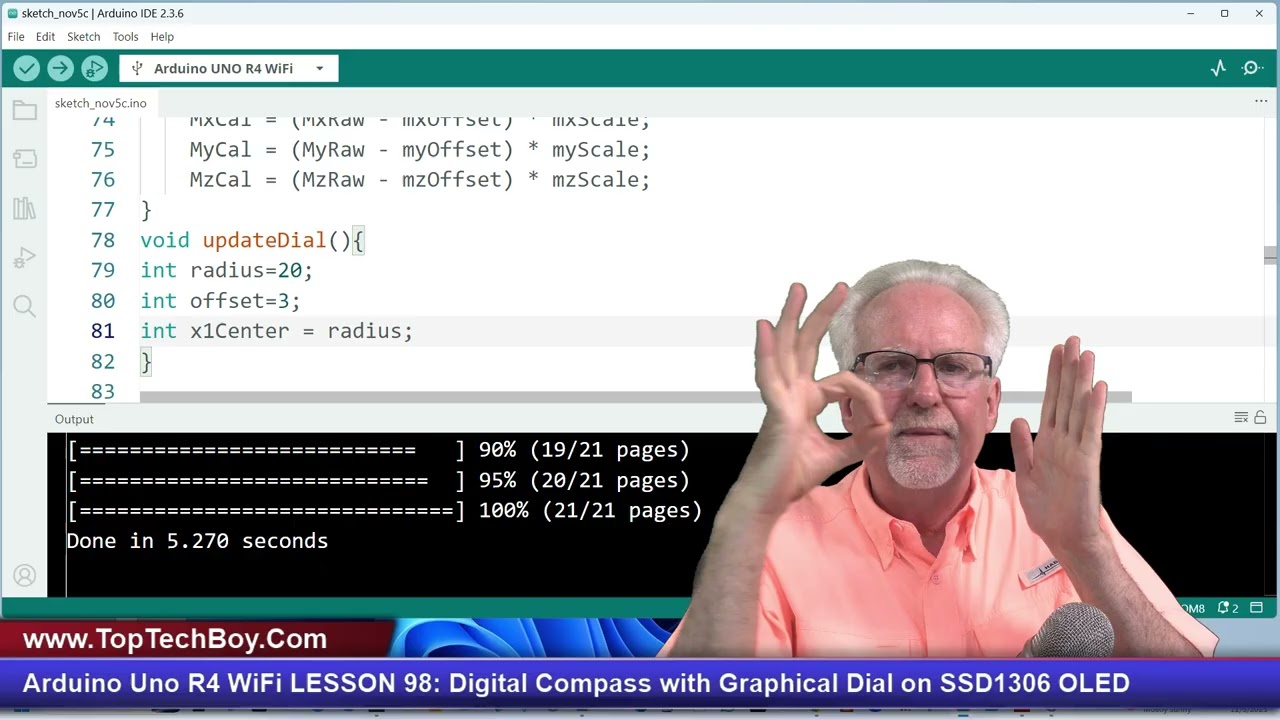
Hello guys, this is Paul McCarter with toptechboy. com and we're here today with episode number 99 in our incredible new tutorial series where you're learning how to think like an engineer using the Arduino Uno R4 Wi-Fi. What I will need you to do is pour yourself a nice tall glass of ice cold coffee. That would be straight up black coffee poured over ice. No sugar, no sweeteners, none needed. And as you're pouring your coffee, as always, I want to give a shout out to our friends over at Sunfounder. Sunfounder is actually sponsoring this most excellent series of video lessons. And in this class, we will be using the Sunfounder Elite Explorer Kit. Now, hopefully most of you guys already have your gear, but if you don't, take a look down in the description. There is a link over to Amazon and you can hop on over there and pick your kit up. And believe me, your life and my life are going to be a whole lot easier if we are working on identical hardware. But enough of this shameless self-promotion. Let's jump in and talk about what I am going to teach you today. And what I'm going to do is I'm going to show you my solution to the homework assignment that I gave you in lesson number 98. But I must first ask how many of you were successful. If you were able to do the homework, leave a comment down below. I am legend. And if you were not able to do the homework, leave a comment down below. I fold it up like a cheap Walmart lawn chair. Now, hopefully most of you guys were able to do it because I think the harder one was the previous lesson, right? We're developing an IMU on the Arduino using the GY87 module. We've added an SSD306 OLED display. And now we're building little avionics graphics on the OLED display. Now, last week I did the hard one, which was the yaw, where we developed a compass style, and there's a live needle on the display that's always pointing north on that compass dial. But hopefully seeing how that one was done, today's was to add a second graphic, a second dial, which would show roll. And given that we kind of went through together the yaw, I think the roll should have been easier. So hopefully you guys were able to be successful. We got some fishermen out there. We got the kind of astro bright orange shirt on today, huh? Yeah. Very good. Sort of like my shirt. Anyway, I love looking at the fisherman out there and I'm easily distracted, but let's go ahead and jump into this project. We want to add to last week's work a dial that will graphically show you the role. So, what we're going to need to do is we are come over and go to the most excellent www. toptechboy. com. You're going to want to use this happy little search icon here. And we want to start where we left off last week. So, you can search on Arduino digital compass with tilt compensation and compass graphic on SSD. Something like that. something close to that should get you there. Here is the schematic that we've been working with. Very simple uh very simple little schematic. And here's the code that we ended up with last week. So, we're going to click here and copy that code. I've got to remind you every week for you driveby shooters. These are the calibration parameters for my module. for my GY87 module. You have to put your own numbers in here for your IMU. Now, never fear. I showed you how to do that in depth in lesson number 93. And you can go back and watch that video and get the code to do that by clicking here. But you can't just take these numbers and think that these numbers are going to work for your sensor because each one is a little bit different. Okay. Enough of all this talking. Let's come over and let's fire up a fresh new Arduino IDE. We already copied the code and so we'll come here and we will paste it. [snorts] Now what we're going to do is we're going to check to make sure that the universe is in the proper and expected working order. And just make sure that graphic and the work we did last week is still working this week. So we're going to click here and run it. Have a little sip of my go juice. It's looking good. We're showing that we can copy and paste. I'll take I don't know about you guys, but

Segment 2 (05:00 - 10:00)

I'll take the small victories in life where I can get them. And if this thing just runs as I expect and we get off to a strong start, I'm going to be happy with that. It's looking good, right? It's looking good. And now it is downloading and that's an encouraging sign. And all eyes on the OLED display. And boom. Look at that. Let's see if we can show you a little closer here. And what you can see is we have a graphic where we're printing roll and we're printing pitch and we're printing yaw. Okay, that's very good. And then this is the compass. It is the needle is pointing north. Now look, north is kind of to the top of the screen. And you look, you see as I turn, just like a compass in the real world, the graphic, the needle continues to point the same direction. It is pointing north. So that works. And that is just really good. So let me get this back here like this. Now let's move forward. So let's come back over to our code view. Man, last week I didn't do too good. I kept uh going over and doing coding and I was doing coding while I was on this view. So, I'm sorry. I'll try I did go back and get it where you could see what I was doing. But I'm going to try to do better today and not uh and not be making that same mistake over and over. Okay. So, now what is it that we want to do? We want to add a second graphic, a second dial that will show us the row. Okay. So, we're going to need a second dial. And the best place to do that is just update dial. Okay. So, we're going to add all of this stuff under the function update dial. All right. Now, I want all three of these the same. So, the radius of the first one is still going to be the same radius. The offset is how many pixels between the two displays. So, we didn't use that last week, but we've already got it set up. And then x1 is the center of circle one and x and y1 the center and y. So x1 y1 is the center point of the circle of the dial. But now we are going to have a what? We're second dial. So I'm going to say in uh integer x what? x2. And the center value there is going to be equal to what do you think that is going to be for the x2 center? Well, I want to start where I left off. So, I'm going to move over from where? X1 center. Okay. So, that's where I was before. And now I need to move how far? Well, if this is the center, can you see center? If I moved one radius over, the center of the next style would be at the edge of the other one. So, I sort of need to move over how far? two radiuses. Okay, so I'm going to add plus 2 times the radius. Okay, ray dus. Now, if I just did that, what those things are going to be touching and that would not look very well look very good. So, what do we do? We add who? Mr. Offset that we already set up. Wonderful. Okay, that is great. Now, if I have a Y if I have an X2 center, I'm also going to need a Y2 center. And that is going to be equal to I want it to be the same horizontally. I don't want this other one to move up and down. So, the y should be exactly the same, which was 63 minus the radius. Okay. So why do I say 63 minus the radius instead of saying like that would be what is it? It's 182 by I it's uh 128 by you know why didn't I just give it a number like okay I'm going to put it 40 down or something like that. I want to reference it relative to the bottom of the screen. Right? I've got 64 pixels. I start counting at zero. So the last the bottom pixel would be in a Y position of 63. And I want to go up from there by the radius. Now why do I do that? Because now if I change the radius, I don't have to change Y 2. Y 2 is based on the radius in the bottom of the screen. So, what I'm trying to do here is parametric design where really everything is just kind of coming down to a whole lot of stuff. It just comes down to the radius and the offset. And if I change those two things, everything else will adjust correctly without my whole graphic becoming broken. I hope that makes sense. I need to just do a class one day on parametric design. We kind of did a little bit of that type of

Segment 3 (10:00 - 15:00)

thing in the Fusion 360 lessons, but those same concepts really apply when we're doing a project like this. But I digress. Okay, so now I'm going to I've got my second circle. I've got the x2 and the y2. And so now I've got these four points x1 y1. That's one, the starting point of a line. and then x2 y2 the ending point of the line. So I define x1 y1 x2 y2 and that's how I get a line. But what you got to see is these are reusable variables because I just use them in the drawing process. They're not persistent. I just use them each time I need to draw a line. So I don't need to create new variables. I can just continue to use these variables. All right. So hopefully that makes sense. And now what we need to do is we need to come down and we need to start thinking about that second display. So where do we do that? We come in [snorts] and we draw our line here. Okay. We come in, we draw our line. Okay. So I see this is X1 center. Y1 is Y1 centered. That is the base of the needle. Right? That was needle on our previous graphic. And then we do the draw line to draw that. And now after that draw line, we are ready to start working on our second graphic. So what I'm going to do is first of all I'm going to draw the circle and then I'm going to put it at X2 center which I should have defined up there. Hopefully I didn't make a typo. And Y2 center. Okay. So that's the center of the second circle. And then that second circle is going to have the same radius as the first one. And who is our friend? white, which just means the pixel is turned on and the line will be made up of pixels which are turned on. I'm going to see if we got that circle right. I just love having little victories along the way. So, all eyes here on the OLED and it looks like it is downloading and boom. Look at that. Now, if you look closely, the two dials are very close together, but there is an offset, so they're not like rammed into each other. It's kind of a little bit of a tradeoff. You want to get them as close as you can so that you can make the circles bigger, but then you don't want them to look crowded. So, I'd call that a success. I would So, now we have drawn the second circle. Now, what do we want? We want a line that will display the roll. Okay? And what I want is if the right side goes up, I want the right side to go up on the little display. So, if I roll bringing this side up, then I want it to go like this. Okay? So, I'm going to have a line and the line's going to go from one end of the circle to the other end of the circle. And if I'm 0 degrees, it'll be like this. If I'm 45 degrees, it'll go like that. So really, I think that this next line of code is going to be the money line of code. What do I need to do? I need to display draw line. Okay, I'm going to draw a line. And now, where does it start? I'm g I gotta give it the X1 value. It's not gonna start like this one. The line the needle. That is not a very good pointer, is it? That's pointer. Okay, maybe this will shoot. No, that's not a very good pointer either. Let me come over here and let me point with this. Okay, this one, the line is the needle and the first point of the needle is always in the center. But here, if I'm going to do this roll bar, it's not going to start in the center. It's going to start to the left of the center. So, it's going to start on the circle in X, and then it's going to go to the other end of the circle. So, it's going to go like for 0 degrees from here to here, 90° 45° from here to here. So, I need the XY point of the

Segment 4 (15:00 - 20:00)

circle over here. Okay. And I need the XY point on the circle over here. And you can see that is going to be our friend SOA. It's going to be trigonometry. And the X value is always the radius times the coine. And the Y sign. Now we just got to figure out we got to put it reference to the center of the circle. So, I got to give it the first x value, which is going to be that left point. So, what is that going to be? Well, it's going to be x2 center. So, I'm going to make it relative to this. And now, I'm going to have to what? scoot to the left. left by subtracting what? The times the radius. I promised you I wasn't going to do that and I did it, didn't I? Okay. So, after I draw the circle, I am now going to draw the line and it is going to be relative to the center. Okay. And now it's So, in X I'm saying be here. But now what I want to move to the left. So, I'm subtracting the X value. And what is the value? It is the radius times the what? Cosine or s? Cosine, right? X is always cosine. Cosine of the what? What am I looking at? The roll. So, it's going to be the c that's the roll with the complimentary filter. And then math always wants what in these things? Radians. So, it's going to be times pi / 180 because we're humans. I'm doing my roll and pitch and yaw in degrees. But now, if I'm going to do the math, use these functions, I've got to convert it back to radians. Okay? So, that is the x value. value of the first point. Well, if I've got point, I'm going to also need what? I'm going to need the y value of the first point. And so the y value is going to be relative to the y position and then down. I'm going to subtract, right? It'd be like over in this region. So it's I subtract from the x center and y center to get over here. So that is going to be that we are going to need a comma and then I'm going to have y 2 that is y uh center of circle 2 y 2 minus radius times what sine of roll c I'm gonna have to take that off and then I'm gonna move this up. Okay, there you can see it. Nice. So, I have the Y2 center minus the radius times the sign of RO, right? C times pi / 180 like that. Okay. So now I put in my first point, the x2, you know, the first point of the line. Now I've got to put in the ending point of the line. Well, what is it going to be? It's going to be that exact same thing, but instead of subtracting, I'm going to add. So what I should be able to do is take those two points that I just defined starting here and coming out here and I should be able to copy those and then I should be able to paste those. And then here on this second point, instead of subtracting, I'm going to add. And instead of subtracting, I'm going to add. You know how I remember that y is always sign? I kind of have a little pneummonic y s y s. It kind of rhymes and x is cosine and y sign. They kind of sound the same. Just a little way that I always remember that. Okay. And there is our semicolon. Okay. So, [snorts] I've got that, comma, that. And man, if I had an error in here, I just copied and pasted it all over the place. And those are all rolls

Segment 5 (20:00 - 25:00)

because this is the RO display. And so, let's get this thing going. And then if it looks like it is going to compile, I think it's going to compile. class adder fruit has no member draw line had a little sticky caps there. Okay, that okay so there we are and now we will get ready to come over here. Give me just a second. I've had a little glitch here. So we got an error here. X2 center was not declared in this scope. What is this nonsense? X2 center. I thought we did that first thing up here. X2 center. Wow, that looks good. Uh, again, case error. Uppercase. Were you guys yelling at me? And that's all of these I did that with, right? Why [snorts] live by copy and paste, die by copy and paste? Why why? Okay, that looks good. Let's try it again here. Little setback, little hiccup. I'm not going to get discouraged. Okay, that is going I think way too center. What on earth kind of crazy thing here am I doing? Center. So, let's come up here. Man, I did very poorly in defining these things, didn't I? Oh, this is where the mistake was. It should have been little X. They were all little X's and little Y's and I just made that big. Okay. So, let's come down here and we will correct this embarrassing lack of consistency and how I was using these two variables. Okay, I think I fixed them all. Let's hope it works this time. — [snorts] — Looking good. I did it again up here. X2 center. Okay. So now what does it not like? Oh, who is our friend out here at the end? Did you guys catch that? Who is our friend? Comma. I got so excited about the trigonometry I forgot the programming. Why? We got to finish it up like that. Here it goes. Here it Okay, it is downloading and all eyes on the graphic. graphic and boom, we got a horizontal line. Anyway, and the thing that I find interesting, do you see how uh how it goes exactly from the edge of the circle to circle? And it is correct. It is correct in the uh in the roll. I think it's almost like you're seeing a tiny little bit of an incline there, but that could just be the kind of just like one pixel error. It's less than a degree. Okay. And so you see it doesn't come straight exactly perfectly across, but we're going to call that good. Now, if I lift this side over here, I want to see this roll up so that the graphic is working. So, the right wing is going to go up and boom, the right wing goes up. We're going to left wing up, right wing up. And the compass, the yaw is still working. Boom. Okay. Now, that is our deal there. That is really, really good. And so, out of our graphics, I now have the yaw on a compass. I have the roll on one of those kind of like airplane avionics types of displays. And then what your homework assignment is for tomorrow. Let's see if

Segment 6 (25:00 - 27:00)

I can show you the homework assignment for next week. I'll have a little sip of coffee. And what we're going to want to do for next week, your homework assignment. This one should really be easy, but you're going to add the pitch graphic and watch what the pitch does. If the nose goes up, then this should be moving towards the sky. If the nose goes down, this should be moving towards the ground. So, if we go nose up, look at that. It's going to go up. If we go nose down, it's going to go down. And then rolling and yawing and yawing. Okay guys, man, we've come a long way. We have come a long way on this project, haven't we? And we really did a whole lot of work to make sure that we were getting the most precise numbers we could for roll, pitch, and yaw, right? We weren't just using the accelerometer. accelerometer with a lowass filter to get the roll in the pitch because that would have been slow. So, what did we do? We did a complimentary filter where we fused the data from the gyros with the accelerometer to get really good data. Then we added in the magnetometer to get that yaw. We did a complimentary filter on the magnetometer with the gyros to get rock steady accurate results. And then finally we added the tilt compensation so that the yaw would be accurate no matter what orientation we were in. So, okay guys, I really hope you're having as much fun taking these classes as I am. And it's at this point that I always give a big shout out to my Patreons. Without the support of the Patreons, I would not be able to continue to make fresh, new, in-depth content every single week. So, big thank you to you guys. You can help this video by leaving a comment down below and giving the video a thumbs up. That will help me with the old YouTube juice. If you haven't already, subs subscribe to the channel. When you do, make sure you ring that bell so you'll get notification when future lessons drop. And most importantly, share the video with other people because the world needs more people thinking like an engineer and fewer people sitting around watching silly cat videos. Paul McCarter with toptechboy. com. I will talk to you guys later.

Другие видео автора — Paul McWhorter

Ctrl+V

Экстракт Знаний в Telegram

Экстракты и дистилляты из лучших YouTube-каналов — сразу после публикации.

Подписаться

Дайджест Экстрактов

Лучшие методички за неделю — каждый понедельник