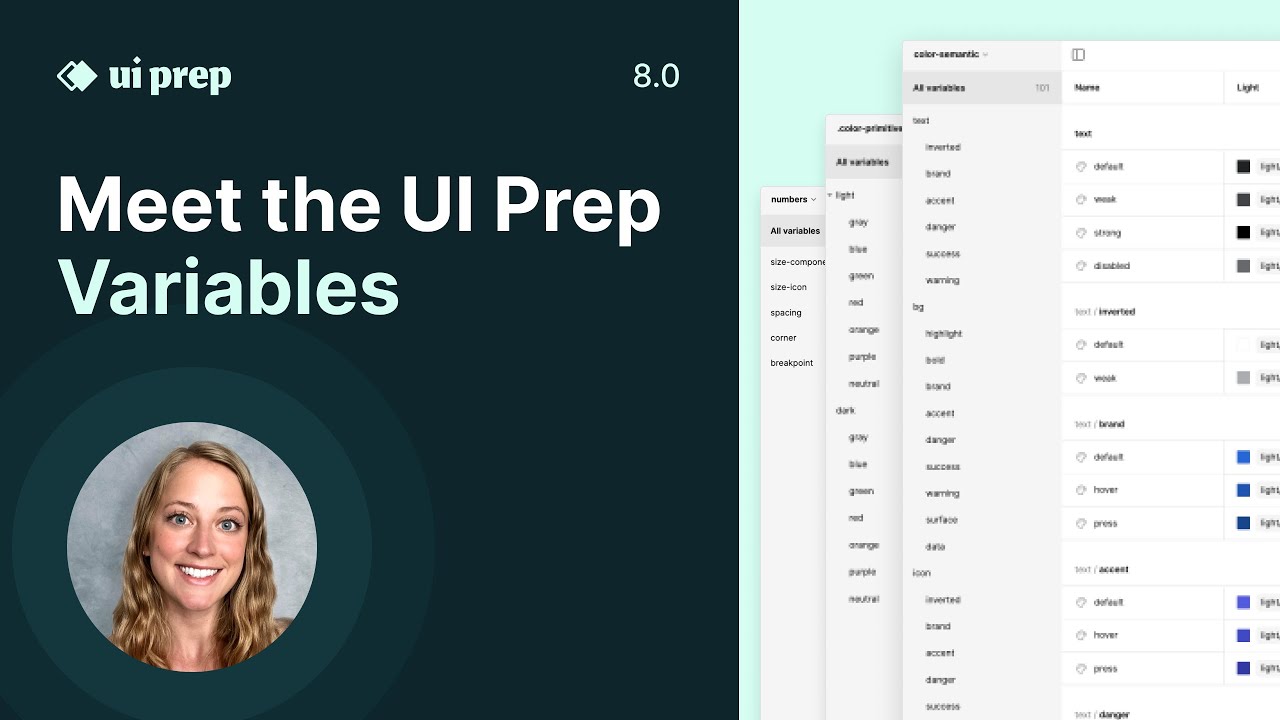
Meet the UI Prep 8.0 Components

Meet the UI Prep 8.0 Components

Machine-readable: Markdown · JSON API · Site index

Поделиться Telegram VK Бот
Транскрипт Скачать .md
Анализ с AI

Оглавление (1 сегментов)

Segment 1 (00:00 - 03:00)

hey everyone this is Molly the creator of uip prep and I'm going to share with you a few of my favorite tips and tricks for customizing and maintaining components inside of the newest version of the design system so these buttons as an example and go over a few tips the first tip is to show any hidden layers in the component before you make edits make sure you're not missing anything so every component in the system is currently in its simplest state so when the designer drags it in from the assets panel it's really simple that they can add on complexity rather than having to remove complexity we'll take a look at the primary Button as an example and over here in the right hand panel you can see all the properties for this button we can do that by default there's two Boolean properties for the icon and they're both turned off switch on the lawn we can go in and edit the property and change the value from false to true now I may get edit to maybe the icon colors or a Sciences we know that our edits are going to be seen by having these billing properties turned on now it's over how to select multiple matchy layers in front of a component so you can apply to one layer and the component let's say an icon and you'll see below a little icon will appear to select all matching layers if you press shift and select a second layer you can do the same so we have all of the left and the right icons selected here you can go through and do a few things we can update the sign the color or which icon is shelling in full so happy to go through and edit each one individually the next tip is to edit components across multiple component sets at once so to do this you can hold shift and drag a selection a rest multiple components even across multiple component sets for example we could select all of the large buttons and update the size let's say instead of 40 pixels we're going to use a different sizing variable let's say a large so we have very large buttons and lastly let's say you want to add in a brand new type of button rather than starting from scratch we can just duplicate the existing buttons on and make some edits to create that brand new button I'm going to hold alts and duplicate this entire set okay need a success button and go in and update the name of this brand new component and then go through and make a few updates to the styles to make it green I'm going to go in for each color hit an update instead of the brand color default I'll go down to success hover and focus will both use the hopper colon and then we'll have the down color as well and then we see in the alpha panel we already have our brand new success component we can make edits to it just like we can to all the other buttons we can change the size the state the label how many iPhones are being shown and what those icons are those are a few of my favorite tips and tricks as you can see everything's really easy to customize and maintain inside of the UI kit

Другие видео автора — UI Prep

Ctrl+V

Экстракт Знаний в Telegram

Экстракты и дистилляты из лучших YouTube-каналов — сразу после публикации.

Подписаться

Дайджест Экстрактов

Лучшие методички за неделю — каждый понедельник