Get the community file here: https://www.figma.com/community/file/1627027649854740327
In this workshop we will cover the suite of AI tools integrated into the Figma canvas that support your design workflow. From renaming your layers, to generating, rewriting and translating content, and the advanced image editing options to help you be more effective when designing layouts and interactions.
00:00 Introduction
00:17 AI balance
1:05 Actions menu in Figma
2:25 Image editing tools / remove background
4:59 Expand image
6:14 Make image
12:31 Select Area
15:57 Edit Image
23:24 Vectorize
31:30 Content tools / Rewrite & shorten
34:01 Duplicate and replace
41:27 Translate
43:35 Rename layers
45:07 Figma Slides: Presenter Notes and tone
47:55 FigJam Summarize other image editing
50:00 MCP and Annotations
54:04 Q + A
____________________________________________________
Find us on ⬇️
X (formerly Twitter): https://x.com/figma
Instagram: https://www.instagram.com/figma
LinkedIn: https://www.linkedin.com/company/figma
TikTok: https://tiktok.com/@figma
Figma forum: https://forum.figma.com/
Оглавление (17 сегментов)
Introduction
Hi, everybody, and welcome to the Figma for EDU monthly workshop. My name is Miggi. I'm joined by Joanna. So we're gonna talk a little bit about everything that you can use in Figma to support your workflow and process. So let's go. First thing I do wanna highlight to y'all is that the AI balance is in effect, so as
AI balance
you are working, you're using AI credits. You can check out your AI balance when you go over here to the Figma, little menu, come down here to AI balance. And the reason that I highlight this is that if you want to stave your credits, for working on your own projects and just kind of wanna follow along today, that's absolutely fine. If you wanna perform some of the actions as well, I do want you to, save your credits. They will reset every month, so it will tell you that your seat in the Figma for Education plan comes with 3,000 credits a month. Your seat credits will reset on April 30th, so we got another two weeks with the credits that we have. All right, so you can see I got 2,616 credits left, plenty for this demo. All right, the first thing I wanna highlight for y'all, the actions
Actions menu in Figma
menu in Figma is a super handy tool. What you do is you press Command K, and when or if you're on Windows, Control K, when you type that in, it's gonna bring up this little window at the bottom. That window is gonna give you the opportunity to type in any command. So if you're looking for a feature in Figma, let's say you're looking for keyboard shortcuts, I could type in keyboard shortcuts, and when I press enter, I get this fun little panel with keyboard shortcuts. The reason I bring this up is this is one of the ways that you can trigger many of the AI commands that we will be covering today. So press Command K. It's also this little icon down here at the bottom. And,, if you look, you can actually see some of those features covered. So we have make an image, remove background, boost resolution, edit image with prompt, replace content, rename layers. Many of those you see there are gonna be covered. Any feature that is an AI feature will be labeled as such. So if you're at all concerned, let's say you wanna maybe stay away from that, or if you wanna know if a particular operation that you're performing in Figma is generative in that way or just using, you know, good old-fashioned code, you can see that little label, and that'll help you differentiate those actions. So actions menu is gonna be your best friend. Image editing tools, this is gonna be f- some of the first things
Image editing tools / remove background
that we're gonna cover., You'll see here that I have a photo of myself. Now, back in the day, the way that we would crop out photos in Figma,, the, the old way, I would take the pen tool. I would press the P key. You know, I would start to, to draw a little, you know, mask of myself, right? Like, I would do this fun little mask, right? And,, I would send that to the back- So I'm gonna press the left bracket right there and select the two, and I'd use it as a mask, you know., So we don't have to do that anymore, so this is not a thing that we have to worry about. I can just select my image. When I select my image and I look down here, I could see crop, select area, remove background. So this remove background's gonna take a look at my image. It's gonna figure out what is the foreground. Hey, look, it did it before I even got to finish explaining what it is. So there it is, I have my remove background. And one thing that I wanna highlight with this feature is if you look over here to the right, the original image still exists, right? So we have the cropped out background image fill, and we have the original one as well. You could do fun things like let's say if I want to make myself grayscale and my co- my background colored,, I could do that as well. I can click on the image right here. I could just use a normal image editing tool, and there we are. We see the two fills side by side. Or let's say I'm gonna bring my saturation up, and I go to that little background image, and I could reduce the saturation there. Now, my background's grayscale, and I'm full of color. So what that means is, is that fill can be transposed to any other, shape or object. So if I were to draw a circle, I'm gonna press the O key, O key. I'm gonna draw a little circle, and I can come over here. Let's make that circle a little bit darker for those of y'all in the back. So I can copy that fill. I could select here just to the left. I could hit Command+C, Control+C if you're on Windows. I can copy that and just paste it into place. Now you might see it stretched, so we're just gonna hop in here, instead of crop, we're gonna just say fill, and there you go. So that remove background feature paired with what you already know in Figma, like adjusting, copying, pasting, moving those fills about, right, that's gonna make your workflow a lot stronger, so you could easily kind of composite and work with objects. So let's take a look at another feature here.
Expand image
So let's say I have this image, and I want to crop it, right? So notice right here is that if I begin to resize the image, it's just kind of scaling that image. I'm gonna come over here to the right. I'm gonna see that aspect ratio is turned on. Let's unlock that aspect ratio. I'm gonna move this over to the right. Now you'll see that the image is continuously filling the space. So- What I'm gonna do is you'll see this crop action. This crop action is just a normal crop, and let's say if I have a little bit of extra area in my image, I need my image to be wider, and I want some extra space. This little option right here is called expand image. It'll look at the current image and then begin to use AI to expand that area. So this is particularly helpful if you're trying to work on an image composition and you're just like, "I need a little bit more space," and there we go. It's made a little bit more area available for us. So once again, remove background, expand image. Those are gonna be two really helpful,, concepts, and we're also going to kind of review some of these concepts as we move on. The next feature that we're gonna talk about is Make Image.
Make image
is really powerful in that it lets you,, construct an image from a prompt. So let's say you are working in Figma Design. Let's say you need a paper texture. tiled cat background. Let's say you need a placeholder image that's a toy synthesizer on a red background. You can easily prompt that. So let's delete that one, right? And what we're gonna do is we're gonna s- make a toy synthesizer on a background. So I'm gonna click,, this little,, the actions panel right here. We're gonna type in Make Image. So there it is, make an image, and now it's gonna ask us for a prompt. Now, I'm gonna show y'all another little trick here., If you're on a Mac and you look at your keyboard,, there's usually a little microphone icon. For me, it's F5. When I press F5, it'll allow me to dictate, it'll write whatever I say, so I can just write in this prompt. So I'm gonna press F5 and then say my prompt. So F5. Is it gonna work for me now? Oh. Make a toy synthesizer on a blue background. Show the full synthesizer and have it slightly cropped on the bottom of the image And there we go, and it's gonna make it. So what I dis- just did was on a Mac I used the, the key, it's F5. That's gonna allow me... And then there we go. So I have this image prompt done, and I could decide if I want to make changes as well. So I could click on Make changes,, and I could say give it more keys. Now, the things that I'll highlight right here is you'll see that you can choose the model that you're using. So if you are familiar with the models,, so like ChatGPT, Gemini,, and right now it's gonna be using Gemini 2. 5 with NanoBanana. That's gonna be a little bit more of an advanced model. Some of the more advanced models may use more credits, so just be mindful of what it is that you're using and when. So there we go., You'll see that it didn't actually make very much of a change, so sometimes you do need to swap that up. Let's ca- talk through a couple more. Let me see. I have a paper texture, and I have this little tiled background., Let's create a new paper texture and try to give it some prompts in order to make it a little bit better. So let's go Make an image, and I'm gonna say, you know, make a, a brown paper bag,, paper texture, texture. And let's make it, and let's see what we get as a result. So now what's great is if you're trying to collage or if you're gonna be creating, like, layered imagery,, you wanna, like, use that texture over something else. So I could take this image, put it over here, click on the image itself. Let's apply desaturation, right? So what I've just done is I selected the image, clicked on the image, I've desaturated it, and now I can apply a blend mode. So I can, you know, put in, like, a little overlay blend mode on here, and now I have that paper image over this, 'cause if I wanna stylize it more. So you can make elements that you plan to collage or kind of compose,, with Make an image. So that's pretty cool., Next up right here, this is a little cat pattern. So I prompted this cat pattern, and I'm like, "Create a repeatable background pattern. " And now you might say, "All right. Well, I have this tile. How might I make this a re- repeatable pattern? " So once again, our image tooling over here on the right, this fill option. So we've already kind of introduced the crop, right? Right now a fill means that it's going to kind of, like, resize to, to match any si- any size. But what we're gonna do here is with this fill we're instead gonna say tile Right? And with tile, we can actually see whether or not it's created a seamless tile. So here I can change up that size, right? And now that this image is tiling, right, as I... Let me turn, turn off the aspect ratio lock right there. You could see that there you go, I got a nice fun, you know, background tile that's gonna be repeating over and over again. So let's, let's try and prompt something, like, in that way. So,, let's click here. I'm gonna say make an image., Create a, a seamless, seamless tiled background, uh, with a floral pattern, and we can make that. So it's gonna generate that image, and then we can test whether or not it's tiability. It works. There we go. So we now have a little background pattern. Let's say we want to,, extend that. Let's turn off that aspect ratio lock., You'll notice if, with the fill, it's just gonna fill that space. So clicking on the image, going over here, setting that tile, setting the percentage of that tile,, then you can kind of easily see how it creates that, that seamless pattern, right? So fun ideas that you can begin to use,, when you're building out assets, when you need it for your designs. All right. So we've covered a number of things, right? We have an image. We bring an image in. We can remove a background. We can expand that background. We can create a net new image. It creates that image object onto the canvas. If you want, you can think through various types of, of objects that you're trying to create. So, like, let's say if I want this, you know, I wanna put myself in that little, that little space, right? I'm gonna bring myself over here., I'm gonna use the right bracket key to layer myself up. There we go. Now I'm in a, in a fun little, fun little space. There we go. That's great. Okay, so select area- Is another option that we have that further
Select Area
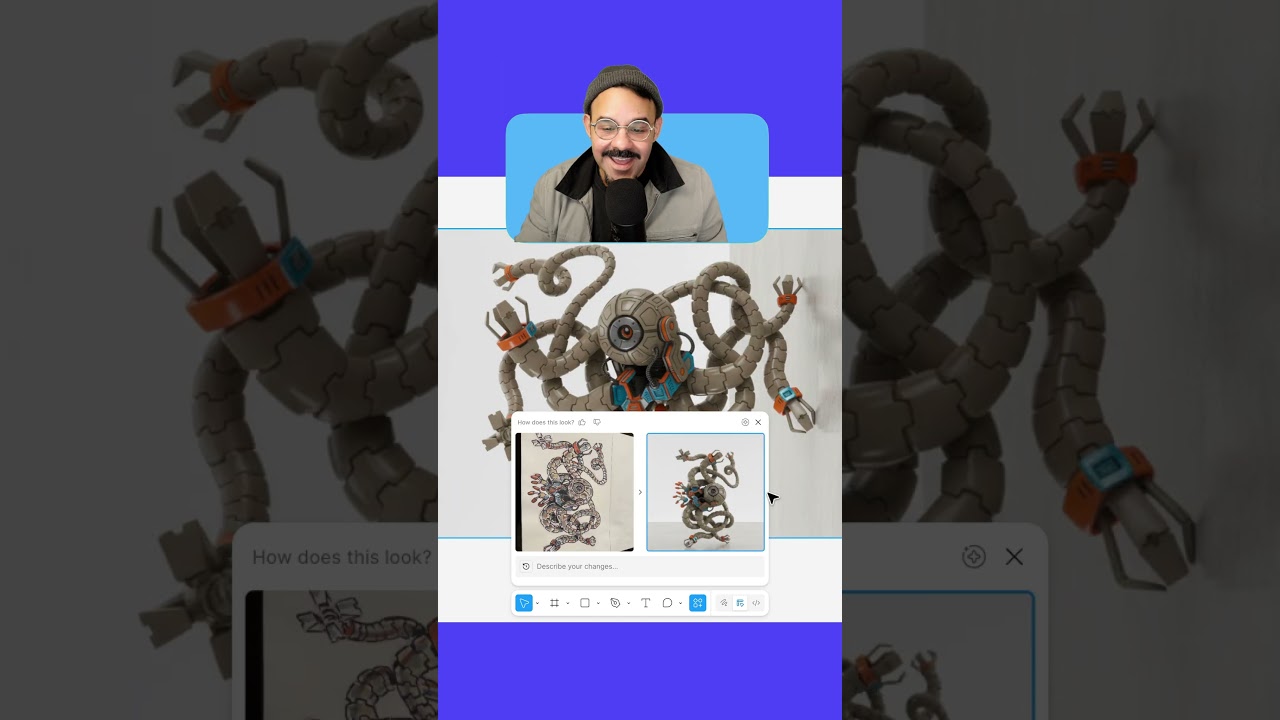
expands what we could do with image editing and AI in Figma. So let's say if I was looking at,, this knolled,, image, so K-N-O-L-L-E-D. That's... Knolling is when you take a bunch of objects and you put them onto the desk and you take that vertical photo. I feel like millennials are, are very much into, to knolling., Fun fact, it actually comes from the,, company Knoll that, like, manufactures, such products. So what we're gonna do here is when I select that image, I'm gonna look down here and I'm gonna see these options. So I have that crop option. Here we got select area, and this is what we're gonna use. When I click on that, we see a little lasso tool with our cursor. This lasso tool is gonna allow me to,, select a given area in this image, and it's gonna ask me what do I want to do now. So we have these two options. I can either erase it or I can isolate it. Let's click isolate. Now, what that's gonna do, it's gonna take that object and it's gonna make it as its own layer, so then that way we can adjust and move that object. So there we go. Now we have our object, and I can move it around as I want. We can see that it's its own fill layer, and I can just move it down and over here, right? I can make it a little bit bigger. You know, so what that can do is give you a lot of control for those compositions and those images, right? You just need to make that little tweak, you know, and you don't want to open up another application to do it. You just need to, to do that really quick, so that select area. Let's, let's go through another one here. So this is actually a pen sketch that I did. I took a photo of it with my iPhone, and let's say I wanna extract and isolate that, like, you know, sad little robot. I mean, I think he's happy. He's like, "Let's go," right? So let's go ahead. Let's select my, my robot here. Woo. There we go. Do, do, do, do, do. All right. So I'm gonna select the robot, and we're gonna isolate see how it treats this. You could tell that this is one of my favorite features, um, because it does give me the ability to kind of like I could take a photo of one of my ideas, I could bring it into Figma, and, like, if I need to extract it, I wanna put it into another composition or a slide,, this is gonna give me the ability to do so pretty easily. So here we go. It's selecting. It's doing the thing. Hey, Jess, how you doing? It's good to see you. All right. So- There we go. I've selected it, and now when I drag this off to the right, not only did it isolate it, but I got my, my illustration as its own little, as its own little layer, right? That's pretty good. Uh, and look, the, the napkin is intact. I mean, save for a few exclamation points. But, um, I think it did a pretty good job, and now I can kind of use this in other space. Imagine if I took a more heads-on photo, I think that would be a lot better. All right. So now we're kind of getting into this area of, like, image editing, right? So we've used Make Image, but now what we wanna do is we wanna edit an image.
Edit Image
We wanna use an existing image as a reference point for generating something new. So with Edit Image,, so somebody asked, "Which plan do I need for this features? " So for these features you could either... It's Pro and up, but,, it's also available on EDU. So if you're a student, if you're an educator, when you verify your education plan, create an, a, a team and you can get that. So Edit Image,, we could do a similar thing. So this is, this is an illustration,, that I made in Figma, right? So I'm gonna hit Command+Y. You could see that this is a, a vector illustration,, that I, I've made, right, in Figma, and I wanna make this into a plastic toy, right? So,, what I can do is I'm actually gonna select this whole image or this whole object. I'm gonna right-click, and I'm gonna choose Copy Paste as PNG. So what that's gonna do, it's gonna look at the vector graphic that I have on my canvas, and it's gonna save it into my clipboard,, like, you know, like I'm copying it,, as a, a PNG graphic, right? So Copy as PNG., And once it's copied as PNG, I can open up this little thing down right here, and,, I can actually use Make an Image. Yeah, I could use Make an Image here., But let's, let's focus on Edit Image. So with Edit Image you can actually... Ooh, I already have a spoiler alert. All right. So here we go. I, I pasted it. Now you'll see if I hit Command+Y, it's just an image. Come over here, it's an image fill., And so what I could do is I can come over here and I could say Edit with prompt, right? So I'll do that one more time. When I select it,, I can do Edit with prompt. And so what I'm gonna do is, you could see some of the options here, Remove Shadows, Adjust Lighting, Add Object. I'm gonna say, "Make this design into a plastic toy., Put it in a-" Minimal space,, with a simple,, background,, let's say 3D plastic toy., And yeah, let's, let's edit the image and let's see what it does. So it's gonna take a look at the illustration, composition, and it's going to approximate what that object may look like in real life given my prompt. There we go. Look, I have a new little,, plastic toy, so I'm gonna accept that, and that looks pretty great. And let's say if I wanna take this further, when I select it, I can choose remove background. So it placed it into that minimal space. Let's say I just wanna keep it with that background, and there we go. I think it did a pretty good job with my, my illustration. I actually like to do this where I take some of my drawings, I bring it into, into Figma on the canvas, and I like to render it out. But look at the way that it handled some of even the coloring, the way that I've applied this, this gradient there. You know, we've just done that live. And even here, this is making use of our,, texture effect in Figma. So this texture effect,, over here makes this really cool kind of shader style effect on that shape, right? So it even honored that texture effect,, and made it come to life. I think that that's amazing. All right. So,, let's make the background a city. So once again, we're back with me sitting in my, standing in my room., You know, put the person,, or let's just say change the background to a city background at night with a lot of neon signs., Yeah, let's try this out. So I'm gonna edit image and let's see what it does. Ooh, Alex says, "Send him on a vacation. " I agree, I should go on a vacation. That would be great. Manifesting this for my next Make edit image. All right. There we go. So there I am on the,... in the lights. Now, it didn't do such a great job with some of the words, but,, what is that? Bagumes?, But you can see what's possible,, with edit image, so if you need to change something. Um, so, like, let's say you need to make a mockup, right? Let's get into more of these,, examples that are really gonna support our workflows. So right here I have a design,, and I'm gonna use Make Image for this one. I'll show you a really fun way to use Make Image. So I have my design here. I'm gonna right click on my design. I'm gonna copy/paste as PNG. PNG, I copied it as PNG. Uh, let's head down here and I'm gonna say Make an image, and I'm gonna hit paste And when I paste, it pastes that PNG, it pastes a rasterized version, a flat inversion of that image into this dialogue. I can also upload an image as well. So you can attach images as references from your desktop. So it's gonna use the one that I pasted here, and what we're gonna do is say, you know, um, I'm actually just gonna save y'all the time. I'm gonna say, "Mock this up into an iPhone 16 and put it in a hand with a blurred out city background. " And I don't think I've even tried this one yet, so let, let's see what it does. So it's mocking it up into an iPhone 16 and putting in a hand with a blurred out city background. There we go. Look at that. That actually looks pretty good. So if you're out there, you're working on your portfolio, and,, you know, you need a nice mockup for that portfolio, I- I'm, I'm impressed that it has the right amount of fingers. You know? I mean, that, that's a good thing. So,, what I would recommend is, like, maybe put it on a desk, put it in a, like a stagnant space., You know, you could put it at an angle, but if you're looking for those mockups, this is gonna be one classy way to do that. So,, this is another example. We're actually working on,, like, a new identity system here at Figma for education, and so let's say this T-shirt, I wanna see it as a real T-shirt. I'm gonna select this, I'm gonna choose edit with prompt, and I'm gonna say, "Make this a, a realistic,, T-shirt,, design, and have this,", let's just... I- I'm making this up as I go along. Let's say, "On a,, hanger,, in a boutique,, clothing store. " There we go. So, you know, we, we have a design. We, we made the Figma, the graphics in Figma. We approximated kind of, like, a T-shirt, so we're giving it that context. That context is really important. And look at that. We got our design now onto a T-shirt. Now, if you wanna make further edits, you can kind of restyle this. So change this to be,, in the style of a nightclub,, and I can do that. So once again, you know, this is using other models, but having it in the context of your Figma canvas where all of your other work is being done,, just makes it that much easier. So now we have it in a nightclub. We got the blue, we got the, the fuchsia., I'm sold. I want that design. And look, it even kind of matches the colors. I think that did, that, that did absolutely great All right, so vectorize. I know some of y'all, I think I saw some chatter about SVG in the chat, and
Vectorize
you were wondering, all right, well, what if I want to make SVG graphics? SVG stands for Scalable Vector Graphics, for those of you who didn't know., This is actually the wrong prompt, but I'll show you exactly how to do that. This is a photo of some,, illustrated flowers that my partner did, yesterday, as a matter of fact. So what we're gonna do here is,, we're gonna use a number of processes to kind of get it to maybe where we want. So let's say I'm gonna select an area, right? Like, select, you know, this,, this little piece here. Uh, let's isolate it. You know, so I'm gonna isolate that. Do, do, do, do, do. So after it's done isolating it,, then what we could do is we could take and we can vectorize it., So I know this one took a little bit longer. This is actually a pretty large image., So here you can actually see I have kind of three steps if you're following along in the file. So I have the flowers here., Let's see. It's still doing its thing. I'm gonna let it do its thing. Some of the other operations are a bit faster. This one, though, you gotta see there's a lot of texture in there that it's trying to kind of work through. There we go. So I've isolated it, and now that I've isolated this, I can vectorize this. So when I click, I can choose Vectorize. You'll notice that the vectorize option shows up under the More button down here. So when I vectorize that, what it's gonna do, it's gonna take a look at the, the, the black line work, and it's gonna do its best to bring it down to color. So there we go. So I could choose, you know, to make it black and white., I could even choose the level of fidelity or colors. You could see that we made this one fairly simple here. But when I accept that and it's done and I hit Command-Y, I can actually see the vector line art there. So what that means is if I were to press the K key, K key allows you to scale. Pulls up these scale tools. So I could just scale this. Oh, it's inside the frame. Let's bring it outside the frame. I'm gonna bring it outside the frame. That's all we really need. And I can scale this as large as I want, you know. I can,, you know, have two of these. I can make one, one red, you know., So now I have, like, vector artwork that I can,, export out as SVG., Let's flip this. Shift-V., Oop, not V. Shift-H, you know., And I can start to make another composition with the vector line work., So yeah, we, we can edit the line. So what it's done here, it's actually generated these as fills. So another thing that you might do here is when I'm,, in, I can actually..., i'll show you really quick. So if I select a bunch of lines- And,, let's go with the lasso tool. I think I might have to be in Figma Draw. If I go to Figma Draw, right, now I'm in Figma Draw mode, and when and I lasso the artwork... Where is my Simplify? Hmm, let me see. They're moving stuff around on me. Where's More? Where's Simplify? I know it's here. Do, do. Oh, there's Simplify. I missed it. It was right under my, my nose the entire time. So when I click here, I come and I choose Simplify, and Simplify will let me further simplify that graphic. So what that's gonna let me do is just kind of like reduce the amount of points,, and then now that I have, like, reduced points, yes, I can absolutely then go in and begin to shape this out. If I wanna delete that point, I press Shift+Delete,, and you can see that there. So you can then go in and apply much more advanced cleanup,, for that work. So mind you, this is a, you know, when I'm in there, I select that point. This is non-AI cleanup, so this is doing it the old-fashioned way., If I Command+Click on that, I can kind of bring that curve out. But it's gonna allow you to easily do that, so you're gonna have a lot of control as you do a lot of that cleanup work., So even here you can see I actually vectorized a whole bunch of these, so I could actually scale these up and kind of bring them out and,, begin to,, apply some of that work. And, you know, personally, I like it when it has some of, like, the subtle little touches there, but it gives me a lot to work with. So even here I can kind of bring these up and make them part of the composition and flip with Shift+H., And it's a lot of fun. And if I hit Command+Y, you could see that they are, in fact, vector graphics that can be scaled, they can be colored and adjusted in any number of ways. So let's say I accidentally rasterized my, my octopus graphic, right? So you could see that this is, this is an image, right? This is not vector at all., And so I wanted to show you, like, if I had, like, a more flattened graphic that I also wanted to vectorize, I needed to reclaim it because I, I screwed up and I flattened it out. If I go to Vectorize, I wanna show you- How good some of these paths really do come out when it's working with maybe more refined marker work or,, you know, like another graphic or that you need to reclaim. So here I could actually reduce the amount of colors. So I could choose fewer colors, more colors., I'm gonna leave it at 32, and you'll notice here with the selection colors, it kinda tells you what are the colors you're working with., And the great thing about selection colors is I could come in here and I can just replace it, right? I can replace all the blue with, like, that purple, right? I can come over here, those oranges, I could replace those oranges, you know, with that blue or, you know, with a, a darker color, and you could see that there. And, and once again, it's like take a look at th- these vector shapes. This was vectorized, right?, This is vectorized from that flat end raster graphic, and I think it's actually, when it's got, like, you know, simpler,, objects to work with, I think it does a fantastic job. So,, just wanted to highlight there that vectorize option. It's a bop. It's, it's a lot of fun. Oh, that's hilarious, Joanna. There's me on a vacation. Thank you. So Joanna's in the file with me and letting me know that I am on vacation. All right, cool. Um, so now it's about 2:35. We are gonna cover some additional features. So, um, is there a way to select similar things like colors? Oh, yeah. Yeah, yeah., Absolutely, fantastic question. So,, let's say here, right,, if I select this container, this is a, a container. Here's selection colors. If I want to select all of the colors right there, I could select the 32 objects that use that color, and it will move just those 32 objects that have that color, right? So I can, I can target it, and I can then bring it out., If I wanted to select everything on the canvas with that color, I can select it. We're gonna press that ch-, that handy Command K and type in select all, and you're gonna notice a bunch of options here., Select all with same properties, so it has, like, the same kind of like,, like-, like effects or, you know, there's a lot of different properties that are same, like same font, whatever. But you could select all with same fill. stroke. You could select all with same effect. So if you have all these objects on your entire canvas that have the same drop shadow, when you select all with same effect, will select all of those objects. Select all text layers,, so this will let you,, find and select all of those objects at the same time. Um, so you could see other objects as well, select all with same text properties, with same font, with same instance or same variant. So when you select an object that has some of those other properties, you can even, uh, find those all. So yeah, that's a, that's a good call-out. Thank you for that question. I think that was a great,, point to make right there. So, um, next up, let's talk content tools.
Content tools / Rewrite & shorten
We've been highlighting right now a lot of the, many of the image tools and image manipulation that could be done on Canvas and Figma,, and I'd be happy to start to show you some of the content tools. So rewrite this and shorten. So let's say here I am working in, like with a card, right? I'm gonna, I'm gonna duplicate that card. So here I'm gonna hold down the Option key. I'm gonna click, and then I'm gonna drag,, over, and I have a duplicate of the card. Now I need to,, maybe change up the content of this card, right? So first off, I could come here and,, let's just say, you know,, make this into an,, a slice of chocolate cake, uh, with the same composition on a red background., So one, yeah, I could use edit image right here, and that's gonna,, apply that in the context of our UI card that we have., But let's say I may want to rewrite the content. So boom, there we go. We got, we got our chocolate cake, same style. And so now let's rewrite this text. So I'm gonna select this card, right? Whole card. I'm gonna come over here, and I'm gonna say rewrite this, rewrite this., And we're gonna rewrite this to say, "This should be about chocolate cake. " And re- rewrite. So it's gonna take a look at the context. It understands the header. It understands the body text. It understands that maybe we have a different person down here, Ava Collins, and a sweet slice champion,, with 4. 7 out of 5 stars, right? So- When you structure your card,, it's gonna start to take some of that context, and it can effectively,, rewrite it. So,, rewriting is gonna be great. Now, let's say I wanna shorten this text, right? I can select that, Command-K. I could type in shorten., So we'll see the shorten option., And it's basically gonna take a look at that. It's gonna summarize, bring it down a little bit smaller. So if you need to, you know, you have text that's, like, too, too long,, now you have that shortened. It makes that a lot easier. So duplicate and replace content.
Duplicate and replace
This is gonna be similar, but it's different in many ways. This makes use of auto layout, and I'll show you how to construct this. But in essence, if I take a look at this layout, right? Right now,, you see chicken, tofu, cucumber, beet, and pineapple. In Figma, it will understand when you're working with a list of content. So in this case, we have these titles, we have these numbers, the little menu items, and they're currently arranged as an auto layout frame. So if I go back to Figma Design and I look over here, I can see auto layout is enabled, and it's a downward list, and it recognizes all of those items. Now, when it does, you'll notice this little handlebar that shows up at the bottom. What that does is it allows you to now duplicate with new content. So as I drag this out one by one... Actually, I should drag out more. Let's, let's do a lot more. Let's, let's go here. I'm gonna have fun with this, and we're just gonna keep dragging. There we go. Pineapple, chicken, tofu, cucumber. And I think it screwed something up here because this last pineapple was, was off a little bit, but it's still doing a pretty good job, and I'm gonna show you how that works. So if we were to take this lemon cake and,, this card, and I duplicate it, and so that way we have two of them, I'm gonna select both of those cards. I'm gonna press Shift-A. So when I've done, pressed Shift-A, it's put them inside of an auto layout frame. We could see that auto layout frame right here, frame fort- one four three oh one five eight zero zero. And we're, we got a solution for that too, coming in just a minute. But now that both of these are in here, you're gonna see this little magic handlebar show up. So then as I begin to drag this down,, it's duplicating them- However, it's not replacing them until I actually replace content, right? So there you go. I've, I've just done a bunch, and now let's replace that content. It's recognized that list, and so we got lemon cake, we got chocolate mousse, we got red velvet cake reviewed by James Carter. We got tiramisu. We got pavlova. We got cheesecake. We got apple pie, and we got black forest cake. So once again, the way to kind of trigger this,, let's say I have, like, a, a title, right? So, so somebody asked a question, no more variants. It's not so much a variant as it would be that these would be instances with just different content created. So I could have an instance that has this, this text,, and then we would just be changing that instance. So here, if I was to,... Let's make, like, another list of things. So I did this in the example,, the promotion for this,, where I have, let's say I have, like, letter A. I'm gonna press the K key. Let's scale that up a little bit. I'm gonna press Shift-A to put it into, like, a, a little container here. I'm gonna apply a fill background. Let's just make that, like, red. Let's make that text white, and let's round out those corners a little bit. I'm gonna drag this out to the right just so it's, it's filled., Or it's not filled, it's fixed. And,, let's take this text here, center and center, right? So this is our, our letter A. And once again, I mentioned we, we have a solution for these naming structures as well. And,, I'm gonna take this text and I'm gonna put in here, uh, let's say alligator. And, uh, I'm gonna left align that. And,, I'm gonna select those two together and press Shift-A. It's another auto layout object., And here, let's apply some padding., So we're gonna pad the outside, let's say 32. Do, do. 32. And let's go all the way around. So if you Command-click or Control-click, you can just type in padding for all sides. There you go, 32. And let's give that a background color of, you know, like, there you go. Like, let's just go, like, a little, like, a little full off gray. There you go. And then some rounded corners there. Okay. So we, we have our, our little alligator. So the first thing I'm gonna do is I'm gonna take a look at these, these layers. They're not named particularly well. So once again, we can come down here, and I'm gonna say rename layers., That's gonna be another AI feature that we have. So it's basically gonna say, ooh, container, icon letter, and title. It just renamed our layers for us. That's amazing. So we're gonna do this., So let's apply a B for- Butterfly., And now we have these two. So now that we have those two,, and let's make sure... Okay, yeah, that's gonna grow with it. So I'm gonna select those two. I'm gonna put them into their own auto layout container. So this is our, our list, right? So this is our list., And then we'll see a little bar. And so now as I drag this down,, it's going to, you know, just find different animals, and it's gonna replace it. It, like, it's gonna understand that, that content in that context. Yeah, I appreciate you, Natasha. I'm glad you like this., So yeah. So and you'll see, too, because we're using auto layout, all those sizes are effectively getting pulled. Now, I- I'll show you a fun little back batch action,, that isn't AI. So let's say I wanted them all to be the same width, right? So I could take this list and I could extend it, and you see some of those are set to fill, but some of them aren't., If I select that parent container and I just press enter, it selects all the children. And so if I press shift enter, it goes back to the parent. So when I press enter, it selects those children, and we can set that with two fill container and they're now all filled. I'll show you that one more time. So,, notice they're all kind of mismatching here. I wanna select all of the children. So I select the parent, press enter. They're all selected in there. And,, yeah, all I need to do is say fill container. So someone said, "Would this work as components? " Yes. So let's do this with components really quick. So let's say our list here, this is our container., I'm gonna make that as a component., And,, so let's move the main component out. So once again, here's the main component, and I'll call this,, animal. Here's our main animal component., Here's our list. So the list is there. So if I select the component inside and press Command D, so now we have two. And I'm just gonna set this up with B for,... I'll do butterfly again. Why not? And so now these are instances, and it will work. It actually works better with instances, I would say. All right.
Translate
So translate., Let's say for many reasons you wanna translate,, like, a layout. So, um, you know, you wanna see how this might perform In a layout,, with like German,, we support a number of different languages. So I can come to my cake card and press Command K, and I could say translate to, and there it is, translate to. And we have a number of different options here. Let's go to German, so this will then let you... Anybody speak German in the audience that can properly translate that? So I could take this and,, same thing here,, I can hit Command K and say translate to,, and I can do Spanish, and I can choose between Latin America or Spain Spanish. Pastel de limon. El pastel de limon es un deli- delicioso postre conocido por su sabor brillante y ácido y su textura jugosa., It's a weird word to say. Okay, so,, you could see that you can easily apply that, and you could take that to sort of any kind of top layer,, and apply. So if I have something like this, I can test out my, my layout with,, translate to,, and just kinda take that into French. And so it's gonna take it the whole... look at the whole thing and kind of barrel down. It's gonna find all of those layers,, and do its best to give you a sense of that layout in the,, additional text. So if y'all didn't know about that, this is gonna save you a ton of time. Like, it's awesome. And as I mentioned, rename layers. So if you're like working on a design,, here's my cake card., And by the way, I don't know if y'all knew this, if you double-click on an icon, right? So if I double-click cake card here, it's gonna like take me right to that. So,, if you're, you're looking for stuff on the canvas and you see it here on the layers, when you,, double-click on the layers, it'll take you right to that thing., Nothing like working with like good software that, you know, really supports
Rename layers
you know, a, a good user experience. Okay, so,, rename layers. I'm gonna take a look at my cake card right here. And so my cake card... Where is my cake card? Oh yeah, if I wanna collapse all my layers, Command+K, collapse layers, and it collapses all my layers. There we go. So there's my cake card. I'm gonna open that up. Now I have a rectangle one. I got a frame 2608834, name and additional frames that are intelligible, unintelligible., I could select that layer and Command+K and rename layers. And so it's gonna,, basically take a look at that, and you could see them update in real time. We animate them for you folks so you know that it's doing the thing., So it had to be designed in there, otherwise it would just be instant. Cake card, product image, product details, name, description container, description text, reviewer container, recipe, icon, name, and rating container all the way down. So previously, this was a soup of unnamed layers and frames, and with rename layers, it is now human readable. It, it has context that will support you in,, further building this out, right? It allows you to review it, go through, name it, and,, we, we will then have happy designers. So we're rounding off the last 10 minutes. I'm gonna highlight just a few other things that you have in
Figma Slides: Presenter Notes and tone
Figma as well as an education user. So Figma Slides and FigJam. So in Figma Slides, you can automate presenter notes and as well as adjust tone. So if I was to head on over to Figma Slides and,, I was to have some content here, I could show my presenter notes., What I could do is let me actually write a paragraph here. I'm gonna hit Command+K,, rewrite this. I'm gonna say, "Write a paragraph, a paragraph about the noble lion. " There we go. I'm gonna rewrite that., There we go. "The noble lion, often called the king of the jungle, is a symbol of strength and courage. " Okay, so we've done that, and so now- I want to draft some presenter notes. Here we go. Today we'll explore the noble lion, often referred to as the king of the jungle. This majestic creature symbolizes strength and courage, commanding respect in the animal kingdom. Lions are known for their powerful roar and impressive mane, which contribute to their regal presence. They live in pride, showcasing a unique social structure that sets them apart from other big cats. Now, if I want to reword this, let's say I wanna adjust the tone of this text, I can select it, come over here to the right, and this allows me to adjust tone. This little toolbar lets me make it more concise, more casual, maybe concise and professional, maybe professional and expanded. Let's try concise and casual. So it's gonna take a look at that text and then rewrite it. So now with concise and casual text, the lion known as the king of the jungle stands for strength and courage. With its mane and roar, it earns respect. Lions live in prides, can help keep their ecosystem balanced., So makes your life a little bit easier, so you can also pick to rewrite it as executive, technical, basic, or educational., So once again, a lot of the other AI tools are gonna be in here that are available. So one thing I haven't talked about is boost resolution. So, like, let's say if you're working with an image that's a little bit lower quality and you wanna spice it up a little bit. I'm not the biggest fan of boost resolution. I'm a bit of an image purist, but, you know, it- sometimes in a pinch it's gonna save your butt., So many of these other options are here, but the ones that I did wanna highlight specifically for slides are that it can assist you in creating, like, a first draft of your notes. It can assist you in maybe, like, taking a look at a version of your text that can be adjusted. I would always highly recommend that, you know, you write it, like, you know, take something like this as, like, a starting point, and then craft for yourself that truly reflects your own style., Let's take a look too at FigJam, summarize stickies and image tools., If I head on over to FigJam here,, I can...
FigJam Summarize other image editing
i have a bunch of stickies. So I can select those stickies, and over here when I click on this, I could sort stickies by,, all of these are non-AI sorting, by the way, so color, author, stamp count, stamp type. But if I wanna sort them by topic,, it'll actually create a little section for me and begin to say, oh, here's ice cream flavor concepts., Here's food storytelling and, and cultural it, and it left some of the other ones out. Oh, okay, these, these are all- Yeah, so those are all ice cream flavor concepts. Let me hit undo., And the other thing that you will notice here is that as you're kind of working a little bit more, you can create a Figma slides outline from your stickies,, and you can also take things or prototype into Figma Make, which I'll talk about in just a moment., But the thing that I did wanna highlight is that for images, you know,, one of the things that I know people really, really wanted,, was just for the option... I'm just gonna grab... Let's find an image here. There we go. I'm just gonna grab this image When I'm in FigJam and I have an image, you have the image editing suite here as well. So all of those image editing tools that we were in Figma for, you can do here. So if I apply remove background because I just want these tulips to kind of exist on their own on this slide,, or I'm building up a, like, you know, a workshop file to, you know, with, with students or we're kind of collaging and working together, you know, it'll, it'll do that for you. The one caveat that I will give you is that if you apply an image border, the image border is gonna, like, kind of co-op that background. So if you've applied a remove background and you're like, "Wait, why do I still see the background? " You click right here, it'll remove that image border., So all of the other image editing tools apply., The last thing that I'll cover here before we get to question and answers is,, a lot of you are probably interested in Figma Make and/or using Figma MCP server.
MCP and Annotations
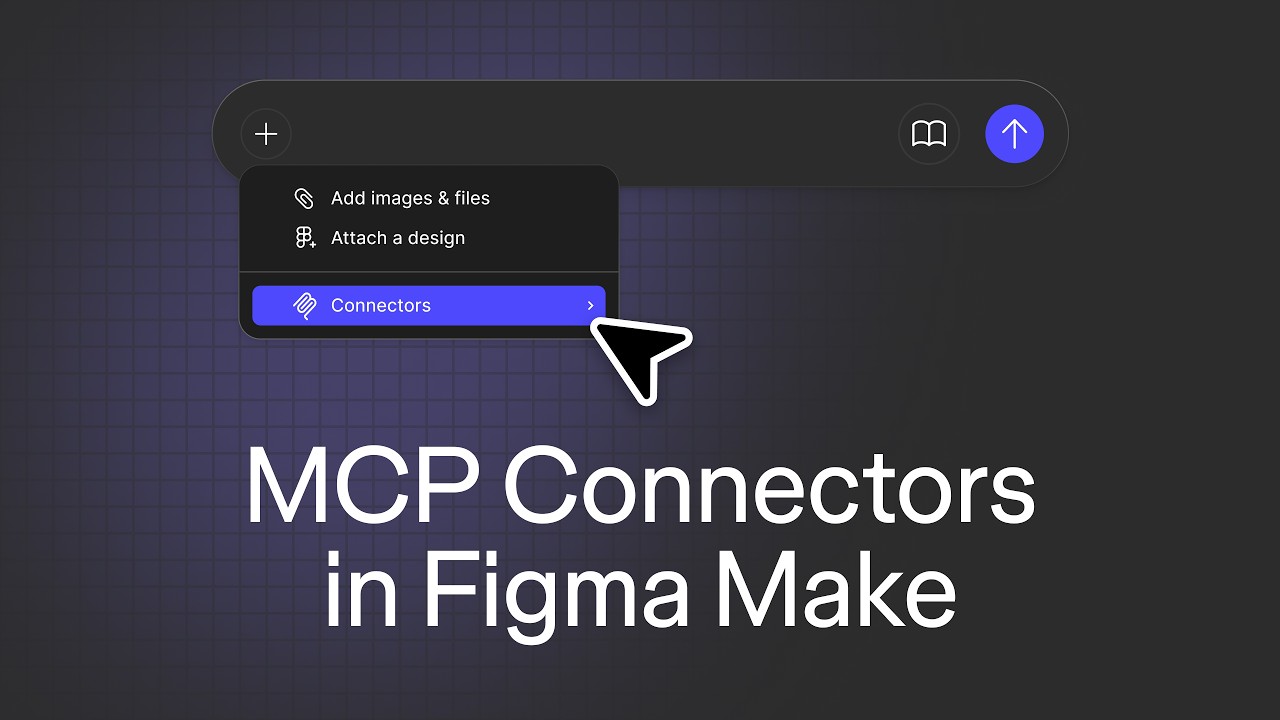
So when you're in Figma, one of the best things that you can do when working on your designs,, so before handing off a link to a frame to, let's say, Codex or Claude Code or,, VS Code to take a design and, and code it up,, I recommend adding in annotations., Even taking something into Figma Make, right? So annotations tool is down here. It's the letter Y., When you click on an object, you can create your own categories,, and write in your own text., I've been using this a lot. I've actually been,, using,, like an AI coding tool to,, generate a desktop app to support my team internally, and as I'm designing it, I'm using these context to provide all the interactions. So it might have been in the past you, you prototyped everything in Figma, but now you can kind of create those screens, add in that context. That information gets brought into your prompts. So especially if you're working with students, it helps demonstrate the intentionality of your design. It helps them articulate what it is that they're working on if they're then gonna take this into, like, another tool that's gonna translate,, the stuff that you have on Canvas into code. So just wanted to highlight annotations there. You could find them down here, the annotation tool., To hide it, it's gonna be shift Y. Shift Y will show and hide those annotations. And then another fun one, we highlighted this last month, is just kind of working with the, like, measurement tools,, to kind of provide, like, additional context. So you can actually customize your measurements where I could say, you know, like, you know, full width, and these measurement tools just also just provide, like, more insight into the intentionality of the designs that you're working on. You know, we're in a new world where we're building things in, in new and different ways, and so much that's important is the context, is the human intent, and the Figma canvas provides that. All right, so thank you. Let's... Oh, when should you use comments for annotations?, Comments are for other people. Like, you might leave a comment for someone to make a change or an edit. An annotation would be actual context that you can feed,, for the building of a thing. So, like, let's say you wanna leave a note for a developer that's persistent. A comment can be,, removed, so you might leave a comment. And so if I press C, I could click and draw and say, you know, "I- is this good? " So I could say, "Ah, Joanna, you know, uh, is this good? " You know? And, and that comment, she could then,, once it's done, you know, it could be marked as resolved,, and it goes away. Also, fun fact, you can leave images in comments. So if I was to paste an image in there,, I'm just gonna say, "This is cake. This is cake. ", You know. And if you click on that, you could actually paste up to five images at a time in comments and kind of view them, so if you wanna, like, give people that. So comments are a conversation., Annotations are specifically for building., If you head on over to dev mode,, so when you're in dev mode and you're looking at how something is structured and built,, those annotations also remain there as well. So annotations get sent along with the design when you send to Figma Make. So,, here, if I was back in,, design mode, in design mode, I right click and I wanna send this, like I wanna, like, vibe code it in Figma Make, I could just click Send to Figma Make, and it sends that frame, but it also sends all that context so it better understands how to translate your design into a coded prototype. All right, let's take a look at some questions. Thank you so much for y'all for, for being here today. Really appreciate you for spending the time, and hopefully you learned something.
Q + A
All right, "Is there a way when translating Spanish to give instructions, say, formal instead of informal? ", I would just say you can rewrite this to be more formal instead of formal. So,, use that rewrite function and you can get a, a different output for that., So that kinda works the same way as that tone dial does in s- the,, Figma Slides tool. "I missed the making of a component button section. Can you show it again? " Sure. So,, I'll walk you through that really quick. The component button- It was just a matter of having what you wanted. So I pressed,, let's say here,, I typed in the letter A, right? Let's make it bigger. I'm gonna press the K key to just save me some time. K key is a scale tool. Let's,, remove that. What I did was I pressed Shift+A, and that wraps that letter A inside of a frame,, an auto layout frame. I extended that a little bit, and so it kind of has its own width. Now, that text, I censor it both vertically and horizontally, and that frame right there, I gave it a background color, right? So let's... There we go. And I select that text. I made it white. So then I use the same text here. I'm gonna Option drag it over. Let's make it black. And,, I'm gonna say, "A is for advocate," and that's what I am. And if I did that, that's fine. I can just extend this out. And let's remove that W and move this down. Let's left align that text. And if I double-click on this text field, it should shorten it. So when I select both of these together and I press Shift+A, that's gonna put it inside of another auto layout frame., When I come over here, press Command and click on the padding. I can apply a little bit more padding to the outside. With that frame selected, I can give it a background fill, and I can also round out the corner radii. So,, let's use rename layers, Command+K, rename layers. It'll go through. It'll rename those layers. So Container Icon, boom. And now let's make this into a component. With this selected, here's the option up over here, right, Create Component. The command is,, what is that? Option+Command+K. So Option+Command+K will make this into a component. Now, any copy of that is now an instance. So if I change the color of that component, the instance updates. So if I were to change this text to medium, this instance updates. But the instance can have an override. So if I were to change the text like I will here, where I'm gonna duplicate this down, and I'm gonna change this to beat and this to butterfly, butterflu, butterfly. I select them both. I press Shift+A, and now it recognizes that they're in an auto layout list, giving me the ability to,, kind of create more of these, right? And, and same thing here, where if I need to adjust how this all works, I can expand my list. I could press Enter. It selects all the children. And here I can tell the resizing of this to be a little bit different. I would highly recommend wa- rewatching my video from last week where I covered auto layout and grid, but now I can fill that container, and now we have that perfect list of objects So,, can we replace the auto-generated text with our own preset content,, when using auto duplicate feature? So there are plugins that allow you to kind of like fill in,, content., I will have to double check to see if we could do something natively where you're like using an Excel sheet or something. I don't know if we right now like allow for that, but I know a lot of people will use like plugins and endpoints to kind of funnel content into Figma. So the answer to that is, is maybe,, but maybe it requires a little bit more setup., And then how do you create an annotation? An annotation on anything that you have,, if you come down here, if you look under comments, you'll see annotations. So the shortcut key for that is Y. So when I press Y and I tap here, it'll create an annotation. So the annotation has categories, so right now development, interaction, accessibility, and content. I can add additional categories. So I can say,, explanation, you know. And, and then so now I could set my explanation category, and I could say this is a red square. Now, other things you can do with annotations, you can add properties. So it'll add in the height and the width and the fill,, so then this way I can easily surface, you know, information about that object right here. So if you have a bunch of things on canvas and you wanna like highlight their properties without having someone dig in to figure that out, you can use an annotation to highlight that. So that is all we have for today. Thank you so much, Joanna. Thank you so much for everybody for joining in on this live stream