How to Pay Bills in QuickBooks Online
2:53

How to Pay Bills in QuickBooks Online

Accounting Stuff 30.04.2026 1 092 просмотров 31 лайков

Machine-readable: Markdown · JSON API · Site index

Поделиться Telegram VK Бот
Транскрипт Скачать .md
Анализ с AI
Описание видео
👉 Try QuickBooks Bill Pay (50% off for 3 months): https://www.tkqlhce.com/click-100524860-17265350 👉 Get QuickBooks Online (50% off for 3 months): https://geni.us/quickbooksonlineusa Now that we’ve seen what we owe, let me show you how to pay a bill in QuickBooks Online. There are three ways to do this: ▪ Bank Transfer ▪ Physical Check ▪ QuickBooks Bill Pay (most efficient) 🔴Subscribe for more Accounting Tutorials → https://geni.us/subtothechannel 🔗VIDEO LINKS ▪ How to Set Up Payroll in QuickBooks Online → https://youtu.be/mAfKnzJ8vac ▪ Which QuickBooks Online Plan Should You Buy → https://youtu.be/V1Y2vZz4lsk ▪ How to use QuickBooks Online → https://youtu.be/w3agU6-zc_M 🔎FAQ ▪ My Favourite Accounting Book for Beginners → http://geni.us/5mKR7m 🔝 CLOUD ACCOUNTING SOFTWARE ▪ QuickBooks Online USA (Free Trial / Discount) → https://geni.us/quickbooksonlineusa ▪ QuickBooks Online Canada (Free Trial / Discount) → https://geni.us/quickbooksonlinecanada ▪ XERO (Free Trial / Discount) → https://xero5440.partnerlinks.io/08mfchsgfw8z 🚶FOLLOW ME ON ▪ Instagram → https://www.instagram.com/accountingstuff ▪ TikTok → https://www.tiktok.com/@accounting_stuff ▪ Facebook → https://www.facebook.com/accountingstuff 🎬LEARN ACCOUNTING BASICS FOR FREE ▪ The Full Playlist → https://www.youtube.com/playlist?list=PL5zKSeS09l339nB6ujJPQ9Rsv99_b-aTb ________________________ DISCLAIMER Some of the links above are affiliate links, where I earn a small commission if you click on the link and purchase an item. You are not obligated to do so, but it does help fund these videos in hopes of bringing value to you! ________________________ #quickbooks #quickbooksonline #billpay
Оглавление (1 сегментов)

Segment 1 (00:00 - 02:00)

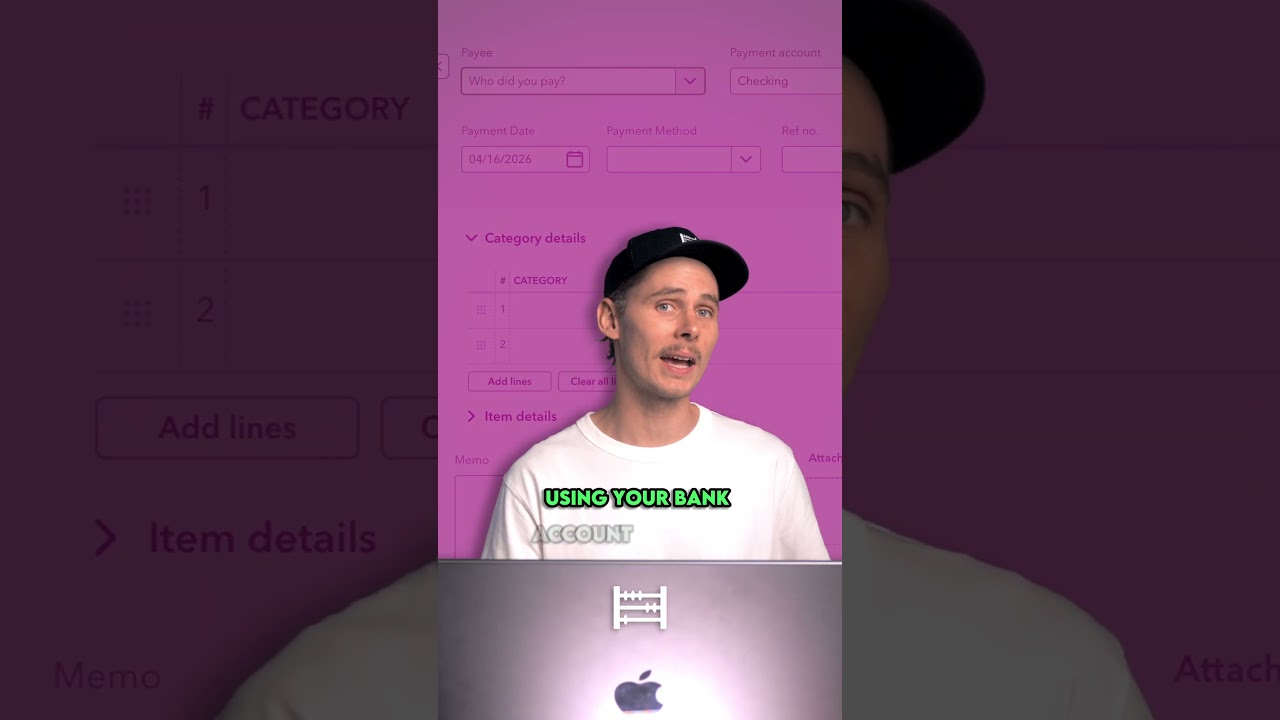
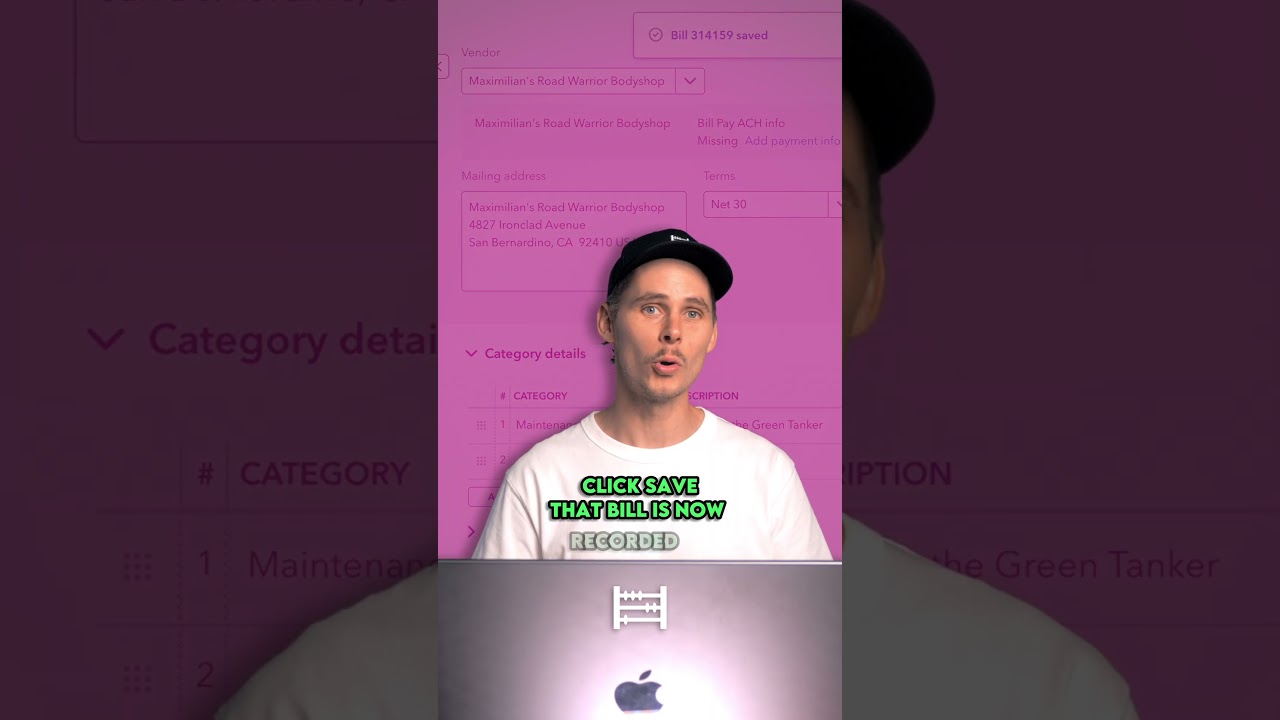
How do you pay bills in QuickBooks online? Now that we've seen what we owe, let's go ahead and pay a bill. I'll show you three ways: a bank transfer, a physical check, and a more efficient way using QuickBooks Bill Pay. First, the manual bank transfer. Head over to expenses and bills, then click on bills. Here's a bill for Maximilian's Road Warrior Body Shop for $755, and it's due tomorrow. To do the bank transfer, you log into your bank account and set up the payment manually using the vendor's routing and account numbers. Once you've done that, jump back into QuickBooks, click the drop-down on the right, and select mark as paid. You choose the bank account that you sent the payment from at the top, then save and close. This tells QuickBooks that the bill has been paid. Alternatively, you can create a check in QuickBooks online. To do that, head up to create, then click on check under vendors. At the top, enter the payee's name, and QuickBooks will automatically show any outstanding bills for that vendor on the right-hand side. From here, add the bill, and QuickBooks will populate the payment details for you. Then, choose the bank account you're paying from, set the payment date, and add a check number for future reference. If you're paying by physical check, you can click print check at the bottom to print it onto check paper. Then, save and close. Now, here's the more efficient way to do this using QuickBooks Bill Pay. Instead of paying bills manually and marking them as paid afterwards, you can schedule the payment directly inside QuickBooks online. From the bills screen, select the bill that you want to pay, then click schedule payment. You'll be taken to the schedule bill payment screen. Start by selecting the bank account you want to pay from, then choose how you'd like to pay, either by ACH bank transfer or check. Make sure your supplier's details are complete, then choose the withdrawal date. You can schedule it as early as possible or closer to the due date. This gives you more control over your cash flow. Once you're happy, click continue. You'll then see a summary screen where you can review everything before clicking schedule payment. And that's it. QuickBooks takes care of the rest. Once the payment clears your bank, QuickBooks Bill Pay will automatically match the transaction for you. So, there's no need to do it manually during the bank reconciliation. That said, it's always worth giving it a quick check. If you want to try out QuickBooks online or use QuickBooks Bill Pay, I've left links for both in the description below.

Другие видео автора — Accounting Stuff

Ctrl+V

Экстракт Знаний в Telegram

Экстракты и дистилляты из лучших YouTube-каналов — сразу после публикации.

Подписаться

Дайджест Экстрактов

Лучшие методички за неделю — каждый понедельник