How to Add & Pay Bills in QuickBooks Online
8:06

How to Add & Pay Bills in QuickBooks Online

Accounting Stuff 27.04.2026 1 006 просмотров 39 лайков

Machine-readable: Markdown · JSON API · Site index

Поделиться Telegram VK Бот
Транскрипт Скачать .md
Анализ с AI
Описание видео
Get 50% off QuickBooks Bill Pay for 3 months 👉 https://geni.us/quickbooksbillpay In this video, I’ll show you how to enter, track and pay bills in QuickBooks Online. You’ll learn the difference between bills and expenses, how to enter a bill correctly, track what you owe using Accounts Payable, and pay bills using multiple methods: ▪ Bank transfer ▪ Check ▪ QuickBooks Bill Pay Whether you’re new to QuickBooks Online or want to improve how you manage your expenses, this tutorial walks you through the entire process from recording a bill to marking it as paid. By the end, you’ll know how to keep your records accurate, stay on top of due dates and avoid mistakes that can throw off your reports. 🔴Subscribe for more Accounting Tutorials → https://geni.us/subtothechannel ⏱️TIMESTAMPS 00:00 - Intro 00:24 - Bills vs Expenses in QuickBooks Online 01:44 - How to Enter a Bill in QuickBooks Online 03:41 - How to Check Accounts Payable in QuickBooks Online 04:30 - How to Pay Bills in QuickBooks Online 🔗VIDEO LINKS ▪ How to Set Up Payroll in QuickBooks Online → https://youtu.be/mAfKnzJ8vac ▪ Which QuickBooks Online Plan Should You Buy → https://youtu.be/V1Y2vZz4lsk ▪ How to use QuickBooks Online → https://youtu.be/w3agU6-zc_M 🔎FAQ ▪ My Favourite Accounting Book for Beginners → http://geni.us/5mKR7m 🔝 CLOUD ACCOUNTING SOFTWARE ▪ QuickBooks Online USA (Free Trial / Discount) → https://geni.us/quickbooksonlineusa ▪ QuickBooks Online Canada (Free Trial / Discount) → https://geni.us/quickbooksonlinecanada ▪ XERO (Free Trial / Discount) → https://xero5440.partnerlinks.io/08mfchsgfw8z 🚶FOLLOW ME ON ▪ Instagram → https://www.instagram.com/accountingstuff ▪ TikTok → https://www.tiktok.com/@accounting_stuff ▪ Facebook → https://www.facebook.com/accountingstuff 🎬LEARN ACCOUNTING BASICS FOR FREE ▪ The Full Playlist → https://www.youtube.com/playlist?list=PL5zKSeS09l339nB6ujJPQ9Rsv99_b-aTb ________________________ DISCLAIMER Some of the links above are affiliate links, where I earn a small commission if you click on the link and purchase an item. You are not obligated to do so, but it does help fund these videos in hopes of bringing value to you! ________________________ #quickbooks #quickbooksonline #billpay

Оглавление (5 сегментов)

Intro

If you're not sure when to use a bill versus an expense in QuickBooks Online, you could be messing up your reports without even realizing it. So, let's fix that. Hi, I'm James. You're watching Accounting Stuff, and in this video, I'll show you how to enter, track, and pay bills the right way in QuickBooks Online. I know you're busy, so let's get straight into it.

Bills vs Expenses in QuickBooks Online

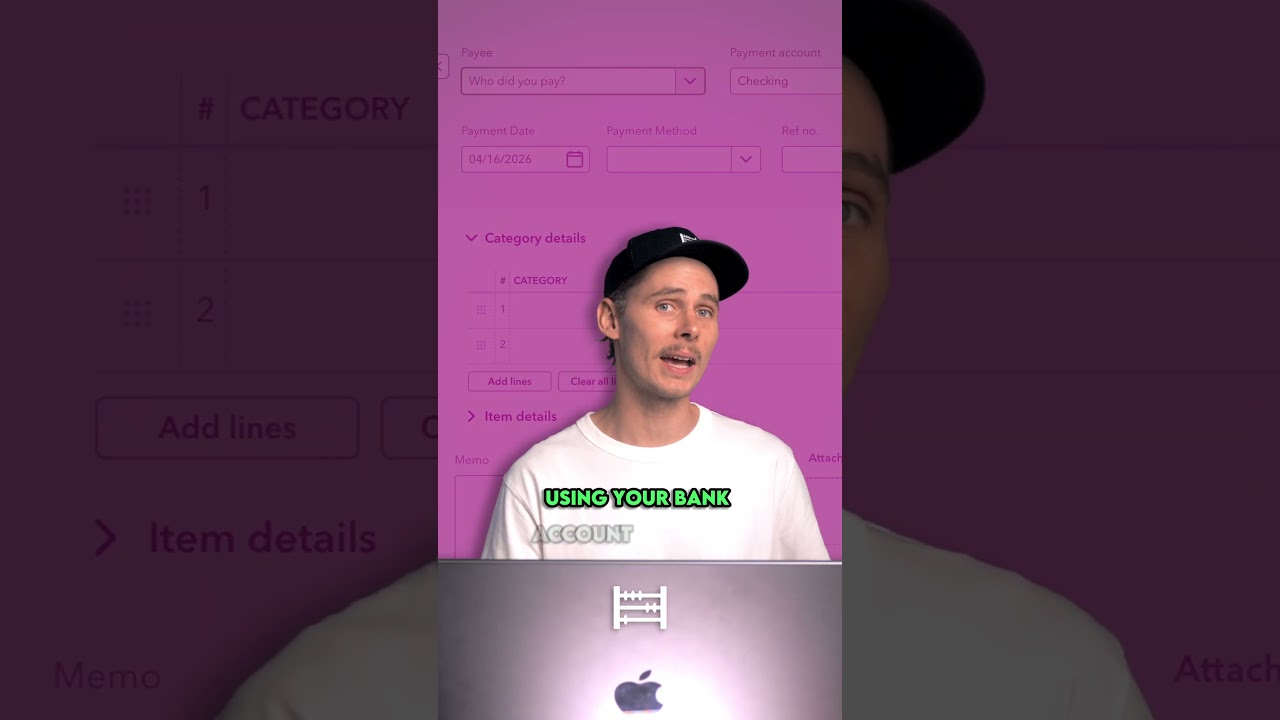
What's the difference between a bill and an expense in QuickBooks Online, and when should you use each one? Here's the QuickBooks Online dashboard with the brand new interface. If we hover over the create button, then under vendors, you'll find two ways to record costs, expenses and bills. So, which one should you use? It all comes down to one simple question. Have you paid for it yet? If you've already paid, you record it as an expense. Maybe you bought something and paid for it straight away using your bank account or credit card. At the top, you tell QuickBooks who you paid and which account the payment went out from. But, if you've received an invoice and haven't paid it yet, that's when you use a bill. Here, instead of choosing a payment account, you select a vendor and then add the payment terms, the bill date, and the due date. This lets you track what you owe and pay it later. Now, here's why this matters. When you record a bill, QuickBooks tracks it in accounts payable, so you can run reports to show exactly who you owe and when it's due. We'll take a closer look at that in a minute, but if you record everything as expenses, you lose that visibility and your numbers can become misleading. How do you enter a bill in

How to Enter a Bill in QuickBooks Online

QuickBooks Online? I'll show you two ways, the manual method and the quicker way using QuickBooks Bill Pay. Let's say you just received this bill from Maximilian's Road Warrior Body Shop. It's for repairs, totals to $1,500, and it's due in 30 days. Let's enter it into QuickBooks Online using the manual method. Head over to the create button, then select bill under vendors. At the top, you enter the vendor's name and address, then the payment terms, net 30, followed by the bill date, due date, and invoice number. Below that, we'll enter and categorize the bill. In this case, we'll code it to repairs and maintenance, and then add a description and the amount. You'll also notice a few extra options here. If this expense should be passed onto a customer, check billable and assign the customer. You can also apply tax if your supplier has charged sales tax on the bill. It's good practice to attach the supporting document here to back up the transaction. Once everything looks right, click save. That bill is now recorded in QuickBooks and sits in accounts payable until you're ready to pay it. Now, there is a quicker way to do this using QuickBooks Bill Pay. Instead of typing everything in, you can upload the bill directly into QuickBooks Online. Just drag and drop a PDF here or upload a photo of the invoice, and QuickBooks will automatically extract the information for you. All you need to do is review the details, make changes if required, and click save. Pretty cool, right? If you're in the US, this feature is included with the Bill Pay Basic plan, so you can use it at no extra cost.

How to Check Accounts Payable in QuickBooks Online

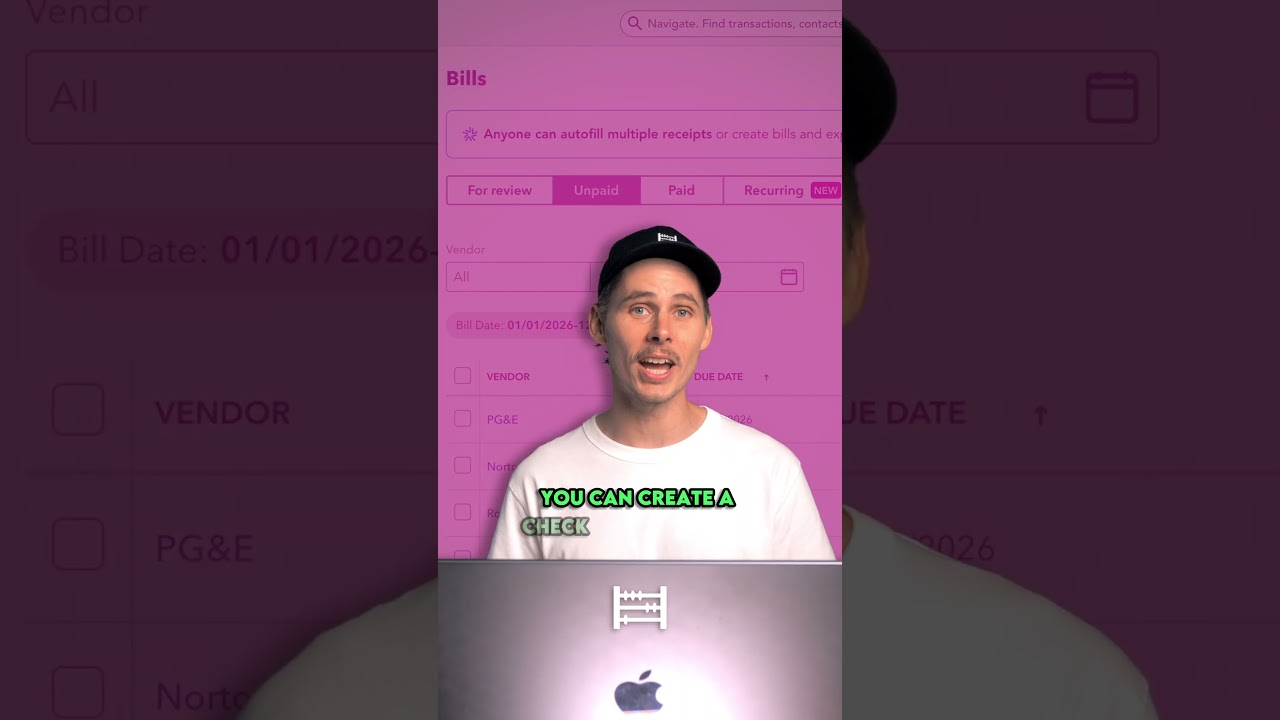
How do you check accounts payable in QuickBooks Online? Now that we've entered the bill, how do you actually see what you owe? The easiest way is to head over to expenses and bills, then click on bills. Here, you'll see a list of all your unpaid bills, showing who you owe, how much you owe, and when each bill is due. For more detailed breakdown, head on over to reports, then under standard reports, look for what you owe, and select the accounts payable aging summary. This report groups your unpaid bills by due date, so you can quickly see what's current and what's overdue. This is your accounts payable. It's a complete breakdown of all the bills you haven't paid yet.

How to Pay Bills in QuickBooks Online

How do you pay bills in QuickBooks Online? Now that we've seen what we owe, let's go ahead and pay a bill. I'll show you three ways, a bank transfer, a physical check, and a more efficient way using a QuickBooks Bill Pay. First, the manual bank transfer. Head over to expenses and bills, then click on bills. Here's [snorts] a bill from Maximilian's Road Warrior Body Shop for $755, and it's due tomorrow. To do the bank transfer, you log into your bank account and set up the payment manually using the vendor's routing and account numbers. Once you've done that, jump back into QuickBooks, click the drop-down on the right, and select mark as paid. You choose the bank account that you sent the payment from at the top, then save and close. This tells QuickBooks that the bill has been paid, which removes it from accounts payable and updates your records. Alternatively, you can create a check in QuickBooks Online. To do that, head up to create, then click on check under vendors. At the top, enter the payee's name, and QuickBooks will automatically show any outstanding bills for that vendor on the right-hand side. From here, add the bill, and QuickBooks will populate the payment details for you. Then, choose the bank account you're paying from, set the payment date, and add a check number for future reference. If you're paying by physical check, you can click print check at the bottom to print it onto check paper. And FYI, you can also see an order checks option here, so you can buy compatible check paper that lines up correctly when printing. Then, save and close. QuickBooks records the payment straight away, even though the check might not have been cashed yet, and that bill is also removed from accounts payable. Now, here's the more efficient way to do this using QuickBooks Bill Pay. Instead of paying bills manually and marking them as paid afterwards, you can schedule the payment directly inside QuickBooks Online. From the bills screen, select the bill that you want to pay, then click schedule payment. Because I'm using the QuickBooks Online demo company, I can't run a real payment here, but this is what happens next. You'll be taken to the schedule bill payment screen. Start by selecting the bank account you want to pay from, then choose how you'd like to pay, either by ACH bank transfer or check. Make sure your supplier's details are complete, then choose the withdrawal date. You can schedule it as early as possible or closer to the due date. This gives you more control over your cash flow. Once you're happy, click continue. You'll then see a summary screen where you can review everything before clicking schedule payment, and that's it. QuickBooks takes care of the rest. Once the payment clears your bank, QuickBooks Bill Pay will automatically match the transaction for you, so there's no need to do it manually during the bank reconciliation. That said, it's always worth giving it a quick check, and that's how you pay bills in QuickBooks Online. If you want to try out QuickBooks Online or use QuickBooks Bill Pay, I've left links for both in the description below. And if you want the full walk-through, you can check out my complete guide to QuickBooks Online right here, and I'll see you there.

Другие видео автора — Accounting Stuff

Ctrl+V

Экстракт Знаний в Telegram

Экстракты и дистилляты из лучших YouTube-каналов — сразу после публикации.

Подписаться

Дайджест Экстрактов

Лучшие методички за неделю — каждый понедельник