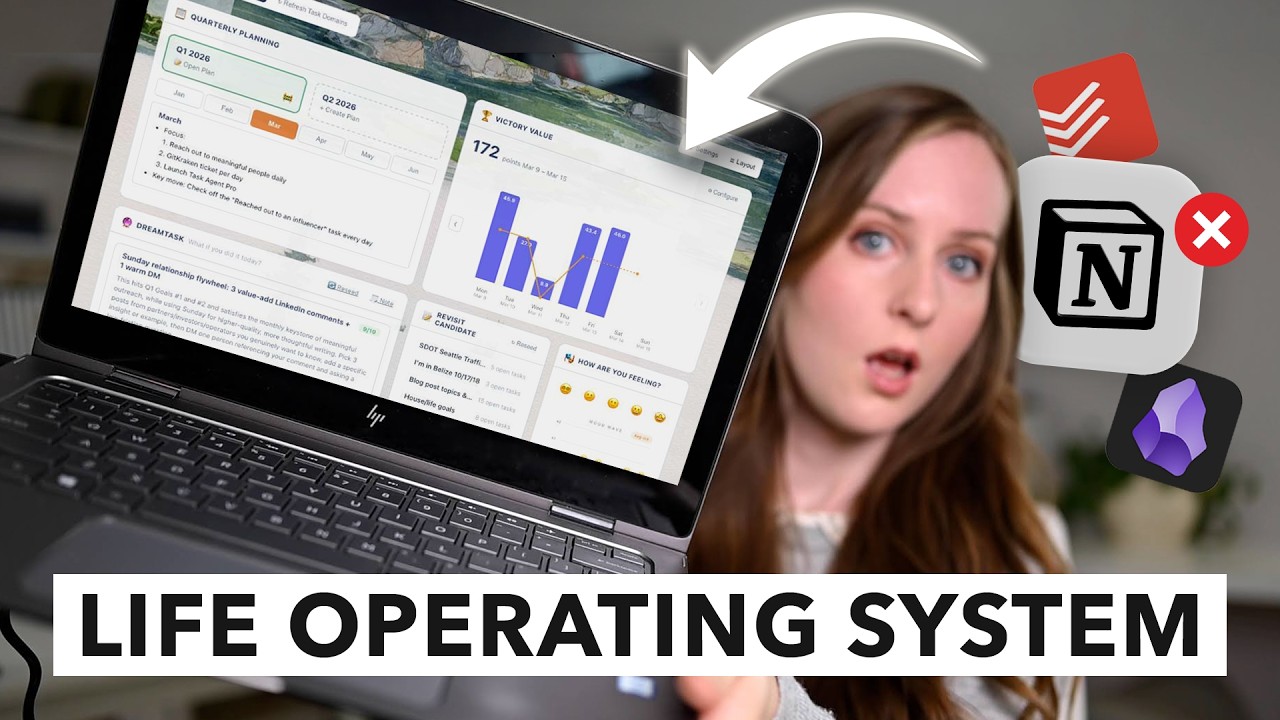
The Best 2026 Notes and Tasks App I've EVER Tried (replaces Notion, Obsidian, ToDoist, and more!)
16:43

The Best 2026 Notes and Tasks App I've EVER Tried (replaces Notion, Obsidian, ToDoist, and more!)

Gillian Perkins 16.04.2026 4 538 просмотров 120 лайков

Machine-readable: Markdown · JSON API · Site index

Поделиться Telegram VK Бот
Транскрипт Скачать .md
Анализ с AI
Описание видео
Give Amplenote a try for yourself (it's free!) 👉 https://www.amplenote.com/download_platform?utm_source=gillian&utm_medium=youtube&utm_campaign=gillian-1 Stop "plate spinning" and start mastering your schedule with this all-in-one life operating system! In this video, I share how I manage my busy life—running a business, homeschooling my six kids, and launching new projects like an Etsy shop—using a powerful, free productivity tool called Amplenote. After struggling with scattered notebooks and a cluttered digital system, I found a way to integrate my notes, tasks, and calendar into one seamless workflow. Whether you want to perform a full migration from apps like Notion or Evernote or just want to start fresh with a daily planning habit, I'll show you how to get started without feeling overwhelmed. Don't forget to like and subscribe for more videos on digital entrepreneurship and productivity! Timestamps: 00:00 - Introduction: Balancing a busy lifestyle and the need for a better organization system. 02:40 - Introducing Amplenote: Overview of the all-in-one planning app. 04:02 - Overcoming the Migration Hurdle: Moving from notebooks and other apps without overwhelm. 06:43 - "Jots" as a daily scratch pad for brainstorming. 08:00 - Real-Life Example: Demonstrating task creation, scheduling, and note conversion. 10:17 - Organizing with Tags: Filtering tasks and notes by project ideas. 11:35 - Key Feature: Recurring Tasks for intermittent or daily habits. 12:27 - Key Feature: Integrating to-do lists directly into the calendar. 13:14 - Key Feature: Rich Footnotes for attaching files and images to tasks. 14:19 - Final Advice: Starting fresh versus using built-in importers for Notion or Evernote. 🔹 Want to see exactly how my most profitable funnels work? Watch me break down one of my $100K sales funnel here: https://gillianperkins.com/bts 🔹 Get my Small Business 101 course for FREE: https://gillianperkins.com/free-training-small-business-101/ // WHAT TO WATCH NEXT - what to focus on in the FIRST WEEK of starting an online business: https://youtu.be/O8wIhknoQpk - 5 Practical Steps to Start Your First Business (as a Stay-at-Home-Mom): https://youtu.be/gvGLoRQUQe8 - Why I'm RADICALLY Changing My Business Model for 2025 (and maybe you should to...): https://youtu.be/SySD3KaMJ7E // LINKS Learn more about Gillian and find resources to build your online business: https://www.gillianperkins.com Follow Gillian on Instagram to get a BTS look at what it's like to be a digital entrepreneur: https://www.instagram.com/gillianzperkins/ // FILMING EQUIPMENT Main camera: https://amzn.to/3rhibrl Clip-on lav mic: https://amzn.to/46DwN4n Tripod: https://amzn.to/2w7sIJ6 Main light: https://amzn.to/3HHHhFX Other lights: https://amzn.to/2OKhzEv RBG light strip: https://amzn.to/3WmuPiR NOTE: This description may contain affiliate links to products we enjoy using ourselves. Should you choose to use these links, this channel may earn affiliate commissions at no additional cost to you. We appreciate your support!
Оглавление (10 сегментов)

Introduction: Balancing a busy lifestyle and the need for a better organization system.

So, I kind of did a thing. I already have a lot on my plate. You guys know that. I run a business, I have a YouTube channel, a podcast, I have six kids who I home school, I make all our food from scratch, I do jujitsu and lift weights and try to spend some time outside, you know, so many things. But, recently I decided to try something new and I started an Etsy shop. And I also started a couple of hobby YouTube channels. So, I'm busier than ever before, but I am having a lot of fun. So, so don't be too worried because really it's pretty manageable. But, managing it itself actually was being pretty tricky. Even though it was fun, I was not quite sure how to get all these different things done, how to keep all those plates spinning without dropping any of them. Especially because the current system, the at that point in time when I started those new things, the old system was I have quite a few notebooks around my house where I write down different types of things in different notebooks. And then of course I use like the notes app on my phone. And then I'm also like texting myself reminders and stuff. Now, for my business, I've got things very well handled. I use Asana, I love it, it works super well for my business, highly recommend. But, it seems like I can only manage the one main thing in Asana. And that if I try to add other things in, which I've done in the past, it starts to get cluttered and it kind of distracts me from the important business tasks that I need to get done. So, these days I keep Asana totally focused on my business. But, that left my personal life a little bit of a mess. Now, I wasn't too flaky because I do use Google Calendar to put appointments down that are at specific times, but as far as getting the tasks done, finishing the projects, and yeah, just keeping all those plates spinning, I didn't have a really good system. So, a few weeks ago I got introduced to a new app that purports to be like a life operating system. An all-in-one planning app that you can put all of your projects in and it's not just like to-do lists, but you can actually attach files and you can integrate it with Google Calendar. And so it can take the place of potentially several different apps that you're using. Maybe you're using some sort of project management tool like ClickUp or Asana. Also you're using Google Calendar and maybe you're also writing stuff down in notebooks like I was and I still love writing. I love that analog feel, but it's mostly good for processing information, I think, not necessarily great for getting things done. So, anyway, this new app that I've been testing out and has been working pretty

Introducing Amplenote: Overview of the all-in-one planning app.

well for me is called AmpleNote and it looks like this right here. So, let me first give you a super big picture and then tell you a little bit about how it's been helping me. So, big picture, there are these notes and you can start a new note whenever you want, of course, and this is a tiny bit like Evernote. But, inside of the notes you can put tasks. And these notes are very modular. You can be typing along some information and then you can switch gears and start inserting tasks. So, you can be creating these really holistic sort of plans. And actually all of the tasks are going to be inside of notes like this, which then you can scroll through, you can add tags to keep them sorted and keep them organized, but you can also click over here to get into the tasks list and just see all of the tasks that you have. And here also you can sort them. You can sort them based off of those tags and based off of due dates and different things like that. And then like I said, it also integrates with your calendar. And on the calendar you can see appointments that you have at specific times, but you can also see tasks that you put on your calendar and you can actually block time off on your calendar. So, this is a really cool time blocking system as well. Now, before we get into AmpleNote any more deeply, let me tell you about one of my biggest

Overcoming the Migration Hurdle: Moving from notebooks and other apps without overwhelm.

concerns I had when I thought about possibly switching to AmpleNote or even trying to use a system like that. And the thing that prevented me from even trying it for the first couple months after I heard about it. And that was the migration process. You know, how do I migrate my notebooks or the notes app on my phone or I thought also maybe I had to migrate away from Google Calendar over to a different system. That is so much information. There are so many balls I have in the air. How could I do that? Well, what ended up getting me over the hump and getting me into the system was actually to not try to migrate anything, but just to jump into the new system and start doing my daily planning in there. Start creating my daily to-dos. This helped me get my feet wet and start using the tool out and learning how it worked. But, also it really helped when I realized I could just integrate Google Calendar, so I didn't have to really migrate away from that system. I could see all the appointments in AmpleNote and so it served that all-in-one planning app purpose, but I could continue to input the appointments into Google Calendar. And that's something that I really like about this is I'm not having to double enter anything. Before using AmpleNote, I had a lot of redundant project planning, but that is slowly getting eliminated. Now, the other thing that has happened since I started using AmpleNote is that when I find that I need to reference a note that I have in some other system, whether that is on paper or it is in the notes app on my phone, well, then I can pretty easily just copy and paste over to AmpleNote. Now, they do also have a migration feature in AmpleNote, but so far I haven't actually needed to use it because everything that I've tried to copy and paste has worked so well that was actually just quicker and easier. And it's serving as this kind of digital declutter because I'm not taking all of my old stuff, records over from all of those other apps. But, instead I'm just taking the notes, the to-do lists, and the records that I actually need and I'm referencing. Now, of course, I'm not talking here about digital files. I still have all of those important personal files tucked away in Google Drive and I'm definitely not talking about business files or records. Those also are in Google Drive or else I have hard copies of them. So, I'm just talking here about all these notes that I have in all these different systems. And it has been really helpful to be able to put them together into this one life operating system. Now, one feature that is really unique about AmpleNote and that has solved a big problem for me is called Jots. And this is actually the

"Jots" as a daily scratch pad for brainstorming.

first thing you see when you log into your AmpleNote account. And Jots are actually the same as notes, except it is a note that is created for you every single day. So, if I scroll down you can see these daily Jots from previous dates. So, every day this new Jot gets created and you can just use it as like your scratchpad. But, what's cool is that whenever there's part of it that you want to save to be able to reference later on, you can just save it as a note with a title and with whatever tags are relevant to that note so that you can find it really easily. And also as you are scribbling and making your plans and writing things out, you can of course be adding these to-do items, these tasks. And those, they're not going to just disappear when you move on to the next day, they will still be showing up here in the tasks pane. And also, if you have tasks left over from previous Jots that you haven't done yet, there's this little thing that pops up that asks you if you want to add them to today's Jot so that they can be top of mind. Now, before we go any further, I should probably tell you that AmpleNote is totally free. So, this isn't a pitch on a paid product or anything like that. I've just been really enjoying AmpleNote and I wanted to share it with you. So, let me just give you a little like real

Real-Life Example: Demonstrating task creation, scheduling, and note conversion.

life example of how I use AmpleNote. So, these are just a few random things I've thought of today that I need to do or want to do. Um and one more here would be tidy sewing table because there's a big pile on my sewing table that needs to be cleaned up. Okay, so then for each of these things there's several different places I can take them. So, one of the simplest ones would be I can just immediately schedule it on my calendar. So, maybe for example, I want to start working on this dress this weekend. So, now it has that due date. And if I was to pop over to the calendar and look at that day, you can see like now it's on that day. Now, if it conflicts with other things, I can grab it and I can just drag it to a new place on my calendar to have that block of time to work on that project. Okay, now another thing that I could do is you see here tidy sewing table. So, I just added that to do to my to-do list here. It's just part of my daily Jot. It doesn't have a due date yet. So, when I come over to the calendar, here it is. Just hanging out in this like to-do list task pane. Well, I can grab that and let's say I want to work on that the following Saturday. So, let's jump ahead a week here. And when do I have a block of time? Well, this early afternoon is open, so I could grab this and I could drag that on here and maybe that's just going to take an hour. Okay, now let's go back to the daily Jots. I have this one kind of crazy task, which is an idea I had for a book. And it kind of makes sense as a task, but there's a lot more I need to obviously write to plan it and whatnot. So, I'm going to convert it into a note so I can continue to plan it. So, I'm just going to push this little button right here to extract to a note and I'm going to call it um book why life is boring. Okay, so now I have this new note and now a few things have happened. First of all, that text has immediately gotten into my note, so that's great. So, I can click on it here and I can actually like see the note right here or I can go into my notes and I can find this note that I made about this book. And of course, I can start to flesh this out here, you know, with bullet points or to-do's, or I can add a tag, which is maybe like ideas. Um or I could call it project ideas. And so that way, whenever I want to pull up all of my project ideas, which now I'll probably go through my notes and tag a

Organizing with Tags: Filtering tasks and notes by project ideas.

few more of them as project ideas. But anytime I want, I can just like click on this tag and see all of the notes that have that tag. And then also, if this note ends up having some to-do's, so for example, let's say I need to draft chapter one. So then from here, I can either come over into the tasks pane, and I can filter the tasks just to see the tasks for that specific project or that note. But also, down here in the tags section, I can click on that specific tag, and in this case, you know, nothing changed, but that is now showing me just all of the tasks that have that tag. And I also could look over into any other tags that I have and see the to-do's for that one. And then finally, if I came over into calendar, then I would see that to-do on my task pane here, not scheduled on the calendar yet, and I could decide, you know, what day in the future that I want to do this task, and I could just drag it onto that day. If you are going to try AmpleNote out, here are a few features that I've been really finding helpful that I think you should definitely take for a spin. So the first one is recurring tasks. So if there's something that you need to do repeatedly, rather than putting it on your to-do list over and over again, which is something I was definitely doing when I was planning on paper, where I every day I was making a new

Key Feature: Recurring Tasks for intermittent or daily habits.

to-do list and just repeating that same work over and over again, you can use these recurring tasks in AmpleNote to make the task repeat either every day or on certain days of the week. Or, this is really helpful for a lot of things, a certain number of days after you've checked it off. So this is helpful for things that you do kind of incrementally, or you don't always successfully do. But what works better than setting the task to repeat every other day, which might end up being different than the days you actually do it on, you can set it up to repeat two days after you complete it every time. Now, another feature that I really like is how you can get the tasks to show up on your calendar, because this brings together two things that previously were not integrated for me at all. I had my to-do list, and I had my calendar. And I had to somehow make those things jive

Key Feature: Integrating to-do lists directly into the calendar.

even though they were kind of in two different worlds. And I even see this reflected on a lot of paper planners. I don't know if you've ever used a paper planner like this, or if you use paper planners, but a lot of the time they have a schedule portion, and then they separately have a to-do list. And if there's not a better option, then you need both of those things. But when you're using AmpleNote, you can make your to-do list, and then those things can automatically show up on your calendar, and you can set aside blocks of time to work on each of your tasks, so that you don't get to the end of the day and realize that some of your most important tasks you never found time to do. Okay, and then there's one more feature that I think you should know about, and that is called rich footnotes. Now, this is cool because it definitely sets AmpleNote apart from most to-do list type of apps. So

Key Feature: Rich Footnotes for attaching files and images to tasks.

basically, how this works is you can attach files and images directly into your notes and attach them even to your tasks. It's kind of like you're creating footnotes like you see on Wikipedia, where you can create this little clickable link that can take you to the resource that you need to be able to do that task. And this has been very helpful for me with managing the new Etsy shop and the new YouTube channels, because both of those things have a lot of visual elements. With the Etsy shop, I have these shirt designs that I've been creating, and when I'm working on publishing a new listing on the Etsy shop, I needed to be able to have that image at hand, so that I can easily attach it to that new listing. And then of course, with YouTube, we have the thumbnails, but it's also really helpful that I can write the video descriptions right in AmpleNote, and that can actually be attached to those tasks. Now, I know that it might feel overwhelming to switch to a new app, especially one that can potentially replace so many other apps. And the reason that I know that is because I

Final Advice: Starting fresh versus using built-in importers for Notion or Evernote.

felt very overwhelmed by this. Like I said, it took me a couple months to actually even just get started with it. But as soon as I finally did get started, I was able to use it more and slowly replace other systems that I was using. And now, this is the tool that I'm using to make my grocery lists every time I go to the grocery store. It's the tool that's helping me to manage my Etsy shop and actually get the tasks done that I need to be able to grow that business. It's the tool that's helping me to make sure I get my workouts in, and it's also just the place where I can do those brain dumps and start doing that messy middle sort of planning that often turns into creating some next step tasks for myself. This is different than writing in a diary. I still like to do that with pen and paper, although I know some people certainly use tools like AmpleNote to do their journaling. I like pen and paper for that. But for those brain dumps, for the daily planning, for managing all my personal to-do's, AmpleNote has been awesome, so that's why I wanted to share with you guys today. Now, like I said before, AmpleNote is totally free, so I will put the link down below where you can go and try it out for yourself. And if you do give it a try, one little tip, you can either do it like I did, not import anything, just start dipping your toes in and start using it and then bring over anything that you find that you need. Or, you can do a migration process, and you can use AmpleNote's importers to port over your data from Notion, from Evernote, or Obsidian, or several other planning tools that their migration tool supports. So if you've been feeling a little scattered lately, or you just have too much on your plate, and the idea of an all-in-one planning app sounds helpful to you, even if it also sounds a little scary, I would really recommend that you give AmpleNote a try, because I think you might really like it. All right, well that is everything for today's video. If you enjoyed learning about this new tool, then please give it a thumbs up to let me know. And if you're new here, be sure to subscribe for new videos every month. I generally talk about digital entrepreneurship and how to make money online. And then sometimes I talk about productivity like I talked about today. Now, after you take care of clicking those two buttons, then you can click right here to watch this video about how you can prioritize when you have too many to-do's and everything feels urgent and important.

Другие видео автора — Gillian Perkins

Ctrl+V

Экстракт Знаний в Telegram

Экстракты и дистилляты из лучших YouTube-каналов — сразу после публикации.

Подписаться

Дайджест Экстрактов

Лучшие методички за неделю — каждый понедельник