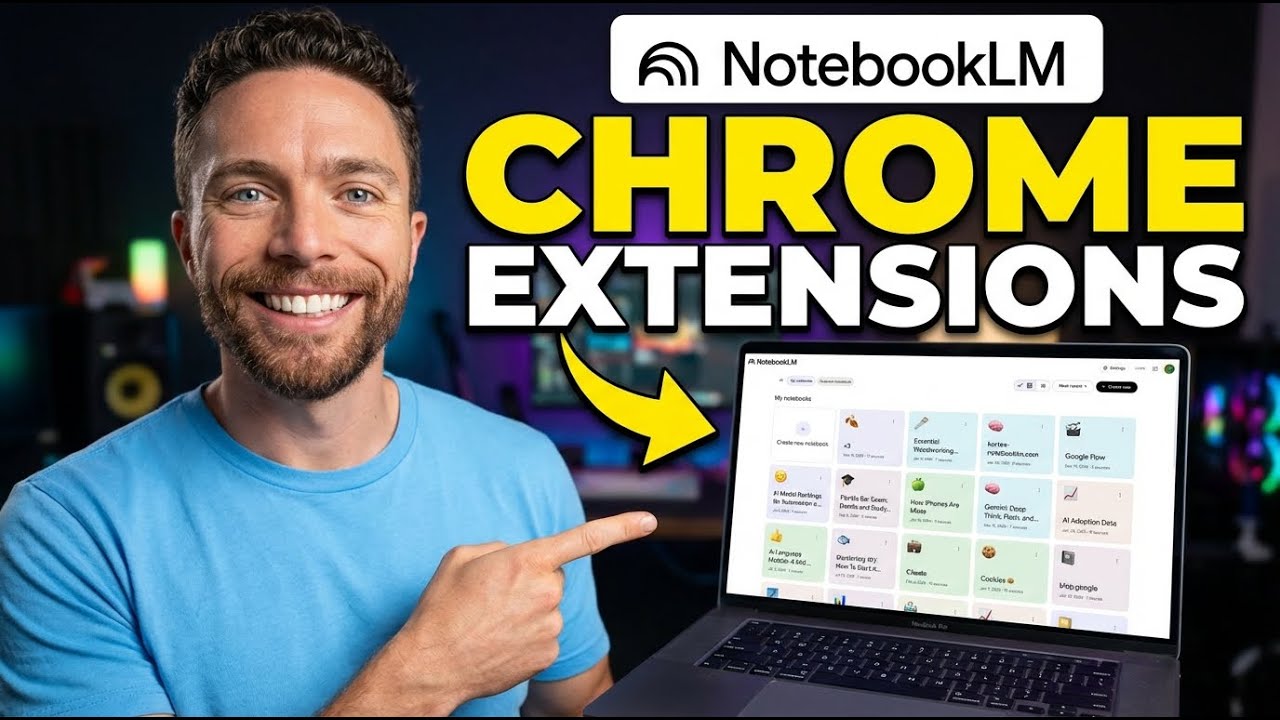
7 Chrome Extensions for NotebookLM Power Users!
10:48

7 Chrome Extensions for NotebookLM Power Users!

Paul J Lipsky 08.02.2026 64 841 просмотров 3 282 лайков обн. 18.02.2026
Поделиться Telegram VK Бот
Транскрипт Скачать .md
Анализ с AI
Описание видео
These are the 7 best Chrome extensions that every NotebookLM power user needs to know about — from one-click YouTube imports to folder organization to exporting slide decks as real PowerPoint files. 💪Links: 👉 Kortex: https://kortex-notebooklm.com/ ⚠️ Use Code PAUL10 for 10% off 🚨 (Affiliate Code) 🔗 YouTube to NotebookLM: https://chromewebstore.google.com/detail/youtube-to-notebooklm/kobncfkmjelbefaoohoblamnbackjggk 🔗 NotebookLM Web Importer: https://chromewebstore.google.com/detail/notebooklm-web-importer/ijdefdijdmghafocfmmdojfghnpelnfn?hl=en 🔗 Bookshelf Folder Manager: https://chromewebstore.google.com/detail/bookshelf-folder-manager/ibjbgddbhlcookmdhehgljaneccjidik 🔗 NotebookLM Language Switcher: https://chromewebstore.google.com/detail/notebooklm-language-switc/bkmhaelpdihelhfpfachdmhoogbdhkjj 🔗 NotebookLM Ultra Exporter: https://chromewebstore.google.com/detail/notebooklm-ultra-exporter/afchokljnhhggkhedfbmkcmdagjmjchj 🔗 Slide Deck Cleaner: http://slidedeckcleaner.com 🔗 Magic Eraser: http://magiceraser.org ⏱️Time Stamps: 0:00 Intro 0:15 YouTube to NotebookLM 0:56 NotebookLM Web Importer 1:35 Bookshelf Folder Manager 3:00 Kortex 7:04 Language Switcher 7:57 Ultra Exporter 9:07 Bonus Tools 10:30 Outro

Оглавление (9 сегментов)

  1. 0:00 Intro 63 сл.
  2. 0:15 YouTube to NotebookLM 148 сл.
  3. 0:56 NotebookLM Web Importer 156 сл.
  4. 1:35 Bookshelf Folder Manager 277 сл.
  5. 3:00 Kortex 805 сл.
  6. 7:04 Language Switcher 179 сл.
  7. 7:57 Ultra Exporter 212 сл.
  8. 9:07 Bonus Tools 264 сл.
  9. 10:30 Outro 68 сл.
0:00

Intro

If you clicked on this video, then you must love Notebook LM as much as I do. But to get the most out of it, you need to check out these seven Chrome extensions that make Notebook LM so much better. And if you're looking to be a Notebook LM power user, these are the best tools to get you there. The first
0:15

YouTube to NotebookLM

Chrome extension is called YouTube to Notebook LM. And by the way, I'll have links to all the Chrome extensions I mentioned in this video in the description down below so you can easily follow along. Now, this one does something incredibly simple but very helpful. Anytime you're watching a YouTube video like this one right now, it will add this button underneath the video. By clicking on this, you can choose to add this to a new notebook or an existing notebook. I'll search in here for my notebook LM notebook. Go ahead and check it off. And that has now opened up the notebook. And you can see right here that has now added this video to my notebook. You can also access the Chrome extension by actually clicking on it and searching up here for the notebook that you want to add it to. For
0:56

NotebookLM Web Importer

everything else though, like blog posts or news articles, I recommend Notebook LM Web importer if you want something that's completely free. When you're on a website that has an article that you want to save, all you have to do is click on the extension, choose the notebook that you want to add it to, and click add to notebook. That will then open it up. And you'll see here on the left that your article has now been added. This Chrome extension also allows you to save YouTube videos. However, I like the first one better because it adds that button down here to quickly be able to just click that and add videos right from underneath the video. And you will notice that throughout this video, there will be some Chrome extensions that have overlapping features, but they all have something unique that the other ones don't have. Once you start to use
1:35

Bookshelf Folder Manager

Notebook LM more, you're going to notice that your dashboard begins to get very cluttered, and that's because there's no built-in way to actually organize all of your different notebooks. But thanks to this Chrome extension, which is called Bookshelf Folder Manager for Notebook LM, that problem has now been solved. With the extension installed, you'll notice over here on the left that it adds this blue button right here. By clicking on this, this will expand the menu where you can see all of your folders. I have one here called personal, another name work, and another name study. But let's add a new bookshelf, and we'll call this one notebook LM ideas. I'll click on the plus, and now you can see that we have this new bookshelf right here. All I have to do is drag in any of my notebooks and they will all be organized together in one place. You can always collapse these menus or expand them, change the names of them or delete them. And also note, if you delete a bookshelf, it doesn't actually delete the notebooks inside that shelf. You can also add notebooks directly on the notebook itself by clicking on this dropown and choosing which notebook you want to add it to. What I really like about this tool is if you open up any of your notebooks, you'll see that the shelves still appear here on the left. So from within any notebook, you can just easily click this and navigate to a different notebook. It's a real easy way to stay a lot more organized with all of your notebooks inside of Notebook LM.
3:00

Kortex

But without a doubt, my favorite Chrome extension on this list is this one right here. It's called Cortex. Now, this will incorporate a lot of the other functions of the other Chrome extensions into this single one, and it does a whole lot more as well. It's really, I think, the best one for power users of Notebook LM. After you install it, you'll notice that when you come over to any article on any website, you can click on the Chrome extension, choose which notebook you want to add it to, and then import it to that notebook. You can also click on this button right here that will actually capture the page in uh screenshots and save it as a PDF. And then I can just come over here and actually upload that PDF. Cortex also adds a bunch of buttons to your notebooks to make it easier to manage your sources. So these are all filter buttons. We can filter and just show any PDFs. We can just show web articles. text that uploaded or YouTube videos. And you can easily download any of your sources by clicking right here. So you can back up any of your sources. Let's say if you need to move accounts or just want a backup of them, you can easily do that in multiple different file formats. And another great feature is this button right here. This allows you to sync all your Google Doc sources inside this notebook. So I'm sure as you know, you can add as a source a Google doc from your Google Drive. But when you do that, it takes a snapshot of that Google document at the time that you uploaded it. So if you change anything in the Google Doc, it's not going to be uploaded inside of Notebook LM unless you manually find every single Google Doc and actually click to refresh it. But now you don't have to do that one by one. You just have to click this button and it'll do it for every single Google Doc in this notebook. Over in the chat, there are options to export your chat history. You can copy your chat history and there are even options to export everything you created inside of Studio and you can do it in bulk as well, saving you a lot of time. There is honestly a whole lot more that this Chrome extension does because if you click on here and click on manage notebooks, this opens up a new dashboard where you can see all of your notebooks, get a really nice view of them, see how many sources are in each of them. You can tag them to easily find them and keep them organized. You can see the last time you edited them. And you can see all your audio overviews over here as well. There's a lot more it does, but my favorite feature by far is this one over here called the podcast feed. This generates a real podcast feed, one that I have subscribed to on my Apple podcast on my phone. So, all I have to do is anytime I create a new audio overview, I can just come over here, find the audio overview, click add to podcast, and then go ahead and add it to my podcast feed, and that will then be downloaded to my iPhone inside Apple Podcast because I'm subscribed to that feed. It downloads to my watch as well, so I can listen to it anywhere I want without actually having to go into the Notebook LM app and actually downloading it manually. Now, there is a free version of Cortex, but to get the most out of it, you will want to jump on one of the paid subscriptions. The pro plan starts at just $2. 40 a month if you pay for the entire year upfront. But they have this really sweet lifetime plan where you just pay once, $49, and you get access to it forever. I'll have a link for this in the description down below. There will also be a coupon code where you can receive an additional discount. Now, full disclaimer, I'm not being paid to make this video, but I am an affiliate for Cortex. So, if you come up here, you may see my video on the homepage where I talked about Cortex in the past. Uh, I don't want you to think that I own this or I'm associated with them in any way besides just being an affiliate. I just think this is a really awesome Chrome extension and honestly the best one out there if you are a Notebook LM Power user. So again, all the information will be in the description down below. This
7:04

Language Switcher

next one is a very simple one. It doesn't do that much, but it's extremely helpful for the people that need it. It's called Notebook LM Language Switcher. And as you might expect, it switches the language of Notebook LM. So here, everything is in English. But if I go ahead and click on this, let's change everything to German. And you'll notice that all the headers up here are now in German. Now, one thing to note is that it's not going to change the names of your notebooks, but it kind of changes all the other information like all these buttons up here and how many like in here it says six notebooks, right? What does that normally say in English? Six sources I should say. And so you can see like that's changed into German. And then even clicking into a notebook, you can see it translates everything up here, everything inside of studio and all the text in here as well. So, extremely helpful if English isn't your native language. Next, to get stuff out
7:57

Ultra Exporter

of Notebook LM, the best free tool that I have found is called Notebook LM Ultra Exporter Markdown and PDF and more. Again, link for it in the description down below. And this one, when you have it installed, adds all these buttons all around Notebook LM. So, over here on the right are all the assets that I've created with Notebook LM. So right here is a yeah like a report that I put together about cookies. So there's a new export button by clicking on this. You can see I can export this as markdown, a word document, PDF or whatever this is. I'm not quite familiar with that one. For these infographics, I can export these in various formats. There's also an option to add a watermark. This doesn't remove the watermark, but it adds a new watermark. And for slide decks, you can choose exactly which slides you want to include in your export. And you can either export them as individual files, as a merge file, or as a PowerPoint, or even as a video. And then for the chat itself, you can export those in various formats as well. So, it's a very easy way to export anything you made inside of Notebook LM. Now, I
9:07

Bonus Tools

know at the start of this video, I told you I have seven Chrome extensions for you. This last one, of course, is not a Chrome extension, but it is extremely helpful. And if you use Notebook LM a lot, you're definitely going to want to know about this tool. So, as you know, if you create any sort of infographics with Notebook LM, there's going to be a logo on the bottom right hand corner. The only built-in way to remove that is to sign up for Google AI Ultra, which costs $250 a month. Otherwise, you're stuck with this logo. But there's this great tool called magicaser. org. org where you can upload these and actually erase that watermark. So, I'll click on upload image and now I'll just go ahead and move over that logo. Click apply changes and that has now been erased. So, I can come up here and download it and use it however I want without that watermark attached. You can also do this with slide decks as well. If you use the Chrome extension I showed you, the Notebook LM Ultra Exporter, this will allow you to export the slide decks as images, and then you can upload them one by one into magic eraser. org and remove the watermarks. So, there you go. 6. 5 Chrome extensions that are going to make your Notebook LM experience so much better. And honestly, the fact that the community is building all this cool stuff around Notebook LM just shows you how powerful and how loved this tool
10:30

Outro

really is. Now, if you want to go even deeper with Notebook LM, make sure to check out this video right here. This is where I break down everything you need to know about it. It's my complete Notebook LM course, and I made it available on YouTube absolutely for free. So, click right here, and I'll see you over there in just one second. Bye for now.

Ещё от Paul J Lipsky

Ctrl+V

Экстракт Знаний в Telegram

Транскрипты, идеи, методички — всё самое полезное из лучших YouTube-каналов.

Подписаться




