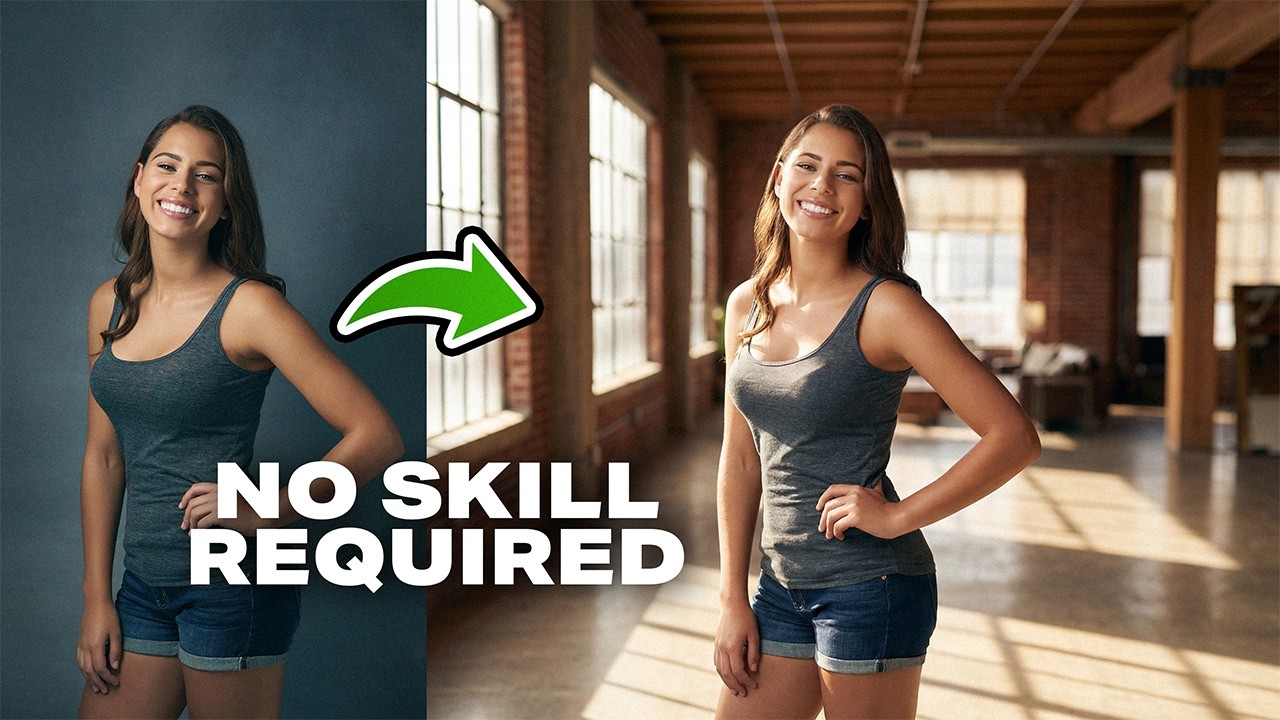
7 Signs You’re a Photoshop Pro (Your Scorecard)
19:10

7 Signs You’re a Photoshop Pro (Your Scorecard)

PiXimperfect 24.02.2026 62 117 просмотров 3 265 лайков

Machine-readable: Markdown · JSON API · Site index

Поделиться Telegram VK Бот
Транскрипт Скачать .md
Анализ с AI
Описание видео
Are you really a Photoshop Pro? Discover where you stand with your Photoshop skills, see if you relate to these 7 things real pros do! 🚀 Join PiXimperfect Pro - The Ultimate Photoshop Training Course: https://pix.live/pro In this fun video, we'll test your real Photoshop instincts, from mastering powerful keyboard shortcuts like Stamp Visible and rotating the clone source, to working non-destructively with masks and Blend If, understanding the true power of Smart Objects, using blend modes intentionally, customizing your workspace and shortcuts for speed, building and modifying your own Actions, and finally, spotting bad masks instantly like a pro. Give yourself one point for every sign that sounds like you, and by the end, you'll know exactly where you stand: Explorer, Skilled, Advanced, or truly Dangerous. Along the way, you'll not only measure your level but also pick up practical techniques you can start using immediately to level up your workflow. I hope this video helps you. Thank you so much for watching :) ► TIMESTAMPS: 00:00 The 7 Signs of a Photoshop Pro 00:44 Sign 1 03:37 Sign 2 05:16 Sign 3 08:21 Sign 4 12:26 Sign 5 14:21 Sign 6 16:03 Sign 7 17:18 Your Score, Analyzed ► RECOMMENDED SOFTWARE & CREATIVE RESOURCES: ✅ Official PiXimperfect Compositing Plugin: https://pix.live/pixcomposite ✅ The Best A.I. Powered High-End Portrait Retouching Plugins: https://pix.live/retouch4me ✅ Unlimited Photoshop Actions, Plugins, Brushes, Assets, etc: https://pix.live/envato ✅ The Best Professional Plugin for Color Grading: https://pix.live/infinitecolor ✅ Try Photoshop for Free: https://pix.live/photoshop ✅ Music Used in PiXimperfect Videos: https://pix.live/music ► THE GEAR I USE: ✅ My Graphic Tablet: https://pix.live/wacompro ✅ Recommended Budget Tablet: https://pix.live/wacomlite ✅ Primary Microphone: https://pix.live/mic1 ✅ Budget Microphone: https://pix.live/mic2 ✅ Audio Interface: https://pix.live/audiointerface ✅ Camera: https://pix.live/camera ✅ Lens: https://pix.live/lens ► LET'S CONNECT: Instagram: https://www.instagram.com/piximperfect Facebook: http://facebook.com/piximperfect Twitter: https://twitter.com/piximperfect
Оглавление (9 сегментов)

The 7 Signs of a Photoshop Pro

I need to confess something. When I first started learning Photoshop, I thought pro meant knowing every single menu, every filter, every slider hidden in some forgotten corner. I wasted so much time because here's what I learned. Real pros don't know everything. They don't have to. They just know the right things, the things that they need for their workflow. And they do them without thinking like that. So, today we're figuring out your level. I've got seven signs that separate the pros from the people who still use levels instead of curves. Just kidding. Give yourself one point for every sign that sounds like you. And if you recognize yourself in even five of these, you're officially dangerous. All seven. And you might just know Thomas and John Null personally. By the end of this video, you'll know exactly where you stand. And if you're lucky, you might just catch up on a few secrets along the way. So, without any further ado, let's get started. The

Sign 1

first obvious sign is keyboard shortcuts are a muscle memory for you. And if you know these five random keyboard shortcuts, you can give yourself this point. The first one is the stamp visible layer. When you're working with a lot of layers and you want to apply an effect to everything without having to merge all the layers, you can just select the topmost layer and press Ctrl Alt Shift and E. This creates a merged copy of everything you see on the canvas right now. Call the stamp visible layer. Then you can go to filter convert for smart filter. So you can change the values later. Filter camera raw filter. And you can apply whatever changes you want. Maybe a little bit of contrast, less highlights, more shadows, and a little bit of temperature right there. Hit okay. And that's the most non-destructive way you can merge layers. The second shortcut is knowing you can switch tools on the fly. Let's say you have the brush tool selected and I paint something. But I'm having issue painting in a certain direction. I can just rotate the canvas by holding the R key. That momentarily selects the rotate view tool. You can rotate as much as you want. Release the R key. It gets you back to the brush tool. Hold the R key again. Rotate as much as you want. You can repeat it as many times as you wish. And if you want to reset everything, press the escape key. It's all done. This way, you can switch between any tool. For example, you're working with the brush tool. You know the shortcut for the lasso tool is L. If you hold the L key, it goes momentarily to the lasso tool. You can make a selection, release the L key, it gets you back to the brush tool. The next one is pretty straightforward. Let's say you zoom in and you're working on the blemishes one by one like so. And you want to zoom out exactly to fit the canvas to the screen. You simply press control or command0. No matter how much you're zoomed in, control or command0. It fits it right in. Even if you're zoomed out too much, control or command0. Another similar one you should know is that let's say you're removing blemishes here and you want to zoom into some other part of the image. You don't have to zoom out and zoom into that particular area. Just simply hold the H key, click and hold. It shows you a bird's eye view. Let's say I want to zoom into the mouth or the chin. I keep it there and let it go. It zooms right in. And here's the final shortcut. And this is the kicker. If you're using the clone stamp tool, let's say I want to remove this chain. If we take a sample from right here by holding the alt key or the option key and clicking to take a sample, we cannot paint right there. It's not aligned. But there is a way you can rotate it. Hold the alt key or the option key and click there. And if you press option, shift and the arrow bracket keys, it will rotate. So right arrow bracket key rotates it clockwise and the left one rotates it anticlockwise. And now you can easily line that up and paint. So that is just simply rotating the clone source. If you go to window clone source, you see the rotation right there. You can always click here to reset it or rotate from here as well. Up to you. So only if you knew those five shortcuts, you can give yourself the point. Be honest. The next

Sign 2

sign is that you rarely use the eraser tool. You use non-destructive methods like masking. In this case here, we have a subject and we have created a reflection of that. Now to fade in the reflection, if we use the eraser tool and we erase it like so. This looks fantastic. Let's erase it more from this side. But what if I accidentally erased it too much? And later, maybe a thousand steps later, you realized I want a little bit more. There is no way to get it back. So instead of doing that you use masks. So for the reflection layer click on the mask button. This creates a mask with white in it. Keep in mind white shows and black hides. Now when I take the brush and paint with black those areas will be hidden. But I can choose the brush that I like which is the soft round brush. There you go. And if you erase it too much you can always bring it back by pressing X. Now you can paint with white to bring back whatever you wish. So I'm going to keep it this way. A little bit of reflection there. And this looks perfect to me. And also the fact that you use non-destructive methods like blend if instead of erasing things. For example, in this case, I know that the sky is bright and blue. We can use this to our advantage. In the background, we have another sky, a simple curves adjustment layer. And here's the image. We can simply double click on the right hand side of the layer. In the blended section, choose blue and just take it away from the bright areas of the current layer by using this slider. There you go. How easy was that? But this is harsh. So hold the Alt key or the option key, click on the slider to break it apart and take it apart for a smoother transition. Like so. This looks perfectly awesome. Hit okay. See how

Sign 3

easy that was. The next sign is that you understand smart objects. And if you know these five features, you can give yourself the point. The first one being obvious. If you have a raster layer and if you make it smaller like so, hit enter or return. And then make it larger again, you are bound to lose detail. So whenever you convert a layer to a smart object, you don't see that stuff. You see a preview of that stuff. So if you right click and choose convert to smart object, this is a preview. This is not the actual thing. And that is why when you press control or command D, you can make it as small as you want. Hit enter. And then you can make it as big as you want. There will be no change in quality because right now you're just seeing a preview. Now since this is a preview, whatever filter you apply, you're not applying to the object, you're applying to the preview, which means you can change it at any time. So here in this background layer, if we right click on it and convert it to a smart object, let's go to filter, camera raw filter. Why not blur the background? Let's go to lens blur, apply, and you can blur the background as much as you wish and hit okay. And here's the great part. Every filter is applied as a smart filter, which means you can change it anytime you want. You can double click here, and if you wanted to adjust the blur, you can easily do so. Less blur, more blur, it's all up to you. Hit okay, and the changes are applied. You won't get that flexibility if that's not a smart object. Here's another example. Keep in mind as I told you this is a preview. If I make a copy of this like so all of this are previews of the same feed like TV screens showing the same channel. If you double click on any of these thumbnails it goes to the core TV channel. And now if you make any changes for example if I create a hue saturation adjustment and change the color altogether and save it by pressing control or command S. And then if we get back to it, everything changes because it's a preview and the preview of the same thing. And that's a big advantage in mockups. Smart objects can also contain raw data. So if you were to bring in a raw photo inside, this opens up in camera raw. And let's say we increase the exposure and maybe decrease the highlights. And we instead of clicking on open, hold the shift key and click on open object. This opens as a smart object. Now let's say you applied a lot of adjustment layers on top of it. I'm just going to do a color lookup with edgy amber. There you go. At 20% opacity. And then you realize I want to go back to the raw photo and make some changes inside of Camera Raw. You can easily do that. If you double click on the thumbnail right here, it opens up the Camera Raw back again with all of those settings still intact. And then you can make whatever more changes you want. Maybe a little bit temperature shift shadows. Hit okay. And all those changes will be reflected. Since also it's a preview and you're squishing the preview, not the actual thing, you can always reset things. For example, if I press control or command T on this smart object and even if I squish it, right click on it and then choose warp and do weird stuff with it. Hit enter or return and I want to reset it. Just right click on the layer and click on reset transform and it resets the transform. Of course, you can change the position back again, but it's so darn convenient. There can be a whole course on just smart objects and these are just the tip of the iceberg. If you know these five features, feel free to give yourself a point. The next sign is you use blend

Sign 4

modes knowing what they do, not just randomly selecting what looks good. And if you know these six functions of everyday blend modes, you can give yourself a point. So here in this case, I have a photo and there was a lot of reflection on the glasses. I used an external AI, cropped a little bit of the face and just removed it from the glasses. But we do need to align this. How do we do that? We simply change the blend mode from normal to difference. Now, when everything is aligning, it goes black. And that's how difference works. So, I'm going to press control or command D. And we just have to match one point. Let's say the corner of these glasses. I'm just going to roughly line it up and hold the Alt key or the option key and click right there to take the reference point there. You want to make sure this is checked so you see the reference point. Then hold the Alt key or the option key and resize. It will resize from that reference point. And there will come a point where it goes black or close to black. Perfect alignment. Hit enter or return. It has gotten mostly black without any outlines which means perfectly aligned. Change the blend mode from difference to normal. Now you can use some regular masking by holding the alt key or the option key clicking on the mask button to create a negative mask. Take the brush with a white soft brush. Just paint over these reflections and you're good to go. Now let's talk about overlay and soft light. Both of these blend modes hide everything that is 50% gray. Anything that is brighter than 50% gray, it makes those areas brighter. Anything that's darker darker. So, if we were to turn on this texture on top of the subject, this is a gray texture, right? If we select that layer, change the blend mode to overlay, it should have hidden that area, but it's only making it brighter. It simply means that area is brighter than 50% gray. If we create a curves adjustment layer, click on the adjustment layer icon and choose curves. limit it just to this texture and let's darken it right now. It shouldn't be brightening this. Here's the before. Here's the after. It's not brightening it as much because if we just look at the texture, this is closer to 50% gray. And overall, overlay increases the contrast. If you want a milder version of this, you can select the texture layer and choose soft light. A milder version of overlay, but keep in mind both are using different algorithms in the back end. Did you also know that the multiply blend mode darkens and hides everything that is 100% white? For this layer, if you were to change the blend mode to multiply, you would notice that what in the heck is that border? If you want to hide it, you need to turn it 100% white. For it, you can again create a curves adjustment layer. Take the rightmost point to the left like so until it becomes white. Now, we only wanted to affect these birds. So, click on this layer. Only that is affected. And then you can select that layer. Change the blend mode to multiply. Now, I have reversed the steps, but you get the point. So, multiply darkens and hides everything that is white. Screen is the opposite of multiply. It brightens and hides everything that is black. So, here's an image. On top of that, we have a wonderful overlay. I want to hide everything that is black and brighten it overall. Change the blend mode to screen. And this is an incredible light leak overlay. Now, did you also know that there's a difference between normal and pass through? Yes, it's a blend mode. If you select a group, you will see a new blend mode called pass through and it will be selected by default. How that works out is that let's say inside a group you have an adjustment layer. In this group, let's say we created a curves adjustment layer and we brightened it way too much like so. Now, this adjustment layer is not only affecting the subject but everything even if that is outside the group. This layer is outside the group but it's still affecting that and that would be the default. But if you change the blend mode of the group, not that layer, but the group from pass through to normal, adjustment layers will only affect the elements that are inside the group. So no matter how much we change it, it will only affect the subject that is inside the group. And that's the difference between normal and pass through. So only if you knew all of these seven blend modes and six functions, you can give yourself a point. The next big sign that you, my

Sign 5

friend, are a pro is that you customize your Photoshop for yourself. Starting with, you probably have your own workspace that works perfectly for your workflow. In my case, this is my workspace. And by the way, just for reference, this is the default Photoshop workspace, which does not have what I want and it has a lot of clutter. So, creating a workspace simply means including the things that you want and removing don't want. So, I don't need the libraries. adjustments separately. No color, swatches, gradients, or patterns for me, for my workflow. Properties is nice. Layers is nice. Actually, I don't need that either. You might not like your tools in one line, but that's up to you. I like it in two lines. And then you can adjust the sizes and how they shape up and save this as your workspace. You can also consider yourself a pro if you use custom keyboard shortcuts, like you customize keyboard shortcuts that work for you. In this case, let's say I'm dodging and burning with a brush. Now for that I need to constantly change the size of the brush. Now I know that we can do it with the bracket keys right square bracket key and the left square bracket key to increase or decrease the size of the brush. But then again you have to lift your hand from the left hand side take it to the right hand side of the keyboard and change the brush size from there. Very cumbersome, very inconvenient since most of the other functions are on the left hand side. So I changed it for my stuff to W for making it smaller and E for making it larger. Very convenient. I don't have to move my hand that way. And finally, you're qualified to give yourself this point if you have been customizing your status bar. So right now, my status bar shows the dimension of this document. If you click on the arrow, you can customize it to anything. You can see anything. If you go to layer count, this shows you that there are four layers. And actually, yes, If you click again to document profile, it shows you it is sRGB. So many other things. I usually keep it in document dimensions but you can change it from time to time according to what you wish to see. The next big sign

Sign 6

is that you can create your own action and bonus points if you can modify any existing action. So I've been designing thumbnails for the last thousand videos and one of the constant things that I do in the thumbnails to make it stand out is to whiten the teeth slightly. And I have created an action for that works for my images for my teeth because the color range for each of one can be slightly different. So, if I open up my pix whiten teeth, this one, and play it, it automatically creates a hue saturation adjustment layer with teeth whitening, it automatically makes the mask black, automatically selects the brush for you, and selects white as the foreground color. I can just create a clipping mask, zoom into the teeth, and just paint that area in white. Now, of course, I would need to decrease the opacity later, but makes your job so much more easier. So any repetitive task that you have, you can just create an action for it. I would decrease the opacity in this case to about 60. That's natural. Now you should also have the skill to modify these actions. Let's say for this action, I feel that for most of my cases, I decrease the opacity to 60. So why not just add a step to that existing action. So here's the action. I can just play it all over again and then possibly select the last step. Click on the record button and just set the existing layers opacity to 60 and it saves that in the action. Stop it and you're done. The next time you play the action, the opacity would already be 60. So if I select the action and play it, it's already at 60 and all I have to do is to just paint with the brush where I want and it's very, very subtle. I can also change the hue saturation settings. You can go as complex as you want. Last

Sign 7

but not the least sign that shows that you, my friend, are a pro is that you can spot a bad mask instantly. To the normalize, at first glance, this looks perfect. But as soon as you zoom in, you start to see a lot of discrepancies. For example, all of these halos around the edge. Have a look at the statue right there. All of these lines that shouldn't be there. There are many ways to fix this. You can select the mask. smudge tool. And you can easily soften it by pushing the mask a little bit on the inside on those specific areas only. Now if there are some other areas where the line is very rigid like all of these areas. How do we fix that? Simply with the lasso tool just make a selection of that area. You want to make sure that the mask is selected. Then go to filter other minimum. Boom. Instantly by selecting it all of those are gone. So here's 0. 2. As soon as we increase it, it takes it in more and more. So, we would have to choose the least amount of value. In this case, it would be about two. Works perfectly. Hit okay. And all of those issues are gone. Control or command D. See, there are no more worrying lines and you can fix the other areas easily. So, all in all, if you are a mask master, you can give yourself this point. All right

Your Score, Analyzed

you've seen all the seven signs. You've been keeping score. Let's see where you landed. If you scored between zero to two, you are an explorer. You're still discovering what's possible and that's a beautiful place to be. If you scored three to four, you're skilled. You know your way around, but you also know there's a lot of incredible things that you are yet to discover. And that curiosity will take you to the next level. If you scored five to six, you, my friend, are advanced. Actually, let's call it what it is. You are dangerous. You open Photoshop and you know exactly where to go and what to do. And if you scored seven out of seven, you're not just a pro. People watch your work and they ask you, "Wait, are you sure you didn't create Photoshop? " At this point, the software is not something separate. It has become an extension of you. So, how much did you score? Drop it in the comments. And remember, it doesn't matter where you are, but it does matter where you are going. Those pros that make it look effortless, they weren't born knowing Blende for smart objects. They learned just like you. One lesson at a time, one mistake at a time. And if you need some guidance in the right direction, that's exactly why I created Pixerfect Pro. The ultimate guide to mastering Photoshop from start to finish and beyond. Not by memorizing steps, but by understanding the concepts. So you can create your own steps and bring your vision to life with ease. We have got over a 100 lessons, 200 plus practice projects, and multiple tracks covering everything from Photoshop fundamentals, retouching, color grading, compositing, and much more. And we're always adding new content as Photoshop evolves. You can check it out at pixerfect. com. No pressure, just if it calls you, it's there. Thanks for watching this video. And if you would like to take a deep dive into what's new in the absolute new version of Photoshop, here's the next video you can watch. And if you enjoyed it, make sure to give us a like. And also don't forget to subscribe. And not just subscribe, ring the bell so that you, my friend, don't miss any other future tips, tricks, or tutorials. I'll see you in my next one. Until then, stay tuned and make sure that you keep creating.

Другие видео автора — PiXimperfect

Ctrl+V

Экстракт Знаний в Telegram

Экстракты и дистилляты из лучших YouTube-каналов — сразу после публикации.

Подписаться

Дайджест Экстрактов

Лучшие методички за неделю — каждый понедельник