Can Figma Replace Illustrator for Professional Logo Work
14:09

Can Figma Replace Illustrator for Professional Logo Work

Bring Your Own Laptop 28.01.2026 6 461 просмотров 277 лайков

Machine-readable: Markdown · JSON API · Site index

Поделиться Telegram VK Бот
Транскрипт Скачать .md
Анализ с AI
Описание видео
Watch the Illustrator Courses & save 10%: https://byol.com/figvai2 Watch the Figma Courses & Save 10%: https://byol.com/figvai1 Try Adobe Illustrator for Free: https://BYOL.com/illustrator23 Who's going to come out on top? Figma VS Adobe Illustrator, which is the best software to use to design a logo? Here's Dan Scott's honest review and direct comparison between Adobe Illustrator and Figma. In this video Dan will try to complete the same tasks in both softwares and decide which one is better. Join the Bring Your Own Laptop Facebook Group: https://www.byol.com/FB Follow me on Instagram: https://www.byol.com/IG Follow me on TikTok: https://www.byol.com/tiktok/ Follow me on Twitter: https://twitter.com/danlovesadobe Join the LinkedIn Group: https://www.byol.com/LINKEDIN/ 0:00 Figma VS Illustrator, who will win? 0:20 The Walmart Logo 2:42 The Herman Miller Logo 4:21 The Mozilla Logo 7:07 The Garageland Cat 11:11 Typography in Figma & Illustrator 13:01 The Post-Fight Interview

Оглавление (7 сегментов)

Figma VS Illustrator, who will win?

It is time for a fight. It's Figma versus Illustrator. I'm going to recreate all of these logo marks here in Figma and compare it to Illustrator and find out if Figma is ready for all of my design work. It is Figma versus Illustrator. Five rounds. Fight. All right. Round one

The Walmart Logo

is the Walmart logo. Nice simple one to start off with. And this feature down here, the draw feature, which is new for Figma, is the reason why we're testing this. They've added a lot of the functionality of Illustrator inside of Figma. All right, so let's start with the rectangle, which is the R key. And that's where Figma gets the first blow in on Illustrator because for some reason R for rectangle makes sense in Figma, but in Illustrator, it's the M key. Rectangle. And a cool trick for both of them, if you hold shift and hit X, it will toggle the fill in the stroke. Now I can go inside and edit the object and work with the anchor points. Now, what I'll consider a win for Figma is that if I can recreate the logo without any need to go out to Illustrator, that'll be a win for Figma. All right, so drawing rectangles and moving anchor points, they're even. The next thing we're going to look at is rounding these corners. So, in Figma, it's pretty easy. I'm in edit object mode, and I can just crank up the corner radius. Where it's different is when you want to do individual corners. If I grab this corner, I can kind of work on them individually, but it's a little bit less useful. Illustrator, on the other hand, has these lovely targets where you can kind of grab individual ones and visually drag them. It's not a huge big deal, but I do love dragging the corners rather than jumping over here to the properties panel. For the radial repeat to spin it around, Figma has a repeat option up here. It's a little bit funny. Okay, you can use the options up here and play around with how many you need. Then the gap here is, I don't know, good enough, but a little bit weird. You got to kind of like start typing stuff in to get the spacing right. Don't worry, Illustrator is better. Still very clumsy. It has all these cool on art controls. You can drag stuff around, but I don't know. It doesn't lock into rotations and you could use step and repeat, but I don't know. This thing could work better. Let's look at stealing colors. Okay, so for Figma, eyedropper tool is the I key and then you just click on it and it's put it in the stroke. Shift X to toggle it and easy peasy. Here in Illustrator, kind of easy peasy. Eyeropper tool. Same key. Click, click. It doesn't work. You got to go inside that first object, use the eyedropper tool, and then it will steal it just fine. But you got to be comfortable going in and out of the object editing mode, but maybe a little harder for somebody new. All right, round one. Can Figma do everything Illustrator can for the Walmart logo? Figma, you win. Was that close? You win. All right

The Herman Miller Logo

round two is designer's favorite, the Herman Miller logo. It is a more complicated logo. Let's see how they compare. Uh, round two, fight. — Right to start off with, it's just a couple of lines and ellipses. Not a big deal. My only gripe with Illustrator is the shortcuts. Uh, for Figma, it's L for line, and it's the O key for an O looking shape inside of uh, Illustrator. It's clearly the backslash and the L key. L not for line. No, it's L for ellipse or circle. All right, this is where it gets heated. I've got this shape here. And now Figma in its recent update has the shape builder tool. It's a little weird. I can make this a shape. Kind of does nothing. It's filled it with nothing color. I can go to the fill tool and pick a color for it. Back to my shape builder, which is the M key. Okay. And I can hold down the option key on my Mac, Alt key on a PC, and I can drag over these to remove the shapes I don't need. And the trouble is it doesn't do the lines. I can go through them with the selection tool and just delete them manually. That totally works. Tada. Illustrator works a similar way except it's shift M for the shape builder. I can pick a color from my uh swatches panel and I can fill things in. And I'll show you a sweet trick when we do the cat logo later on. Uh the nice thing about it though, same key, option or alt. You can drag across stuff, but you can actually delete the lines as well just by drawing over the top of them. But we get to the same place. A mostly good replica of the Herman Miller logo. All right. Round two goes to Figma. We getting sick of that reference. I did. All right. Round three. It's the

The Mozilla Logo

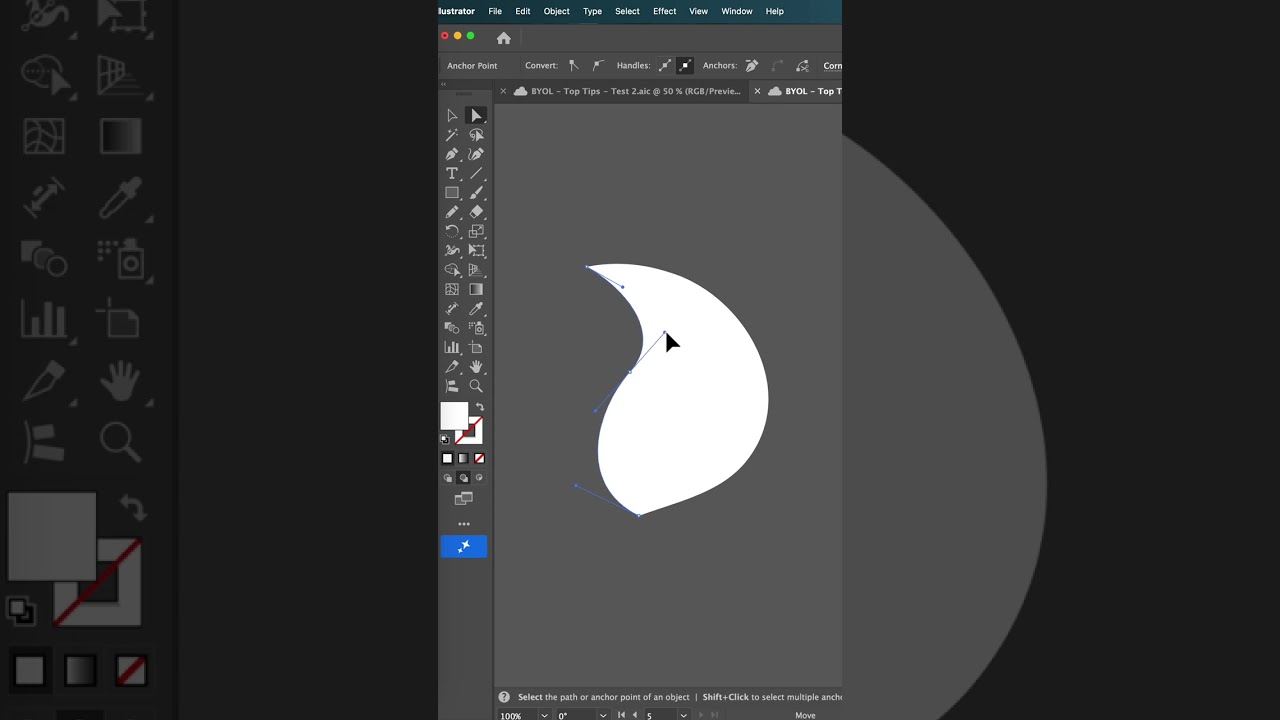
Mozilla logo. It's got some tricky pen tool stuff and gradients. So, I'm going to start here in Figma, uh, drawing it with the pen tool. And then in Illustrator, they work exactly the same with the pen tool. Same shortcut keys, everything. Now, why am I comparing these two? So, I teach both the Figma and Illustrator courses at Bringer and Laptop. And while creating the latest updates to the Figma course, I realized I stopped going back and forth uh from Figma to Illustrator to create things like logos and icons. So, I wanted to make a head-to-head video to see, do I actually need to go to Illustrator or can I make everything in Figma? If you are interested in those courses, there'll be a link in the description for my essentials or advanced courses for both Figma and Illustrator. So the pen tool is mostly the same. Where they do differ is what to do afterwards. Let's say that you are I'm going to pretend that the pen tool didn't go my way. Pen tools tricky. What do I do afterwards? I can obviously play around with the handles and trying to get it looking nice. Uh but there would be nice if there's an option. This one here seems promising. It's called the simplify vector. And I click on this and I can got this slider and I can drag it around and it will start to try and simplify my shape. And it doesn't do a whole lot in this case. All right. Here's my Illustrator version. Uh, pretend I do that on purpose, but the pen tool, it's tricky. Now, Illustrator has a very similar option under simplify. Okay. And it just does a better job just with one click. I'm going to undo that. I'm going to make two versions of it. This one here though, if I have it selected, there is this other special tool called the smooth tool. Okay? And it's like a brush. You just kind of like paint over it. And can you see? You can work on little areas that need fixing. and it just does a lovely job. All right, the fight's not over. Let's look at gradients. Now, here, Figma does a fine job. I can pick a gradient fill, change the direction, pick the colors. It does a fine job, but in Illustrator, we have a more complex one. We've got the normal old linear one. That is fine. Same as Figma, you can change the direction. This one's a little easier because you can drag it rather than moving the different points. Where it gets really cool is this free form gradient. If I click on it, it can add these little dots. And can you see what happens here? You don't have to have them in a linear or radial gradient. Okay? You can make these all these crazy mixtures. I can double click them, pick the eyropper tool, and choose my colors. You end up with a result where you've got way more control over a gradient, where the different points are, and how big and how much they affect the different gradient. All right. So, for round three, uh the gradients are quite comparable. So are the pen tools. uh where Illustrator is just hands down better is fixing my terrible pen tool making at the end. So for round three, this one's going to go to Illustrator. You lose.

The Garageland Cat

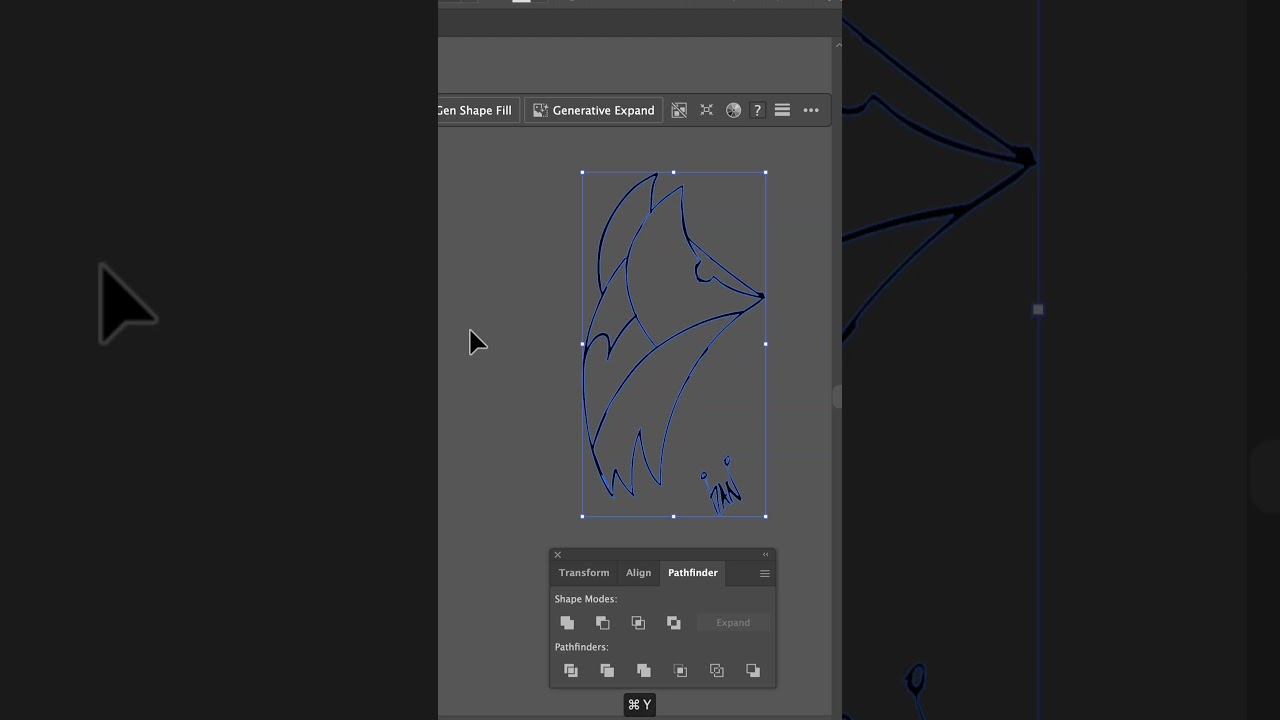
— Round four is the Garage Land Cat. — Fight. — All right. For the Garageland cat, we're going to have to start in Illustrator because this uh logo here started with a drawing. It's more of like a brand character for um a little side hustle that I've got called Garage Land. Okay, it's my garage cat, but I'm much more comfortable drawing these types of things and then kind of digitizing them. And unfortunately, Figma does not have image trace. So, I quickly want to show you how powerful this is. You've probably used image trace before, but I'm going to show you the secret tricks to turn it into a vector shape real quick. So, I've imported it. I'm going to go to live trace. the options over here and play around with the threshold until most of the pen marks are visible but none of the pencil and kind of other stuff. Trying to get it to make it easier to clean up. Somewhere about there. The real trick here is under advanced down the bottom here. There's this thing off that's off by default. Should be on ignore color. And you don't have to do anything. It just goes and removes all of the white background. Cool, huh? All right. I'm going to hit expand. I'm going to use the direct selection tool just to get rid of the little bits that are left hanging around. Then I'm going to use the simplify and the smooth options like we did earlier. Remember, Figma has uh simplify but not the smooth option. There you go. What do you think? It's pretty cool. You can go from a pencil drawing to something that is uh fully vector very quickly. I'm going to color it in now with the shape builder tool that we used earlier. Then just add a stroke around the outside. Both Figma and Illustrator have these functions. What's cool here is you can actually grab any vectors from Illustrator and just literally copy and paste them inside of Figma and they come through great. Now they both have offset path in Figma. I can flatten it, offset the path, make it a rounded corners, change the color. The only problem is the original's gone, but I've copied it so I can paste it back in, line it up, and then I want to offset this background part. Just kind of that's the look I'm going for. Illustrator does the same thing. It's a little different process, but you get to the same result. Now, they both have brush strokes. There's a lot more inside of Illustrator, but Figma has just some good ones. Let me show you. So, the stroke here, I'm going to add a dynamic brush. Okay, I do like this like little wiggle pattern around the outside. Okay, you can control it down here with the frequency and the wiggleness and how smooth it is. Um, I do like that effect. I can't remember off the top of my head how to get the dynamic brush. I'm sure you can do it in Illustrator, but they do have a more complex kind of like brush library. Let's open one of these. I'll use this grunge brush. Play with the line weight. You get some really cool effects around the outside. Figma has some similar brushes. They don't have as much, but the ones they do have are really cool. So, let's add a stroke here. Let's bring up the size. And under the stroke panel here, there is brush stroke options. And the ones in here, and let's have a look. They're just some cool ones. So, there are more in Illustrator, but Figma holds its own. All right, the width tool. Uh, I love this one. It came out in Illustrator. It is in Figma as well. So, this is just a line. I'm using the width tool here. And I can get it to do mostly what I want. It has some funniness to it, though. I want this kind of like drip effect. Okay. You can kind of make cool strokes. Uh, I can change the end point. If I select it, I can make the end rounded. Um, but no matter how I mess around with it, I can't get like a It does a funny thing on the end as all. Um, it's fine. Depends on what you're using the width tool for. I do a lot of drips, but I can't make the drips kind of work. Width tool in Illustrator, you can see is exactly well exactly the same except for the end point here. I can make them round and I don't know, gives me a better result. I guess drips are kind of niche though. All right. So, for round four, uh you could go and redraw the hand drawing using Figma with a pen tool. You could probably find a plugin. Uh but this one's going to have to go to Illustrator. Too much of my creative work starts with pen and paper and then becomes digitized through the software.

Typography in Figma & Illustrator

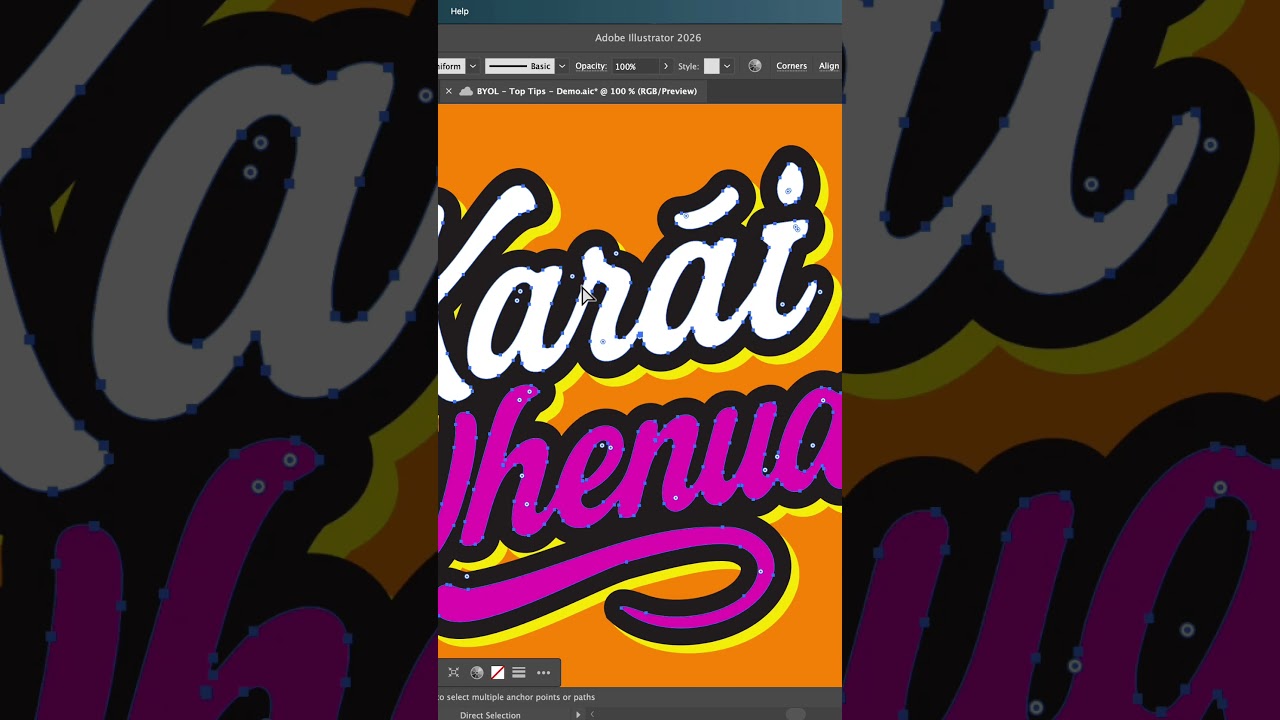
All right, round five, the final round. Boss level. Uh we've been avoiding typography so far. We've been doing uh logo marks, but every good brand needs type. So, let's dive in. Now, both Figma and Illustrator have type on a path. It's new for Figma, which I'm excited about. But when it comes to actually picking fonts, uh Figma has a long way to go. Figma will show you the font, um but not preview the text that you're going to be use in that font. You can kind of roll over here and see it over the left hand side there, but I don't know. I got really used to seeing them in this preview window. I'll show you Illustrator. Can you see here? It's actually previewing the words, which doesn't seem like much, but I don't know. If you spend ages using the arrow, going down, down, up, down, trying to pick fonts, it's handy to be able to see them first. In terms of fonts that they have, uh, Figma is limited to Google fonts and anything you've downloaded onto your machine. Okay, so you're quite limited in terms of fonts. Google Fonts is pretty good. And you can install fonts that you've purchased and use those. Those work fine. This is one of the big perks of an Adobe subscription is that they bought Typekit a long time ago. You can go to discover more. They filtered by styles and somehow magically they preview over there in Illustrator without you having to download them. When you are ready to use them, it's been way too long picking a font. Okay, when you are ready, you can just click on this add and somehow magically it just downloads and it becomes part of your computer. What's also missing from uh Figma is that let's go back to your fonts. You can filter by different fonts. Okay, uh weight, serif, sand, serif, variable fonts. There's a lot of handy filtering here. And probably my favorite one is let's say that we like this, but we want to find something visually similar. Okay, you can click on this and it will go through and find everything that's on your computer or downloadable. Okay, that is quite visually similar cuz that's what it's called. All right, so

The Post-Fight Interview

I've answered my own question. uh while I was doing the Figma course, I was like, man, all of these tools are very similar to Illustrator and could it maybe take it on uh and I think for the things that Figma is designed to do, things like icons and you could do simple logos uh inside of Figma. Uh but for my regular branding work, especially it comes down to maybe typography, that is a huge part of branding and Figma is just not ready for it. Luckily, because I just spent eight months updating my Illustrator course. Phew. Um, if you do want to do my Illustrator courses or Figma courses, there'll be a link in the description. But that is it. Figma, you lose. Bye.

Другие видео автора — Bring Your Own Laptop

Ctrl+V

Экстракт Знаний в Telegram

Экстракты и дистилляты из лучших YouTube-каналов — сразу после публикации.

Подписаться

Дайджест Экстрактов

Лучшие методички за неделю — каждый понедельник