GODOT VFX - Muzzle Flash Effect Tutorial

GODOT VFX - Muzzle Flash Effect Tutorial

Machine-readable: Markdown · JSON API · Site index

Поделиться Telegram VK Бот
Транскрипт Скачать .md
Анализ с AI

Оглавление (4 сегментов)

Segment 1 (00:00 - 05:00)

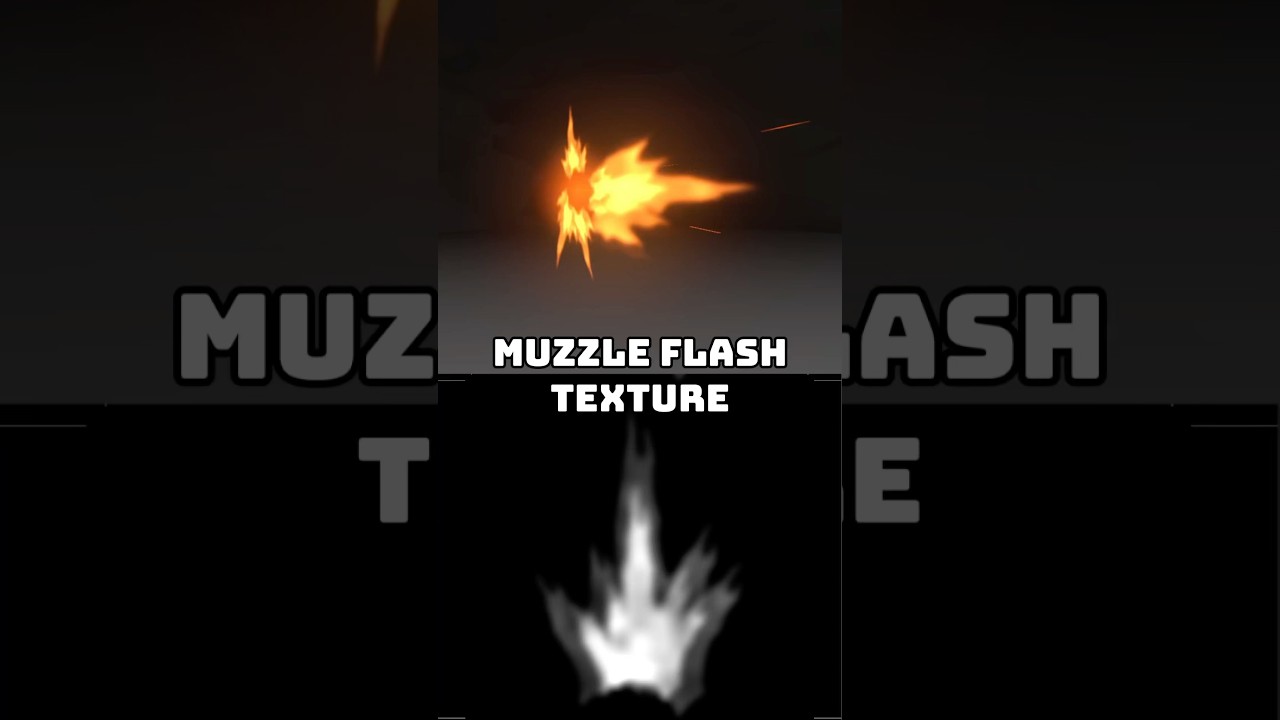
Today, let's see how to create a quick muzzle flash effect in Godo. We will see the whole process from setting up the GPU particles, creating meshes, and respective textures. We are going to specifically see these one, and it's one of the many we made available on my Patreon page where you will find many more Godo effects links below. By the way, we recently published the first Godo VFX course where we create these awesome effects. the AoE, the projectiles. It's very beginner friendly and I also left a link below in case you are interested. So without further ado, let's jump right into this. So let's begin by adding a child node to our world node. We want to use the node 3D as our base and from there we are going to add particle systems to it. We can rename it vx muzzle flash. Right click, add child node. Now for a GPU particles 3D which is going to be used for the muzzle planes. Essentially they are two planes intersected with each other. So we can add them on draw passes and we can use blender to create it. You can select everything and then delete. All you need is this plane with shift A. Enter edit mode with tab. Duplicate it with shift D. Press escape so it stays at the center and then rotate it on the y-axis 90°. And that's it. We essentially have our two planes intersecting. We do this so it's visible from all around. Now it's really important that the pivo point of our muzzle is on one of the sides. So I'm going to select these two vertice. I'm going to say cursor to selected. Let's go to object mode by pressing tab. And in here we can go to this drop-own menu. object set origin to 3D cursor. This way the plane scale from this point right here and it's going to be useful every time we shoot the muzzle flash. And if you want to center this to the world, you can say with shift s snap to world origin and again with shift s selection to cursor. Here we go. It's at the center. Let's just rename this to muzzle planes. And we want to make sure that with ctrl a we apply all transforms. So it goes exactly like this to go. Now we can drag a new window up here. Let's select UV editor because we want to make sure that the UVs are correct. Enter edit mode on the right window. When I select these two vertice, but first we need to turn on UV sync selection. So we can see in both windows what we are selecting. And as you can see on the right window, these two vertices are on the left. But on our UV editor, they are on the top. So all we need is to rotate this with R by selecting everything first minus 90° this way they are both on the left side and that's important when mapping a texture to these muzzle planes. Let's select the planes. Go to file and in export we want to select wavefront object. Here we go. You can turn on select and then you can export to your project folder. I'm going to rename this to muzzle plane01. And that's it. In godo, we can drag and drop this muzzle plane to our draw passes. Here we go. Particle system now is emitting these planes and it's going to be useful. Let's first say in geometry new standard material. Here we go. We want to say that the transparency is alpha and the blend mode is additive. We want to make sure it's visible from both sides. So, let's disable color mode. Here we go. In shading we can say it's unshaded so the lights don't affect the muzzle flash. On vertx color we can say use as albido and turn on is sRGB. Basically this allows the particle system to control the color of this material. And on albido we need to assign the texture and for that we are going to use material maker. It's very similar to substance designer and we can create textures based on nodes for the muzzle flash text. So let's begin with a box. We are going to distort this in a way that looks like a muzzle. You'll see it's very interesting software. For example, on the box, we can stretch it on the Yaxis and then we can connect this to an invert node. So, the blacks become white and vice versa. We can repeat this rectangle with a tiler node. If you connect it to the tile Y, we won't see anything because we need something on the tile X and that something is going to be a circle. Connect it to tile X and on the tiler. Here we go. This is what we have. We can actually increase the tile X and Y. We can double it to 8 by 8. And we can shrink it on the X axis and on the Y a little bit. And then we can adjust these random values, the random offset, the random rotation, random scale. What's really important is that the random value it's zero. That's the one that represents the circles that go from totally black to totally white. It's a grayscale value. And we want this to be

Segment 2 (05:00 - 10:00)

completely white. So let's say it's zero. Now we want to use the opposite. invert values that we have here. If we connect this to invert node, this is what we get. It's getting closer to the texture we need. But we have these small details at the top and at the bottom that we want to get rid of. For that, we can use a math node. Say it's in power mode. And for the B input of the math node, we can reuse this square. This way, it will clip the values outside of the square. And if we connect to the invert, those small artifacts are gone now because we don't want those artifacts later on the nodes. It will look weird. From here, we want to transform this square shape into a triangle shape. We can use a transform node, but the scale X only well stretches and shrinks it. Right? So, there's a little trick here where we can use a gradient. If we rotate it 90° and connect to the scale X, here we go. This is what we have. because the black key is totally black. If it's a little bit gray, as you can see, it's only shrinking at the top of the square. It's a very cool interaction between the gradient and the scale of the transform. Now, we are going to use this result and multiply it several times. Create a few of them. First, we need to transform it. We need to move it up on the translate Y and then stretch it on the X and shrink it a lot on the Y-axis. Because with this we can create the tile 2x two which is another very interesting node. And we want to splatter this with a circle splatter. Basically place it anywhere randomly if we want. In this case we only need five of these. Rings can be one only and inputs can be four. Feel free to test different values to see what they do. In our case we are also going to stretch it again on the X and on the Y. We are going to put them back to their original size. The radius is going to be zero. We want them all over it, but we want this rotate to be Zilla 25. And here we go. We are beginning to see something. We also can add some random rotation and random scale a little bit. Here we go. Let's align this correctly. If it's a muzzle, we want to push this down and then rotate it. Here we go. And the cool thing is that we can add with a math node our muzzle from all the way back here result of this transform as the center. And now it's beginning to look like a muzzle, right? That's the cool thing of material maker. We can also increase the size. Push it a little bit down with another transform. Yes. But increase its size a little bit. It's all white right now. But if we connect this to a colorized node, we can say the white key is gray. And then we can create another transform from here. But this time, let's shrink it down. So we can add it again. This way we have some values, right? It's not all white. And what's even better is that if we don't want this to be so cartoonish, so white and gray, we can use a goian blur to blur everything. Here we go. Maybe 25 for sigma, which is the strength. And that's essentially it. It's becoming really interesting. Another cool thing we can do is add a noise to this. If we multiply with a math node and then create a value noise connect the noise to a transform so we can control its scale connect transform to the math but the math is going to be in multiply mode and now we can adjust the noise however we want and you will get very different results right that's the beauty of material maker you can do so much with these nodes I'm going to adjust the values with the colorized node so it's a little bit brighter here and there but essentially we want to rotate this with a transform. And that's it. 90°. Yes, indeed. And you can export with right click on the preview 2D window. 2048 by 2048. Save it to your project. And now back in godo, we can add this to our muzzle plane, right? To the albido of the material we were creating. Let's go ahead and create a new particle process material. It's falling because gravity is on. Let's make sure it's zero. Let's give it some motion by going to display and on scale. On the scale curve, we can create a new curve because we want to use something that grows exactly like this. We don't see much because it's spawning a lot of particles at the same time. Let's say the amount is only one. Here we go. Lifetime can be much short like Z1. It's a muzzle flash. It's quick. It's impactful. Randomness can be one. So, we can have a little bit of randomness. And yeah, frame per second 60 at least. As for the color, we already have some values here on the row section. Two, 1. 5, and one. Here we go. An orange. Beautiful orange. Another small detail we can take care of is on the alpha curve. Want to fade this out. Basically, it's going to be visible from the start and then it fades out. That's all we need from this graph. Here we go.

Segment 3 (10:00 - 15:00)

Looking good. And it's visible from all of the sides. Now, that's a beautiful muzzle. If you wanted, you could stop right here, but we are going to add a few more details. For example, a cone. So, we can see flesh going to the sides really quickly. So, we are going to duplicate these muzzle planes and call it the muzzle cone. And on this case, we need a different mesh. It's going to be almost a cone. So, let's go back to Blender. In here, we want to start with the sander. You can control the vertice on this left panel if you want less. But what's important is the cap field type is nothing. And then we want to select all of these top vertices and with S scale it down to zero. Here we go. And push it down on the Z-axis with G a value of minus one. Select this edge loop down here and push it up with G on the Z-axis. You can literally type Z and then one and then press enter. So it snaps right here to this position. Let's check the UV editor real quick. All right. We could use the UVs like this. But for the texture we are going to create, let's go ahead to the topographic view by pressing seven on the numpad. And now we're going to remake the UVs by pressing U and selecting project from view bounds. So the circle fully occupies the wall square on the left. Let's add an edge loop with CtrlR. Here we go. You can press escape and then enter so it stays on the same position. We can add another edge loop right here. Very small one. So basically we have a bit more of definition right and then we want to select all of these vertx on the center. You can press Z to see true and press delete vertx. Here we go. That's almost done. Let's rotate it on the Xaxis minus 90. Let's go back into edit mode. And now with proportional editing on, you can turn it on up here. And with this vertx only these ones selected, you can push it all the way back. You can control the influence, the radius of influence by scrolling up or down if you want more or less around here and then scroll down to have less influence. Here we go. Essentially, you want to create a cone. So, I'm going to push this. This is the result we are aiming for. All right, looking good. Let's go back to object mode by pressing tab and select shade smooth. You can also go to object up there on the dropdown and select shade smooth and then ctrl a to apply all transforms. Oh yeah, we just need to say the pivo. Let's enter it mode with tap. And now with shift s, let's say it's cursor to selected. Let's go back to object mode. And I'll say set origin to 3D cursor. And that's it. And if you want to center this to the world, you can say with shift s snap to world origin. And again with shift s selection to cursor. Then you can go to file export wavefront object. Rename it to muzzle cone. And now back in go you want to drag and drop it to the draw pass of the muzzle cone. Here we go. Let's make sure that we change the material by saying first that it's unique so it doesn't affect the muzzle flash material. Unique recursive. And we will make a few more adjustments. But for now, since we need a new text, let's go back to material maker. The change is very, very simple. All we need is to drag a line from here. Create a new transform node. Let's push it up and then scale it down. Let's just clip a little bit the black values. There's an artifact appearing there with a colorized node. Push the black key a little bit to the right. Here we go. And now with the circle splatter, I want to say the count is four. Rings can be one. The radius is going to be zero and the incremental rotation is 9. 5 and random rotate 75. Random scale a bit and that's it. We have our muzzle cone. Right click, export to your project as a PNG. And this new texture, we can drag it to the albido. Here we go. All right. And now if you select both to see how they look with each other, we have this cool muzzle flash going on. And in most of the case, this should do it. But if you want to add a few more elements, for example, we can add a quick flash. I'm going to create a new particle system. Actually, I'm going to duplicate the muzzle code for the beam flash. Let's just hide the other ones. In this case, on the draw passes, we can use the new quad mesh. Let's first make sure the material is unique. And on this quad, we are going to apply a very simple texture. For the texture, if we go back to material maker, the simple text that you can do is create a shape, a circle in this case. Increase the radius and increase the feather. And that's essentially it. You can use a coloriz node and say the black key, the alpha is zero, so it's transparent. If you want to make sure that your textes have a transparent background, this is how you can do it. And then we right

Segment 4 (15:00 - 19:00)

click on the preview 2D window. You can export 2048 by 2048. That should do it as a PNG to your project and then drag and drop it to the albido. Here we go. We now have this bright flash. We can also make sure it faces always the camera by saying particle billboard. Make sure you turn on keep scale so you can still control the scale of this beam on the particle system. And here we go. Maybe you can do a few adjustments on the process material. Let's make sure it's unique recursive so everything is unique and it doesn't change or affect the muzzle cone. And on display, for example, the color could be a little bit less bright maybe. All right, but that's essentially it. When you play everything together, looks pretty cool. It's a powerful muzzle. Really nice. Another small detail we can add is maybe some sparks. Maybe some particles on the muzzle flash the parent. We can create a new GPU particles 3D. For the sparks, let me hide everything else. On the drop passes, we can use the quad mesh. We can create a new standard material 3D. On the geometry, yeah, transparency is alpha. The blend mode can be additive. And we can disable the call mode so it's visible from two sides. And yeah, turn on use as albido and is sRGB for the text. We can use the beam we created. Here we go. And now new particle process material. It's already falling down. But let's set gravity is zero. And then on spawn we have velocity. And we can set direction is zero on the X and on Y but one on the Z-axis. And for the sparks to look even better, we can add initial velocity. Between five and 10 should do it. All right. Maybe the spread can be 10. 45 was a little bit too much. As for the scale, we can shrink them down between 0. 05 and 0. 3. We also have color for these already made. It's four on the R channel. Three on G and one on B. Here we go. We can also make sure they fade out at the end with this graph on the alpha curve. Here we go. We can adjust the end so they fade out even faster. We need to bump this amount a few sparks. They are living way too long. So let's decrease the lifetime to 03. Here we go. Looking good. It's almost there. We can also increase the randomness. And instead of being a rate, we want this to be a burst. So let's say explosiveness is at zillot 7 60 frames per second. And they are bulbs. They are basically circles as you can see. How do we fix this? Very simple. If we go to draw passes, if we select our quad, we can actually shrink it right here. We can say the X is 0. 2. Here we go. They just need to face their velocity vector. And to do so, we can go to the particle process material. And on the particle flags, we can turn on align with Y-axis. We have beautiful sparks for our muzzle flash. Let's see how it is with everything else. Now, that's a complete muzzle flash. Very impactful. You can use this in your games in Go. I'm sure it will look really nice. If you want, you can change the spawn, the position, the emission shape. Instead of a point, it can be a sphere, for example, with a small radius of 02. But that's essentially it. And then you can play a little bit with the damping as well, so they slow down towards the end of the lifetime. Even create a curve so they slow even more towards the end. But yeah, here we go. We have a muzzle flash. Looking good. Hope you enjoy. We made a few of them available on my patre page. Links below. Anyone that is my patron has access to it and you will get access to a lot more effects if you eventually subscribe. So I want to say thank you to each patron that supported me last month. And a quick shout out to top tier patronons which are Albert and Guuan Amaranus Ashkan Kalcali Merker Kumova Christian Ludana Diego Marco Dimmitri Kryka Eric Alamirano Frosty 40 Gabriel Deichi Jade Jinuga 4 Leandro Dissu Luis Orsu Matt Mor Nana Praips Rain M Sage Stephen B Johnson JO Valkan Sisuta Whatever Martr will zo bar painting pang Jang Leosa and Mij King thank you all very much for your support. I hope everyone enjoyed this video and I hope to see you on the next one. Thank you. Bye.

Другие видео автора — Gabriel Aguiar Prod.

Ctrl+V

Экстракт Знаний в Telegram

Экстракты и дистилляты из лучших YouTube-каналов — сразу после публикации.

Подписаться

Дайджест Экстрактов

Лучшие методички за неделю — каждый понедельник