ESP32 for Beginners: Selecting module + Starting with Arduino and Espressif IDE

ESP32 for Beginners: Selecting module + Starting with Arduino and Espressif IDE

Machine-readable: Markdown · JSON API · Site index
Поделиться Telegram VK Бот
Транскрипт Скачать .md
Анализ с AI

Оглавление (24 сегментов)

Segment 1 (00:00 - 05:00)

In this video we are going to do tutorial for everyone who would like to start with ESP32 and especially uh we are going to cover the Arduino environment and also the express if ID. So this is something what is very important. I think many people they know how to work with Arduino environment but this other expressive IDE it has also some advantages and maybe it's good to know how to do it. Correct air amir that's what we are going to talk about. — Yes. Uh yeah let's do it. Hello everyone. Uh it's good to be here. Thanks uh Robert for inviting me. So let's go through the uh basics of uh ESP ecosystem and especially ESP32 microcontrollers. So basically what we are going to start with is uh talk a little bit about the modules or the hardware so everyone knows which one to use because there are many different uh options — and then we will pick one show how to install the environment and then we will run some examples. — Exactly. So uh this is the expressive website. it shows all of the modules and SOC's they have and by SOC I mean system on chip and it also kind of shows the history. So their original processors were called ESP 8266 which basically were the lowest power microcontrollers. I guess no one is using them for uh industrial or any serious project. The most common uh and the most famous processor from espress is ESV32s series uh which is based on tensa uh processor. It is not ARM as we used as we are used to play with some most of the ST micro electronics or uh other common microcontrollers they have ARM processors but ESP 32S3 especially has a different uh processor but it is quite powerful and in some aspects uh it is better than ARM but there are different uh comparisons we And do uh so — I have a question. So do you know what is the main difference between HC and S? — Uh so the main difference is that our microcontrollers are you talking about these series or okay so the C series they are based on risk five — processors. So there are a category of processors that are based on the open-source instruction cell called risk 5 the H series and then there is a P series that is not yet mentioned here for some reason they are mainly on they have been optimized to do certain uh optimizations certain processing like DSP or graphical displays. So they are well designed for a specific applications but the most general purpose application um microcontroller that we can find is called ESP32 series S. — Mhm. All of them they have support for Bluetooth and Wi-Fi or only the S series. — Uh some of them they don't have Wi-Fi. All of them for example ESP32 C series are they only have Bluetooth B5. uh but majority of them they have a network procore processor uh for example ESBC C6 series it's a single core uh processor that runs both Wi-Fi stack and Bluetooth stack on the same core but for example ESP32 S3 it is a dual core microcontroller so one processor is allocated for BLE and Wi-Fi but you can choose in the software which core is used for what application but when you have two cores you have a better performance — with the same characteristics. — Mhm. So one is handling the network and the other one can handle your application for example. — Yes. Exactly. So ESP 32s series are not optimized for battery based applications. Although the consumption is pretty low but they're not optimized for those applications. Mhm. — I suggest taking a look at the C series. Uh H series also have the single core processor. Usually they have the same characteristics because it is the same company, the same cores, soft cores or hard cores are being used on the FPGAs and these processors. So uh but they are designed for different applications. The H series especially is designed for low energy applications — and uh probably you can as you can see

Segment 2 (05:00 - 10:00)

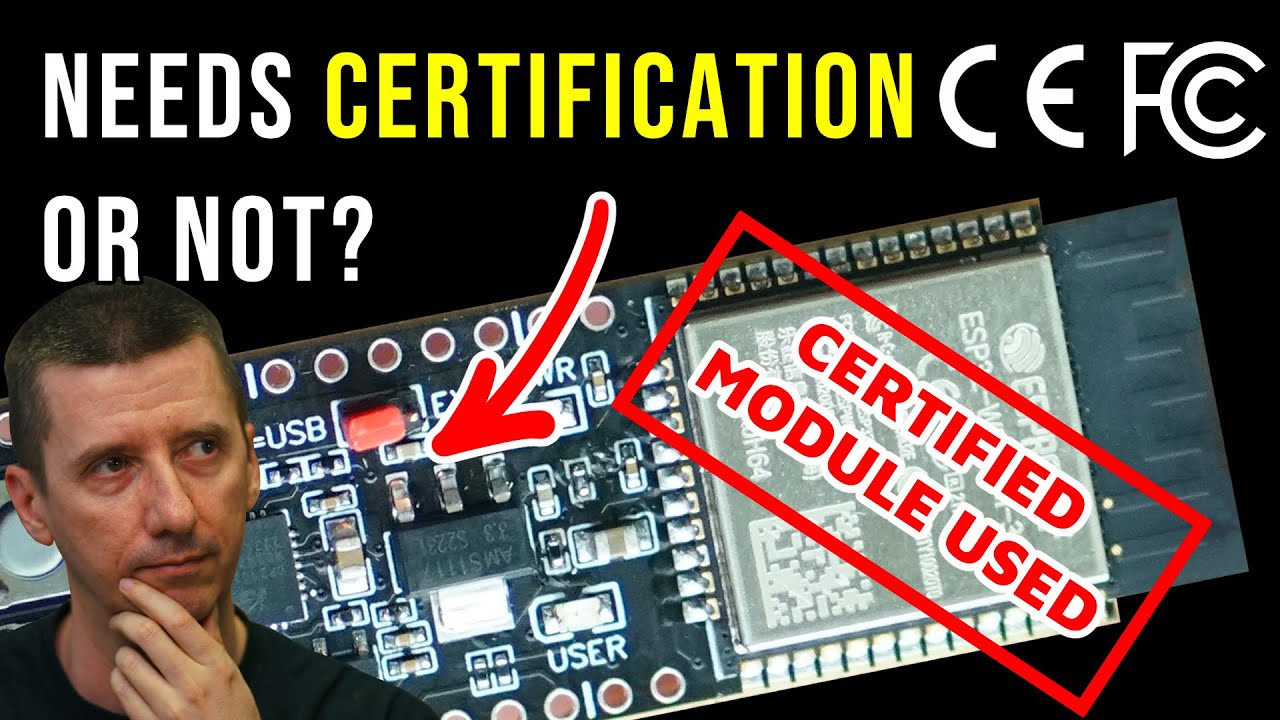
the clock frequency is a bit lower. — So it shows that yeah it is designed for these type of applications but yeah the exact model you have to go through the data sheet and see how it goes. The good thing about expressive products is that they not only give you the SOC or let's go through the S series. So they not only give you the SOC's which is basically a chip they give you modules which are designed for optimal performance and also the very important thing is that they have gone through the certifications for there are some FCC regulatory uh certifications and Wi-Fi stack and Bluetooth stack that usually these uh products I mean every product I know they have to pass these regulatory requirements to be able to be uh released to the mass market. And the good thing about the modules is that they have already passed these certifications. And if you're if you are designing a product and this component or this module is the only part that is doing the communication part, you don't need to do the retesting for the final product. And — I I will interrupt you here. Uh actually I uh recorded a video which is not published yet but maybe if someone is watching half year later after this it's already published where we go into details uh when certification may be needed when the certification is not needed I will attach screenshot from the video somewhere here and people can watch it — so we don't need to go into the certification details what I would like to point out is basically these modules make it easier because uh for example one of the hard part designing this kind of board is antenna design antenna tuning so on the models is already done so we don't have to do that also do you know if a Wi-Fi and Bluetooth can work uh together at the same time — yes there are RF switches uh because they both work on 2. 4 4 GHz frequency. Uh it's only about the coding and the way that the signaling works. So I don't go into the RF details but these you can see these modules they have the same antenna and then the modulator is different based on the protocol. So it switches between uh it switches very fast between the 2. 4 GHz for Wi-Fi and Bluetooth uh requirements but they coexist. basically is called coexistence — and uh there are some limitations to coexistence. So these generations of ESP32 especially the S series they have uh improved this coexistence because there are different I would say uh situations different uh it's like a state machine this Wi-Fi and Bluetooth so these state machines sometimes certain states they cannot coexist together for example when a Wi-Fi station device is connecting to a router at that point B advertisement might not work — some tricks and then you need to know as an application designer that uh you need to prioritize in those situations. Uh this is the this makes uh development of Wi-Fi applications and B applications a bit complicated. uh it is this fine-tuning at the end that makes a reliable product that works every time and the user doesn't notice these issues uh related to the coexistence. — Mhm. So this is maybe for example one of the reasons why we would like to you work with express if ID and not in Arduino ID because Arduino ID is — very high level programming. Correct. — Exactly. So yeah, Arduino uh is uh we will go through it uh in the next few minutes, but Arduino gives you a pre-ompiled version of ESV SDK with a predefined configuration and that configuration is fixed to at the build time of the Arduino library which was tried to be general purpose but different applications require different configuration. you can ofot still use Arduino and ESV IDF but you need to build it yourself which you need to know how ESV IDF works. — Mhm. So for everyone who is really starting with ESP32 what we just mentioned is uh how we are going to program the ESP32. So everyone will see a little bit later — what just we uh we continue uh on the hardware side. So mentioned uh expressive provides both SOC's here. So

Segment 3 (10:00 - 15:00)

it is basically the chips themselves. Uh so it is the IC that you can put on your PCB and but you are then responsible to design the whole circuitry the antenna and then doing the RF side for Brig products and uh projects you I don't suggest using them unless you want to design a custom PCB with a different form factor. Uh but the most common uh products of expressive are the modules themselves and well dev kits for testing purposes but uh and the most common one is ESP32S3 series. This is the most recent one. It has been released I guess two or 3 years ago. Uh it uses Xensa 32-bit dual processor. Uh the clock frequency is pretty high. So you can run with this clock frequency and then the LCD controller included. You can do pretty good uh animations with the LCD controller on small and uh LCD displays which is quite powerful. They have a large SRAMM and uh a large ROM. But usually uh what happens is that the ROM is not used and we usually flash um program our the flash that is externally extended and it is inside SOC but there are different variations we will cover and this flash is connected uh through SPI lines. Sometimes it is dual SPI quad SPI or octal SPI. it when we say dual quad or it means that the SPI data lines are either single data line it is a classic SPI which is miso these uh terminologies but the dual one and quad one you can transmit data a lot faster — so the as the flash size increases on ESP32 modules the data transmission speed also increases because you are trying to manipulate lot lots of data and then you need higher bandwidth Mhm. — Um so they have uh these modules they have almost all of the standard uh preferrals. So one thing that was always that that is always a limitation on modules themselves is the number of preferrals because not all of the pins are out or in general ESP32 uh SOC's u they're fixed the number of preferrals is fixed. So if you want to for example have multiple SPI uh communication with different components on your PCB or on your product, you might uh reach some uh limitation because the SPI preferral embedded into the chip there are not that many of them. So some depending on the model you have. So you need to uh decide on the preferrals you want to use before choosing a product. uh but here for example uh the the most common one is ESP32 W room one which has uh two variations as you can see here. So it is W room 1 U and W room one. So as you can see on the picture this has the uh antenna connector it is a UFFL connector but it is it doesn't have any PCB integrated connector on it. Uh so it depend depends on your antenna. — Some products you want to connect the UFFL connector and connect it to an external antenna. So then yeah it gives you this flexibility if you want that. Some older modules they had both uh I don't see them three series but on the uh I guess it was on Yeah. On this for example. — Oh yeah I see — where you can see there is a UF connector — and down if you go down there is a — Yeah. And here yeah this is the this is that uh that has both of them. — Uh but there depending on where you mount this you can either you can decide which one to use. It gives you the flexibility but the problem is that the latest modules they don't have it probably uh there's a good reason for it. — Mhm. — Uh so most of them they have different form factors. So depending on the application you have and the size limit you have on your PCB, you can decide on uh the exact module to choose. Well, the most common one uh an on ESP32S3 series is W room. This is the most powerful one actually. — And then the dev kit, the most common dev kit that is found for ESP32 products is called devkit C1, Devkit C, which my guess are links to the project themselves. Now it discussed it. We will go into the details. Uh — is this one what you have on your table? — Uh we are going to discuss that. Yes. — But I mean is this the model which you have on the board? What you have on your

Segment 4 (15:00 - 20:00)

table? — This one I have it is ESP 32 uh S3W room one. This is the exact model that we have. — U I think I use also the other one the smaller one. So if someone needs the smaller model they have also smaller one. Yeah, they can use a smaller one, but then they need to make sure they connect the antenna because without the antenna, uh you can't use the Wi-Fi or B capability. — But then is also the mini I think. — Well, there is the mini one. Uh so you can see they have put the size. Let me just put — it's little. Yeah. Yeah. — Yes. Exactly. So you can see this one uh the dimensions for example the width the height is 15 mm but this one is 80 mm but uh it is about the number of pins as well. So here if you look at the this exact module I guess it has the pads underneath the PCB as well. So here on W room one all of the pins are on the side. — Mhm. So you don't need you don't have any other pins on the bottom of the PCB — on this one to save a space probably they have put some stuff on the bottom. So when you put it on your PCB you need to make sure you route the correct signals underneath. — Then you can see the as you can see it is a smaller but the number of pins exposed is even higher. — Mhm. — So yeah — but it's harder to solder. — Well it is. Yes. Yeah. — Manually I mean manually. — Yeah. You need a heat gun and there are different methods but yeah — you can find dev kits for that if you want to just give it a try but yeah we it is a good device if you have shortage of space. — Mhm. Okay. So I think we can now move to the next point. What is the next point? So we — we know what we would like to use. You like to use the room. — So we are going to use this one. This is the one that we already have and the examples we run will be on it. As you can see the description is nearly the same for all of them. So they have all of them they have Bluetooth and Wi-Fi. It is about the physical dimensions and the number of uh pins. — So let's go through the devkit C1 which has this module. We uh this is the dev kit that I have on my desk and the only difference is that uh this picture is a bit older. It is with USB micro connectors. Is USBC and the ones you find on Amazon or anywhere you want to buy it is it comes with USBC connectors. So make sure you get USBC cables. — Mhm. — USB micro. Um so uh it the expressive documentation is quite comprehensive. It was not the case maybe five or six, seven years ago and that was always uh a criticism against expressive compared to for example Nordic semiconductor or other microcontrollers at the time that were present that there the documentation was not good. It has improved a lot uh in the last years and basically it has covered all of the use cases you might have and all of the issues are covered. It gives you a basic uh overview of the board itself. The board we are going to work it has these pin headers. Uh when you get them all they're soldered with the pin headers or they're just given to you and you need to solder them yourself. So it is depending on uh the design you have. Uh there are a few LEDs but the one that you can control on this board is an RGB addressable LED. So it has a single GPIO connection but uh you need to uh address using a specific uh protocol. It's a simple one to which uh LED you want to turn on. We will see it in the code itself. And then this is the power LED. Then there is a USB to serial uh connector here. So the USB to UART and the good thing about ESP32 is that it works based on UART to pro to program a device it uses UART and if you want to do use a debugger you can use JTAG debugger it provides a JTAG interface but uh the U the UART interface also gives you the debugging environment using open OCD so you can basically track line by line using the GDB debugger. I didn't know this. — Yes, it is it is possible and they have put a nice documentation around it. It is a bit complicated but if you want to really debug the code on the microcontroller line by line and set a break point that's a pretty useful feature. — Can you use the uh USB which is directly connected to the chip? Can you use it for debugging? — Exactly. Yes. So this is the second application of this USB port. So this USB port exactly is connected to the USB pins of uh the expressive and then yeah it gives you the JTAG profile on the USB. So basically it's an embedded JTAG

Segment 5 (20:00 - 25:00)

debugger on the board — which directly you can connect and then install the driver. They have put documentation on the website on you can connect and install the driver. On Linux it is already uh shipped with — but maybe I would like to point out here. So maybe this can be uh the advantage of using the express if IDE. So the software which — uh we will use to program this board there are two options. One option is the Arduino software Arduino environment or directly the software provided by Espressive. But if you use the Arduino environment it is simple. There are many examples. It's super simple to start with. Everyone knows how to work with Arduino environment. But there are limitations and one of these limitations is the J-Tech for example. — Yes. Yeah. You in Ardino you can't use a JTAG debugger. You can program it if you do some settings but you cannot debug code with the debug using Arduino. — Mhm. — Uh so to continue the this is the introduction to the module itself. It has uh a full description of it and how to set up the board the buttons. So the there are two important buttons on the board as well. So there is boot and — Mhm. So our reset is a typical reset. Uh the reset mechanism on ESP32 is a bit uh different than uh the reset we know because this reset is connected to the EN pin of the microcontroller but it doesn't reset the microcontroller. It it has a circuitry in between that's eventually it resets the microcontroller but there is a delay. Sometimes it might be tricky. I don't go into the details of that — but you can't just see it as a reset and then there is a boot which basically tells the uh expressive to boot either it is connected to the boot mode but it tells it boot the flash or it boots to a programmable mode which you can download the program — but you don't often use the boot mode because the USB toward converter already brings the device into the boot mode so it is all automated at least on the dev kit itself but when put the module on your product, you need to make sure that you have this uh pin, the boot pin, — so you can refresh if you need. — Yes. Yeah. You need to bring it out. So you can at least if you put it on a jig or any sort of debugger, you can flash it. — So basically without the boot button, it can always uh boot up with your application, but then you would not be able to go and — you will do it. Yeah, you need to program it until you uh change the boot. So, you need to control the signal on it. — So, the I don't go into the details of it. There are some schematics here. Uh the pins you can see the pins have different functionality, but you can configure them during the boot. Uh there are some strapping pins as well on the board. There are the date they're defined in the data sheet. So most of the pins are all GPIO. So you can use them for GPIO applications but you can also use them for a specific application like ADC or if you want to connect a touch uh touch input. Some specific ports can be used for new UART ports. For example, U0 and U1 are uh for new UART ports that you want to use. Some of them they can be used for external clock source if you want to use the RTC functionality. Uh so when you this is quite important when you want to design a product uh based on these modules you need to make sure you set the crystal port correctly. So you can use the RTC functionality and some strapping pins are also needed. if you want to use the uh highest speed SPI port or well it the naming of SPI referrals on ESP32 is a bit misleading but it basically means there is a main SPI and the secondary SPI so you can have two SPI interfaces but uh when you use the second SPI interface you lose some of the other functionalities on the pins so it is up to you to decide which one to use — uh and yeah The pins are defined here. — This is nice. I use the picture a lot actually especially for example if I'm looking for pins which are supporting I don't know I square C or Yes. — or you are in this picture very nicely you can see which pins you can use or connect. — Exactly. Yes. Yeah. This is quite useful. Sometimes you can usually when you want designing a product uh this is what I usually do myself. I create a Excel sheet. I put all of the pins and then during the design review we decide on the functionality of each pin and we make sure we don't lose out uh lose pins or don't go out of pins. — Mhm. Okay, you can go next. — Yes. Yeah. This is a schematic of it.

Segment 6 (25:00 - 30:00)

This is the schematic of the dev kit and you can see that the schematic is just a single page. I mean it doesn't have anything uh very advanced but it gives you a clue of how uh if you want to embed a UART USB to UART programmer you can see the DTR signal and RTS signal. DTR for USB to UART is data ready data terminal ready if I am not mistaken and then uh read signal ready. So there are these ready signals. So as you can see this circuitry basically this GPIO zero is the boot pin and then the power the basically this is the reset. So you can see the programmer uses these two pins from the USB to chip to bring the uh SOC into program mode — without pressing the boot button directly. And so this is quite important. Sometimes I mean usually the products they want to uh put a programmer on the PCB as well. So you can put these circuit on your design as well. — Uh the rest is uh nothing important. So this is the RGB LED that — this is what we are going to use today. — Yes. So this is yet a bit uh different from the normal LEDs on this dev kit uh because you have three RGB LEDs on it. So it is an addressable protocol. The library already includes that. So we will see how it goes. Uh it's pretty simple. So I guess that's it for the hardware side of it. Uh we can start switching on programming uh the ESP. — Okay. Let's do this. I'm curious. So first we will need to Oh, if we start with Arduino, do we need to install something? — Yes, you need to first install Arduino itself. uh and but the the rest of it is pretty straightforward. So I recommend you follow the installation of Arduino. So we can just go to Arduino website and uh because I'm using Ubuntu here. You can download it. Let me see if I can have access to the download link from here on Arduino. Uh I guess the link — all software there is. — Yes. Yeah. So this is the download section. So depending on uh Windows, Linux or Mac, you have I've already tried it on Windows and it is somehow easier on Windows than Linux because uh on Linux there is a bit uh there is a catch especially on recent Ubuntu 24. There is an issue with the app images. So I recommend installing the zip file uh for the Linux uh version. But at the end uh it is all right depending on which operating system you have. So you can just download it. I've already downloaded it and uh — install it. — So you can see I've already uh — Oh, you have the easy offline. Uh — yes, I use easy EDA when uh for designing some PCBs. This is — but I never tried the offline version. So it does exist and it works. — Yes, it it works. Yeah, that's right. Yeah. uh easy8 is pretty quite useful. I guess I've already installed Arduino so I've already extracted it but easy8 is quite it is simple but I like its simplicity because I can start quickly and design something simple as well. I guess for simulation it lacks a simulation support which some you don't need for basic projects. If you want to only design a hardware I recommend easy EDA. So when you when once you extract Arduino uh it uh the ID the executable is here Arduino IDE for some reason on my machine Ubuntu 24 when I want to launch Arduino ID it gives this sandbox error which is basically it is an electron app it is a web app and there are some security configurations 24 that doesn't let it to run by default but you uh you need to pass this argument no sandbox — Mhm. — to it. But uh — on Windows it just runs. So people who are using Windows they don't need to worry about that. — Oh I spent only an hour to find out why Arduino doesn't run. — If you ask uh chat uh GPT it doesn't say. — Yeah it might be able to tell. Yes. Exactly. Actually, I use it a lot for this kind of uh work, these kind of questions. Chat GPT is very good because you can immediately test it if it's right or not very often. — Exactly. Yeah. That's that I guess. Yeah. It can search online as well. I I really recommend taking a

Segment 7 (30:00 - 35:00)

look at these AI device AI assistants and I'm using it a lot on my projects, especially for embedded projects. They're quite useful for ESP32. they are more useful because the whole documentation the API is available publicly online and these AI agents they can easily find out the information and the most up-to-date API available. So that's a good thing when something is open source and available it gives this advantage to them that can be used is by these AI agents AI assistance. — But what I found out sometimes they mix different versions or different uh stuff and then basically the software what they create it's — you need to just always like uh copy and paste the errors to fix it. — Yeah. You need to supervise it. You can't just rely on it. But if you want for example to implement an algorithm that uh that is somehow independent of the APIs exposed by the SDK of the microcontroller they're are quite useful — and they can understand the context as well. So if you just give them the list of the APIs you have this giving the a good context to these tools it maintains a good response from them as well. — Okay we can continue. So this is how the Arduino Arino looks and basically here is where we can write software for ESP32. — Exactly. And we can use it also to flash the board. — Yes. So the famous Arduino sketch is just a setup and a loop. So it is basically setup runs one time and loop runs like a loop every time. So this is the main functionality of Arduino and it is its simplicity that has caught a lot of attention by Arduino. So to install uh the ESP32 SDK on uh Arduino we have to go to preferences and then there is uh this uh section additional boards manager URL. So this is what I have already copied from the ESP uh expressive documentation for Arduino. So I can't even show you how I got it here. If so here it talks about well what Arduino SV32 provide. — Uh it tells you which uh SOC's it supports but it mainly supports all of the common ones uh that uh Arduino uses. Uh the installation uh is pretty good here for different operating systems. But the main thing after you have installed Arduino, you have to choose uh it's like Debian on like a Linux package manager. Arduino has its own package management system. So by just pointing to the right server uh which is basically the release link as in Arduino ecosystem it can find new packages and then Arduino can install it for you. So here they have put two links. One is for the stable release link which is basically the stable releases of Arduino SDK for ESP32 and this one is the dev version. So it is following the head of main on the ESP32 GitHub uh repository. I recommend uh using the stable one and if you only want a specific feature that has been added recently and you want to test it then use the development. So you can just copy it and go to Arduino and then you can just paste it here. I've already done it before. So it's there. Once uh you press okay, you need to go to the board manager. So you go to board and then board manager — and you can search here ESV32. — Uh this one I've already installed it. But uh when once you search for it, this is the ASV32 by expressive systems. is the uh SDK that ESP32 uh officially releases. — So this one is basically from the link what we just inserted there. — Yes. Exactly. This you have to download the latest release. — There is uh so there's just one thing you need you shouldn't confuse this with the Arduino ESP32 boards. So this SDK is provided by Arduino but in it only supports a specific uh Arduino dev kits that come with ESP32. — Yeah, I think these are the dev kits with the kind of wireless possibilities. They solder down ESP 32 and Arduino board. — Yes, exactly. So here you can see Arduino NOS ESP. This is only one board I guess Arduino produces — officially they supported ESP32 but for the rest of the dev kits uh this one is the uh the common. — Mhm. — So once you have installed it uh then you have access to all of the examples.

Segment 8 (35:00 - 40:00)

You can go to file examples and then — it shows ESP32 dev module. So uh before uh it doesn't show it by default but you need to uh select a board and then connect it to the uh to your PC before it can detect it. So let me see why uh it didn't detect my device for some reason. Uh so here you can you have to go to the module itself and then you have to specify which module you have. I have ESP32 dev module which is basically the dev kit we got. So once you select this one it shows the examples for the that board and yeah all of the examples are different functionalities. So we want to use the Arduino. Uh there is a let me see there is a blinker example that we need to find. So ESD32 me try GPIO and then — RGB. This is the example that you want to use. — So it opens a new Arduino. With that, I close the previous page and this is the one we got. So, let me just make sure it is on the right size. Basically, we don't need to change the code here and it is pretty straightforward. So, there's no special setup and because this is a dev kit, it is supported both by Arduino. the this RGB builtin uh is it is a definition it is a compiler definition that has been already added. So it basically points to the GPIO pin that is connected to the RGB but it is already defined. If I controlclick on it, it goes to RGB built-in and then uh if I go to built in here, it shows which uh pin it has been connected to. So that's it is already defined in the pins Arduino. When you select the specific board that's uh definition is already there. — I didn't know. So you can do controlclick and then you will find the definition. — Exactly. This is what I did. So once I when you do controlclick it worked for Yeah. Here it worked — and can go through this. This is a nice feature uh of ID of Arduino ID but VS code uh has far better support for this sort of source code handling — but this is good to know because uh sometimes this software may be for different def and LED or something may be connected to different pin. So it's good to know how to double check uh if the software is written for the board what uh people are using. — Exactly. Yeah, that's that's correct. And if it's not then everyone can change it. — Yep. Yep. No one uh it is something predefined but you can if you have a custom board you need to define this pin map yourself at the end the pin number is an integer. So when you are calling digital right you need to pass the correct pin number. If you don't want to use that is coming by Arduino or if it is wrong then define your own pin number. — It's commented out in the first line. Yeah — exactly. Yeah. this. So this is the for this is the brightness and then uh exactly. So let's compile it. The first time you compile it because uh it compiles lots of files. It might take a bit. Uh the good thing with Arduino the ESP32 Arduino support is that it comes with a pre-ompiled library. So um we will see when I switch to ESP IDF that uh it the first build takes a bit longer because it recompiles everything. But for Arduino it is already pre-ompiled. So it only compiles your application and link it to the static library that comes from ES32. But there's also this advantage what we were talking about before like uh you can't really sometimes do very lowlevel programming because it's already pre-ompiled. — Exactly. If you go to the documentation of Arduino, it says that uh I guess there is advanced utilities library builder here. It tells you uh how to build the library yourself with a specific configuration that you want. So here you have to use idf py there it is this config controller that you can specify uh which configuration it should choose. So there is a uh I guess it is a long tutorial as

Segment 9 (40:00 - 45:00)

well on doing that. There are docker images as well that you can use if you don't have the host environment and uh in the FAQ even it has mentioned for example yeah how to change the SDK Arduino and it basically tells you that you need to use the library builder to build your own — because it is already pre-built when it is shipped to you — but I would like to point out if someone is using Arduino environment they don't need to really worry about this because they probably would like to try it only with this very simple Okay. — Yeah. For almost I mean 90% of applications the default configuration is enough unless you want to use a I don't know some specific feature or change something in the Wi-Fi stack. So let's see if it the programmer works as well. I need to just choose the right port. For some reason the port is not connected. So I try to connect it again. — Disconnect and connect. Yeah. — Yeah. Hopefully it detects it. Yes, it has detected. — You can move the board a little bit further because it's — Is it better now? — Mhm. It's perfect. — So now we are going to No. Okay. Yeah. Continue. — Yes. Uh once you connect it, it uh it gives you the TTY ACM0 which is the serial port. And if you already have programmed it with Arduino, when you get call get board info, it gives you some info. If you have not programmed it with Arduino, as here it says unknown board because Arduino has a specific serial command that it can detect the board and it has a specific bootloadader here as well. But you do you don't need to use a bootloader here. There is a feature of Arduino that you can have a bootloader and then use a programmer to do it. You only need to def to choose the ESP tool to program the ESP32. So I will go through the uh config as well. But this these are the steps that you need to follow in Arduino. — I never knew there are these features. I always just press program in — Yes. Yeah. But it is good to know about some of these features. Let's go through them. So when you specifically choose ESP32 — uh modules, it gives you all of these options. uh you kind of stick to the default values but it is good to know what they mean. So USB CDC on boot basically means that uh the USB profile if you use the uh the other port so I can point out to the here. So if you use this uh USB port uh it directly is connected to the USB pins of ESP32 module. You can enable it at boot time. uh for our application we don't need it so we keep it as disabled. — You can also change the CPU frequency for a specific application you have. — The higher uh frequency it consumes more power. So I guess you want to go low frequency for low power applications. — But then you can't have Wi-Fi because it's not powerful enough. So yeah, at least you need 80 MHz uh CPU processor to be able to uh use Wi-Fi and B functionality. The debug level you can specify what uh how many logs you want to see. Basically some in uh the ESPF internal calls they don't always log what they are doing but depending on the debug level you can specify what it should. Verbus is the uh most verbus debug level which basically prints every step it does. But there is a catch when you have more debug uh your application runs a bit slower because for every serial command it has to go to the serial preferral and send something. So it is going to make the application a bit slower. — So there is some kind of debugging option even in this Arduino environment. — Yes. But it's not the like debugging in the expressive environment like going through line line. — Yes. Yeah. It doesn't go through line by line but it prints uh debug that you already have put in your code or coming from the SDK. — Uh but it is a pretty good feature. Uh I if you are going to use interrupts I recommend not to use any sort of print inside the interrupt because some interrupts you want to take them in microsconds — and when you use a debugger it makes it slower. So there is a USB DFU. So DFU is a USB profile that lets you treat the device as a programmable device. So you can program the ESP32 microcontroller flash through the second USB port and without the USB to UR debugger. This is quite we don't go into

Segment 10 (45:00 - 50:00)

it but uh it is a feature that should be enabled uh if you want to use it. You can also configure if the flash should be erased. Sometimes you want to store uh especially if you run a web server, you want to store some data uh like the HTML files, the JS files that will be shown when you run a web server. But sometimes you want to erase the whole flash because you have multiple partitions. One partition includes those data and you want to reprogram that data. So it's sometimes it is useful to erase the whole flash. — Uh here it talks about the event Q. So uh it is a programming concept in uh sort of Wi-Fi applications uh Wi-Fi and BLE. So there is a Wi-Fi stack or B stack that runs on one processor. It's like an state machine and you can see it like that. So whenever the statement the state of the stack changes for example a new Bluetooth device is at connected or Wi-Fi is connected to a hot spot uh it signals an event and then the event handler should run separately on a different core. So it is better keep them different depending on your application. So if you have both Wi-Fi and BLE, it's better to run them on one core and the rest of your application in the other core. So it doesn't create a bottleneck for your application. Uh the flash mode is basically uh the flash frequency. By the way, these configurations apply directly when you use ESB IDF. So but it gives the different interface to configure. — So it is quite useful to go through them now. So we don't need again. — So uh QIO is basic this it is the flash mode basically the flash that is connected to these ESP32 microcontrollers uh which is basically inside the chip in on the SOC. Uh well there are some c certain versions of the SOC that have embedded flash but the module itself has a separate flash chip that is connected via SPI to the uh SOC but then depending on the module you have you can decide which uh connection it has the devkit uh the W room one that we have it has the QIO interface it mainly means quad uh interface which has four data pins on the SPI flash connectivity uh and the higher the number of pins is the faster it can fetch the data from the flash and because the ESP32 runs the flash uh runs the program — from the flash address so it doesn't load the RAM and it doesn't run it from the RAM it runs it directly from the flash memory so it is quite important to uh — yeah the flash frequency read and write should be quite high especially the read time because the CPU shouldn't be stuck before it is loading the data. — And uh you can go even the fastest uh but uh the flash memory that is shipped with ESP32 modules it is rated to work at 120 MHz but if you design your own custom module you need to make sure the frequency you choose here matches the flash memory you have chosen on your board. So, but I'm choosing 80 MHz here. The default value. The flash size. Uh, you can decide the flash memory size you have. This board has 8 mgabytes of flash memory. If you search for devkit ESP32 rover, W — I think they have different models. Correct. — They have different flash memories. This one I got is it has 8 megabytes of flash memory. Uh, but you can find some of them that have 16 megabytes. But majority of the def they have at least 8 megabytes. So if you choose 4 megabytes, it is all right. It is still runs. It only uses a 4 megabytes space of the uh flash memory. Keep it as it is. — So there's a JTAG pin. Uh you can specify how it works. You can even enable the USB JTAG port and then you can use open OCD and GDB to debug the application but probably not inside Arduino. So you can use VS Code or something else. Here it says Arduino core at which core it should run. So we decide core zero or core one. This is the same as we discussed before. And then the partition scheme for default applications. These partition schemes the default one 4 megabyte is enough because but you need to make sure you choose the right one uh that matches the flash size you have. — I have no idea there are all these settings. Yeah, it has you can basically have for example this uh 16 mgaby one uh it has 2 mgaby of uh flash memory for application partition

Segment 11 (50:00 - 55:00)

— and then 12 uh mgaby for the fat file system. So basically then this is also connected to the if you would like to erase whole flesh or only the application part probably correct. — Um yes uh so depend when you the when you have a application partition it you can only specifically erase a partition instead of the full the flash memory. Yes. Yeah. You and then you have to choose uh so choose any of these layouts and then decide on uh should you — raise the flash or not. — Mhm. — Uh and then there is a PS RAM. Uh so this is a quite useful feature uh of ESD32. So the same thing as we discussed about the flash memory that extends the program memory. You have now it is like a SPI RAM. It is connected to the SPI pin of the microcontroller. It extends the RAM, the amount of RAM you have, the RA random access memory that you have. So it gives you this module and this feature is quite useful if you want to run AI or machine learning on the that requires large amount of RAM — that to hold for example a neural network. So this is quite useful because the embedded RAM inside the microcontroller I guess it was 500 kilobytes. It is quite high but you probably want — not for data. If you need to process too much data then yeah — exactly. Yes. And uh for that you probably want to go with you can see it only provides QSPI so either four data lines or oral which is eight data lines to make the operations faster and it if but you need to design the software in a way that uh — it can use this efficient. — Mhm. Well, if you uh this is kind of advanced topic, but ESP IDF lets you decide on how to use the different RAM uh sections of the memory address you have for different application like managing the heap and stack on your software. But these are quite as advanced. We don't need to go through them. Uh here you can decide uh the upload mode here. So you can use UART or USBOTG. So because we don't we didn't enable USB CDC on boot then the there is no USB and the connector is also connected to USB. — Yeah we are using the uh not USB. — Exactly. And then we use the uh the highest speed nearly for programming uh the flash memory. You need to make sure that uh your new USB cable is a bit uh good. It can handle this data rate. Uh and then you can decide on the USB mode. We keep it as default. You can also enable ZigGB as well. Uh if you want to use it. — I didn't know. So it also supports Ziggb. — Yeah. Well, ZigGB is like uh so uh Ziggb and Bluetooth they uh they share the same uh physical layer. It is about the software stack that is different. So the when the physical layer is the same and the medium access it is it e2. 15. 4 I guess if I'm not mistaken. So that MAC address layer is the same for both B and ZB and it is the opera stack. So it is a software thing basically you can decide to choose Ziggb or uh BL. — Mhm. So for everyone who doesn't know what ZigGB is uh many IoT devices um or small sensors or something like this are using ZigGB to communicate with some kind of central correct — Exactly. Yes. Yeah. ZigGB is for smartome devices that have — I say wrong IoT this not IoT is connected to internet. No. — Yes. — But ZigGB is just like wireless connection. Yeah, it is — inside of house for example. — Yes, you need a router. You can see it specified. You need to and the good thing is that ES32 can act as a router as well. — So, it can receive uh — zigb or B data and then uh because through Wi-Fi it is connected to an router or access point, it can act as a router as well. There are different advanced applications of that. — Mhm. uh but we don't need to go — we don't need to go into details. — Yes. Uh so these are the basic configuration but these configurations are the minimal configurations that Arduino provides. If you choose to use ESD IDF basically you can control every uh configurable parameter but this uh configuration is a bit limited but it is for the purpose of Arduino and it wants to be easily accessible by the users. So now

Segment 12 (55:00 - 60:00)

we have compiled it and just make sure I've compiled it again and then we can run the application and the application itself is pretty straightforward. So it first turns on uh all of the LEDs on the uh board and then waits for 1 second which is 1,00 milliseconds and then turns it off. when uh the all of the RGB lights are on, you expect a white light because all of them are on and then later it's rotates between different colors. So — when you say all I would like to point out this because first time when you said all LEDs I was thinking there is only one LED but basically there are three LEDs in this one LED RGB LEDs. So that's what you mean correct? — Exactly. Yeah. So basically there are three LEDs in a single component. — Yeah. — Uh so let's uh upload it and hopefully it it has already detected the device. So it probably blinks. Yeah. You can see the board is programming. It shows the programming percentage and once it is done you can see the LED — white, red going through all of the colors. Yes. It's it's pretty — Yeah. Good. Yeah. And uh that's the first example we want to run from Ardino. Uh do you have any question? — No, no. — Okay. Should we go? Okay. Should we proceed? Okay. — Yeah. — Let's run another example. This one is the HTTP server. So we are using the Wi-Fi functionality of that. It connects to a Wi-Fi access point. I have already set up an access point here and then it connects to that. We get the IP address and then we if we browse the IP address we see basics of HTTP server then we want to change it a little bit to be able to control this LED via Wi-Fi. — Mhm. So this is the second example. We are going to — enable Wi-Fi. — Exactly. — And we are going to run web page on ESP32. — Exactly. So let me find that example. If I'm — Yeah, simple Wi-Fi server maybe. — I guess it was simple Wi-Fi server. Yes, — I don't know which one you use client as well. HTTP update service. That was the one. Yeah. So, HTT — there is a web server example. I guess that's because there are diff well they share the same functionality but the example is designed for different uh applications. So, I guess this hello server is which we can use. So let it open. So I closed the LED, the blink example we just ran. Let me make sure it is the right size. — Okay, — good. — Okay, curious. — So here uh you can see this is just one file and we go through the details of it. Uh but the whole idea is that it runs a web server and it connects to an access point. Uh this is a simple application. So the module itself it doesn't broadcast any Wi-Fi SSID. By Wi-Fi SSI ID is like that when you want to connect to a Wi-Fi access point, you search through it with your phone and then you choose it. Uh this example expects that you already have a router, you already have uh a web uh an internet connection and then you have a uh Wi-Fi server or Wi-Fi access point you could say and then you need to specify its uh SS ID and password. So you can see it is left empty and then we need to provide it. I have already created a access point here. So I called it amir test and then I set a simple password for it. So it is wifi pass war just like that. So you need — to keep it inside the example. It gets hardcoded for final product that you ship with uh ESP32. You want it to be programmable by the user itself or there are different methods of provision. It's called Wi-Fi provisioning. uh that usually happens uh on these devices because this module supports BLE. Uh the easiest way is that to use the Bluetooth connectivity. So a mobile phone for example, it can configure the device. So it connects to a Wi-Fi instead of the user typing the SSID and password. But there are different methods and it defect and basically it affects the usability of the device. So here we uh changed it. I'm going to save a copy of it because when once you change an example, you have to save it somewhere before you can

Segment 13 (60:00 - 65:00)

compile it. So I've just saved it. Let's wait for it to load. Yes. So uh the example it is as you know Arduino is C++. So it is m majority of it API is object oriented. So what has happened is that it created a server object and it has initialized it with the port 80. This is the argument it gets. So why port 80? It's a web server that listens point. Yes. — So it has put an LE here as well. Uh but we are going to change the L le because this example expected that you don't have a uh — the addressable LED — LED not an addressable LED. So we are going to change that. Uh but when we I go through this and then I will apply the change. — Uh so I don't I recommend every time you want to read an Arduino example instead of looking at the functions from top to top, you first stop at the setup function — to see what happens when the board boots and later go into the loop and then you can follow the function calls from there. — So here what happens that it sets a pin mode to output. uh it set ups the uh serial port. It is a typical thing in all of the Arduino examples. Then uh the Wi-Fi singleton object uh it sets it that I want you to be a station mode Wi-Fi. What when we say station mode, it means that the device is connecting to an station. It Wi-Fi access point. It gives the SSID and password. It starts printing something. So there is a while loop here. It waits for the state machine of the Wi-Fi stack to be WL connected which means wireless — and then it prints the dots here on the serial port. Once it is connected it prints the IP address and then there is this MDNS protocol. uh we don't go about uh into the details of MDNS but basically it is a protocol that you can discover devices by their name instead of their IP address but it only works in local network. So instead of uh typing the IP address you can type ESD32 on your browser and it opens up uh it depends on your client supported. — Then we have the server already defined at port 80. we specify that uh when the you know HTTP protocol it has a root directory that then you can define handlers for different paths on the HTTP route. So here for the default one we say handle root function. So whenever the user just types IP address as presses enter on the browser it calls handle root and then uh inline is just a test. It wants to tell you that you can define an inline function. It is using the lambda function of C++. So instead of defining a function and then calling it, you can just define and call it at the same time. — Mhm. — And then you can't also specify a HTTP 404 error as well. If there is a pass that the user has uh that we have not provided yet, we can handle not found page. And then we start the server. print server started and then uh the loop is basically uh because this is a web application it needs to iteratively check if there is a request for the HTTP server to respond. — Mhm. — Uh this is the simplest way to handle HTTP uh servers. It waits for two uh two milliseconds and then it calls the loop again. Uh so the client is always iteratively listening. Uh so let's uh change the uh le before we program it. Uh so I want to open the le example that we have just to save time I copy paste code from it. So I just copy here digital right RGB built-in LED high and RGB built-in low. So first I change here and here. Then so because this pin mode uh well we can

Segment 14 (65:00 - 70:00)

keep it like that. I but the built-in RGB doesn't need to be set. As you can see here, it set it in the setup function. Also, I remove this line. I set the RGB to low here. — So, low it means it will be switched off by default. — Yeah, it switched off. Yes. So, at the boot, we want to make sure the LED is off. And that's it. Uh, we don't even need this LED. Let me just check. It has been not used. Yeah, it has not been used. So I can remove it. We save it and then we compile. — Thanks. — So this is how simple it is now to — actually create Wi-Fi cont uh connected devices. — Exactly. This is pretty simple. uh when before you want to start a project, I recommend going through these simple applications or simple examples to just understand how the features of this microcontroller works and then try to design a software architecture uh which involves multi-threading because you Arduino is a single loop when the default mode of it is a single loop but you cannot do everything in a single loop and you need to take advantage of the processing power and these co-processing applications. Uh later on you will have to use uh free RTOS the operating system that comes with ESB IDF. Uh yeah it gives basically gives you the productivity. So now you can see it has programmed it but uh I want to print the IP address. we have to open the serial monitor here and then uh specify the correct B rate. So it uh the default B rate uh that Arduino chooses is 9,600. So I just clean it and uh I guess I need to reset them the board itself because uh it has already passed the stage and it has printed stuff. So I reset it. Maybe I — double check the speed in the setup. — Yeah, maybe I need to increase it. — No, you can double check the speed there. No, in the code. — Oh, yes. — Set there. — Oh, yeah, it is. Yeah, it is this one. So, let me just run it again. — Yes. — So, you can see uh it is printing the dots and it has quickly connected to the access point I have given it to. It has printed the IP address and then it says HTTP server started. So we just need to copy the IP address here — and put it in a browser. I'm connected to the same Wi-Fi network. So that's the reason I can open this. — Looks like someone is building something here. — Yes. Yeah. This is quite important. So just make sure the IP address is correct. 98. Okay. You can see this is the response from the root handler. Hello from ESP32. And you can see it is coming from uh the root handler that prints this message. Hello from ESP32. And uh let me refresh again. So you can see on the video that it has quickly turn blink the LED but it is because of the delay for two seconds that we got here. I guess it's not that visible on the video itself. So we can also increase the delay add a delay here if you want to see it. But we will see the LED later in the example we run uh in ESP IDF itself. I can quickly put a delay here one second — and then oh this is yeah I forgot this is 5 milliseconds. So it is quite fast. We don't see anything. But I put a delay here of one uh — uh double uh the column semicolumn is missing. No. — Oh yeah, I missed the semicolon. Yes. Well, the compiler should tell me anyhow. — Yeah. And now we should see 1 second. Um — yeah, we should see the early blinks uh with a longer duration. Hopefully it all goes well. Yes, it has programmed it. So if we go to the serial port. So it has connected again. It has it's mentioned this HTTP service started. We go here, you can see the LED blinked and then the response came again. LED blinked and the response came. So yeah, it is quite enough time.

Segment 15 (70:00 - 75:00)

And you can see the loading time is also a bit high for this. So because manually added the delay usually in production code you don't want these delays. — Uh okay let's uh so this was briefly uh how you program ES32 dev kits with Arduino ID — which you as you saw it is pretty straightforward but uh let's switch to ASB IDF and see how we can use that. So just to introduce uh to the audience uh ESP IDF is the main SDK that is provided by expressive. Uh even Arduino is built on top of ESBA IDF and it has been uh it is like a specific configuration of ESB IDF that is built in into Arduino and it is provided to you. But if you want to have full control and use the flexibility of the SDK itself, then ESBF is the place to go. So I close Arduino and I uh let me open ESP IDF documentation. So, ESPF is uh expressive integrated development uh framework if I'm not mistaken and the latest version is version 5. 5 and uh you can probably switch to the older versions if you want. There is a specific uh versioning scheme that IDF follows. Uh to the when you want to start a project, it's better to look at the repository. I guess there is the repository link here. Let me quickly see. Yes, ESPF. So they may they mention the release cycle. So you can see version 5. 5 it has been released 21st July. — Pretty new. — It's pretty new. Yes. Yeah. Even the environment I have is it probably it is it has picked it up but I'm not sure. So it says there is a service period. So it says it is recommended for new designs and then there is a maintenance period which basically they fix some of the security issues. Uh but anyhow when you design a product you need to make sure it is remotely updatable uh either by the user or automatically uh which uh then probably if you if your product for example was developed two years ago uh and it supports remote firmware update you can compile a program with the latest SDK and update the flash memory with — it's a quite important feature of these Wi-Fi BIOvices. devices you need to make sure that device is uh updatable. Uh the installation of ESPF is pretty easy. They even — But this is where the importance uh important thing is starting. Correct. — Exactly. Uh ESPF is a bit complicated. Uh it takes a while to understand how it works but uh it's quite useful. It uses a mixture of Python command line and a Pythonic build system and CMake. CMake is another build system that is used. Uh it is a bit common in embedded software and in software that uses CC C++. I would say CMake is the most common build system and then there are other ones. CMake is a well mistakenly we could say it is a modern version of make but make is actually build system. CMake is a build system generator. CMake can output ninja and make files that can be used to build the final artifact. Uh these are about uh CMake itself. — I would like to point out so because not everyone knows what makes means and C makes or how they are used. So basically uh it's the way how we for example build software on Linux. We can download source code and we use this cmake to actually create the application which can run. — Yes. Okay. — Exactly. — Yeah. Uh so there are different ways to install uh the ESPF. So uh usually you have to go through the manual installation. There is a Windows installer and Linux as and Mac installer. But if you don't want to install these uh SDK the SDK manual yourself, you can also use a VS code extension or Eclipse plugin. — I don't know. — Yes. Yeah, these two exist but uh well as it is recommended as a beginner at least if you want to start with building and using ESD IDF but the manual installation is more uh it gives you

Segment 16 (75:00 - 80:00)

better experience of how stuff works because at the end uh in your project you might face some challenges that you need to dig into the IDF into the SDK itself and understand how it works and then try to change the configuration which the manual installation is a bit uh easier. I guess this uh VS code extension is pretty new. So probably majority of the users don't use VS code extension now. Maybe it has improved a lot but uh in this tutorial we go through the manual installation which is pretty straightforward. Uh but it was the common way of doing that. Maybe it has been changed a lot. But if you want to go through the wind Linux or Windows installer because I have a Ubuntu machine uh I go to the through the Linux installation uh approach. So it gives you this instruction steps. As you can see you have to install some packages. It you might hit some errors and then depending on if you are on Mac and one processor you might hit some other errors as well. Uh so you could see that the manual installation it has some dependencies that you need to install at the beginning before you even you can go and install the IVF. So this is the command install the IDF itself and then specifically installing the targets that you have. You can see it is quite uh a repetitive task but once you do it uh that's enough one time. The other problem with this approach is um it messes with your machine because it installs everything globally and also uh it messes your home directory. Uh and if you want to switch between different versions of the IDE, you might also face some challenges because uh during your product development, you want to switch between different versions. some versions they have a different bug and then the other version has a different bug. So what usually happens is that this is what we do uh what I've done in my almost everywhere I've worked as well. We use VS code dev containers feature which basically you create a shared environment with a specific set of uh prerequisites with the same packages. So all of for example if you work in a team of five people you want to develop inside a container and the reason is that the container is the same disregarding you have a Windows machine you have a Linux machine or you have a Mac machine because you can see each of these machines they have a different installation and you have to install different packages that might be on different versions this affects the final product if the versions don't match each other. So that's the reason we usually use uh VS code dev containers. I have already provided uh or prepared uh a starter VS code EF32 environment for you which is basically a repository with the basics of ESP32 uh SDK and it uses VS code dev container for don't for those who don't know VS code dev container. Let me quickly uh VS code has already provided a good tutorial of how it works. So instead of running everything locally, you create a container and mount the file system into the container and the container is in your control because you can define what needs to be installed, which version and how it should be installed. And the container is running on your machine. — The container runs on your machine. Yes. Yeah. It is uh it is a docker container. Uh recently VS code allowed using podman as well which is a uh different virtualization or containerization solution but docker is quite mature and useful. — This is interesting. So it's like virtual machine. It is a lightweight virtual machine because uh the difference between containers and virtual machines is um in case you didn't know a virtual machine uh tries to uh it abstracts the processor. So the whole operating system kernel in a virtual machine is integrated in the virtual machine itself. So you are basically simulating the processor itself. that's a bit more resource hungry. So you need to have a powerful CPU. But containers, they use the same OS functionality. For example, Docker containers on Linux, they use the Linux kernel that is already on your uh Linux installation. So it is like a process running on your machine and it uses the same kernel, the same device drivers and the same processor. So it is a bit more

Segment 17 (80:00 - 85:00)

lightweight. But then how can you move container between different operating systems? — Uh so the containers are built at runtime. So you define a recipe for the container that I want the container to include this. So let me show you how it works. — I'm sorry asking this question we go off the track but — that's uh that's a new trend. I would say not all of the embedded software engineers are familiar with uh docker containers but it is a important aspect in professional embedded software engineering because uh you want to let's understand what is the purpose of a container. We want to share the same development environment between the team members. If you have a suppose that you have a team of seven people and you want to make sure the version of CMake that one engineer uses doesn't affect your product because one engineer might build something it works on their machine and then it pushes the code to your repository and then it breaks something on someone else's machine because they use a different version of CMake. This is one example. Don't I'm not talking about the libraries or the ESP IDF versions. So basically enforces the same version across all team members. — So basic and basically also you can kind of uh run specific versions of uh software like even the application software for specific product which was maybe released 3 years ago. And if you would like to go back — then you need to open this specific container to actually work on the software. — Yes. And Docker containers are pretty easy to build. So there is a file called docker file that it defines what the container should have and it is pretty straightforward. You can see uh docker file signal uh syntax is like running shell commands but you define it as layers. So you say that I want a container that is based from a fresh Ubuntu 24 installation. Even if you are on Windows, you have access to a Ubuntu 24 specifically this version. You can see we have versionized it and then the user the root access the packages that you need. It's like the recipe and these are command line arguments. You can see apt get. So it is basically telling Ubuntu to update when it when building the container it follows all of these steps line by line and finally when it reaches the final step you have a container from a docker image. — Mhm. — Uh and you basically you have a docker image and then the container is built from a image. Uh but VS code handles all of it for us. We don't need to even uh write a single line of code. You follow this. — So if someone would like to learn more then maybe study containers. — Yes. Yeah. They can quick there is a good tutorial of VS code dev containers how it works what are the advantages and how it can improve your efficiency. So you can see we are specifically installing a specific CMake version. This is the latest sim equation by the way, but it is the same across all of the development environment. And you want to also uh when you use for example workflows or automation, you want to make sure uh the application is developed with the same version that it is going to run but by the test. uh if you want to run it in a continuous integration pipeline and when you want to release the final artifact which is the final firmware binary you want to make sure it is built with the same versions because if it is with a different version it is going to break the tests and later on you might face new bugs that you didn't know in advance — this is quite important for any serious product — uh so we are also installing Python and the last step after we have installed the prerequisites we install ESP IDF — and then I have also specified that we want series 2 and series 3. These are the most common ESP32 series that we are uh supporting here. — Mhm. — So I'm sorry for interrupting. uh basically because we don't have much time it's like what so what I'm thinking about is so basically uh everyone who is watching this video they don't really need to install the ID that's the point they can download this what you prepare this container and then what they need to do then — yes okay let's do it so uh I uh let's see what I close Arduino so I press Ctrl C Here I go to the direct to any directory. I have already cloned the repository. So uh if I go to

Segment 18 (85:00 - 90:00)

ESP32. So you can see I've uh just cloned the repository. Well, get clone is the way to go. I've already cloned it and then use open VS code inside it. So I press code but it opens VS code on the repository itself. And if someone is using Windows machine, they basically open the they or set the visual code to this directory. Where is the container? — Exactly. They can open it through here as well. So they can open they go to VS code starter and the repository that they have gone press open — it opens the repository. — Mhm. — Yeah. It is the same thing as I have pushed it to GitHub. So they need to install Visual Studio Code, but this software is free. — Sorry, I didn't get that. — They need to install the uh VS Code. — Oh yes. Yeah, they need to install Visual Studio Code. So I assume that they already have installed it, but it is easy to install it. You can go to VS Code and download it. So depending on the operating system you have, you have the Debian version or RPM version. It has detected I'm on a Linux machine already. So it gave me these options but on a Windows machine you are given the Windows uh installer — that you can use. — So once you are inside the uh VS code you need to also install this extension. It is called dev containers. — Mhm. — By default it is not shipped with VS code but once you install it lets you to use a functionality of dev container. This is an extension. — Mhm. — And the definition of to there is a file that tells VS code that there is a dev container configured for this repository. This is the file called devontainer. json in a specific directory called dev container. Uh which basically tells build the container from this docker file and it tells you I want VS code to install the following extensions inside it. The rest of it I don't go into that but basically it lets you use git commands. So if it brings the SSH keys into that or if you want to program the device through USB, it also brings the stuff into the docker environment. Uh but you don't need to deal with that. It's already there in the repository itself. And just to tell you that you don't need to go to use the dev container if you want to run just run one example. But I wanted to tell you how the industry is using VS code dev container for embedded software development. — This is this I know this is a bit uh complicated at the beginning but it is something that if you want to work as a professional software engineer you need to know how docker container works. So once uh you are vs inside VS code and have the extension ready you can go to the command pallet. Uh so if it was run a view command pallet here. I usually press control shift P and then you can type rebuild or reopen in container. Uh maybe you can just type container. There are different uh functions but uh the dev containers extension tells you what uh what it has to do. Mhm. — So you can specify rebuild and reopening container uh which basically it rebuilds the docker image and it installs uh the items that we specified in the docker file. — But this is interesting because I know sometimes I don't like to install these ids because you have to install Python, this, you have to install that — and uh — and um then your computer is mess. — Yes. Yeah. Some applications they require a specific version of Python. For example, if you have Obuntu 20 for example which is four years old and you want to use the latest Python version that is not shipped by default to in your Ubuntu version either you have to change the source uh that it downloads it from or you can use a development container that has the latest version in it. So you don't need to change the configuration or yourself. There are definitely different methods to do that. Uh let me just hide this. Okay. So the repository is there. We have already in the container. So I close this terminal. I open a new terminal. I've already mentioned in the rhymi file how this repository works. different links to VS code, docker, what are different versions, how to use it. So I even pro specified you can

Segment 19 (90:00 - 95:00)

clone the repository in inside the uh repository. By the way, most of the readmi is generated by the coding agent I use. I use GitHub copilot myself. So it is pretty good and you can just tell it I want a tutorial on this and just generate it for you. I didn't need really change anything. It has detected all of the files in the repository and it has provided a good uh tutorial. So uh once you're inside the container, I have already specified that uh the ESP IDF is installed at uh in the home under the home directory but I also put it in environment variable IDF path. So you can see it has been installed here. So now we are uh we have a container we have a working environment with all of the prerequisites and ESP IDF installed. So basically — so even if uh someone is running Windows they will see exactly same stuff — exactly the same thing that's the beauty of Docker containers you have the same experience disregarding your host operating system and the same packages. Some packages for example are not your package manager for Windows it's not the same as you have it in Linux — WSL on Windows is quite useful but still you want to share the same environment — even this path will be same like /home/jubuntu — the path would be the same — okay — the whole thing you are sharing — I just wanted to confirm — yes yes I was excited to call you different features So once you are here uh I can now open ESP IDF itself I want to open the repository it has uh so the same thing we did for Arduino it provided lots of examples ESP IDF on the repository it provides lots of examples as well for Bluetooth you could see that for Bluetooth we didn't have any Arduino example because Bluetooth is a It's advanced application even from the Arduino perspective but it has the applica the examples are pretty useful because it tells you how to use the API of ESVF in your application. So uh let's just run the LED example we did — here. Uh if you go to getting started examples, there is a blink uh example here and uh it has uh ESPF as I said at the beginning it is a bit more advanced but it uh the reason it is advanced is uh it gives you the flexibility so you can configure everything. it has already provided different configs for different processors and then uh you if you read more about ESP IDF you can basically have a have the same project but build it for different SOC's for different modules so the same application the same firmware but it runs on different uh product families of expressive that's a nice feature so uh let's uh open this example in our dev container and follow the steps mentioned — in the rhythm file. So I go to the uh container we have by the way the root repository it is a template project but as I mentioned uh ESV IDF is installed at this location. So we can just — go into the — that specific location with because it is the source repository. If I type ls, you can see it is the same repository. It is cloned here. — So we go to the examples directory, see the examples and then get started and then blink. So here if we want to have the files on the left side, we — that's what I was thinking about. — Yes. So if you want to have the files, just press code dot and it opens a new instance in the same container. — So you can close the previous one. Mhm. — And now you are in the container. — Oh okay. — Okay. Uh so the first step when to use ESP IDF is to first bring the environment variables or the tools it provides into your shell environment because it is a command line tool utility. So the way uh ESP IDF tells you is that once you know the exact location of uh IDF installation. So it is echo IDF path. So it is installed here. You can source a folder a file as shell

Segment 20 (95:00 - 100:00)

script called export. sh. uh by using the source command in shell we are basically bringing in the we are enabling IDF commands inside our shell environment. So you can see it uh checks the Python version we have it says we have this Python and then it activates the ASB IDF version. So we have got 5. 4 four. But if you want to change the ESB version, you can just change a docker file and you I told you where we installed that. So you can just change the version and you have a new version. So now we got here we can follow the steps provided uh by the example. — So with the command you kind of set up uh our environment where we are going to run the exact example. — Exactly. — Okay. Uh so here we it says that because this example is designed for different processors you need to run uh the target you need to specify the target you have. So here we specify uh target but I don't pass any argument. I just want to see available options. So it prints the available options here. For our case it is ESP32 S3. So I run it again and I pass ESP32 S3. So uh what it does is that it uh it is a way that ESP IDF configures your uh project. So it generates the build files required for that. — So everything what we are going to do now is going to be related to the S3 microcontroller. — Exactly the same thing. Yes. So it tells you that to run this example you need this le addressable LED on this board and then it specifies the devkit for example and so once we have specified the target we can run idf. py Pi menu config. — This menu config is the is a powerful command which brings a GUI inside shell. — It is it's going — I know this from building Linux for — exactly it is the same mechanism. It is using Kconig which is a utility developed for Linux kernel utility uh to configure Linux kernel but that tool is now a separate project uh than uh separate from the Linux kernet has been used extensively in ESB. So you can see you can specify lots of configuration. This specific example we have it's called example configuration. You can define your own configuration by creating a kcon kconfig. p project build file and then you need to write the syntax you want. So you can configure your examples as well. But uh let me check what configuration it has. So it tells this LED blink type. So we are going to use LED tray because is uh the one that we have. — Uh let me just hide this for now. — Uh because I press escape it brings it again but I will hide it. — Oh and then you can select what GPIO pin it is connecting. — Yes. Yeah. You have you can change the GPIO but the default number is good for us. You can also change the blink period. So you can set it to set it to500. — Mhm. So — can you change um oh because there is only one then you don't need to configure like number of LEDs or something — the same port exactly uh there is the backend preferral as well for us it is called RMT uh I always forget the what RMT is. Uh let me just Google it. ESP RMT it is remote control transceiver. So it is basically the same interface that is used to control the addressable RGB we are using. So our back end by back end it means that we are using this protocol. You can have also SPI controllable LEDs but on this board it is not SPI LED just an RMT LED. I — uh keep it as it is. So once you press escape in the last menu it ask you do you want to save it? You press yes press Y and it saves it for you. is open — and once it is there you can specify IDF top we can follow the same command here uh so it tells you the same information I gave you here and then you can specify uh IDF pi -p port it is the USB port that you want to use for programming the device and uh and then flash and monitor itself

Segment 21 (100:00 - 105:00)

so flash means uh it flashes it flash is like compiling the program and then loads it onto your flash memory and then monitor you can chain multiple commands in IDFY monitor is basically after the flash is finished flashing is finished it opens the serial port — so we can see the output — yes so I specify -p so I know my device is connected to - TTY ACM0 zero because we use Arduino. We know it is there and I specifi flash and then monitor. So it now is executing the compilation process. That takes maybe a minute or two. You can see it is building 1,000 files. So because our example is just one blink example main C file uh and we can go through that uh this example as well — but we are building thousand because it buildings all the libraries and everything — building the SDK as well and it every time you change the configuration of the library it rebuilds everything. So usually you have to build it one time and then it is smart enough it doesn't need to rebuild it. Um so uh you see that the application so this is quite important and it's different from Arduino. The main function is called app main and uh basically this represents the same structure as Arduino. So you do all of your first time after boot stuff here and then you implement the while it is the loop function. — As you can see we specify configure LED. Well, I don't go into the details of that, but basically it checks the config flags we already have given to it and then uh it sets the specific port uh of the LED and then here uh it goes through a while. It prints the status of the LED and then it blinks the LED. It changes a state because it is uh turning on and off and then it does a delay uh for the delay. So we specified if you remember in the config period we specified the LED should be yes. Oh it is already programming it as well. So you can see now on the LED is blinking. — Ah it's working. — Yeah it is working. Yeah. And it is printing the same print line we specified is the ESP log information. — So this is when the monitor was uh actually from flashing. Once it start stopped flashing then it automatically switchitor. — Yes. I can come out of monitor here. Let me So by pressing control and the right bracket it comes out of the monitor — and then you can specify ID of type pi p-p dev tt ym — and just monitor is enough — and you can again open the serial port. So uh once you every time you run the monitor without any argument it resets the microcontroller and then you can that's the reason you could see the output log from the reset line — from the beginning. So it is quite useful to take a look at that. So here the first thing it prints is the version of the ROM that is already programmed and it cannot be changed on ESP. And then it is the build of the ROM. And then it checks the clock some basic functionality. And then this is the second stage boot loader. And then it prints lots of information about the frequency of the firmware, the connected hardware, these stuff. And then after the first boot lines are gone, then it uses it calls the app main. — Mhm. — Then the whole application starts. — Mhm. There I there is a fun project on ES32 is that you can compile Linux kernel and run a Linux shell on ESP32. It is not powerful but it is a farm project and it is already on GitHub but I recommend people to take a look at that. It uses ESP IDF. It compiles a whole Linux kernel. It has even the Wi-Fi stack on it uh which shows how powerful this uh SOC is. — Okay. Now if you would like to change something we can change it directly in this code or we can for example the frequency or we can also go through the setup again and change the — uh depending on what you want to change. So if you want uh so here the frequency for example we change it from a configuration but I don't need to change to choose a configuration here. You can just write 500. — Yeah, change it for example to 1,000 milliseconds. — 500 because then I it will be more visible. — Oh 500. Yeah, it blinks faster. So one

Segment 22 (105:00 - 110:00)

one thing it is important is the delay function here. It is a vtask delay. It is a free RTOS uh function which basically delays a task app main. It is a thread. It is the first it is one of the main threads when the application is booting on ESP32 depending on if you have Wi-Fi and B it runs multiple threads but this is the main thread that runs and then if you want to tell to delay you have to tell it by the number of ticks of the processor by default uh free RTOS ticks the frequency is 1,000 so every millisecond you will get a tick interrupt in free RTOS and when you say 500 divided by,000 that's the ratio it chooses to do a tick. Uh but let's do the same thing again. App flash monitor increase the frequency works now. Okay. Are we going to do also the Wi-Fi? We have to do it very quickly. — Let's do the Wi-Fi example as well. — What do you say like it's is it going to take 1 hour or what did you say at the beginning? — Oh yeah. Okay. Yeah. I guess we did a lot. Yeah. At the beginning I thought we can go quickly through all of them. But you see it is lots of details. — This is super useful for me. It's super useful. I hope it is useful for the audience as well which I'm pretty sure because it is something that I remember at the beginning I had some issues of how to use ESV at the beginning and yeah now I can't share this experience with people. So let's open the Wi-Fi example. So we go to the examples directory again — and then let's type ls. So the example we want to run it is under the protocols because HTTP web server is a protocol. So we go to uh protocols and then there is a example called HTTP server. — Mhm. — Going to that directory. Uh let me see. Yeah. So there are two versions HTTP server and HTTP server. HTTPS is using encryption. It's a bit advanced. We don't go through that. So, we just use HTTP server. And then uh there is a simple one. Well, the simplest. — Mhm. — So, we go to simple and let's see if this Yes, this is the correct one. So, I open the VS code directory again here and I close the previous one. Let's do it like this. Meanwhile, it is loading. Meanwhile, I go to the same thing from here. If it is easier to read uh protocols, HTTP server simple. So basically we have to do the same uh the same thing as we did uh to configure it and then it specifies some configuration that you can do. — So we let me just write this. So we specify IDF uh we need to source the IDF environment variables. So we specify the target again as set because it creates a new build directory in every project you go. So you need to specify it ESP32S3. So it has configured it before we uh just run the example. Uh I want to make sure we have the right configuration. We go ID by menu config — and then there are two configurations here. connection configuration which specifies how the Wi-Fi should work because on any HTTP server you need to first solve the Wi-Fi problem and then you can access the web server. So we do the same thing we uh specify the Wi-Fi credentials here with a Wi-Fi SSID call it hammer test. This is what I've created already. — I guess theoretically it is al also

Segment 23 (110:00 - 115:00)

inside of the code but it's better to configure it from here. — Yes. Yeah. The same uh config definition is used inside the code. So you can also override it in the code itself but this is providing a nicer user experience. — Okay. Wi-Fi pass. — Uh you can specify the retry as well. You can also specify if it uses IPv6. I disable it for now uh because my router doesn't support IPv6. And I guess that's it. I press escape. And there is another example. So uh you can also have basic authentication which basically if you want to open a web page you specify a username and password. We don't want it for this simple example. We just save it and hide it again. — So this always open when you press escape. — Yeah. When I press escape it brings it up. It is zoom behavior and that should be I guess. So we try to run the web server first and then uh if you want we can also change it to control the LED. So IDF. py uh specify the port which is a slashdev tym zero and flash monitor. Can you use also like arrows up down here to easily repeat the commands which you — Oh yes yeah you can. Yeah it is a Linux shell. Yeah you can use Yeah. So we change the config it is rebuilding everything and it you see it creates a build directory here. — So this is output of it. This is a temporary file. So you don't need to uh touch the files here. Sometimes for debugging you might want to go to see why CMake for example failed to do something but usually you don't need to see that. Uh let's mean while it is building let's go through the app main. So first it tries to initialize the flash. The reason it needs to do that is the uh the Wi-Fi stack. It requires the Wi-Fi password and uh SSID to be kept on the flash itself. So you need to initialize a file system and then you initialize a net interface. This is uh the how ASB IDF works. Uh you can further take a look at the SDK. Then you need to create the event loop and then the example connect is basically connecting to the Wi-Fi access point that we have already provided the details. Uh we can go into the function later and because this example gave you the option to connect to Wi-Fi or Ethernet, our module doesn't have Ethernet connectivity because it requires a Ethernet chip. Uh but ESP32 is able to connect to ES to Ethernet uh I would say transceivers via SPI. So it acts as a it works with a physical connection as well over it — but yeah for now we don't do that we don't have it and then it starts a web server and then it keeps the main application alive for the web server to work because web server runs in it on its own thread. So yeah, then a start web server is the function that creates the uh web server. You define different the same thing we did with Arduino when you def you have a server object and then you define the end points. So hello for example if we go to hello it says that uh it's a different API but it is nearly the same. — So it's like hello. — Yes / hello it calls the hello get handler and at the end it is a context that you can pass to this function as well. So if you go to hello get handler this is the HTTP request you receive and then you can probably print process the information received by in the request and at the end well it is trying to uh find it tries to break the HTTP request data that is received like uh the client the URL these are stuff — this is a simple example yeah this is the simplest first one uh and then uh it prints the output. ESPF is a bit uh I would say advanced so we need to spend some time but all of with these function calls especially the memory management ones here for example it is using if this freeing a buffer if you forget to free that your product fails at some point so you need to make sure these memory corruption doesn't happen so now it has flashed and it has programmed it you can see it has printed the IP address so I can copy the IP

Segment 24 (115:00 - 118:00)

address and I open it in the browser itself. So when you write any it has answered hello world. So depending on uh HTTP verb that you want to listen to uh this any basically says either it is a get it is a post — different examples. — Yeah different examples. Yes. So if you go to any handler so this is a simpler one than the hello one. this uh contradiction. So we just whatever uh it is received it just prints it uh because we uh we didn't post anything as well. We just printed the context that was provided. So which basically is hello world here. — Mhm. — This was really good. I learned a lot of new things especially I learned I learn about the uh setup in Arduino. I had no idea I can do all the kind of setup because I remember there were some times when I actually had problems flashing uh the ESP32 through Arduino environment and maybe it was something inside of these settings which I should change and then it would work. So this was very — settings are important because if you don't choose the right flash size or CPU frequency that yeah it the firmware doesn't run and it doesn't give you a clue. At the beginning I tried to change some stuff and yeah it didn't work. So yeah the Arduino debugging capabilities is a bit limited — but it's a good starting point. — And then second time these containers this is really interesting. I didn't know this exist and it's super useful because uh if I would like to try the uh this IDF now then I don't I know I don't have to install everything. I just uh can use it like you did. I can download your repository or clone your — and just use it exactly as you show and I don't need to install stuff on my computer. — Yes. Basically, you can clone the repository, change it to how you wish, you can change the dependencies. I guess as you uh invest more time in how to use or your audience if as long as they spend time learning how it works, they get familiar with it and uh it's not that complicated. Uh the SDK is very powerful. It provides lots of functionalities and it is probably one of the most modern SDKs for embedded systems compared to the other chips I would say. Uh I guess you will have fun time using ESD32 and ESP IDF SDK. So if uh anyone would like to see more advanced examples using the uh expressive IDF then uh leave comments and we can maybe make uh more examples. Correct. — Definitely. Yes, you can go into depth of different topics. Yeah. — Thank you so much Amir for this. much. Thank you. I hope you have a nice time. — That's all for this video. I hope it was helpful. If you would like to learn more about electronics and board design, check out our online courses. You will find everything important there from basic board design up to advanced board design and highspeed PCP layout. We have courses in Alium, Cadence, Keycat, and also courses covering many different topics, for example, FPGA, EMC measurements, and so on. Visit our website at fedel. com. That's all for this video. Thank you very much for watching and don't forget to leave your comments. See you in the next video. Bye.

Другие видео автора — Robert Feranec

Ctrl+V

Экстракт Знаний в Telegram

Экстракты и дистилляты из лучших YouTube-каналов — сразу после публикации.

Подписаться

Дайджест Экстрактов

Лучшие методички за неделю — каждый понедельник