How to Turn an Excel Table Into a Live Website (Free & Fast)

How to Turn an Excel Table Into a Live Website (Free & Fast)

Machine-readable: Markdown · JSON API · Site index
Поделиться Telegram VK Бот
Транскрипт Скачать .md
Анализ с AI

Оглавление (1 сегментов)

Segment 1 (00:00 - 04:00)

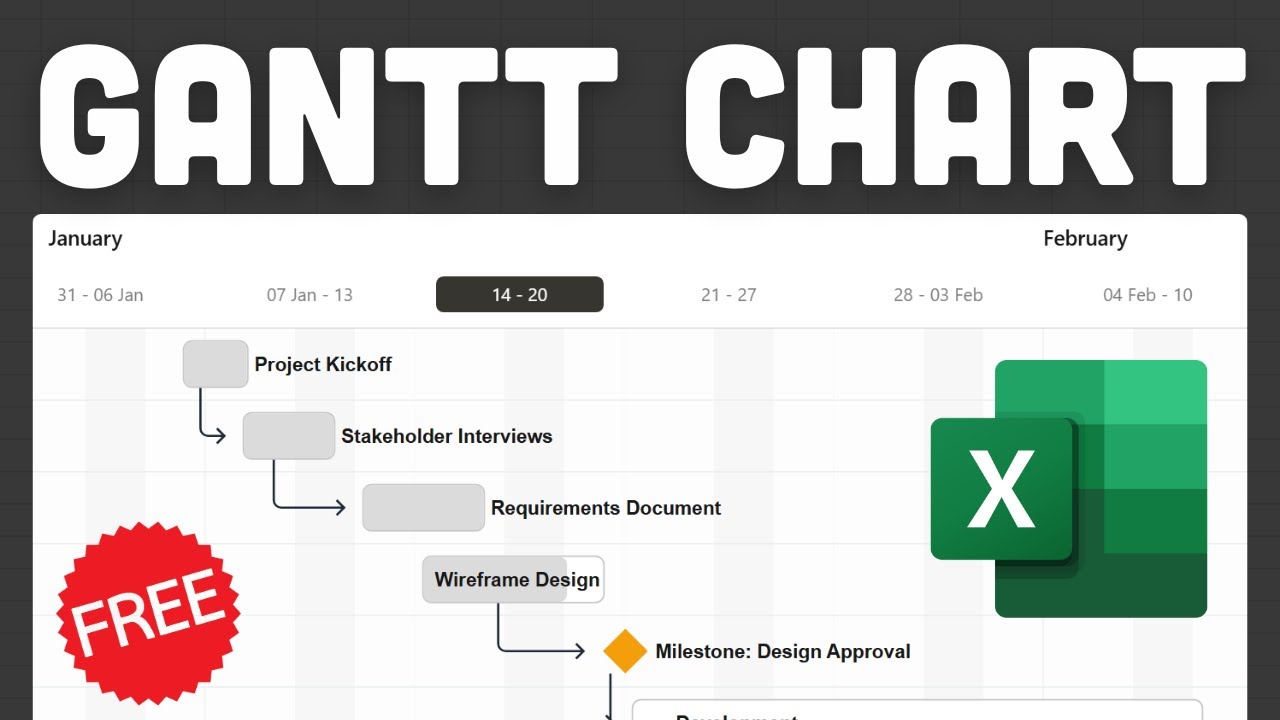
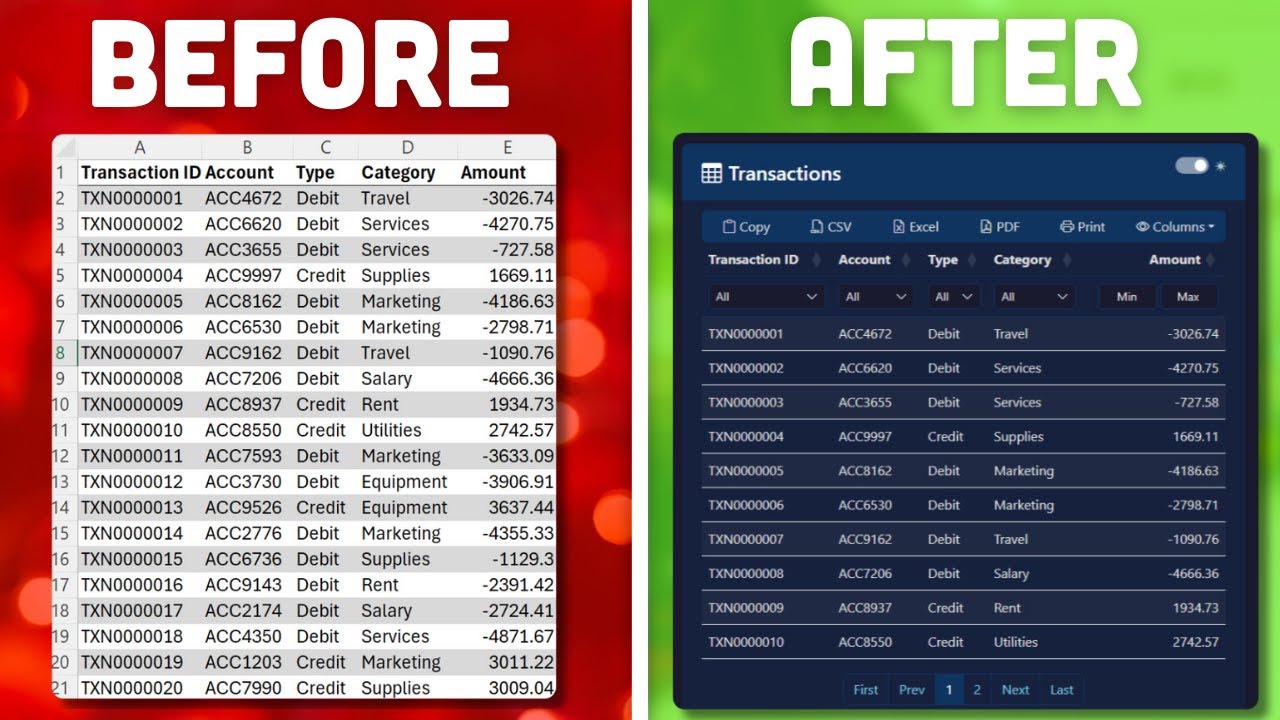
In this quick video I will show you how to turn any Excel table into a live website in about one minute and the process will be completely free. So for this, I will be using my Excel add-in called TablePop and you can find the download link for this free add-in in the description box below. Once you have it installed you will have a new ribbon in Excel and in here you will find the button Export to HTML. As soon as I click on this button this Excel table will be exported as an HTML file and will be saved in my Workbooks directory. So when I go to my workbooks directory I will now see this HTML file and when I open it this is what it looks like. So we've got our Excel data but on top of that we also got some filter options. We can also export this data to a PDF file. For example, hide or unhide certain columns. Or, if you want you can even group the data. For example, I can group it here by category. So this file is fully interactive and also searchable. Now. Currently, this HTML file is saved locally on my computer. So as a next step we need to take this HTML file and deploy it to the internet. And for this, I will be using a free service called Netlify. So if you go to the website netlify. com you can just create a free account. Now in my case I already have an account so I will just simply log in into my account. Once you are logged in you want to click on Add new project and from here you want to select Deploy manually. All right, and in here we can now drag and drop our project folder. So let's do this. Here, back in my directory I will create a new folder and I will call it Excel website. And the next step is important. So we need to rename our HTML file to index. html., So I will rename it here and now it says index. html. All right. With that in place I will take this file and drag it into my folder. And now I can take this project folder and drag it into Netlify. So, let me go here take this folder and just drag it in here. All right. So, once that is uploaded our website should be live and you can navigate to your website by clicking on this link here. All right, and here it is. We've got our live website now with all our Excel data. Now, if you want you can also change your name of this URL. So for this, we can go to our project and in here you want to go to Domain Management, click on Options and then edit the project name. So, let's say, for example I will call mine my cool Excel data. click on Save. And as soon as I do this I will get a new URL. And when I click on here you will now see that the URL has been updated. All right, and with that in place let me also show you how you can update this live website with your new data from Excel. So for this, let me go back to Excel. And let's say I want to change my header colors and the branding option here. I will just simply pick a different color here,. Save and close, export this data again to an HTML file and then right here I will once again rename it. So I will call it index. html. Then I will take this file and drag it into my folder and replace the one which we created earlier. All right, and with that in place we can go back to Netlify. And in here you want to go to Deploys and in this area we now want to drag the new folder. So let me go in here, take the new folder and just drag and drop it here. All right, so once that is done it will be published. And now, once again if I go back to my website and click the refresh button we will now see it now changes our color... All right. And that is basically how easy it is to turn any Excel table and turn it into a live website. Now, if you want you can also check out my other add-in which is called SimpleGantt. So with SimpleGantt you can create an interactive Gantt chart directly from your Excel data. So here I've got a simple project. So I've got some tasks in there with some start and end dates. And I can just take this Excel table and turn it into an interactive Gantt chart while clicking on this button here. So I will save my table here which is my Gantt data, click on OK. And now, once again I will have a new HTML file in my workbooks directory and just like before I will simply rename it to index. html. drag it into my project folder, replace the current file, go back to Netlify go to Deploys and then drag and drop my new updated project folder right in here. All right. Once that is done I can go back to my website click Refresh and now I've got an interactive Gantt chart. All right, so, as I said the links to both Excel add-ins will be in the description box down below. And for both add-ins, so for TablePop and also for SimpleGantt there will be a free version available. Once you sign up I will send you the add-in and also a link to the getting started video. In that short video I will explain you step by step how to install the add-in. Now, the installation is super easy and takes only two minutes. And if you want to learn more about TablePop and also SimpleGantt, then check out these videos here. All right, thanks for watching and I will see you in the next video.

Другие видео автора — Coding Is Fun

Ctrl+V

Экстракт Знаний в Telegram

Экстракты и дистилляты из лучших YouTube-каналов — сразу после публикации.

Подписаться

Дайджест Экстрактов

Лучшие методички за неделю — каждый понедельник