Turn Excel Tables Into Stunning HTML Reports (Free Add-in)

Turn Excel Tables Into Stunning HTML Reports (Free Add-in)

Machine-readable: Markdown · JSON API · Site index
Поделиться Telegram VK Бот
Транскрипт Скачать .md
Анализ с AI

Оглавление (2 сегментов)

Segment 1 (00:00 - 05:00)

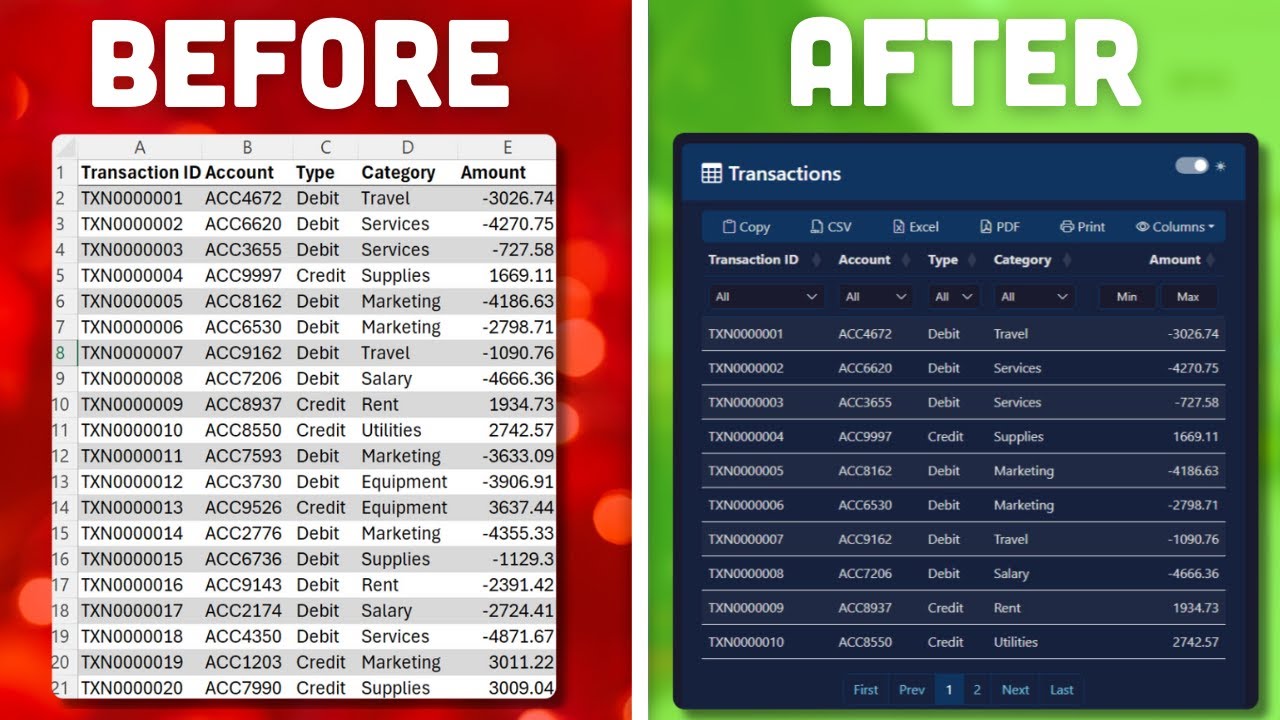
I have created a free Excel add-in that turns any Excel table into an interactive and searchable HTML web page with just one click of a button. So instead of sending messy spreadsheets around you can share a clean, professional and interactive table. So let me show you how it works. Now here I've got a normal Excel file with a couple of tables. So to turn those tables into an interactive web page let us use the TablePop add-in. Once you have installed it you will see a new ribbon in Excel. From here, all you really need to do is to click on the Export to HTML button. Now you will be asked which Excel tables you want to export. So in my case I've got several tables here in this workbook. So for this demo I will pick the first table here and then click on OK. As soon as you do that TablePop saves a local HTML file in your workbook's directory. And then it also asks me if I want to open the exported file. So if I click on OK here my default browser opens and now I have my interactive table. That means I've got all my Excel data displayed in a nicely formatted layout and I've also got filter options for the different columns. Also on top of that I can toggle the visibility of certain columns on or off. So this can be helpful if you've got a lot of columns in your table. Also you can use the built-in search builder to create more advanced searches. So here you can add as many search conditions as you want and the data updates automatically. And in addition to that you've got also a couple of export options. So you can copy the data to your clipboard or export it as a CSV, Excel or PDF file. So to show you that let me click on here to export it as a PDF and this is now what it looks like. All the data fits perfectly on the page everything is nicely formatted and it looks very professional. Now if the recipient also wants to export the data back to Excel they can also do that by clicking on here. This now saves a new Excel file and when I open it this is what it looks like. Now also one really neat thing about the export functionality is that you can export only certain rows. So for example, I can highlight a few rows by holding down CTRL while selecting them. Once I export the data now you will see that only the highlighted rows are included. Alright and last but not least there is also a really important feature which is the dark mode. So here you can use this toggle to switch between the light and the dark mode. Also just so you know the HTML file works completely offline and is super lightweight. So in my example with 9 columns and 1000 rows the file size is only about 140 KB. So you definitely won't have any problems attaching this file to an email for example. Now and also you don't have to worry about privacy. Because to create the HTML file none of your data ever leaves your computer. Everything runs locally. So TablePop will also work even if you don't have any internet connection. And as I mentioned earlier, the add-in is completely free. So if you also want to get started with TablePop all you need to do is to head over to my website and sign up for the free version. And I will of course make sure to leave the link in the description below. Once you download TablePop you will need to extract the zip archive. So here just right-click on the file and select extract all. Now inside the extracted folder you will find the TablePop add-in. But before installing it we need to make sure the file is unblocked because sometimes Windows blocks files downloaded from the internet. So to unblock it, right-click on the file and select properties. Then in the security section you might see an unblock option. If you do, tick it and then click on apply. And if you don't see that option that means the file is already unblocked and you're good to go. Alright, next up, just open a new Excel workbook. Then go to file and then options. In the Excel options window, click on add-ins and then click on go. In the new window that opens, click on browse. This will now open the default add-ins folder. Here we now want to add the TablePop add-in we just downloaded. So you can either copy and paste the add-in into this folder or simply drag it over while holding the mouse button. Once that is done make sure the TablePop add-in is selected and then click on OK. You will now see it's also listed here in the list. And with that, just click on OK and that's it. You have now successfully installed the TablePop add-in. So to test it out let me quickly create a table. Once I've entered some data I can press CTRL and T on my keyboard to turn this range into an Excel table. After that, I can go to TablePop and convert it to an HTML file. Alright, and that is basically the free add-in I have created for you. Oh, and by the way, this add-in will also work on macOS, not only Windows. Now, when you navigate to my website you will also see that I offer a paid version. Now, to be honest here this is mainly for those who really want to support me because the functionality is basically the same. The only differences are that the free version includes a small link in the header and footer that points back to my website and dark mode isn't available. So if you want to support me and grab the paid version which is of course greatly appreciated you will also receive a license key. You can then paste that key into the add-in to remove the branding and also enable the dark mode. Alright, so I hope this add-in is useful for you. Now, and if you are looking for something even more powerful that turns Excel data into a full dashboard you might also want to check out this video here. In that video, I will show you another add-in which is called Grafly. With Grafly, you just select your Excel range and choose a chart type and then it creates a fully interactive chart for you. Later on, you can then also combine those charts into an interactive web dashboard.

Segment 2 (05:00 - 05:00)

So if that sounds interesting to you, make sure to check out this video here. And as always, thanks for watching and I will see you in the next video.

Другие видео автора — Coding Is Fun

Ctrl+V

Экстракт Знаний в Telegram

Экстракты и дистилляты из лучших YouTube-каналов — сразу после публикации.

Подписаться

Дайджест Экстрактов

Лучшие методички за неделю — каждый понедельник